
Working with the next-gen script editor
Last updated: 10/21/2026In the Data load editor and Script, Next-gen editor provides settings for an enhanced script editing experience. This new experience includes dark mode, code folding, an embedded Command Palette, hover-based help, enhanced code refactoring and navigation, and a refreshed look and feel.
Turning on next-gen editor features
The next-gen editor is turned off by default. When you turn one or more of these features on, they are activated for you in the Data load editor for all applications, and in the Editor for all scripts.
Do the following:
-
Open the Data load editor in an application, or the Editor in Script.
-
In the toolbar, click the Next-gen editor drop down.
-
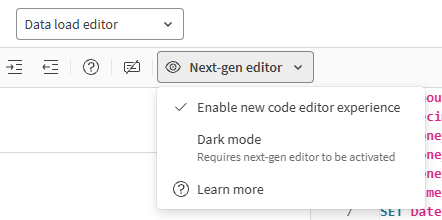
Turn on Enable new code editor experience.
Enable new code editor experience turned on in the Data load editor.
-
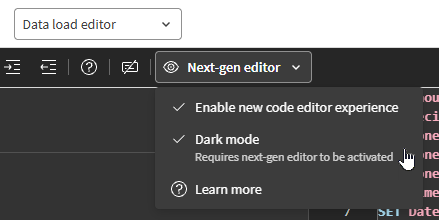
If desired, turn on Dark mode. This feature is only available when you have Enable new code editor experience turned on.
Dark mode turned on in the Data load editor.
Enhancements in new code editing experience
This section outlines the new features that are available when you turn on Enable new code editor experience.
Code assistance
Improved hover help
Hover over text as you edit the script for additional information and links to help documentation.
For more information, see Hovering over keywords.
Improved autocomplete
Autocomplete has been improved with a new drop down menu for suggestions. Additionally, parentheses and other enclosures automatically self-close while typing.
Code navigation
Code navigation has been enhanced with several new features.
Definition and reference linking
New options are available—both from the right-click and menu and via keyboard shortcuts—to navigate between recognized Qlik script constructs:
-
Go to Definition (Ctrl + F12): Go to the location where a script construct is defined.
-
Go to References (Ctrl + F12): Go to the location where a script construct is referenced. If multiple references exist, you can choose which reference to go to.
-
Peek options (Alt + F12): View definitions and references as pop-ups below the code you are currently inspecting.
For more information, see Definition and reference links.
Code folding
You can collapse and expand blocks of code by clicking  and
and  .
.
For more information, see Code folding.
Minimap
The minimap is shown in the top right, offering a fast way to preview the current script section without scrolling through it. This is especially helpful for long script sections.
For more information, see Minimap.
Code editing
Enhanced find-and-replace
Use the Change All Occurences option from the right-click menu (or keyboard shortcut Ctrl + F2) to find and replace selected code in the current section.
For more information, see Editing load scripts.
Enhanced multi-cursor selection
It is now easier to select and edit multiple script lines at a time for advanced and efficient editing.
For more information, see Multi-cursor selection.
The Command Palette is accessible both from the right-click menu and keyboard shortcuts. The Command Palette offers many advanced operations to support efficient writing of script.
Do one of the following:
-
In the editor, right-click and select Command Palette....
-
Use the keyboard shortcut Ctrl + Shift + P.
For some actions, you might have to select the text on which to perform the operation. For others, this is not needed.
After opening the Command Palette, you can search for available commands and view keyboard shortcuts for these commands.
For more information, see Command Palette.
Code refactoring
The editor now supports refactoring of known Qlik script constructs, such as the names of tables and variables.
To refactor code, use the Rename Symbol option from the right-click menu (or use the keyboard shortcut F2).
For more information, see Code refactoring.
Dark mode
With Dark mode, the script editor switches to a different color scheme with a dark background. Text and other elements appear in light colors, maintaining high contrast and readability.
Limitations
-
Some interface elements, such as right-click options, Command Palette, and hover help, are not translated in Swedish or Dutch.
-
Dark mode does not cover the entire user interface when activated. For example, the Qlik Cloud navigation bar and left panels, as well as some dialogs for data load and connections, do not appear in dark mode.