
Configuring sorting in a straight table
Last updated: 10/21/2026You can adjust the sorting of a Straight table in several ways:
Column sorting
By default, the order in which columns are sorted is set by the order in which dimensions and measures are added to the table. If you add the measure Sales first, it is presented first (leftmost) in the table. The next dimension or measure that is added is presented in the second column, and so on. The column sorting order can be changed in the properties panel, under Columns.
Row sorting
By default, rows are sorted by the first added dimension or measure, numeric values ascending, text values ascending. A small arrow under the column header shows by which column the table is sorted.
You can change the row sorting in the properties panel, under Sorting. Drag the dimensions and measures to change the sorting priority order. In many cases, sorting is not only affected by the first dimension or measure in Sorting, but also the following ones.
Example:
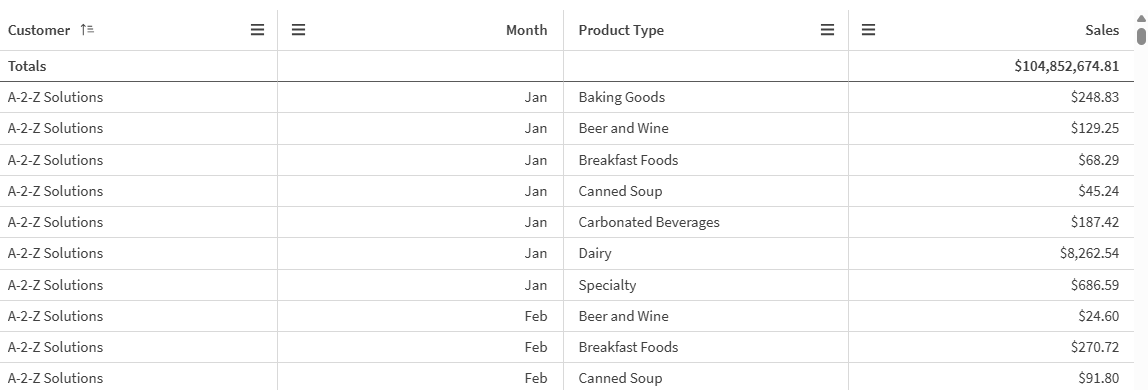
In the following screenshot, the rows are first sorted by Customer, then by Month, and then by Product Type. As you can see, the columns Customer and Month have several rows with the same values (A-2-Z Solutions and Month). The rows in Product Type are ordered alphabetically, but only those that were sold in January to the customer A-2-Z Solutions are displayed.
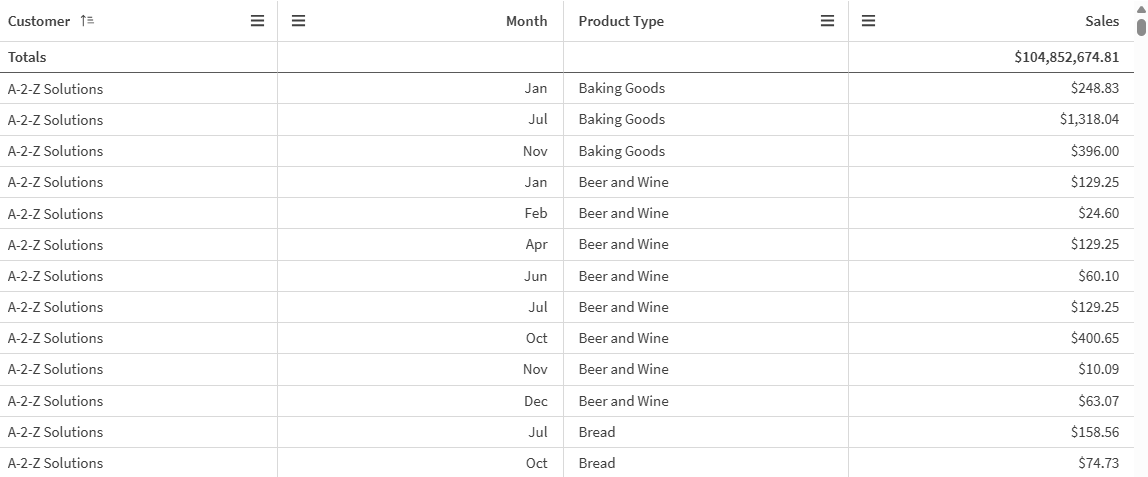
By changing the sorting order, so that secondary sorting is by Product Type, followed by Month, all Product Type items sold to the customer A-2-Z Solutions are presented in alphabetical order, whereas only the months when they were sold are displayed under Month.
Internal sorting
Each dimension and measure has a default (Auto) internal sorting order, which can be changed. Under Sorting, click the item you want to change and click the button to switch to Custom sorting. Changes made to the internal sorting of an item may not have any effect if the sorting is in conflict with an item with higher priority.
Interactive sorting
During analysis, you can set which column to sort on.
Do one of the following, depending on chart accessibility settings:
-
Click a column header multiple times to alternate between ascending and descending sort order.
-
Click
 in the column header and select Sort ascending or Sort descending.
Interactive sorting is session-based and is not saved. If you want your changes to the sorting to be persistent, you need to make the changes in the properties panel.
Users with Can edit rights can sort interactively using chart exploration, click Edit sheet, and save those changes to the original table.