
Application performance evaluation
Last updated: 10/23/2026Performance evaluation lets you evaluate the performance of your application as you develop it. Performance evaluation provides clear, actionable metrics such as response times for public sheets and objects. You can use these insights to identify performance bottlenecks and compare metrics between application versions.
Who can use performance evaluation
Performance evaluation is designed for application developers who want to measure and improve application performance.
To run a performance evaluation, you must have one of the following roles:
-
Tenant administrator
-
Space owner
-
Space member with one of these roles:
-
Can edit
-
Can edit data in applications
-
Can manage
-
Can operate (in managed spaces)
-
-
All users, including tenant administrators, must have at least view permission in the space to evaluate applications there.
-
Tenant administrators can always view performance evaluation results for all applications, even if they don’t have access permission for the space or application.
Using performance evaluation
You can evaluate the performance of any Qlik Sense application in Qlik Cloud. Use performance evaluation to:
-
Measure your application's performance.
-
Check if changes to your application affected performance.
-
Get suggestions for how you can optimize application performance.
Performance evaluation analyzes response times for all public sheets and objects in the application. Only published sheets are included, so sheets in development generally do not affect the results—however, the evaluation also assesses which fields are in use, which may result in analysis of unpublished sheets.
Use the results to identify objects that may need optimization. Keep in mind that the results are intended as general guidance and might not reflect exact performance in a live production environment.
Things to consider
-
Performance evaluation runs in a cloud-based environment, so response times may vary due to latency and bandwidth fluctuations.
-
To ensure more consistent comparisons, run evaluations close together in time.
-
Results may be affected if evaluations were run on analytics engines of different sizes.
For more information about performance factors, see Optimizing application performance.
Engines used for application evaluations
When you run an application performance evaluation in Qlik Cloud, the evaluation runs on an engine selected based on the evaluation settings.
With automatic settings, the evaluation uses the same engine size that the application would normally use when users open and work with it. This lets you evaluate performance in the expected runtime environment and see how the application is likely to perform for users. If the space doesn't support large applications, the evaluation is limited to a 20 GB engine (Standard-20).
With Evaluate with custom settings, you can select an available engine for applications up to 50 GB. This setting lets you test the application on a larger engine regardless of the space settings or whether the tenant has large application capacity.
A larger engine can improve response times, but performance can also depend on application design and optimization. Comparing evaluation results across engine sizes can help you understand the impact of engine capacity on performance.
You can select a custom engine size to temporarily test performance on a larger engine for a single evaluation run. To permanently assign an application to a larger engine, administrators can use the placement API. For details, see Assigning engines to improve application performance.
Engine sizes
-
Standard-20: Default engine (20 GB)
-
Large-40, Large-60, … Large-200: Larger engines (number indicates GB of memory)
| Engine | Memory | Up to cores* |
|---|---|---|
| Large-40 | 40 GB | 10 cores |
| Large-60 | 60 GB | 14 cores |
| Large-80 | 80 GB | 20 cores |
| Large-120 | 120 GB | 30 cores |
| Large-160 | 160 GB | 40 cores |
| Large-200 | 200 GB | 50 cores |
* “Up to cores” means that resources are provisioned as needed—though not all calculations can use all cores simultaneously.
Selecting a custom engine size for an evaluation
Instead of using the automatically selected engine, you can choose a specific engine size for a single evaluation run. This lets you compare application performance on a larger engine before deciding whether to assign that engine size permanently.
-
You can select any available engine size, regardless of whether your license includes Large application capacity.
-
If the selected engine is smaller than the application's requirements, the evaluation fails.
-
If evaluation quota is unavailable, the request fails immediately for tenants without large application capacity. For tenants with large application capacity, the request is re-queued until quota becomes available or the request times out.
Capacity usage
All performance evaluations count against an evaluation quota. This quota is separate from the large application capacity.
Large-engine evaluations use the quota allocated for evaluations and can be limited by the number of evaluations that can run at the same time.
Large-engine evaluations are intended to help you assess application performance on larger engines. Qlik may restrict or disable this capability to prevent abuse or excessive costs.
For more information about large application capacity, see Large application support.
Running performance evaluations on applications
To run a performance evaluation, you must have reload permission for the application. You can run a performance evaluation from:
-
Your activity centers
-
Application details
Running performance evaluations from your activity centers
Do the following:
-
In your activity center, click
 on the application you want to evaluate.
 -
Select Tools > Performance evaluation.
-
Click Evaluate application, then select Evaluate with automatic settings or Evaluate with custom settings. For details on custom engine size selection, see Running an evaluation with a custom engine size.
You will get a notification when the evaluation has completed.
Running performance evaluations from application details
Do the following:
-
In your activity center, click
on the application you want to evaluate. -
Select
 Details, then click
  Performance evaluation.
 -
Click Evaluate application, then select Evaluate with automatic settings or Evaluate with custom settings. For details on custom engine size selection, see Running an evaluation with a custom engine size.
You will get a notification when the evaluation has completed.
Running performance evaluations from an application
Do the following:
-
In your application, click the application name to open Details.
-
Select Tools > Performance evaluation.
-
Click Evaluate application, then select Evaluate with automatic settings or Evaluate with custom settings. For details on custom engine size selection, see Running an evaluation with a custom engine size.
You will get a notification when the evaluation has completed.
Running an evaluation with a custom engine size
Instead of the automatically selected engine, you can choose a specific engine size to see how the application performs on a larger engine.
Do the following:
-
Click Evaluate application, then select Evaluate with custom settings.
-
In the Custom engine size list, select an engine size.
-
Click Run now.
You will get a notification when the evaluation has completed.
Viewing evaluation results
Depending on whether you want to view a single performance evaluation or compare two performance evaluations, the results tables will differ.
Application performance evaluation results are kept for 90 days.
Viewing a single performance evaluation
Do the following:
-
To view the performance evaluation, click
on the application. -
Select
Details, then click Performance evaluation. All evaluations are listed in the performance evaluations table.Tip noteYou can also go to the results by clicking View results in the notification. -
Click View on the evaluation you want to view.
Evaluation overview.
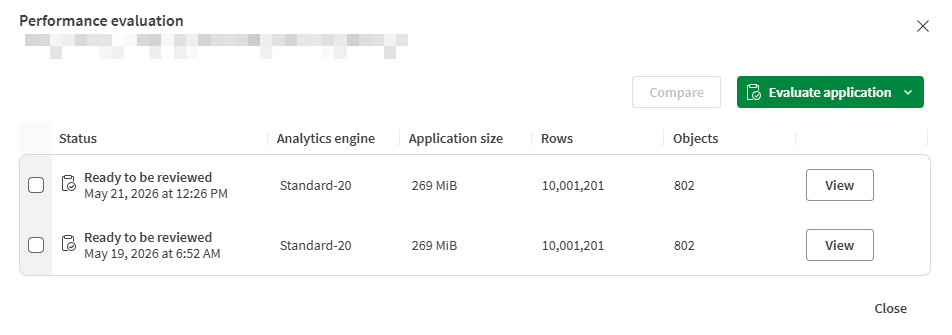
-
The results window provides an information on the performance evaluation results.
Tip noteSee Performance evaluation information for details on the specific metrics.Evaluation information tab.
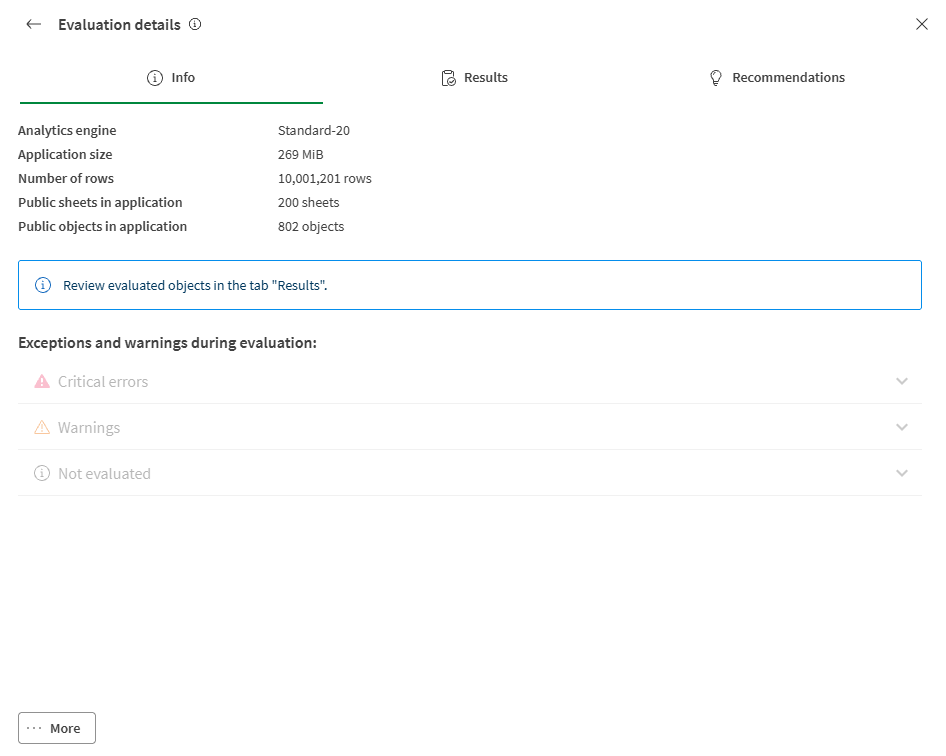
-
Select the Results tab to view more specific performance information.
Evaluation results tab.
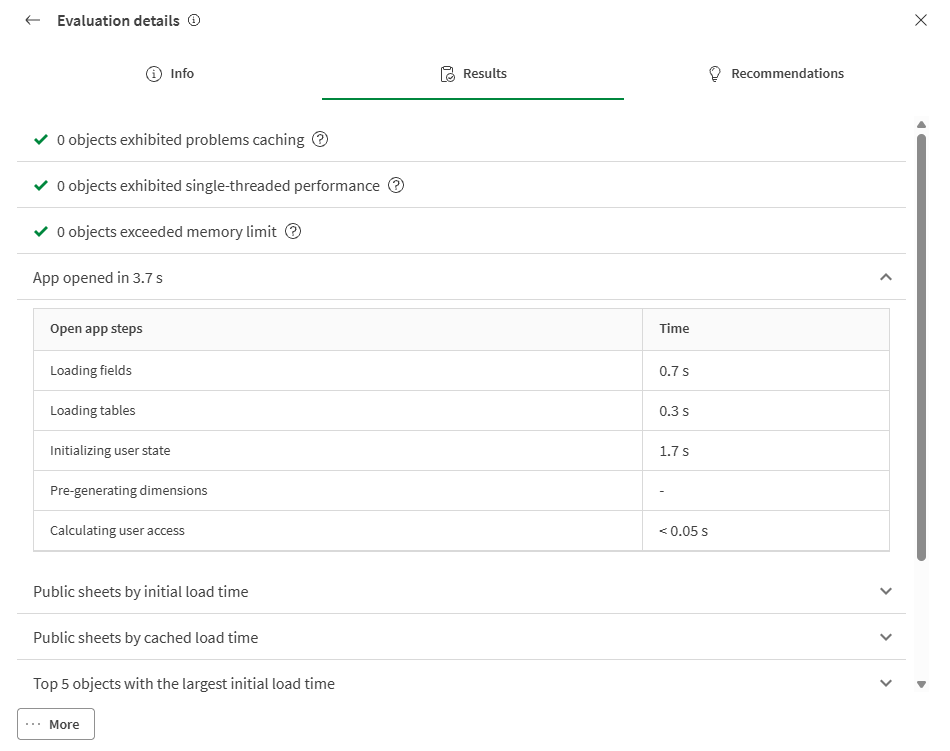
-
Click
 to show the details for each row. You can also click for each sheet to show the objects with longest load time.
 -
Click
 to open the application containing the object. The specific object is highlighted on the sheet.
 -
Select the Recommendations tab to view recommendations for improving application performance. For details on each recommendation, see Application performance recommendations.
Recommendations tab.
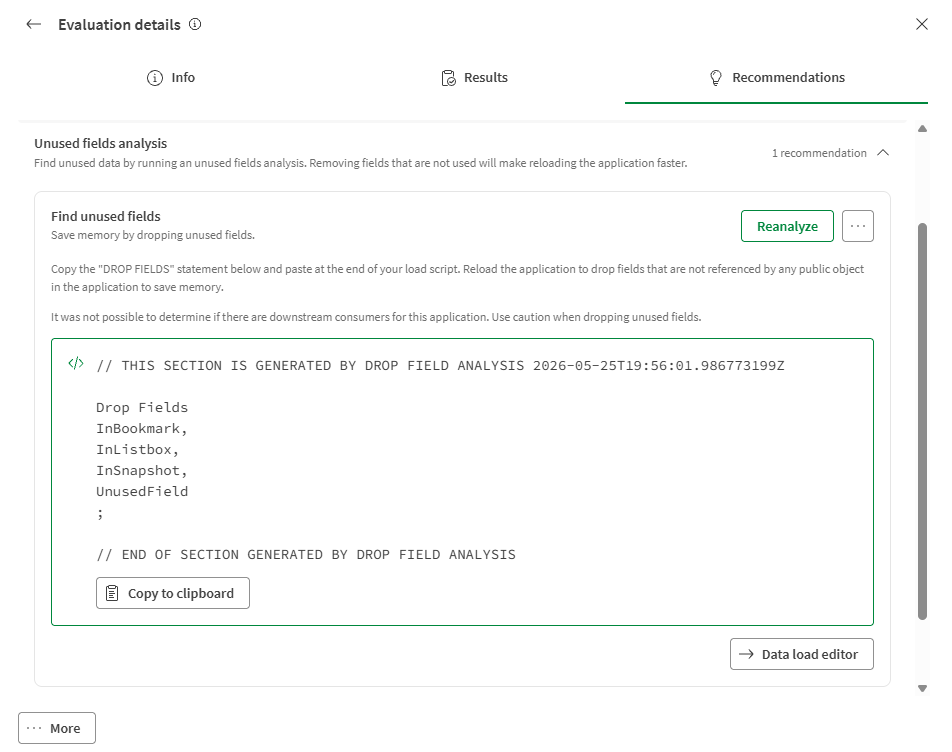
Comparing performance evaluations
Do the following:
-
To view the performance evaluation, click
on the application. -
Select
Details, then click Performance evaluation. All evaluations are listed in the performance evaluations table. -
Select the two you want to view, then click Compare.
Comparing two evaluations.
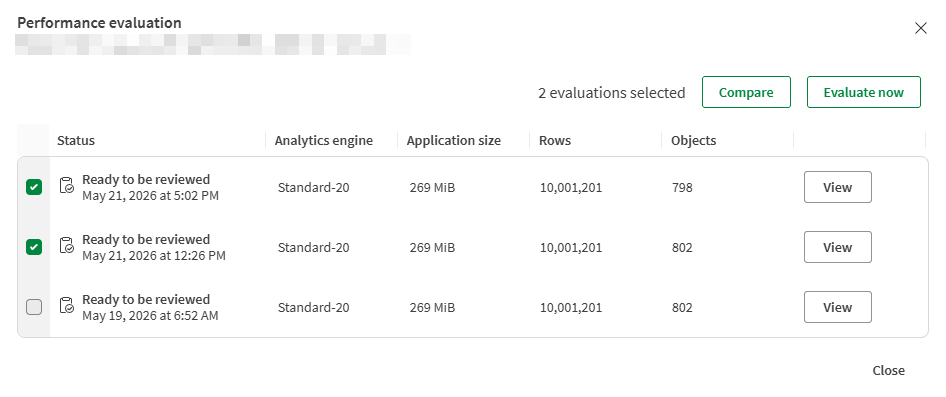
-
The evaluation results open in a window. See Performance evaluation information for details on the specific metrics. The Info tab shows the metrics for the selected performance evaluation, in addition to the difference between them. This includes the analytics engine used for each run, so you can see whether a difference in results is related to the engine size.
Evaluation comparison information.
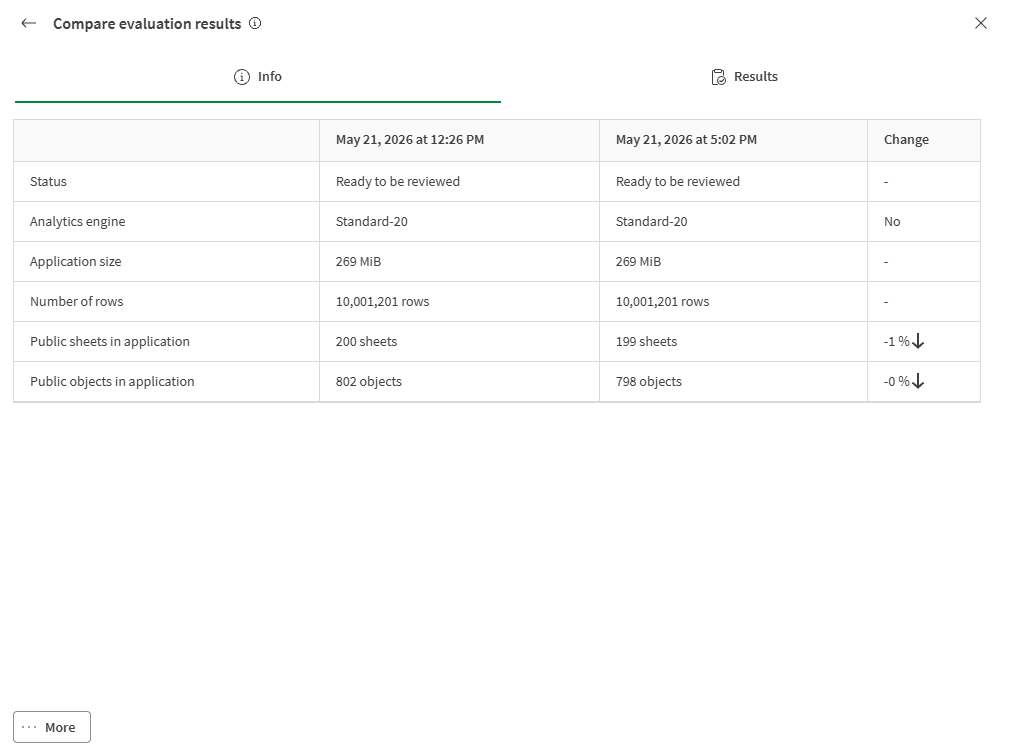
-
Select the Results tab to view more specific performance information. For each row, the absolute and relative change is shown.
You can sort on the Absolute change and Relative change columns. Click on the column heading to sort in ascending or descending order.
Evaluation comparison results.
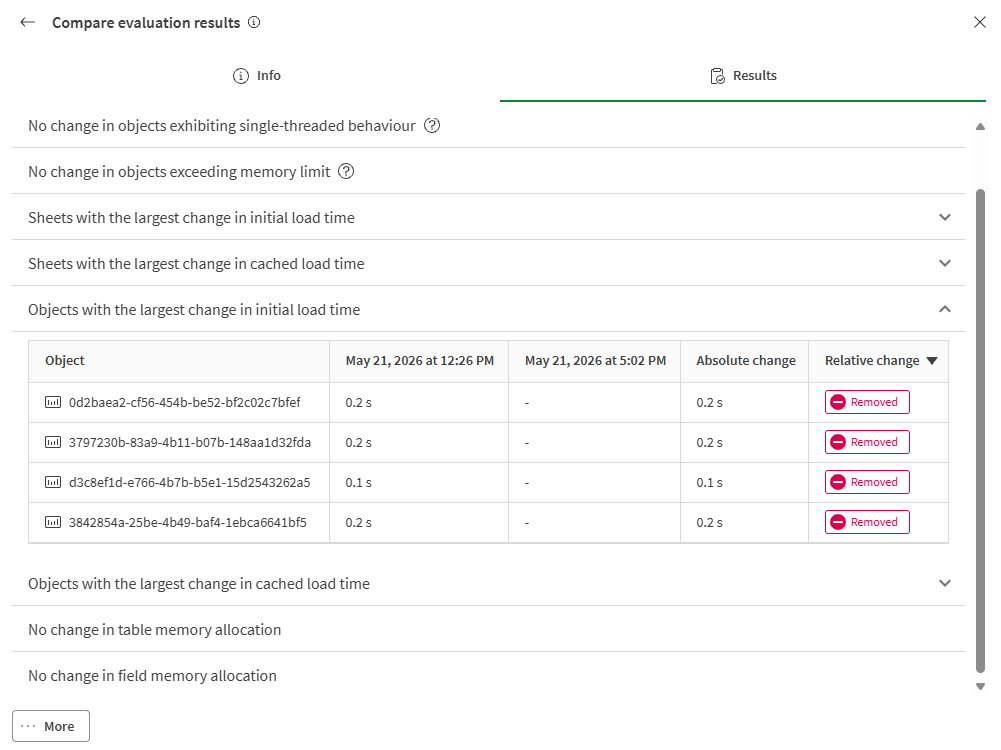
-
Click
to show the details for each row.
Performance evaluation information
The metrics are obtained either from the application metadata, or they are measured during the performance evaluation.
More menu to download log files for the selected evaluation.Info tab
The Info tab shows basic application information for the selected version.
Analytics engine
-
Shows the analytics engine used during the evaluation.
Status
-
Shows the status of the performance evaluation.
-
Ready for to be reviewed - the performance evaluation completed successfully.
-
Warning - the performance evaluation completed but some results are missing or inaccurate.
-
Failed to evaluate - the performance evaluation did not complete successfully and results are missing or inaccurate.
-
Application size
-
Source of metric: Application metadata
-
Shows the total size of the application data model in-memory with no initial selections.
Number of rows
-
Source of metric: Application metadata
-
Shows the total rows in contained in tables in the data model of the application.
Public sheets in application
-
Source of metric: Application metadata
-
Shows the total public sheets in the application.
Public objects in application
-
Source of metric: Application metadata
-
Shows the total public objects in the application.
Information noteIn the performance evaluation results, the public sheets are not counted as public objects.
Not evaluated
-
Source of metric: Measured
-
Lists all objects that could not be completely evaluated. Typical reasons may include if the object has a calculation condition that has not been met or if the object type is not supported for evaluation. For example, customer-developed extension behavior is not known to the application evaluator and may not be evaluated correctly.
Warnings
-
Source of metric: Measured
-
Lists objects that have issues related to application development, which might need to be addressed. For example, an object that functions in a sheet but has error codes, such as an object that does not have measures or dimensions, is listed under Warnings. If an object sends back a data page over a specified size that will also be listed here with Payload too large.
Critical Errors
-
Source of metric: Measured
-
Lists errors that stopped the evaluation from completing, along with tenant or application quotas. This may include application evaluator errors or other infrastructure issues that prevent completion, such as if the quota for application evaluation is exceeded or if the application exceeds the application evaluation size limit of 20 GB and cannot be opened.
Results tab
The Results tab provides more specific information about the performance evaluation.
Object exhibiting problems caching
-
Source of metric: Measured
-
Lists objects are not being cached efficiently. This is determined by loading each object twice. After having already loaded the object once, a faster response time can be expected because the result set should be entered into the cache. Improvements can potentially be made by adjusting the data model or expressions. For more information, see best practices for data modeling and using expressions in visualizations.
-
For more information about general application optimization, see Optimizing application performance.
Single-threaded objects
-
Source of metric: Measured
-
This section contains objects whose performance metrics indicate predominantly single-threaded processing during loading. If an object appears in this section and the response time for a user is deemed too long, the queries resulting from any expressions in the object should be reviewed for bottlenecks. Improvements can potentially be made by adjusting the data model or expressions.
-
For more information about single-threaded performance, see Fields from different tables inside an aggregation table are avoided where possible.
Objects exceeding memory limit
-
Source of metric: Measured
-
This section contains objects that have reached a memory limit, with a corresponding error code. These may include objects that reach an engine object sandboxing limit, exceeded total engine memory, or reached a related memory boundary.
App opening times
-
Source of metric: Measured
-
This section outlines each step in the process of opening the application and how long it takes.
Public sheets by initial load time
-
Source of metric: Measured
-
Measurement of response time per sheet. These measurements are extracted from the first time the application is traversed and each of the sheets are being requested one by one. The values contained within this section represent a worst-case load time per sheet. For each sheet, it is possible to view the top 5 slowest objects contained therein by clicking the arrow icon to the right of the row. This gives you a quick breakdown of where time is being spent while loading the sheet.
-
If the evaluation stops due to a timeout, the list of sheets is available as long as at least one sheet evaluation was completed. You can use this list to identify which sheets or objects to investigate first.
Cached sheet load time
-
Source of metric: Measured
-
Measurement of response time per sheet. When all sheets were requested the first time they should typically have been cached. These measurements are extracted from the second time the application is traversed and each of the sheets are being requested one by one. Also here, you can retrieve a breakdown of where time is being spent on an object-basis by expanding a row using the button to the right.
Initial object load time
-
Source of metric: Measured
-
Measurement of response time per object. These measurements are extracted from the first time the application is traversed and each of the objects are being requested one by one. The values contained within this section represent a worst-case load time per object.
-
For example, you can improve the use of caching by using master items. For more information, see Master items or variables used for expressions.
Cached object load time
-
Source of metric: Measured
-
Measurement of response time per object. When all objects were requested the first time they should typically have been cached. These measurements are extracted from the second time the application is traversed and each of the objects are being requested one by one.
Memory allocation per table
-
Source of metric: Application metadata
-
A list of tables included in the data model and the size thereof. This section will be of interest when attempting to minimize the size of the data model, which translates to improved responsiveness.
-
You can drop fields and tables that are not used in any expression in the load script to improve speed and resource usage. For more information, see Data model performance.
Memory allocation per field
-
Source of metric: Application metadata
-
A list of fields included in the data model and the size thereof. This section will be of interest when attempting to minimize the size of the data model, which translates to improved responsiveness.
-
You can drop fields and tables that are not used in any expression in the load script to improve speed and resource usage. For more information, see Data model performance.
Application performance recommendations
Recommendations are provided to help you optimize your application performance. In the recommendations view, recommendations are grouped by area, such as application design and data loading. Each recommendation appears as a card with a title, a description, and an action that opens the affected object, sheet, application, or Data load editor.
Recommendations provide general guidance. Exceeding recommended thresholds does not necessarily mean an application is incorrect or has poor quality, but it can indicate areas to review. For example, a high number of objects may affect performance, so if you experience issues with the application, use these recommendations as a starting point for investigation.
Add chart calculation condition
For timed-out charts
This recommendation appears when a chart times out during calculation. Use the action on the recommendation card to open the affected object on its sheet, then review how much data the chart tries to calculate before the user makes selections.
To improve performance:
-
Add a calculation condition so the chart renders only after users make selections that reduce the result set.
-
Use high-impact filters such as date, region, or product before showing detailed results.
-
If users need detail only after exploration, start with a higher-level aggregation or a drill-down approach.
-
Run the performance evaluation again to confirm that the timeout is resolved.
For more information about calculation conditions, see Optimizing application performance.
For charts with many dimensions
This recommendation appears when a chart has many dimensions and responds slowly. The recommendation card opens the object so that you can review the dimension setup and the amount of detail shown by default.
To improve performance:
-
Add a calculation condition so the chart is calculated only after the data has been narrowed.
-
Reduce the number of dimensions shown at one time, especially in wide or highly detailed tables.
-
Split one complex chart into smaller charts or separate sheets when users do not need all dimensions together.
-
Keep only the fields that are necessary for the analysis on the initial view.
For more information about visualization design best practices, see Optimizing application performance.
Shorten chart title, subtitle, or footnote
This recommendation appears when a chart title, subtitle, or footnote is unusually long. Long titles can increase overhead when many objects are loaded, especially across large applications.
To improve performance:
-
Keep the chart title short and focused on the question the chart answers. A maximum length of 256 characters is a generally recommended guideline.
-
Move explanatory text, assumptions, or instructions from the title into supporting sheet text or related documentation.
-
Use consistent naming for similar charts so that users can understand them without lengthy titles.
If several charts have long titles, review the sheet design as a whole and simplify the wording where possible.
Shorten sheet description
This recommendation appears when a sheet description is unusually long. Descriptions are useful for context, but very long descriptions can add unnecessary overhead.
To improve performance:
-
Keep the description to a short summary of the sheet purpose. A maximum length of 1000 characters is a generally recommended guideline.
-
Move step-by-step instructions or extensive business context into sheet text, notes, or related help content.
-
Review whether the description is still needed, especially for development-only sheets.
Reduce the number of charts in the application
This recommendation appears when the application contains a high number of charts on published sheets. Use the recommendation action to open the application and review which sheets and objects are actually needed by users.
To improve performance:
-
Remove or redesign charts that duplicate the same analysis.
-
Keep development or troubleshooting content on private sheets so that it is not included in evaluations of published sheets.
-
Consolidate related insights into fewer, clearer charts instead of many small visualizations.
-
Review older sheets and unpublished content regularly to prevent the application from growing unnecessarily.
For general design guidance, see Optimizing application performance.
Reduce the number of charts on a sheet
This recommendation appears when one sheet contains many charts. The recommendation card opens the affected sheet so that you can review what is calculated when users land on that sheet or make selections.
To improve performance:
-
Split crowded sheets into smaller, task-focused sheets.
-
Keep the most important charts on the sheet and remove secondary analysis that users rarely need.
-
Replace groups of similar charts with a single chart that uses selections or drill-down.
-
Check whether large tables can be hidden behind selections or moved to a separate analysis sheet.
Move calculated dimensions to the load script
This recommendation appears when calculated dimensions contribute to slow response times. Use the recommendation action to open Data load editor and review whether the dimension logic can be pre-generated during reload instead of at query time.
To improve performance:
-
Create fields in the load script for dimensions that are based on stable business rules.
-
Replace repeated chart expressions with reusable fields when the output does not need to change dynamically with every selection.
-
Reload the application and update the affected charts to use the new fields.
-
Run the evaluation again to compare the updated response times.
For more information about data model design, see Data model performance.
Simplify section access tables
This recommendation appears when section access handling contributes to slow loading. Open Data load editor from the recommendation card and review the script logic used in section access.
To improve performance:
-
Keep section access tables as small as possible by including only required users, groups, and reduction fields.
-
Remove unused columns and avoid complex transformations inside the section access section of the script.
-
If possible, prepare security data before it reaches the application load script.
-
Test the application with representative users after changes to confirm that data reduction still works as expected.
For more information, see Managing data security with Section Access.
Join tables and drop unused tables
This recommendation appears when the data model contains unnecessary tables or fields that increase load time and memory usage. Use the recommendation action to open Data load editor and review the model.
To improve performance:
-
Drop fields and tables that are not used in charts, expressions, or security logic.
-
In certain cases, joining tables can help improve performance. Examples of cases where table joining is suggested:
-
Multiple fact tables can be consolidated into a single table.
-
When calculations are spread out across many tables, consider joining tables to make the dependent tables closer to each other with fewer skips between tables.
-
-
Remove intermediate or staging tables that are no longer needed after data transformation.
-
After making changes, reload the application and validate the affected charts.
For more information, see Data model performance.
Reduce the number of charts and sheets
This recommendation appears when opening the application and initializing user state takes too long. Use the recommendation card to open the application and review how many sheets and objects are loaded as part of the published experience.
To improve performance:
-
Archive, unpublish, or remove sheets that users no longer need.
-
Keep landing sheets lightweight so the initial experience does not require many calculations.
-
Move specialized or rarely used analysis to separate sheets or applications.
-
Review whether large groups of objects can be replaced with simpler navigation and a smaller default layout.
Reduce the number of sheets in the application
This recommendation appears when the application contains many sheets, which can increase opening time and make navigation less efficient. Use the recommendation action to open the application and review which published sheets are still required for current user workflows.
To improve performance:
-
Remove sheets that users no longer need.
-
Merge sheets that cover similar analysis into fewer, clearer task-focused sheets.
-
Keep the default user path focused by placing key insights on a small number of primary sheets.
-
Move exploratory or infrequently used analysis to separate applications when possible.
For more information, see Optimizing application performance.
Unused fields analysis
This recommendation helps you identify fields that are loaded into the application but not used in visualizations, expressions, or other active logic. Removing unused fields can reduce reload time, memory usage, and model complexity.
To apply the recommendation:
-
Run the unused fields analysis by clicking Analyze.
-
Review the fields reported as unused and confirm that they are not needed for future development, bookmarks, or security rules.
-
If a script is generated and you are satisfied with it, click Copy to clipboard to copy it. Go to Data load editor, and paste the content at the end of your load script. Then reload the application.
-
After reloading, test important charts and sheets to confirm that the application still behaves as expected.
For more information, see Data model performance.
Drop unused fields
This recommendation appears when loading some fields takes longer than expected.
Consider running an unused fields analysis to identify fields that can be dropped to optimize performance. In the Recommendations tab, expand Unused fields analysis and click Analyze.
For more information about unused fields analysis, see Unused fields analysis.
Notification preferences
You can choose to be notified when performance evaluation has completed or failed.
Click on the application and select Notifications. The following notifications for performance evaluations are available:
-
Performance evaluation for this app is ready to be reviewed
-
Performance evaluation for this app has failed to run
Limitations
-
Only public sheets in the application, including all objects on them, are evaluated.
-
Not all chart objects are supported. Unsupported objects are listed in the Not evaluated section of the results.
-
Chart objects created from chart suggestions before June 2020 must be manually updated to be supported.
-
If the application uses section access to reduce data, the evaluation uses the data reduction for the current user. Run the evaluation as a user with access to the data set that you want to evaluate. Results from users with different section access aren't directly comparable.
-
Write tables are not supported in application performance evaluation.
Handling evaluation timeouts
If an application has many objects or is very large, a performance evaluation may time out. A timeout does not mean the evaluation failed completely. Even if the evaluation stops early, you can review the slowest sheets and objects that were evaluated up to that point and use them to investigate performance issues.
To reduce the risk of a timeout:
-
Make irrelevant sheets private before running the evaluation.
-
For published applications, you can duplicate the application and publish a copy with fewer public sheets.
Timeouts and memory warnings can occur with complex applications. They can indicate that optimization, reducing the amount of data, or using a larger engine may improve performance.
For more information about engine settings and supported application sizes, see Engines used for application evaluations and Large application support.