
Last updated: 10/23/2026
Reading orders specify the direction of the characters in strings of text and numbers.
The default reading order in a Qlik Sense application is left to right. You can change the reading order to right-to-left in your application preferences, for example, if your data or labels are in a right-to-left language such as Arabic or Hebrew.
The reading order affects the whole application.
When the right-to-left reading order is turned on from application options it affects the application in the following ways:
-
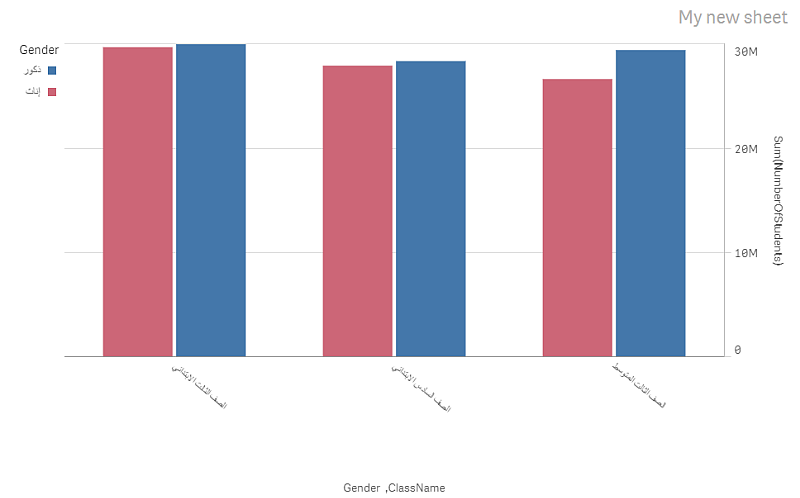
The visualizations are displayed from right to left.
-
User-provided text, such as sheet titles, will always be right aligned, regardless of the language of the provided text.
-
The reading order of the text is determined by the first strongly directional character in the string:
- A string that starts with a strongly right-to-left character, will be displayed from right to left.
-
A string that starts with a strongly left-to-right character will be displayed from left to right.
-
The main toolbar and the edit panels are not affected by this setting. For these, the language depends on the language setting of the web browser Qlik Sense is running in. For more information, see Changing language in Qlik Cloud.
A bar chart with the right-to-left reading order turned on.
Activating right-to-left reading order
Do the following:
-
In the application navigation bar, click
 and then click
  Settings.
 - In the menu, switch to the Appearance tab.
-
Turn Right-to-left on or off.
Visualization-specific settings
You might notice some visualizations in Qlik Sense can display right-to-left languages such as Arabic or Hebrew without right-to-left reading order being activated in the application. However, to guarantee that the right-to-left reading order is applied correctly at all times and to all visualizations in the application, you need to activate this setting in the application.