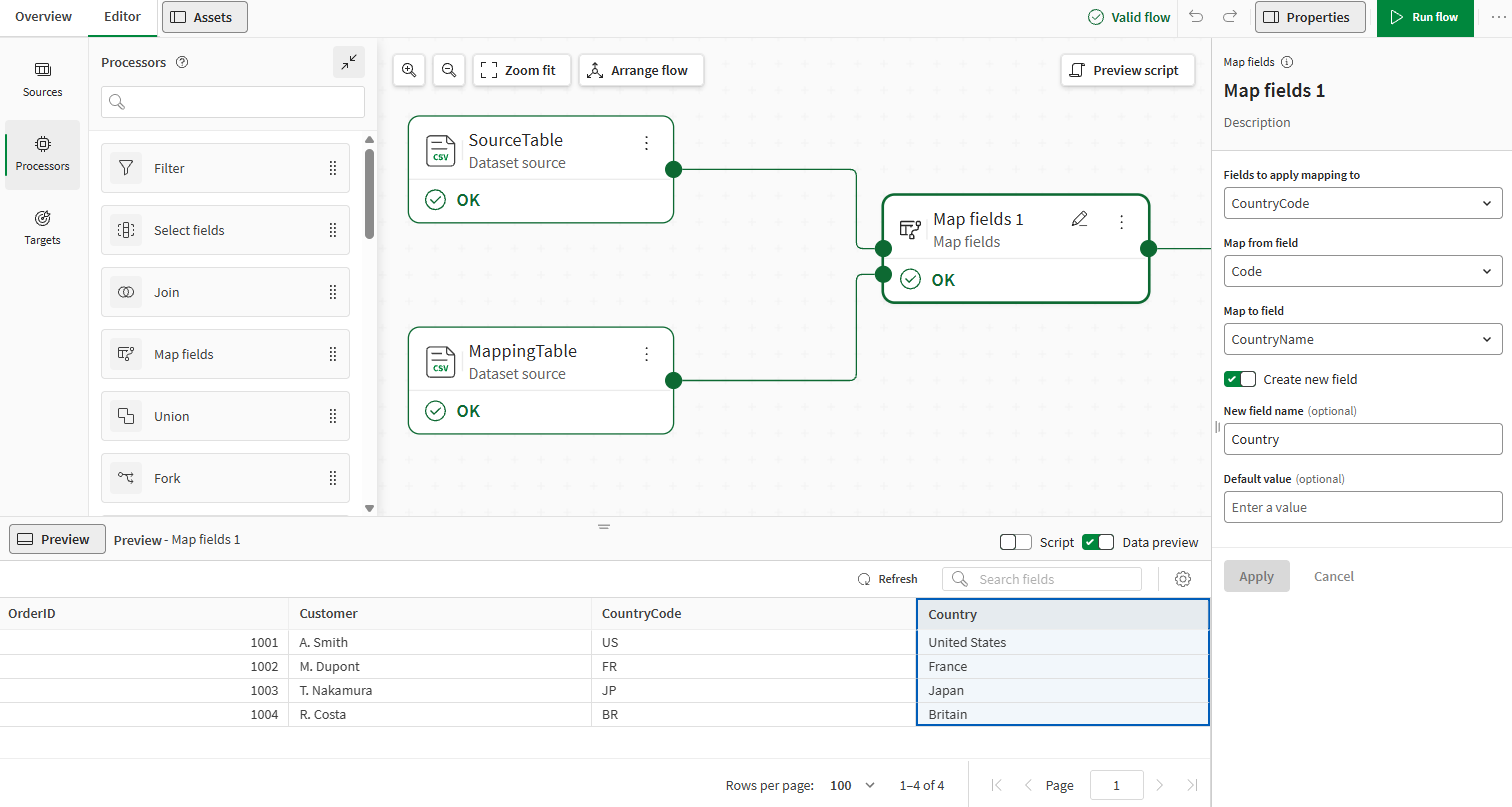
Map fields processor
Last updated: 10/28/2026Looks up values in a mapping table and replaces or adds a field.
The Map fields processor allows you to standardize or enrich a field by matching its values against a lookup table, without writing script. It is the no-code equivalent of loading a mapping table and applying it with the ApplyMap function in Qlik script.
Usage
The Map fields processor requires two input flows:
-
Source table (upper flow): A table containing the data you want to map to values in the mapping table.
-
Mapping table (lower flow): A table containing the values to look up and substitute in the source table.
Map fields generates a single output flow.
Properties
Properties to configure in order to map your fields using Map fields.
| Property | Configuration |
|---|---|
| Fields to apply mapping to |
Select one or more fields from the source table whose values you want to look up in the mapping table. |
| Map from field |
Select the field in the mapping table that contains the values to match against the fields selected in Fields to apply mapping to. This is the key, or first, field of the mapping table. |
| Map to field |
Select the field in the mapping table that contains the values to substitute in the output. This is the value, or second, field of the mapping table. |
| Create new field |
Enable this toggle to write the matched values to a new, custom-named field instead of replacing the values in the selected Fields to apply mapping to. This option is hidden when more than one field is selected in Fields to map. |
| Default value |
Value substituted in the output when a value from Fields to apply mapping to is not found in the Map from field of the mapping table. |
To rename the processor or edit its description, point your mouse over the name or description to change in the Properties panel and click the  Edit icon.
Example
The data used as source in this example contains customer orders with a two-letter CountryCode field that you want to replace with the full country name.
| OrderID | Customer | CountryCode |
|---|---|---|
| 1001 | A. Smith | US |
| 1002 | M. Dupont | FR |
| 1003 | T. Nakamura | JP |
| 1004 | R. Costa | BR |
| Code | CountryName |
|---|---|
| US | United States |
| FR | France |
| JP | Japan |
Connect both tables to a Map fields processor and configure the properties as follows:
-
Fields to apply mapping to: CountryCode
-
Map from field: Code
-
Map to field: CountryName
-
Create new field: enabled, named Country
The output flow keeps all the original fields from the Source Table and adds a new Country field. Records with a CountryCode found in the mapping table, such as US, FR, or JP, get the corresponding full country name. The record with CountryCode BR, which is not in the mapping table, gets the Unknown default value.
| OrderID | Customer | CountryCode | Country |
|---|---|---|---|
| 1001 | A. Smith | US | United States |
| 1002 | M. Dupont | FR | France |
| 1003 | T. Nakamura | JP | Japan |
| 1004 | R. Costa | BR | Britain |