
Filter processor
Filters data based on conditions.
The Filter processor allows you to filter input data based on one or more conditions set by operators. You can also split the result between two output flows, for matching and non-matching rows.
Usage
-
The Filter processor requires one input flow and can generate up to two output flows: one for data that matches your filters, and one for data that does not match.
-
When using operators (=, <, >, etc.) to compare two fields containing null values, all rows are considered non-matching rows and will be available in the second output of the Filter processor.
-
Click the + icon in the processor configuration panel to create more than one filter.
Properties
Properties to filter on the values of your fields.
| Property | Configuration |
|---|---|
| Filters |
|
| Select rows that match |
In case you have defined multiple filters, select the type of matching to apply to the rows to be filtered:
|
To rename the processor or edit its description, point your mouse over the name or description to change in the Properties panel and click the  Edit icon.
Example
The data used as source in this example contains customer information such as names, age groups, and occupation.
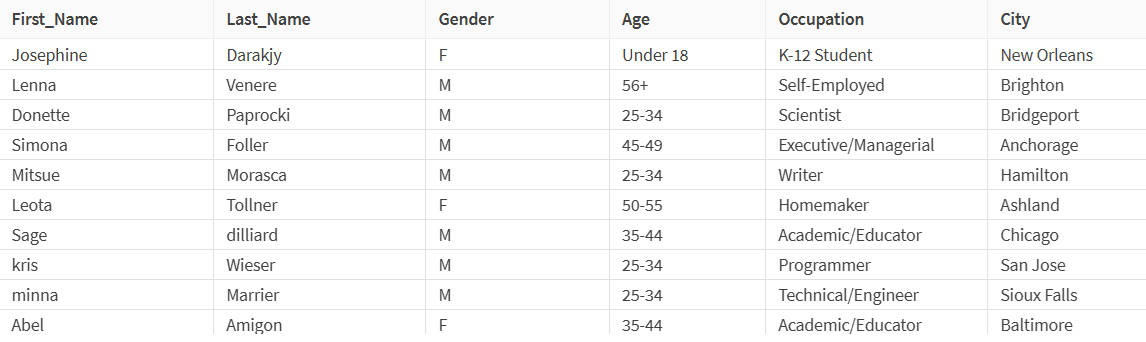
Let's say you want to focus on a specific demographic group for your analytics, namely customers from the 18-24 range, and unemployed. You can use the Filter processors to isolate the corresponding data before using it.
In the processor properties, for your first filter, select Occupation as field to process, = as operator and Unemployed as value to look for. Click the + icon to create another filter, this time for the Age field with a value equal to 18-24.
At the bottom of the processor configuration panel, in the Select rows that match list, you can choose from three different options:
-
If you select All filters, all the unemployed customers from the 18-24 age group will be returned.
-
If you select Any filter, all the unemployed customers and all the people from the 18-24 age group will be returned.
-
If you select None of the filters, all the customers that are not unemployed or from the 18-24 age group will be returned.
In this example, All filters is selected.

When running this data flow, all the matching rows will be sent to a specific target file, while the rest will be sent to another target.