
Defining pages in PowerPoint report templates
Last updated: 10/27/2026Add pages to your PowerPoint report template to create separate, filtered slides in the report based on unique dimension values—or charts—from your application.
Pages are created in the add-in window, in the Levels and pages tab.
Applies to
This content applies to designing PowerPoint report templates using the Qlik add-in for Microsoft PowerPoint. See Qlik add-in for Microsoft PowerPoint.
Similar functionality exists for Word and Excel templates, with some notable differences. For more information, see:
Adding a page
Adding a page tag to a PowerPoint slide will generate a separate, filtered slide for each unique value or chart row linked to it. Data in each slide are filtered by the related value of the field, or row in the chart source table. You can create a page using the following items:
-
Field: If you use a field as a page, you will have a worksheet for each distinct value in the field.
-
Chart: You can also use a chart as a page.
Do the following:
-
Click the
 icon on the top toolbar of the add-in. A list of available page objects appears.
 -
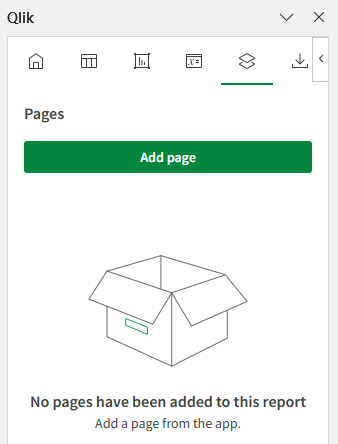
Click Add page.
Levels and pages tab in Qlik add-in for Microsoft PowerPoint. This tab allows you to add a new page object, or revisit one you have already added.
-
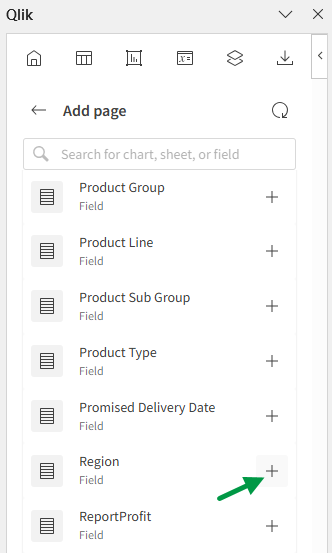
Expand an item in the list. Your list will contain Fields, as well as each sheet containing compatible charts. Click the
 icon to the right of the item you want to use as a page.
In this example, the page tag will create a new section for each unique City value in the application.
Select a field or chart to use as the page
-
After you click
, a list of field tags appears under Select fields to add (optional). If you choose to include the field tag, it will be inserted at your current position on the slide. In the generated report, the field tag will appear on every slide generated by the page tag. It will display the field value to which the page applies. For more information about field tags, see Field tags. -
Optionally, edit the Slides property if you want to use more than one slide per unique item in the page. For more information, see Customizing the Slides property.
-
Click Add. The following occurs:
-
The current slide becomes a page object. The slide is tagged as a page, but the tag itself is not visible.
-
Any field tags you selected are added to the slide, and are visible.
-
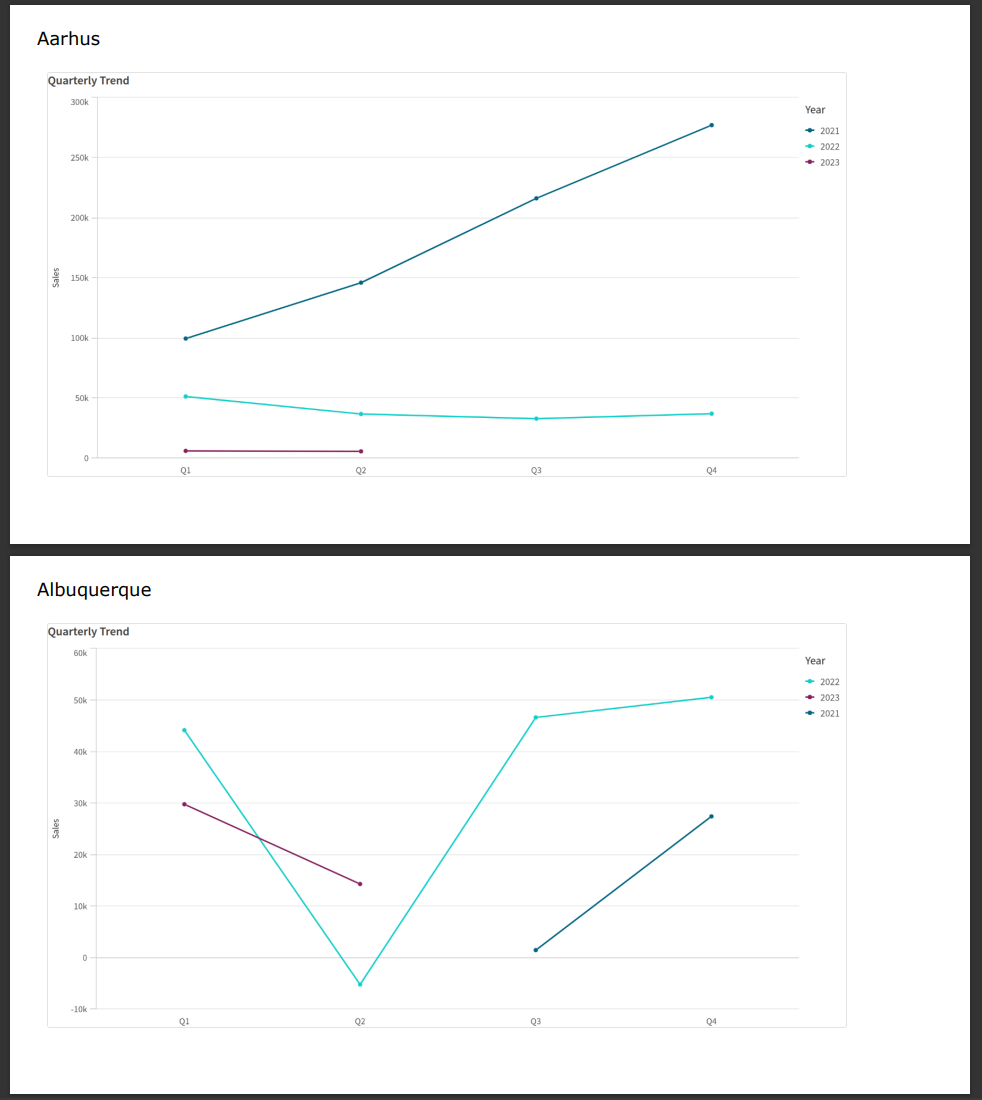
With some adjustments and the addition of a chart image, report output might look like the following. A new slide is generated for each city.
Report generated from template which uses a page tag for a City field
Revisit any page object you have added at any point for modifications to its configuration, to locate it in the presentation, or to add another instance of it. Click the icon in the add-in to open the Levels and pages landing page, and click  to navigate to the slide where it is inserted. Adjust any settings as needed in the add-in.
Customizing the Slides property
With the Slides property, you can have more than one page field in a presentation, but on separate slides.
Example:
You have a Year field that covers 2023, 2024, and 2025. You can add the Year field on the first slide, but have each Year span over three slides.
To achieve this, you can type 1-3 for the Slides property.
In this example, the result will be:
- Slide 1 - 2 - 3: filtered for 2023
- Slide 4 - 5 - 6: filtered for 2024
- Slide 7 - 8 - 9: filtered for 2025
Field tags
In the Qlik add-in for Microsoft PowerPoint, a field tag is a unique tag that can be added to a slide that is defined as a page tag. Field tags are not objects. Instead, they are elements within page objects, and they are optional.
For each field or chart you are adding as a page, a field tag can optionally be added. The field tag displays the field value (or chart row) for which the page is looping the data generation. Within a page, a field tag often functions as a section header, but it still contains tabular data.
To see the fields and field tags for a page, open the Levels and pages tab in the add-in, and click . Expand Fields in the page's settings.
Field tags can be removed by deleting or clearing the area in which they have been added. Add a field tag back by clicking Add field tag under Fields in the object's settings.
A field tag can be set to Keep source formats, or this setting can be turned off to apply custom formatting using native Microsoft PowerPoint features.
Removing a page
Like with any other object, you can remove a page from the report template, and from the list of that object type in the add-in pane.
Do the following:
-
Click the
icon on the top toolbar of the add-in. -
Click
next to the page object. -
Click Delete in the bottom of the add-in window.
This removes the tags and the object from the corresponding object list.
If you instead use PowerPoint features to delete a page object, it will not be inserted in the generated report. However, the object will still appear in the list of added objects. This means you can easily re-add the object later.