
Adding levels to Word report templates
Add levels to your Word report template to create separate, filtered sections in the report based on unique dimension values—or chart source table rows—from your application.
Levels are created in the add-in window, in the Levels and pages tab.
Applies to
This content applies to designing Word report templates using the Qlik add-in for Microsoft Word. See Qlik add-in for Microsoft Word.
Similar functionality exists for PowerPoint and Excel templates, with some notable differences. For more information, see:
Adding a level
Levels cycle report elements through all the distinct values of a field, or per row in the chart source table. Use levels to create sections in your report. Within a level, you add the content for which you want to have filtered, repeated sections.
You can use the following items as levels:
-
Field: If you use a field as a level, a filtered section is added for each distinct value in the field.
-
Chart: You can also use a chart as a level.
The following are examples of how you can use levels in the template:
-
Create a level for a Year, YearMonth, or YearQuarter dimension. Within the level, nest tabular data with dimensions and measures like Product Group, Store Number, and Sales.
-
For a report detailing support ticket progress, create a level for an Incident Status dimension. Within the level, nest tabular data with dimensions and measures like Ticket ID, Assignee, Ticket Opening Date, Ticket Closing Date, and Time Spent to Close.
Do the following:
-
Click the
 icon on the top toolbar of the add-in. A list of any existing levels appears.
 -
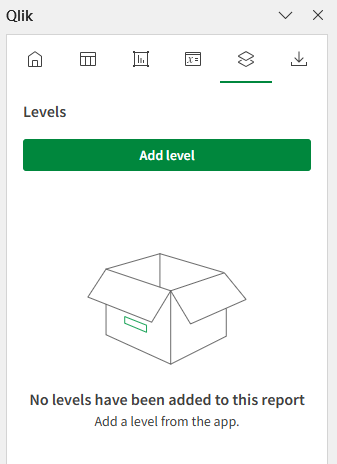
Click Add level.
Levels and pages tab in Qlik add-in for Microsoft Word. This tab allows you to add a new level or revisit one you have already added.
-
Expand an item in the list. Your list will contain Fields, as well as each sheet containing compatible charts. Click the
 icon to the right of the item you want to use as a level.
 -
After you click
, a list of field tags appears under Select fields to add (optional). If you choose to include the field tag, it will be inserted at your current position in the document. In the generated report, the field tags appear in every section generated by the level tag. For more information about field tags, see Field tags. -
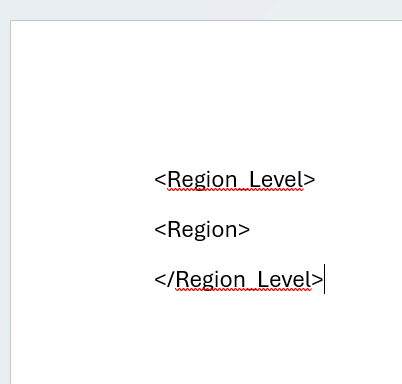
Click Add. The level tags are added to the currently selected area. Any field tags are inserted between the level tags.
Level and field tags added to a Word report template.
-
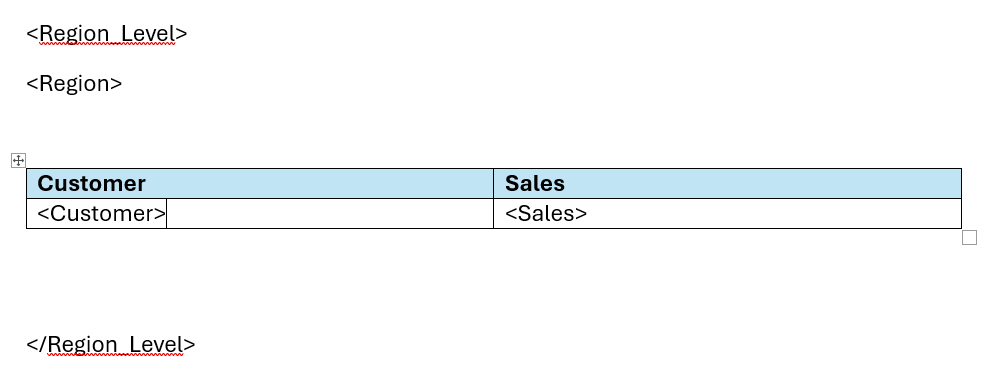
After the level and field tags are inserted, move them around as needed and begin adding content inside the level.
Report template modified to include additional tabular data within the level tags
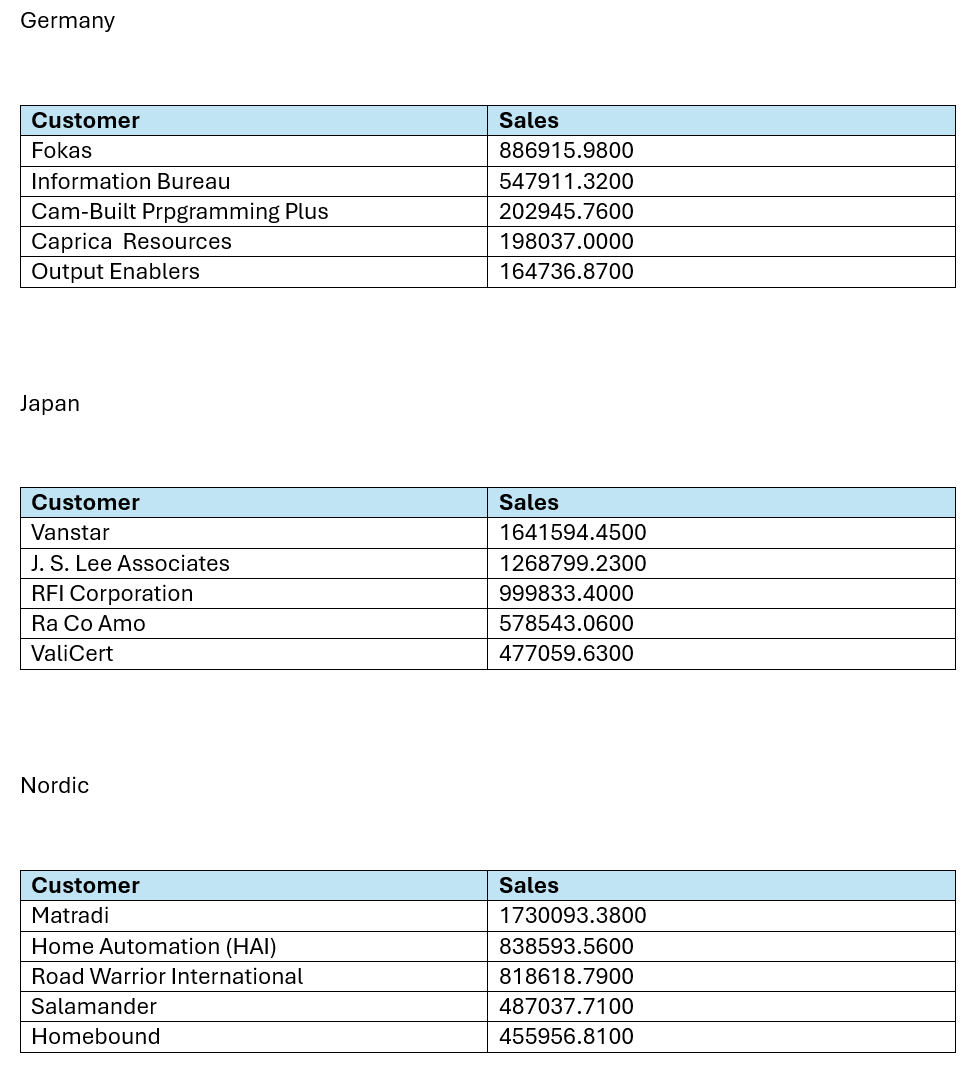
The report created from the template above might look like the following.
Word report generated from template which uses a level for a Region field
Revisit any level object you have added at any point for modifications to its configuration, to locate it in the document, or to add another instance of it to the document. Click the icon in the add-in to open the Levels and pages landing page, and click  to navigate to the area where it is inserted. Adjust any settings as needed in the add-in.
Field tags
A field tag is a unique tag that can be added inside a level tag. Field tags are not objects. Instead, they are elements within level objects, and they are optional.
For each field you are adding as the level, a field tag can optionally be added. The field tag displays the field value for each discrete entity on which the level is looping the data generation. Within a level, a field tag often functions as a section header. It contains:
-
For single fields added as tags, a single field value.
-
For charts added as tags, a table with each column in the chart source table.
Access the fields and field tags for a level by selecting the area containing the level, and looking under Fields in the object's settings.
Field tags can be removed by deleting or clearing the area in which they have been added. Add a field tag back by clicking Add field tag under Fields in the object's settings.
A field tag can be set to Keep source formats, or this setting can be turned off to apply custom formatting and styling to the cell using native Microsoft Word features.
Removing a level
Like with any other object, you can remove a level from the report template, and from the list of that object type in the add-in pane.
Do the following:
-
Select the area where the object is located.
-
Click Delete in the bottom of the add-in window.
This removes the tags and the object from the corresponding object list.
If you instead use Microsoft Word features to delete a level, it will not be inserted in the generated report. However, the object will still appear in the list of added objects. This means you can easily re-add the object later.