
Example - Creating a tabular report
Last updated: 10/23/2026In this example, you will build an Excel-based report to analyze sales by product, year, and region.
Example result

Before you start
Create a new template
Get started
Do the following:
-
Open Microsoft Excel and create a new XLSX file. This will be your template file.
-
Click the Qlik add-in icon in the ribbon bar under the Home tab.
Open the Qlik add-in by clicking the Qlik icon in the ribbon bar

-
Log in to the add-in using your Qlik Cloud credentials.
Connect to the application
Do the following:
-
Select the Space where you have uploaded the application.
-
Under App, select the application.
-
Click Save.
Connecting to the uploaded application in the template
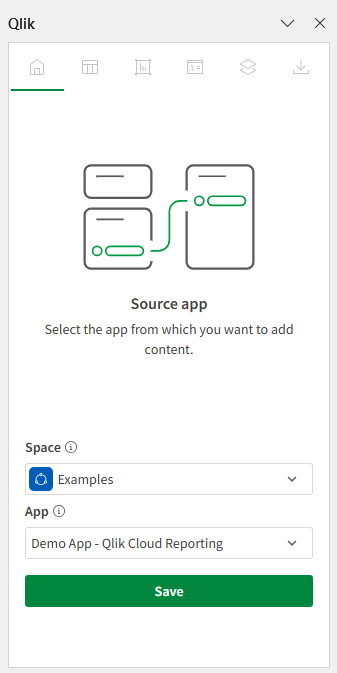
The template is now connected to the application.
Add a level and a page
With levels and pages, you can automate the creation of filtered worksheets, cycling report data for each dimension or chart value:
-
A level creates a new section for each dimension or chart value.
-
A page create a new worksheet for each dimension or chart value.
Add a level
Add a level object to generate a separate section on the same worksheet for each unique value of a dimension or chart. In this case, create a new section for each region.
Do the following:
-
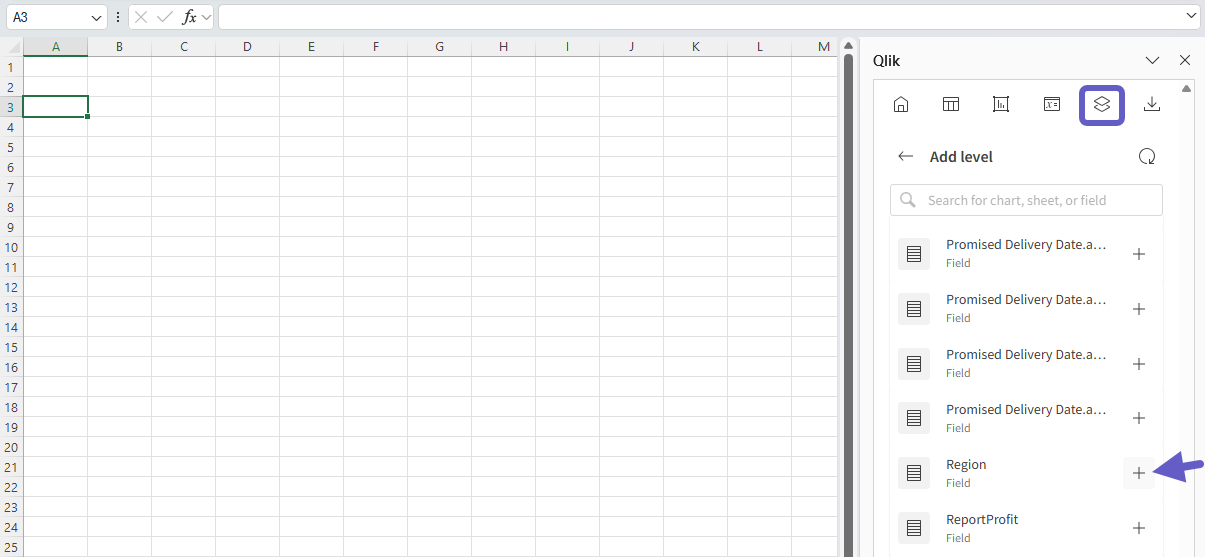
In the worksheet, select cell A3 to put it in focus.
-
In the add-in, click the
 icon on the top toolbar.
The Levels and pages section opens.
-
Click Add level.
-
Expand Fields.
-
Click
 next to Region.
Selecting the field to use as a level
-
Under Select fields to add (optional), check the box for Region.
This will insert a field tag with the level tags, creating section headers for each value.
-
Click Add.
After creating the level, add 3 rows under the <Region> field tag. This is where the report data will be added.
Add a page
Add a page object to generate separate worksheets for each unique value of a dimension or chart. In this case, create a new worksheet for each year.
Do the following:
-
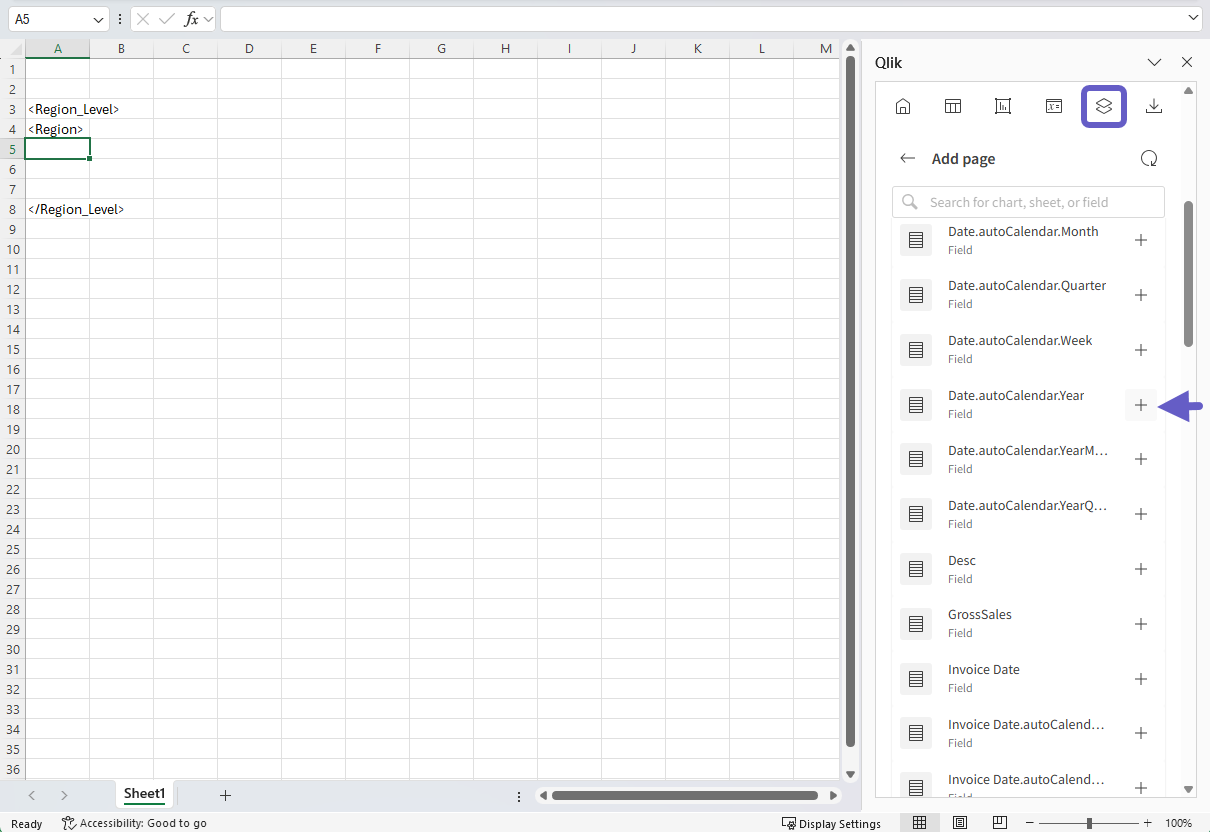
In the add-in, click the
icon on the top toolbar.The Levels and pages section opens.
-
Click Add page.
-
Expand Fields.
-
Click
next to Date.autoCalendar.Year.Selecting the field to use
-
Under Select fields to add (optional), leave Date.autoCalendar.Year unchecked.
-
Click Add.
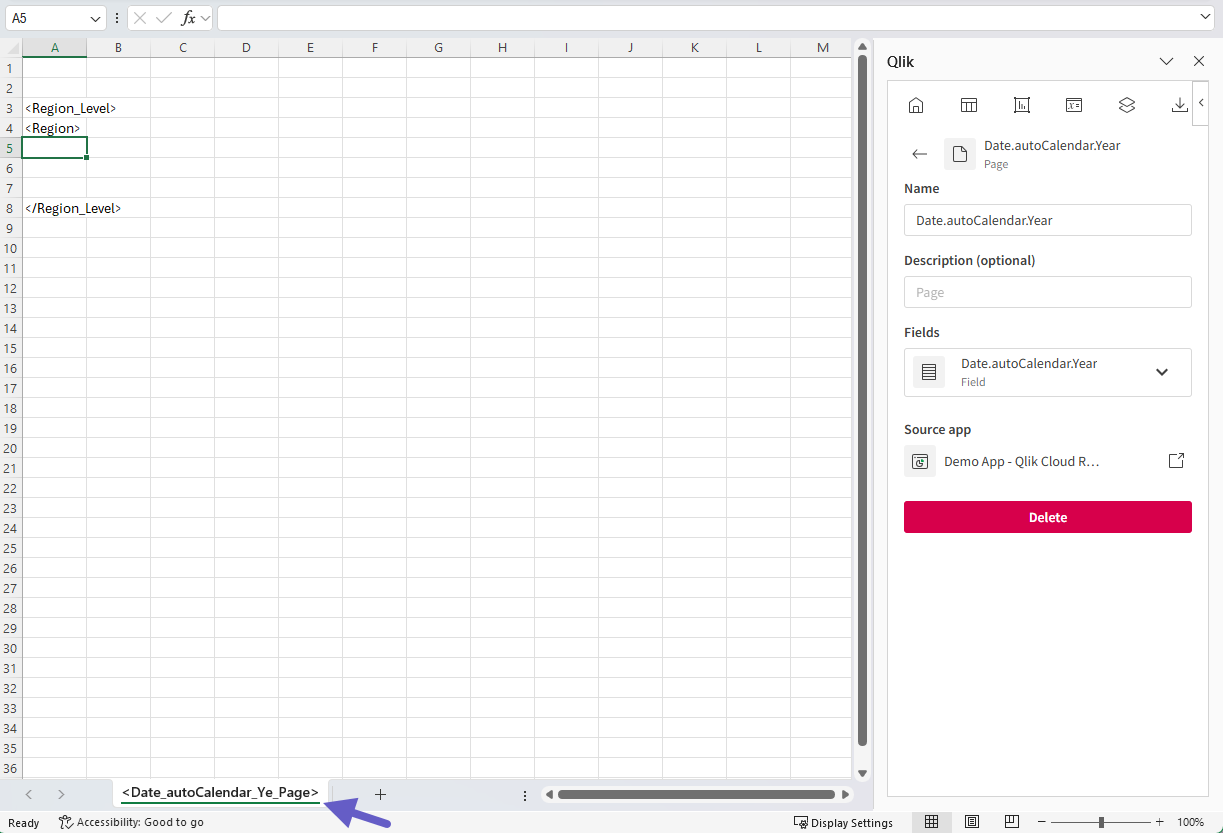
The worksheet title is updated with the name of the field used for the page object.
Template with level and page added
Add a chart image
Now that you have defined a level and page, add a chart image.
Do the following:
-
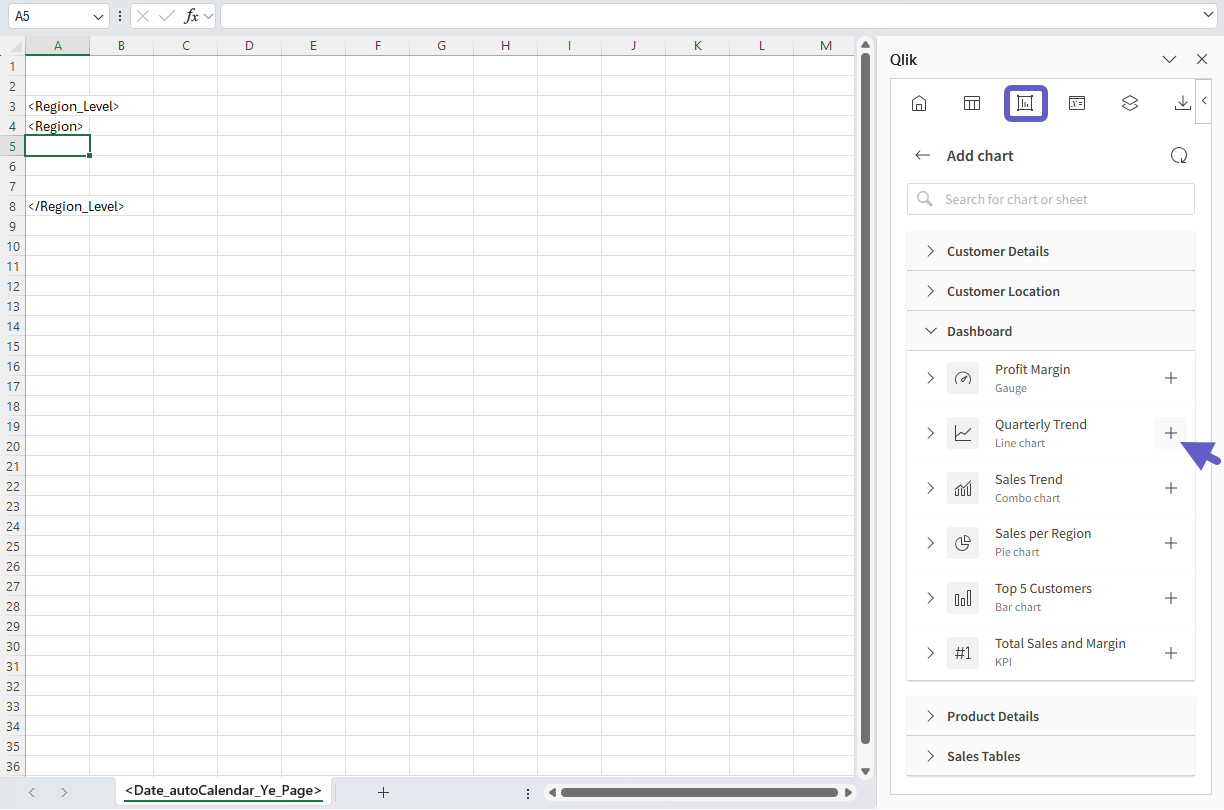
In the worksheet, select cell A5 to put it in focus.
-
In the add-in, click the
 icon on the top toolbar.
The Charts section opens.
-
Click Add chart.
A list of available sheets appears.
-
Expand the Dashboard sheet.
-
Click
next to the Top 5 Customers chart.Selecting the source chart to add as an image
-
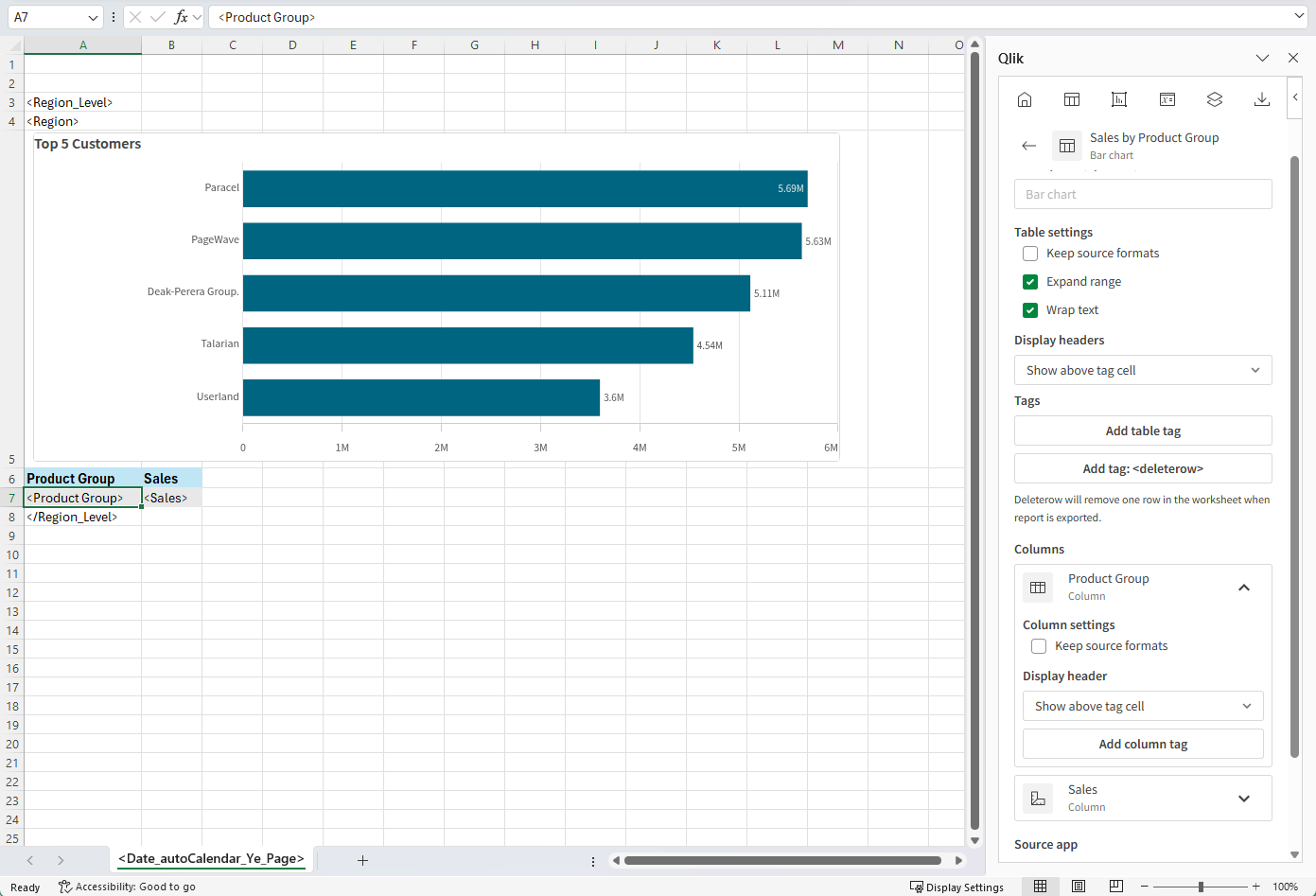
Resize the chart image to your preferences, and then resize the height of the row so it matches the size of the chart image.
Add tabular data
Next, add a table based on a chart in the source application.
Part 1: Add the source table
Do the following:
-
In the worksheet, select cell A6 to put it in focus.
-
In the add-in, click the
 icon on the top toolbar.
The Tables section opens.
-
Click Add table.
A list of available sheets appears.
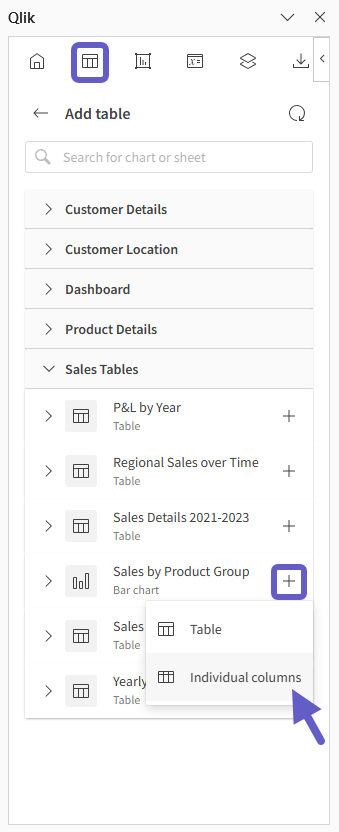
-
Expand the Sales Tables sheet.
-
Click
next to the Sales By Product Group chart, and select Individual columns.Selecting the source chart to add as an image
-
Under Select columns to add, check All.
-
Click Add.
All columns from the source chart are added as individual columns in the worksheet.
Part 2: Adjust the formatting
You can customize the table by applying native Excel formatting, such as:
-
Resizing column widths
-
Changing fonts, text size, and adding cell-specific styling
-
Customizing number formatting
If you want to customize formatting in the table, you need to turn off Keep source formats for the table object you just created.
Do the following:
-
With the table object selected in the add-in window, uncheck Keep source formats under Table settings.
Now you can change the formatting by applying changes to the cell contents of the table.
-
By default, the table object has fixed-text column headers inserted above it. These are not part of the table object.
Under Table settings for the object, set Display headers to Show above tag cell. This ensures table headers are not duplicated.
-
Style the fixed-text headers by making the font size slightly larger than the tag cells.
Template after adding chart image and table, and applying some custom formatting
Add a native Excel pivot table
Next, add an Excel PivotTable to summarize the application's data at a high level.
Excel-native pivot tables connected to Qlik application data are not supported when placed inside a level. You can, however, place the Excel pivot table inside a worksheet with a page.
For further details, see Working with native Excel tables.
Part 1: Insert the source tabular data
Do the following:
-
Create a new worksheet and title it PivotTable source.
-
In the add-in, click the
icon on the top toolbar.The Tables section opens.
-
Click Add table.
A list of available sheets appears.
-
Expand the Sales Tables sheet.
-
Click
next to the Sales Details 2021-2023 chart, and select Individual columns. -
Under Select columns to add, check All.
-
Click Add.
All columns from the source chart are added as individual columns in the worksheet.
Part 2: Convert the tabular data to an Excel table
Do the following:
-
Select the following in the worksheet:
-
Header row
-
The row with tags
-
One additional blank row
-
All desired columns
Selecting the required area to create a native Excel table

-
-
Convert the selected area to an Excel table. The exact procedure depends on your Excel version. For example, select a cell in the table, and click Insert > Table in the ribbon.
For exact steps, refer to the official Microsoft documentation.
-
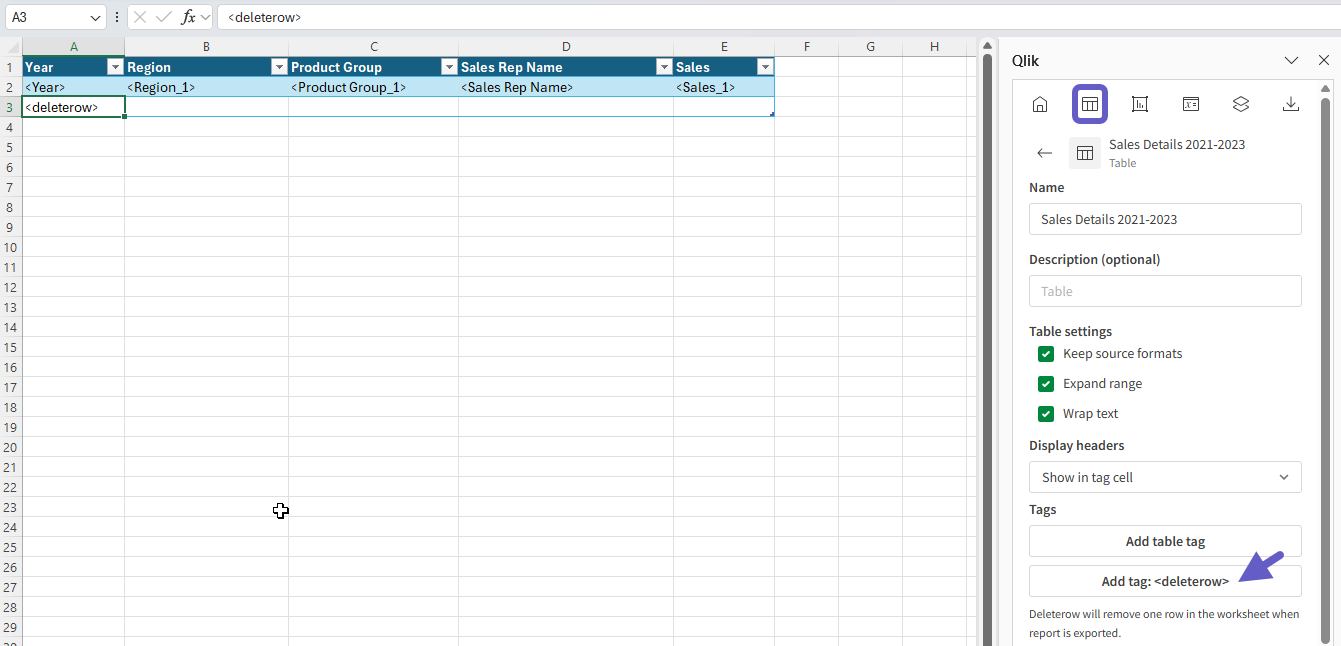
Select cell A3 in the Excel table. In the add-in window, under Tags, click Add tag: <deleterow>.
A <deleterow> tag is inserted in cell A3.
Native Excel table created with <deleterow> tag inserted in final row
Part 3: Convert the Excel table to an Excel pivot table
Do the following:
-
Transform the Excel table you just created into a native Excel PivotTable. The exact steps may depend on your Excel version. For example, click Insert > PivotTable in the ribbon.
For exact steps, refer to the official Microsoft documentation.
-
When prompted, select the option to add the new PivotTable on a new worksheet.
-
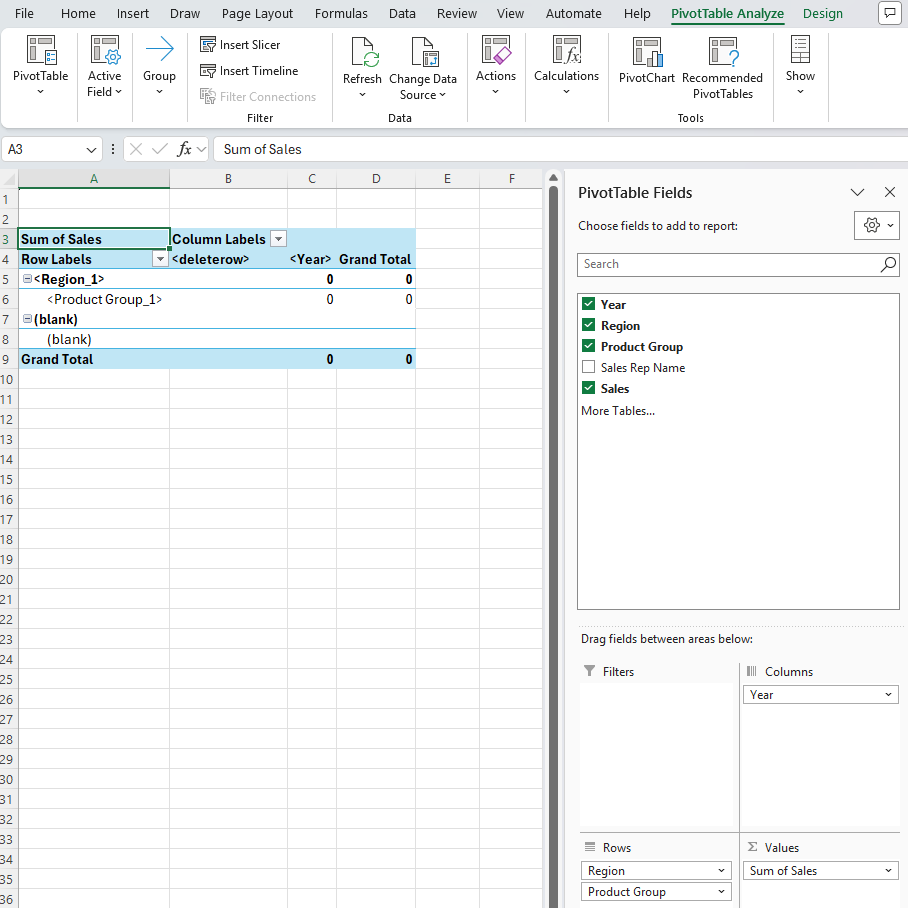
In the PivotTable field list, configure the pivot table as follows:
-
Rows:
-
Region
-
Product Group
-
Sales Rep Name
-
-
Columns:
-
Year
-
-
Values:
-
Sum of Sales
-
-
-
Change the labels in the pivot table according to preference.
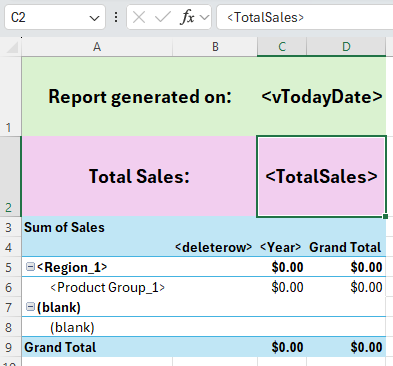
PivotTable created on new sheet in template
Add a variable
You can add variables from the analytics application to the report. Variables store values that can change dynamically. You can add a variable that has been added to the application, storing today's date.
Part 1: Add the variable
Do the following:
-
In the worksheet where you added the PivotTable, rename the worksheet Summary.
-
In the worksheet, select a blank cell in the middle of row 1, about halfway across the entire content width.
-
In the add-in, click the
 icon on the top toolbar.
The Variables and expressions section opens.
-
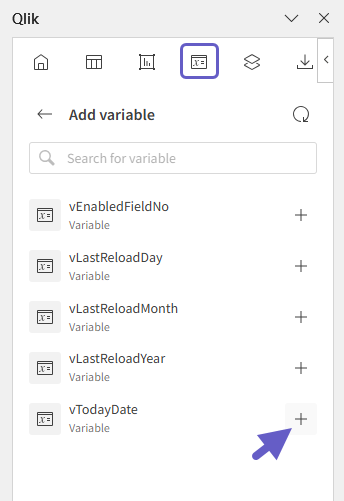
Click Add variable.
A list of available variables appears.
-
Click
next to vTodayDate .Selecting the variable to use
Part 2: Format the variable as a banner
Do the following:
-
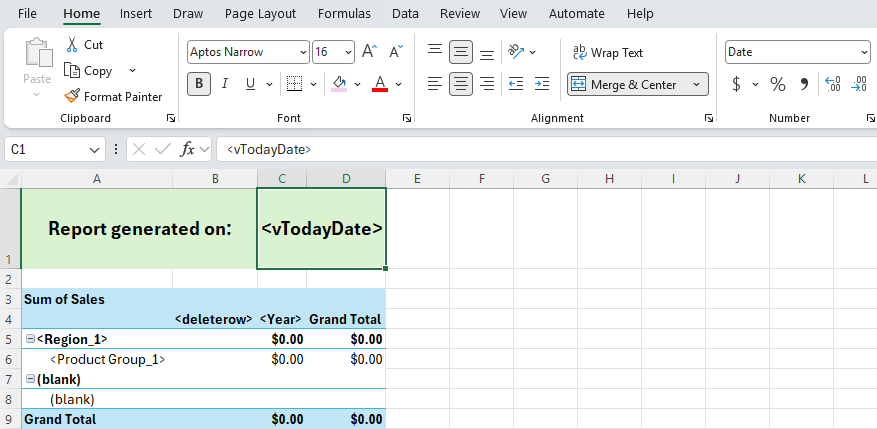
In the worksheet, merge and center two groups of cells in row 1, with the right group being the one that contains the variable.
-
In the cell for the left group, type the following:
Report generated on: -
By default, in tabular reports, dates are formatted as serial numbers. You can format the date according to your preferences. The exact procedure depends on your Excel version. An example:
-
Select the <vTodayDate> tag in the template.
-
Right-click the cell, and select Format cells.
-
Select Date, and then choose the date format you would like to display.
- Click OK.
-
After adding the banner, you can customize it with native Excel formatting. For example, you can adjust text styling, add cell background colors, and add borders.
Banner in the report, using a variable to display when the report is generated
Add an expression
You can add expressions to the report with Qlik-native calculations based on the application data. For example, you can add a cell showing high-level metrics, such as total sales, without creating a table.
Part 1: Add the expression
Do the following:
-
In the worksheet, select a cell in the middle of row 2, about halfway across the entire content width.
-
Click
 to return to the Variables and expressions section menu.
 -
Click Add expression.
-
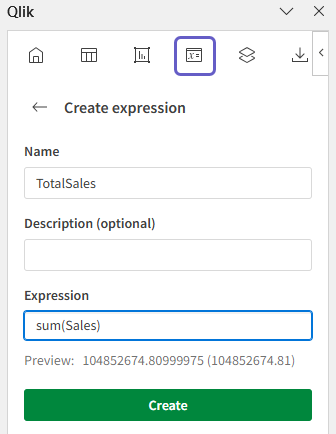
Type a Name for the expression, for example: TotalSales.
-
Under Expression, type sum(Sales).
Configuring the expression in the add-in
-
Click Create.
Part 2: Format the expression with a title cell
-
In the worksheet, merge and center two groups of cells in row 2, with the right group being the one that contains the expression.
-
In the cell for the left group, type the following:
Total Sales: -
Customize the number formatting for the TotalSales expression. The exact procedure depends on your Excel version. An example:
-
Select the <TotalSales> expression tag in the template.
-
Right-click the cell, and select Format cells.
-
Select Currency, and click OK.
-
After adding the title and expression, you can customize it with native Excel formatting. For example, you can center their text, adjust text styling, add cell background colors, and add borders.
Expression for total sales added with the add-in and styled using native Excel formatting
Preview the report
Before finishing the report, you can set formatting and styling as desired.
When ready, preview the report as an Excel file to ensure it looks as expected.
Do the following:
-
In the add-in, click the
 icon on the top toolbar.
The Preview section opens.
-
Click Preview as Excel (.xlsx).
Summary sheet in report, with a native Excel PivotTable, variable, and expression
Summary sheet in report, with level, page, chart image, and table.

Next steps
The next step is to upload the template to the application.
After uploading the template, you could:
-
Configure a distribution list and report task, and set the report up to generate on a schedule.
-
Enable the template for on-demand reporting.