
Insert data and catalog content into a script
Last updated: 10/27/2026The Qlik Code extension offers a number of options to help you reference data sources in the load scripts you write.
Adding data from data connections and data files
You can add script content to load data from data connections and data files you can access in the Qlik Cloud tenant.
Do the following:
-
Open a script, either as an unlocked remote script or a bound local copy.
-
In the editor, move your focus point to an empty script line.
-
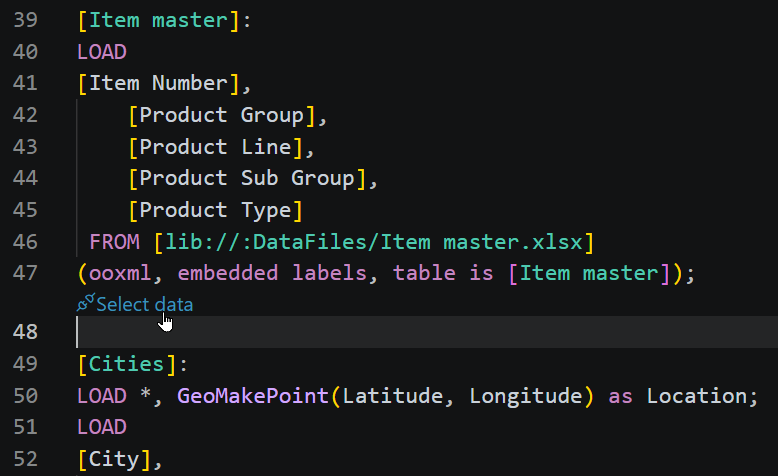
Click the
 Select data button that appears.
Viewing the data model of an application within Qlik Code
-
Choose from the provided options, which include:
-
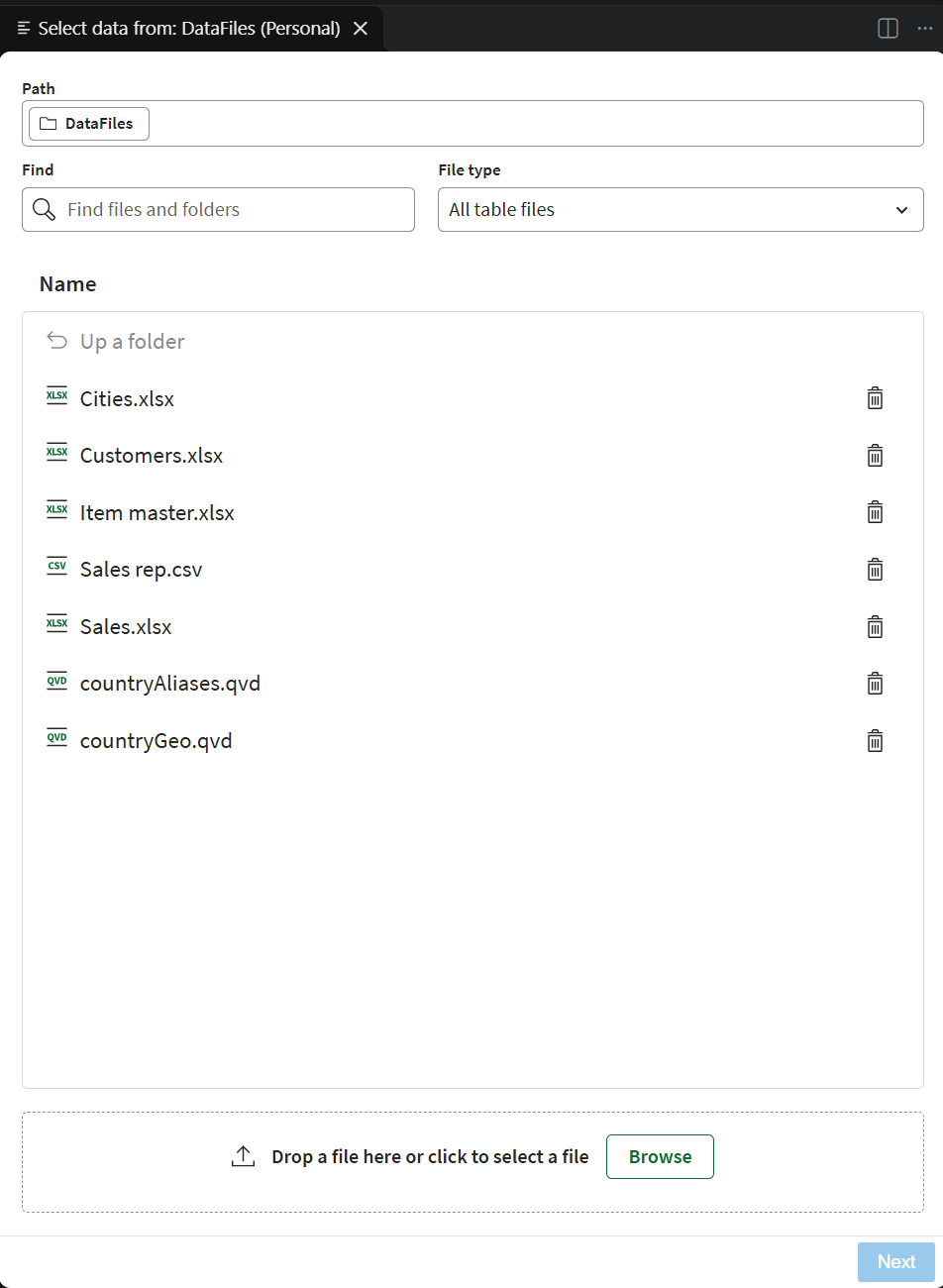
Select a space and its DataFiles connection to insert data from files added to the space. You can also add data files directly to the space from this view.
Using the graphical interface to add data from data files in a Qlik Cloud space.
-
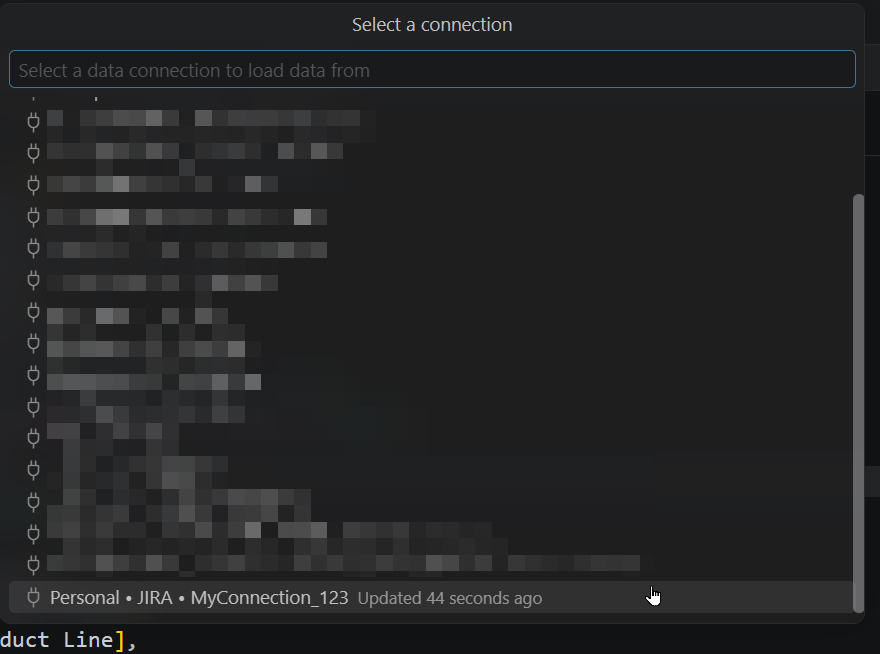
Select an existing data connection in the Qlik Cloud tenant to insert data from that connection.
Information noteYou cannot create a data connection from Qlik Code. The data connection must already exist in Qlik Cloud before you can use it in script content.Selecting a data connection from the list.
-
-
When done, confirm the selection to insert the script.
Adding data from the data catalog
The Add from data catalog option can also be used to choose from data files you can access in the Qlik Cloud tenant.
Do the following:
-
Open a script, either as an unlocked remote script or a bound local copy.
-
Navigate to the place in the script where you want to insert the data.
-
Use the Add from data catalog option, from any of the following:
-
Right-clicking the app from the Qlik Cloud panel in the VS Code Explorer.
-
Right-clicking a bound local script in the VS Code Explorer.
-
Right-clicking in the text editor when editing a script.
-
Using the Command Palette.
-
-
Choose the dataset and the fields you want to load, and confirm.
Inserting other Qlik Cloud scripts
You can reuse other existing scripts (QVF and QVS) in the Qlik Cloud tenant without leaving your current file.
When you insert another script into a load script, a Must_Include statement is added to the script at your current location in the editor. For more information about these statements, see Include.
Do the following:
-
Open a script, either as an unlocked remote script or a bound local copy.
-
Navigate to the place in the script where you want to insert the included script.
-
Use the Include scripts option, from any of the following:
-
Right-clicking the app from the Qlik Cloud panel in the VS Code Explorer.
-
Right-clicking a bound local script in the VS Code Explorer.
-
Right-clicking in the text editor when editing a script.
-
Using the Command Palette.
-