
Navigating insights in feeds
Last updated: 10/20/2026Your feed contains insights in the form of cards. You can interact with each card to obtain more details about an insight.
Each card contains:
-
Title
-
KPIs
-
Chart
-
Summary
-
Details
Insight cards in activity center feed.
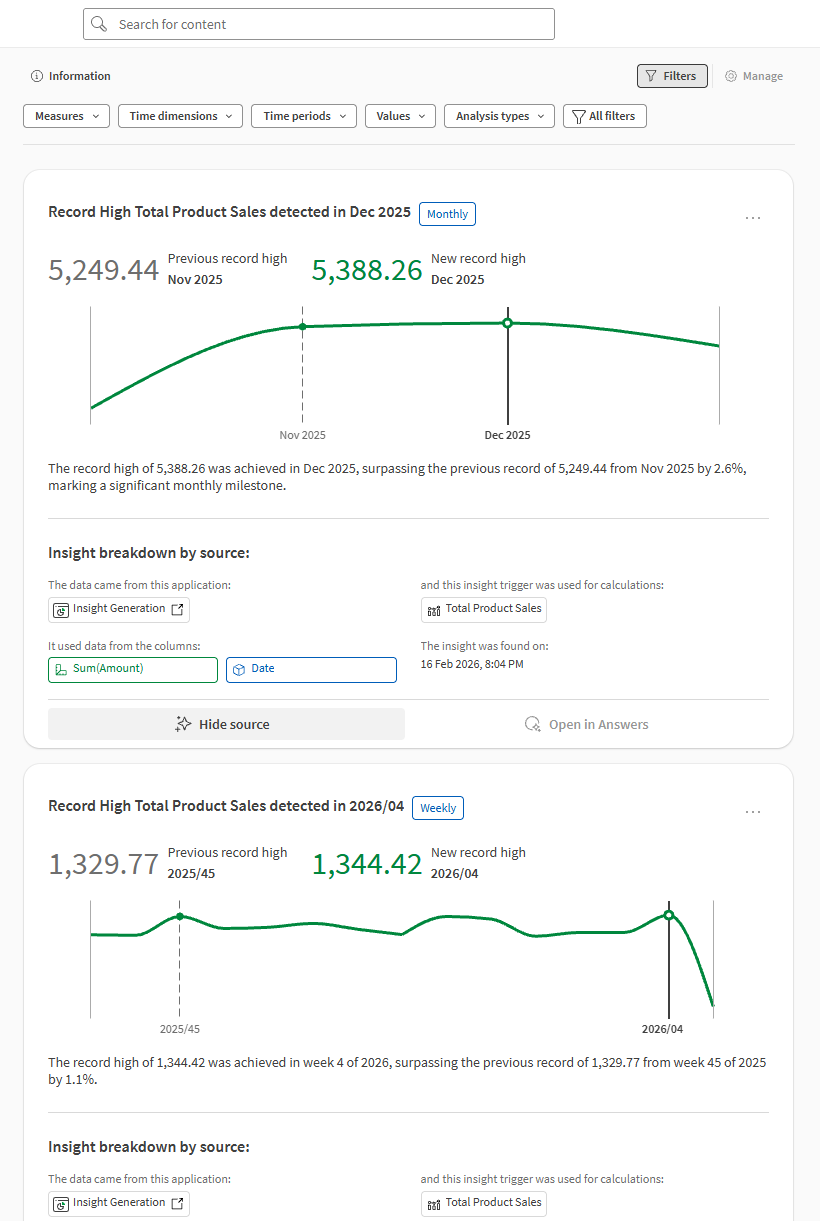
Title
The card title indicates the insight that was found. For example, if a spike was detected, this will be highlighted in the title.
The title area also shows the time period on which the insight was found. For example, a tag highlights whether an insight is weekly, monthly, or based on another time interval.
KPIs
Discovery Agent charts often contain KPIs to provide quick summaries of information, such as record high or low sales amounts.
Chart
Charts in the Discovery Agent are designed to be simple and easy to consume. You can use them to gain quick insights into your data without the immediate need for details.
Chart design
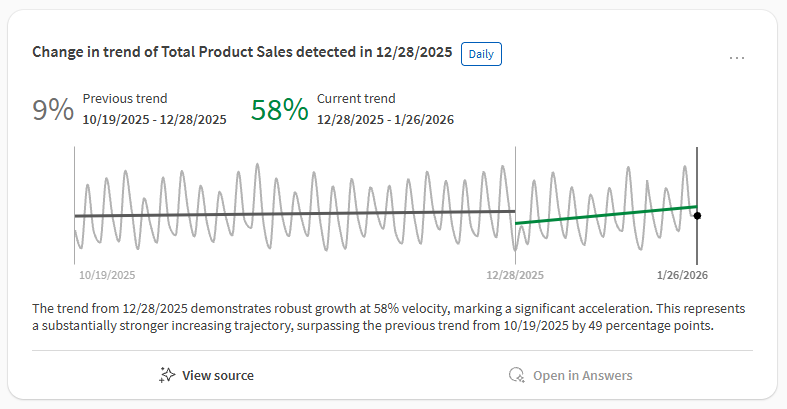
A Discovery Agent chart is a simple chart in a style similar to a sparkline. The chart is designed for quick analysis. For example, some detail is not included in the chart, allowing it to be more easily understood at a glance. The remaining card elements—for example, the KPIs, title, and expanded details areas—help to add more context to the insight.
Interpreting chart colors
By default, Discovery Agent chart colors indicate the following:
-
Green: Positive trend.
-
Yellow: Neutral trend.
-
Red: Negative trend.
-
Gray: Data that is not being highlighted in the chart, but still might be needed for context. For example, past data might be shown in gray to highlight changing trends in the more recent data.
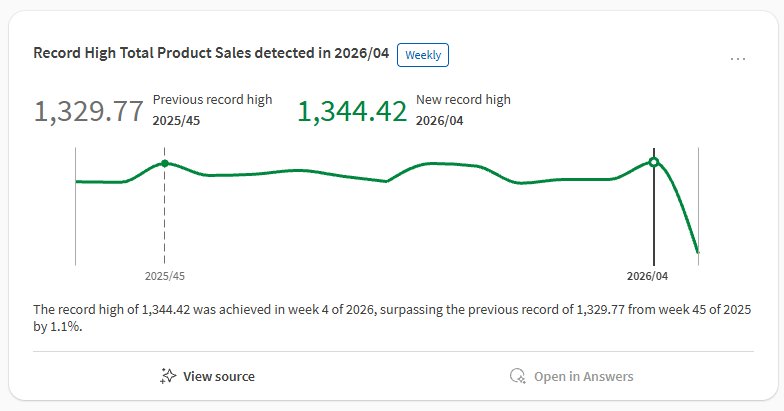
Positive trends are green. For example, sales are trending upward or a new record high has been reached.
Insight card with chart showing green trends.
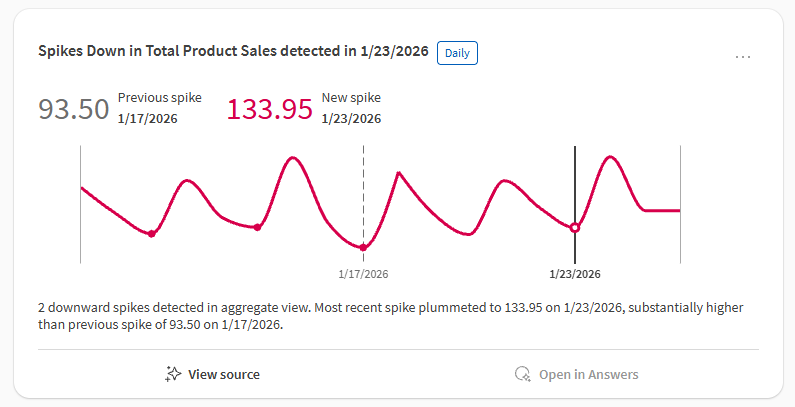
Negative trends are red. For example, sales are trending downward or negative spikes have been detected.
Insight card with chart showing red trends.
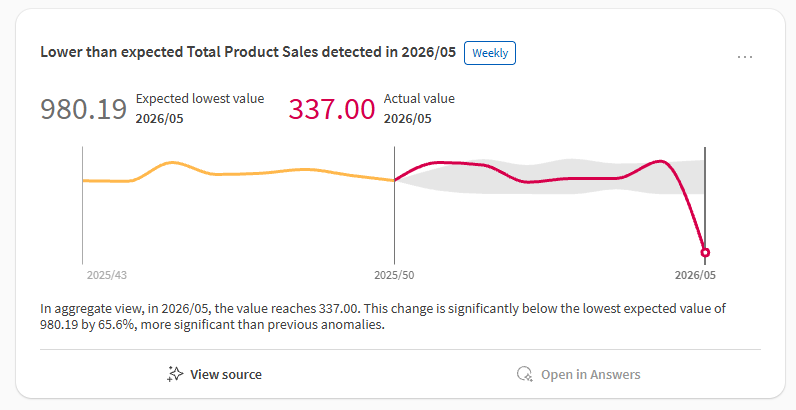
Neutral trends are yellow. For example, no significant changes to the data have happened. Neutral trends are often shown next to positive or negative trends to highlight a shift over time.
Insight card with chart showing yellow (and red) trends.
When certain data is not in focus, it is shown in gray.
Insight card with chart showing gray (and green) trends.
Summary
The summary contains a description of the insight in natural language. The summary is presented directly below the chart.
Large language models (LLMs) are used to present and format insight summaries.
Viewing details
You can use multiple options to view more details about an insight.
View source
Click  View source below an insight for more details, such as:
-
A link to the application from which it was created.
-
Date and time of creation.
-
The insight trigger that created it.
-
The dimensions and measures to which the insight applies.
-
For insights with breakdown dimensions, the filters for which the insight applies.
-
The bookmark used to determine the insight.
-
A link to a specific sheet of interest.
Details panel
Click  , and then select Details, to open a panel with more information about the insight trigger that generated the insight. You can view details such as the owner, space, application, ID, and more.
Exploring insights further with Qlik Answers
You can explore each insight in detail using natural language interactions powered by generative AI.
Do the following:
-
On a feed insight, click
 Explore further in Answers.
When you click Explore further in Answers, the following happens:
-
Qlik Answers opens in a side panel.
-
A starter question—automatically generated from the insight—is asked to Qlik Answers.
You can continue the conversation by asking more questions, receiving answers and analytical guidance.
Requirements
-
Your tenant needs Qlik Answers to use this functionality.
-
The source application must be activated for Qlik Answers. See Making applications available for Qlik Answers.
-
User permissions for exploring insights in Qlik Answers are governed by Qlik Answers permissions, as well as the permissions for Discovery Agent.
-
All other requirements that apply to Qlik Answers—such as tenant-level settings and permissions—also apply to using the Discovery Agent in Qlik Answers. See Deploying and administering Qlik Answers.