
Troubleshooting - Working with report templates
Last updated: 10/2/2026This topic provides help with resolving common issues encountered when working with report templates, either during:
-
Template management within a Qlik Sense application
-
Authoring report templates
Report authoring - All Qlik add-ins for Microsoft Office
This section provides tips for resolving common issues encountered when working with Qlik add-ins for Microsoft Excel, Microsoft PowerPoint, and Microsoft Word.
Pop-ups not allowed when first opening a Qlik add-in for Microsoft Office
You might see the following error message when you first open the Qlik add-in for Microsoft Office after activating it:
The security settings in your browser prevent us from creating a dialog box.
Possible cause
Your web browser is blocking the add-in authentication dialog from opening as a pop-up.
Proposed action
If you are using a web version of the Microsoft Office application, you need to allow the browser to open pop-ups. This depends on your browser and version, but possible solutions include:
-
Selecting an option in the web address bar to allow the pop-ups.
-
Opening the browser settings and selecting the option to allow pop-ups.
Static images not appearing in template
Possible cause 1
As a user, you do not have sufficient permissions in the Qlik Cloud tenant to download images from applications.
Proposed action 1
Contact your tenant administrator if you need additional permissions to be assigned to you.
If you are a tenant administrator, see:
-
Roles and permissions for users and administrators (user-based subscriptions)
-
Roles and permissions for users and administrators (capacity-based subscriptions)
Possible cause 2
The Microsoft Office application is experiencing a minor sync issue. This issue is limited to web versions.
Proposed action 2
Toggling Editing/Viewing view in the ribbon will restore image visibility.
Report authoring - Tabular
This section provides tips for resolving common issues that are unique to working with the Qlik add-in for Microsoft Excel.
Microsoft Excel: Template looks different after saving in macOS and reopening in Windows
In particular, you might notice that the dimensions of static images are different. The file might also have different fonts now.
Possible cause
There are technical differences between how macOS and Windows display images in Excel files. Additionally, fonts might change in the file. The default fonts between macOS and Windows are not the same, and generally, font support is also not the same.
Proposed action
Try to avoid switching back and forth between operating systems when developing your template. When this is not avoidable (for example, in the case of collaborative template development), adjust the Fonts and Themes in the Excel workbook as needed. These settings are located under Page Layout.
Image dimension changes are difficult to fix, so for reports using images, consider using the same operating system to develop the entire template.
Report authoring - PixelPerfect
This section provides tips for resolving common issues that are unique to working with the PixelPerfect designer.
PixelPerfect report cannot be generated after chart in application has been changed
Possible cause
Dimensions and measures in the source application object have been added, removed, or re-configured.
Proposed action
You can refresh the source application data used in:
-
Data binding objects for charts added as levels. These are added under
 Field List > Levels.
 -
Data binding objects for the source tables used in native PixelPerfect charts, Cross Tabs, and sparklines. These are added under
Field List > Tables.
This is helpful when:
-
Dimensions and measures have been added to or removed from the source chart since you created the data binding.
-
The definitions of dimensions and measures have been changed in the source chart since you created the data binding.
Refreshing data binding sources allows you to keep the same objects in your Field List menu without having to create new ones as chart configurations change.
Do the following:
-
Before you begin, remove all instances of any removed or updated columns and fields from your template. This is not required if your chart updates are only adding new columns or fields.
This may involve any of the following:
-
Remove reference to the removed field or column in the properties for the report band.
-
For chart levels, sparklines, and Cross Tabs, remove reference to any deleted fields by using the Expression Editor after selecting the level.
-
For native PixelPerfect charts, remove reference to any deleted columns in the object properties. This is done in the Chart Designer.
-
-
Open the
Field List menu available from the right-side panel in the designer. -
Double-click Levels or Tables to expand it.
-
Hover your cursor over the item that you want to refresh.
-
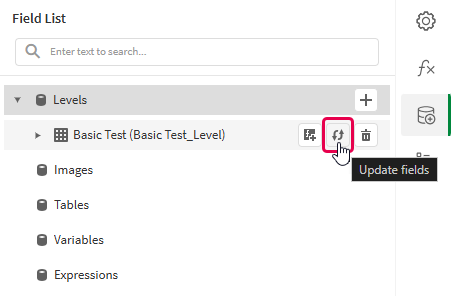
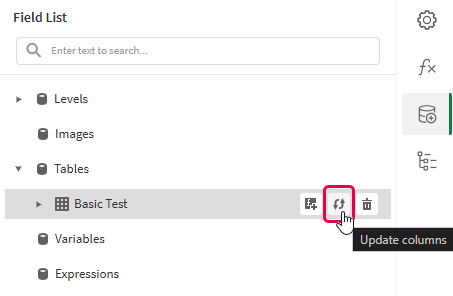
Click the refresh (Update fields or Update columns) icon.
Refreshing a level data binding in the Field List menu
Refreshing a table data binding in the Field List menu
If chart elements changed during the refresh, a notice appears listing each change. Changes can include columns and fields that were added, updated, or removed.
-
Continue with your template development according to your use case. This may involve re-configuring existing content or adding new content. After refreshing the data binding, newly added chart columns will now be available for use from the
Field List menu.
For more information, see Data binding.
Template management
Error encountered when uploading Excel template into Qlik Sense application
When you are trying to upload a template that is already connected to a different Qlik Sense application, you might receive this error.
Failed to upload the template file. The template references objects that are unavailable in the Qlik Sense application.
This error can occur when you are trying to update the connected Qlik Sense application as you upload a new template, perhaps for a duplicated or published copy of an existing application.
Possible cause 1
There is content in the template that uses objects found in private sheets. Private sheets are not included when the application is exported, duplicated, or published. To be able to change the connected application for a template, all application objects referenced in the template must be found in the new application.
Proposed action 1
Do any of the following:
-
Return to the original source application and make the referenced private sheets public.
-
Open the template with the Qlik add-in for Microsoft Excel, and remove the referenced content that is based on the private sheets.
Possible cause 2
There are issues with one or more of the individual objects referenced in the template.
Proposed action 2
Open the template with the Qlik add-in for Microsoft Excel. There, you can find more descriptive error messages for each object and further diagnose the issue. For example, you might have migrated the template from Qlik NPrinting and the template references chart types that are not supported in Qlik Cloud tabular reporting.