
In-application reporting with Qlik Cloud Analytics
Last updated: 10/2/2026With in-application reporting, you can create dynamic enterprise reports with report preparation features available within a Qlik Sense application. Reports are generated based on the content and structure defined in Excel, PixelPerfect, HTML, PowerPoint, and Word templates. Deliver report output by email, on demand, and to folders defined in Microsoft SharePoint connections. Report file formats include PDF, .xlsx, .pptx, .docx, and HTML.
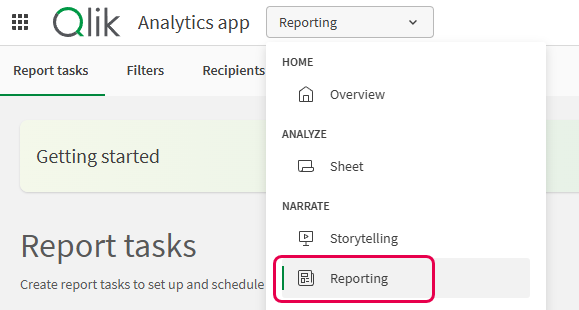
In Qlik Cloud Analytics, you configure reporting output in the Reporting section under the application navigation menu in the Qlik Sense application.
Workflow
- Build your application
Create a Qlik Sense application that is equipped with the visualizations and data you need to include in reports.
- Define a distribution list
Define the recipients and groups who will be able to receive reports. This can be done by uploading an .xlsx file or manually in your application's load script, using a data connection.
- Create filters
Use filters to reduce the data included in the report, activating burst use cases. Filters can be added to a report task and also to specific recipients, as well as to individual report objects when creating report templates.
- Configure a distribution folder (optional)
Create an Office 365 Sharepoint connection that can be used in your report task to distribute reports directly to a specified Microsoft SharePoint location.
- Design report templates
Create report templates containing the content structure for your reports. Report templates can be created with Qlik add-ins for Microsoft Office or with one of two designers embedded in analytics applications.
Upload templates created with reporting add-ins into the application so they can be used to generate reports. For PixelPerfect or HTML reports, the template is likely already present in the application and can be linked to any report task.
- Schedule output with a report task
Create a report task to configure the delivery of your reports. You can set output file settings, apply a filter, adjust distribution channels (email, SharePoint, or both), and create a schedule for delivery.
Who can generate reports?
Reports can be generated in two ways:
-
Report developers create report tasks for scheduled or manual report generation. Data reduction is controlled with report filters. Recipients, and associated groups containing multiple recipients, are available from a distribution list.
-
With on-demand reporting, users can generate reports when analyzing sheets in the application. Reports are generated from templates that have been activated for on-demand reporting. The activation of a template is performed by a report developer. Data reduction is applied based on the access level of the user generating the report. For more information about creating on-demand reports, see Creating on-demand reports.
Generating reports is a centrally managed activity controlled by report developers. Reports created using in-application reporting are delivered from the value-add Qlik Reporting Service capability. Check with your service account owner about your Qlik Cloud subscription's included capacities. For more information about centralized report development and delivery, see Reporting from Qlik Cloud Analytics.
You can create and configure enterprise reports from the Reporting section in your Qlik Sense application
Requirements
Consider the following general requirements:
-
To view requirements for working with Qlik add-ins for Microsoft Office, see Requirements for using add-ins.
-
To distribute your report output by email, an email provider needs to be configured for the tenant. For more information, see Configuring email for reports and notifications and Working with report tasks.
Your access to in-application reporting depends on:
-
Your Qlik Cloud subscription.
-
Whether tenant administrators have given you access to some or all of the Qlik Reporting Service capabilities. For more information about this administration, see Setting permissions for metered reporting features.
-
Your permissions in the spaces where reporting assets are located. For personal spaces, you also need specific permissions to be assigned to you by tenant administrators. See Permissions for more information.
Permissions
Requirements for applications in shared spaces
The following requirements apply for applications in shared spaces:
-
To view and use the Reporting section of an application, you need Can edit access to the space in which the application is located.
-
To load a distribution list for use in report tasks, you must be the application owner or have Can edit data in applications access in the shared space. For more information about how to add a distribution list to your application, see Creating a distribution list for your report.
For more information about the roles required to manage all aspects of your application's reporting capabilities, see Qlik Reporting Service permissions and Setting permissions for metered reporting features.
Requirements for applications in managed spaces
To view and use the Reporting section of an application, you need one of the following space roles in the space where the application is located:
-
Owner
-
Can manage
-
Can operate
For more information about the roles required to manage all aspects of your application's reporting capabilities, see Qlik Reporting Service permissions and Setting permissions for metered reporting features.
Requirements for an application in your personal space
You must have the Private Analytics Content Creator user role in the tenant to have full control over report tasks, distribution lists, filters, and templates.
For more information about the roles required to manage all aspects of your application's reporting capabilities, see Qlik Reporting Service permissions and Setting permissions for metered reporting features.
Who can receive reports?
Using in-application reporting with Qlik Cloud Analytics, you can send email reports to both internal and external recipients.
Output and section access
The table below describes each type of recipient and what can they expect to see in their reports. This table outlines the behavior for applications with and without section access. For more information about in-application reporting and section access, see In-application reporting and section access.
| Recipient type | Description | Behavior |
|---|---|---|
| Internal |
A user in the Qlik Cloud tenant, identified by matching email address (matching is case insensitive). To learn how to add a user to the Qlik Cloud tenant, see:
|
Unless the application uses section access, the data included in this recipient's report will be based on the access that the report task owner has to the application. |
| External | A user who is not in the Qlik Cloud tenant. | Data included in report is always based on the access of the report task owner, regardless of whether the application uses section access or not. |
Microsoft SharePoint report distribution
If you are instead distributing reports via a distribution folder (Microsoft SharePoint), anyone who has access to the location specified in the corresponding connection can access the reports. The identification of internal recipients works the same as for email output.
Report delivery via Microsoft SharePoint distribution folder is not available if the application uses section access.
In-application reporting and section access
If the application uses section access, report generation works differently. For more information, see In-application reporting and section access.
Administrator actions
Qlik Cloud tenant admins can turn reporting capabilities on or off in Administration. For more information, see Enabling and disabling reporting, subscriptions, and sharing features.
If you have all required permissions and still cannot access the in-application reporting features, contact your tenant administrator.
Limitations
For a list of limitations, see Qlik Reporting Service specifications and limitations.