
On-demand apps
Last updated: 10/23/2026On-demand applications enable you to load and analyze big data sources in Qlik Sense.
Trying to analyze an entire big data store at one time is highly inefficient. Nevertheless, to make representative visualizations, all the data must be discoverable. Qlik Sense on-demand applications give users aggregate views of big data stores and allow them to identify and load relevant subsets of the data for detailed analysis.
On-demand applications are made up of several building blocks or components, and some of those components are built by users with advanced scripting skills.
For more information, see Managing big data with on-demand applications.
Generating an on-demand application
You generate an on-demand application when you have selected a manageable subset of data using an on-demand selection application. Any selection application that you are working with will contain one or more navigation links for generating on-demand applications in the App navigation bar.
The on-demand applications shown on the App navigation bar have completion indicators that start to turn green as you make selections in the selection application. Each on-demand application on the application navigation bar has a limit on the amount of data it can contain. When selections are made in the selection application, the completion indicator shows when the amount of data selected is within the bounds set for the on-demand application.
Once an on-demand application's indicator turns completely green, you can generate that application with the currently selected data. Generated on-demand applications are added to your Personal space. You can also choose to open a previously generated instance of that application. Every on-demand application in the application navigation bar can be generated multiple times, and those generated applications remain accessible. When the maximum number of applications has been generated, you must delete an existing application before you can generate a new on-demand application. On-demand applications also may have an expiration time after which they are automatically deleted.
The maximum number of applications and the retention time are set on the on-demand application navigation link. The application navigation link is one of the building blocks of on-demand applications, and it is usually added by the creator of the selection application.
Do the following:
- Open an on-demand selection application.
- Select from the visualization objects in the selection application.
-
When the completion indicator on an on-demand application in the App navigation bar turns completely green, click the on-demand application.
You can select an on-demand application in the App navigation bar to open its generation panel. There you can click the
 to see the Constraint (maximum number of records allowed) and the number of records currently selected. You can also see the number of values selected for each field and any constraints on the fields. When on-demand applications are created, constraints can be placed on individual fields. For example, a field for Year might be limited so that no more than two values can be selected.
When the number of records (Row count) currently selected is less than or equal to the maximum number of records allowed, the completion indicator turns completely green. An application cannot be generated, however, until all the constraints have been met. If the row count is within the constraint but one or more of the fields have not met the requirements of their constraints, the Generate new app button will not be enabled.
Information noteIf you select Generate new app when constraints panel is open, you will not see the generated application. Click the to close the panel, and you will see the new application listed if it generated successfully. -
Click the Generate new app button to create a new instance of the on-demand application with the data currently selected.
Information noteIf the on-demand application navigation link is set to overwrite generated application and if it has reached the maximum number of generated applications, Generate new app will be unavailable. Either delete one of the generated applications or add a button to the sheet that is set to navigate to the on-demand application navigation link.
The new instance of the application is generated and appears in the generation panel above the Generate new app button.
To see more about the generated application, open its detail panel.
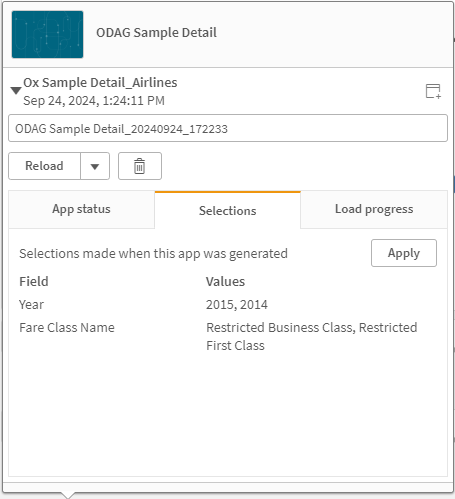
In this view, you can also rename the on-demand app. By default, on-demand apps are assigned the name of the navigation point from which they are generated, and a timestamp is appended. For example, when the name of the navigation point is "Ox Sample Detail," the default name of the generated on-demand app would be "Ox Sample Detail_20190405_113822". In the illustration above, the name of the on-demand app has been changed to "Ox Sample Detail_Airlines."
The Apply button applies the selections listed on the generated on-demand application's Selections tab to the selection application.
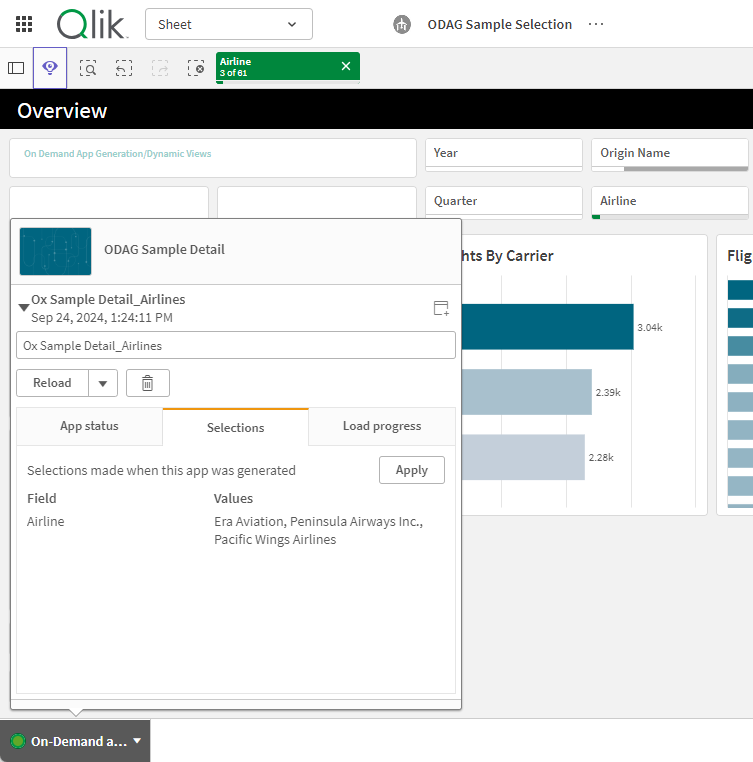
-
Select Open app from the
 > menu to open the generated application.
You can also reload data and regenerate an on-demand application. The Reload menu is available when the detail panel is open:
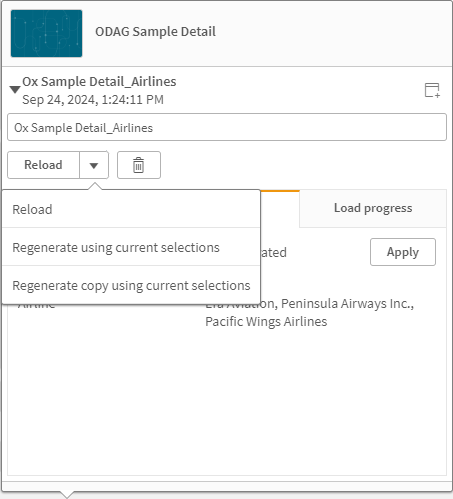
The selections on the Reload menu work as follows:
- Reload: reloads the data based on the current selections that have been made within the on-demand application.
-
Regenerate using current selections: regenerates the on-demand application using the current selections that have been made within the selection application.
Information noteThe Apply button on the Selections tab applies the on-demand application's selections to the selection application. The on-demand application's selections are those listed as Selections made when this app was generated. For more information, see the illustration above.This is the reverse of what is done when Regenerate using current selections is used.
- Regenerate copy using the current selections: generates a new on-demand application using the current selections that have been made within the selection application. The previously generated on-demand application remains in its current state.
Exploring a shared on-demand application
You can share on-demand selection applications in a shared or managed space. You must first make the sheets of the selection and template applications public. You can then add the selection application to a shared or managed space. If you are publishing to a managed space, you only need to publish the selection application.
Users with access to applications in those spaces can access the navigation points in those applications. For example, they can generate an on-demand application from the App navigation bar.
If your applications in managed or shared spaces contain sensitive data, use on-demand applications carefully and confirm the permissions of those who have access to your selection applications.
On-demand applications are added to users' personal spaces. If users have Can contribute, Can manage, Can publish, or Owner permissions in a shared or managed space, they can share their generated on-demand applications from their personal space with other users.
Once an on-demand selection application is published to a managed space, you cannot edit the navigation link in the selection application or published application. If you need to update the navigation link, delete the published application. Next, edit the link in the selection application, and publish the application again to the managed space.