
The in-application lineage summary view
Last updated: 10/23/2026Analytics consumers and casual business users can access a consumer summary view of field-level dependencies directly from an analytics chart in a tabular view that lists dependencies for the field used in the chart.
Lineage summary view
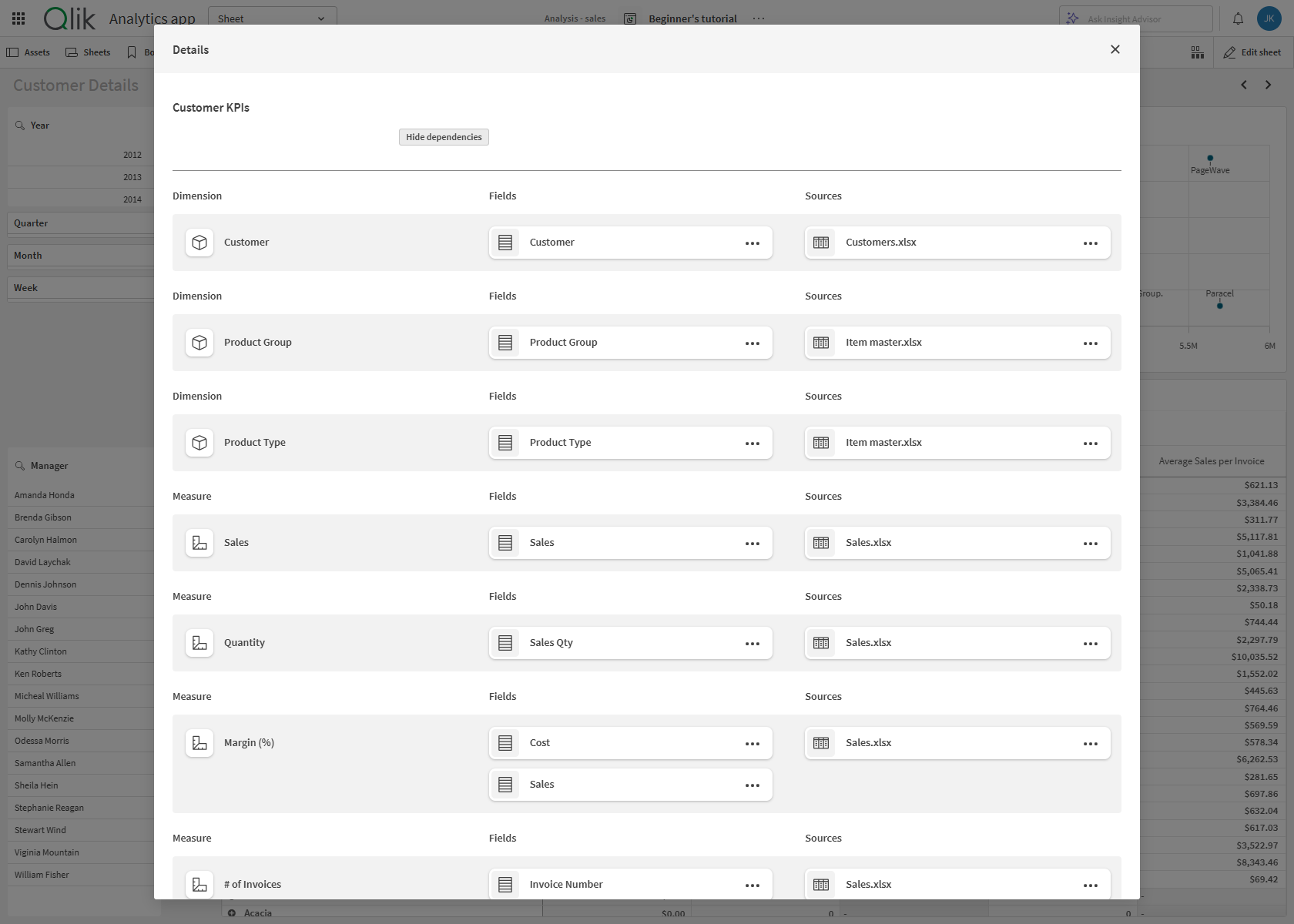
While the more detailed lineage graph is available, casual analytics users can access summary information for associated objects that include: applications, links, datasets, tables, fields, dimensions, and measures. You can easily get an explanation of where the data came from within a chart with the lineage summary view.
This view lists details and dependencies for measures and dimensions in the chart. These include the Expression that calculates the measure or dimension, the fields that are being used in the expression, and the data sources where the fields came from.
Activating the view for consumers
Application developers can change chart settings for the lineage consumer summary view to be visible. These settings may not be on by default.
Do the following:
-
Open a sheet in edit mode, and open the properties panel.
-
Change one or both of these settings:
- Under Appearance>General>turn on Show details.
- Under Appearance>General>turn on Show expressions.
Opening the lineage summary view
Do the following:
-
Right-click the visualization or click
 .
Click
.
Click  Show details.
 -
Click Show dependencies.
The lineage summary view opens. Explore the items under the Dimension, Measure, Fields, and Sources sections. Expand expressions to view the underlying calculations.
-
For more details, select
on an item and open the applicable lineage link. The lineage graph opens, where you can view more information.For more information about the lineage graph, see Analyzing lineage in Analytics.
Example: Viewing field dependencies and expressions in charts with lineage summary
For a walk-through of lineage analysis, see Field-level lineage use cases.
As a casual business user, you are analyzing a line chart COGS per Month in an application and want to review the expression used to calculate the measure (Cost of Goods Sold) COGS per Month and which Fields and Sources are used in the chart. You make sure that Show details and Show expressions are turned on for the chart under the Appearance > General section of properties, then select switch to sheet analysis mode. Click Show dependencies.
Lineage summary view for a line chart: View expressions, fields, and sources
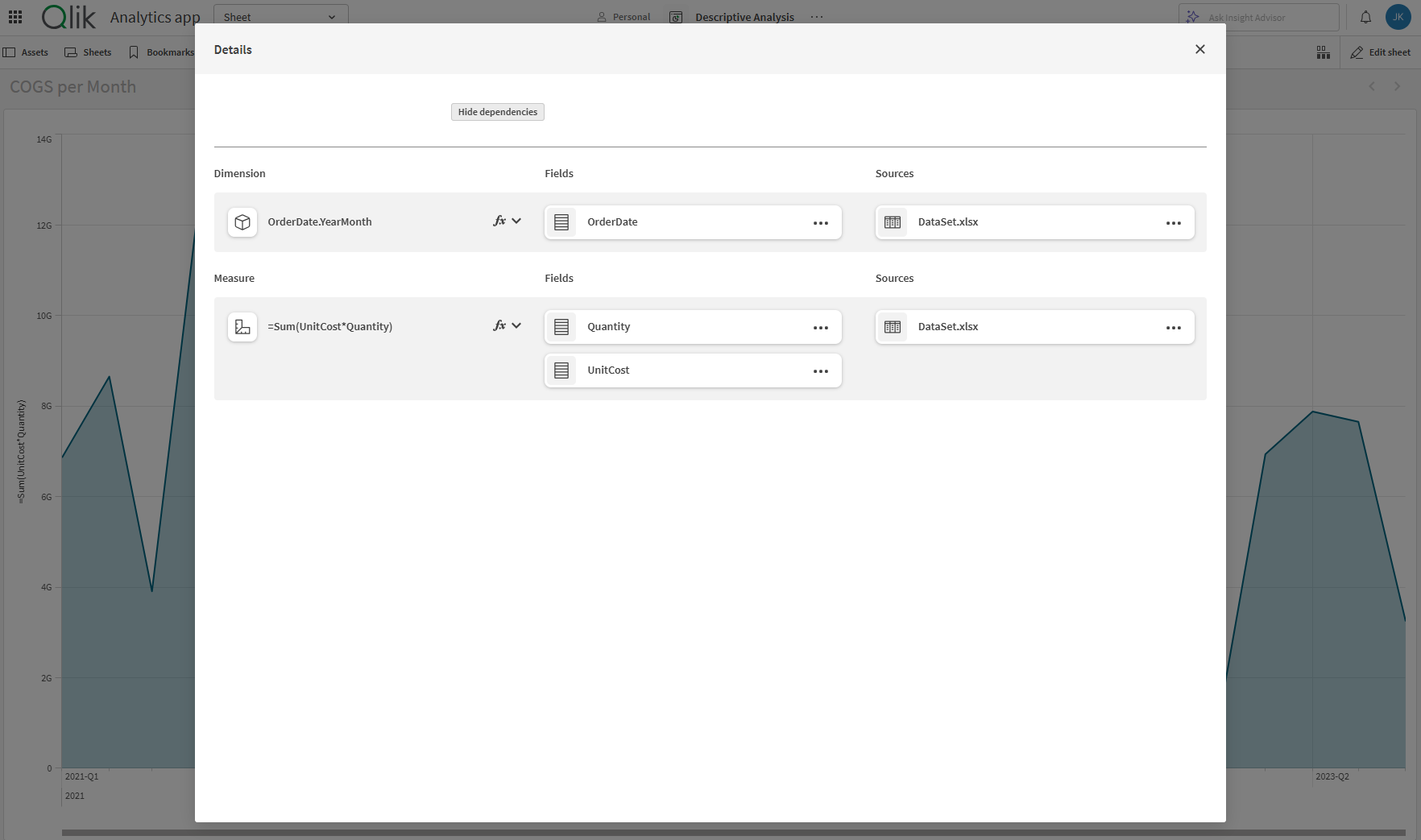
The lineage summary view lists the measures and the dimensions that are represented in the chart. The expressions that create the measures and dimensions can also be viewed in a dropdown when you expand  these fields. You see that the measure is created by the expression: Sum (UnitCost*Quantity). The fields (Quantity, UnitCost) in the expression are listed as field dependencies. You can select to view lineage for the two fields but in this case there is only one relay back to its ultimate source Dataset.xlsx, which is also listed as a source dependency in the lineage summary.
Additional examples
For more examples related to the in-application lineage summary, and lineage generally, see Example use cases for analyzing lineage.
Security and permissions
Access is always provided to dimensions and expressions. Links to lineage and dataset names display only when the user has access.
Limitations
-
The lineage summary view is not supported in Button and Map charts.
-
The lineage summary view is not available in mobile mode.