
Approving access requests
Last updated: 10/2/2026As an approver, you can grant or deny requests for access to apps.
Users can request access when they try to open an application through a shared link but don’t have permission. When this happens, space owners and members with the Can manage role receive a notification. Approvers can grant access to the application only or to the entire space, which also gives access to other content in that space.
Who can approve access requests
Space owners and members with the Can manage role can approve or deny requests.
Access to fine-grained sharing is controlled by permissions. If you only see options to share an entire space and not a single application, make sure the Share applications via fine-grained access control permission is set to Allowed in the default permissions or granted through a custom role. For more information, see Default permissions and custom roles.
Types of approval
When approving, you can choose:
-
Application access: The requester can view the application only.
-
Space access: The requester is added to the space with specific roles, which grant access to the application and all other content in the space.
Approving or denying access requests
Do the following:
-
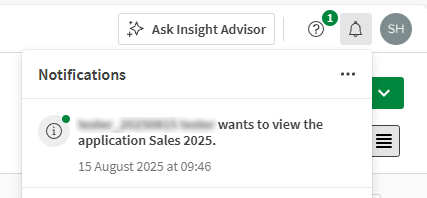
Open the request from your notification.
Browser notification about an access request.
-
Review the requester's message.
-
To approve the request:
-
Click Approve. The access level pane opens.
-
Choose the access level:
-
Application only: The Can view checkbox is selected by default. Use this to grant access to the application only.
-
Space access: In the space section, select one or more roles to grant the requester access to the application and other content in the space. The requester is added as a space member.
-
-
Click Approve again to confirm. A notification is sent to the requester.
-
-
To deny the request, click Deny.
What approvers should know
-
You receive notifications for new requests via email, browser, or mobile application, depending on your notification settings.
Information noteUsers assigned the Can manage role via a group do not receive access request notifications. They can still approve requests from the application or space Share menu, but they must navigate there manually. Assign the role directly to ensure notifications are sent. -
Requests expire after six months.
-
Requesters are only notified if their request is approved.
-
Requests may be resubmitted. Sending a new request replaces the previous one.
-
Space roles determine access: granting space access adds the requester to the space with the specific roles you select.
-
Access may be limited by section rules. Even if the application or space is shared, some sections may require additional permission.
-
You can share Direct Query apps only by inviting users to the space where the application and its data connections are stored. Users need access to both the application and the underlying data sources. If a user doesn’t have permission for a required data source, they won’t be able to load data in the application.
-
You can view all requests for an application or space:
-
For an application: In the catalog, click
 and select Share > Manage access.
 -
For a space: In the catalog, open the space and select Share.
Requests are listed with the newest first.
-
-
Revoking access is a separate action. Open Space settings and select Members to remove someone from a space or application.
-
Applications in personal spaces cannot be shared. Move them to a shared or managed space first.
For more information, see:
Managing access request notifications
When someone requests access to an application, notifications are sent to the space owner and to members who are directly assigned the Can manage role.
You can receive notifications as:
-
Browser notifications
-
Qlik Sense Mobile app notifications
-
Email
-
Daily digest
To change notification settings:
-
Open your profile menu and select Settings.
-
Select Notifications.
-
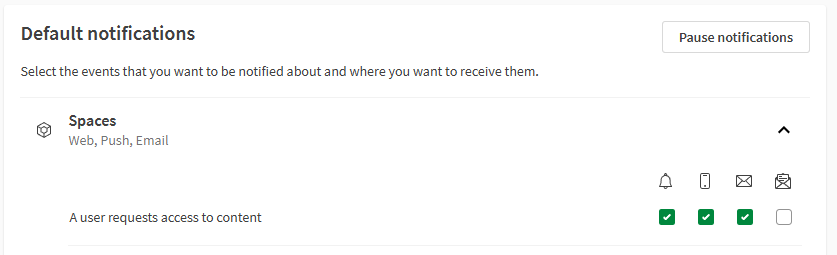
In the Spaces section, turn on or off notifications for A user requests access to content.
Turning on notifications for application access requests.
For more information about managing notifications, see: