
Storing data from load scripts
Last updated: 10/23/2026Store data using the Store statement. You can store tables as QVD, PARQUET, CSV, or TXT files.
Data load editor and Script include an option, Insert Store statement, to create and format a Store statement.
Insert Store statement
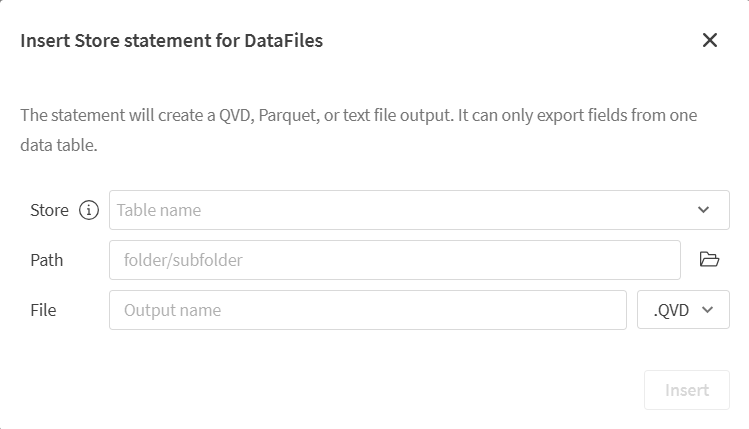
You can also add and format your own Store statements in your script, which have additional options. For more information, see Store.
Do the following:
-
In Data sources, click
 on a data source.
 -
After Store, enter the name of the table to store.
-
After Path, enter the destination path for the stored file.
Click
 to browse for the path.Information note
For Google Drive targets, folders are specified by ID, not by name or folder path. You must entire the folder ID in the file portion followed by a path separator and the file name. For example:
STORE [SampleTable] INTO [lib://<connection name>/<folder ID>/test.parquet](parquet);You can obtain the folder ID by logging into your Google Drive account.
-
After File, enter the output name and a select the file type.
-
Click Insert.
The statement is inserted in your script.
Limitations
Inserting Store statements has the following limitations:
-
Insert Store statement (
) is not available with OneDrive connections.