
Data catalog
Last updated: 10/29/2026View all datasets to which you have access and select tables and fields from them to load in your application.
The data catalog allows you to browse all the datasets to which you have access from your spaces. Click  in the top navigation bar and select Data catalog. You can also access the data catalog from Data manager by clicking Add data > Data catalog or Data load editor by clicking Add from data catalog. You can select datasets, tables, and fields to load into your application. For more information on using the data catalog, see Loading data from the data catalog.
The data catalog also allows you to browse all the scripts and QVS files to which you have access from your spaces, to insert in your load scripts. For more information, see Data catalog and script files.
Data manager (including its Data catalog interface) does not support adding data from data products. To add data from data products, use Data load editor—either using Data load editor's Data catalog interface or by writing script manually.
Data Catalog
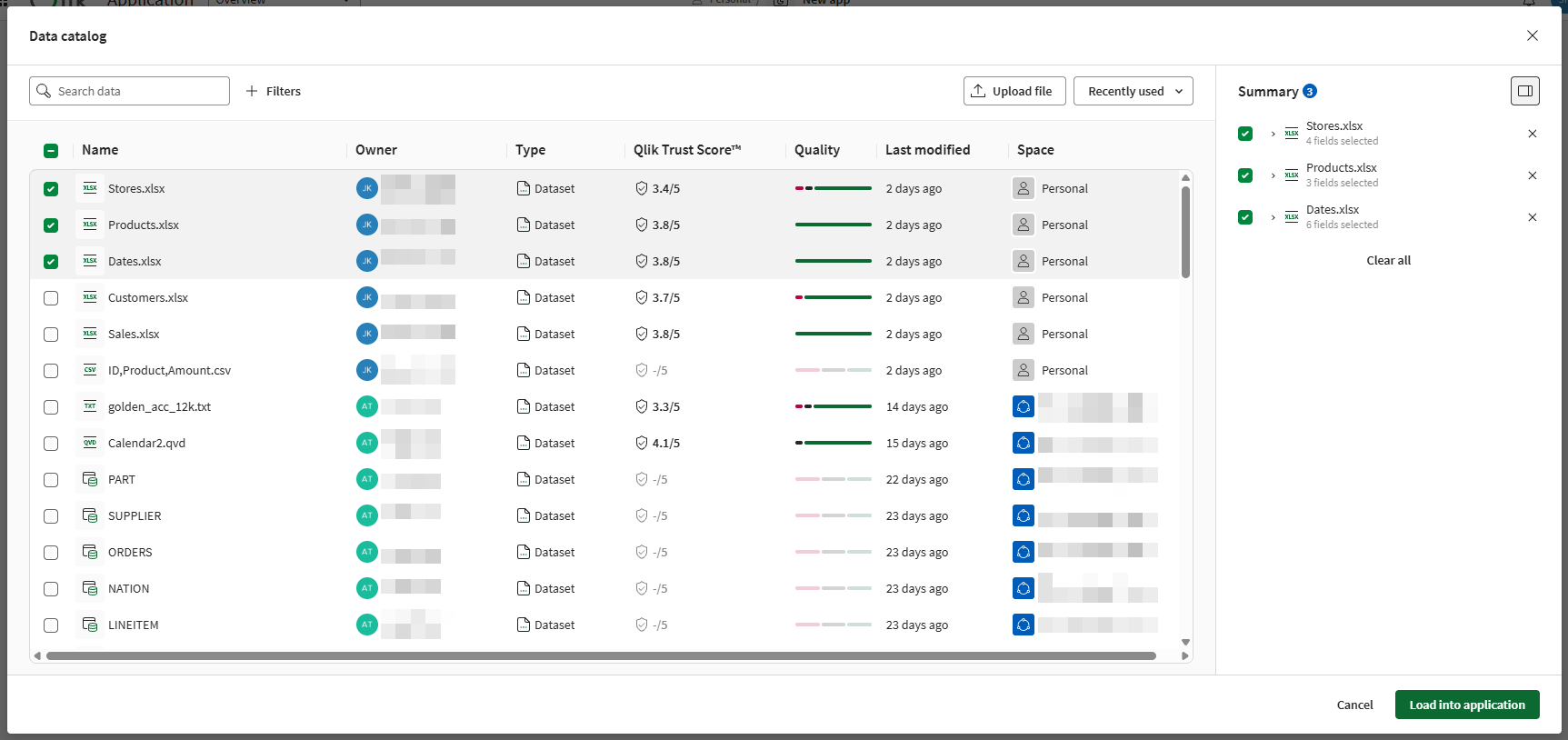
You can search for datasets by name. You can also sort them alphabetically, by modification date, or by creation date. Datasets can also be filtered. You can filter the available datasets by:
-
Space
-
Owner
You can select whole datasets or pick a selection of fields from the tables in your datasets. You can select multiple datasets or pick fields from multiple datasets. If you want to include a selection of tables or fields from a dataset, hover over the dataset and click Refine selection.
Refine selection provides the following views for exploring and selecting fields from your dataset:
-
List view
-
Preview view
-
Card view
Alternatively, select the dataset and then choose fields in the Summary panel.
If the dataset has multiple tables, each table will be available separately.
Verify you have included the items you want to include by checking the Summary panel, then click Load into application.
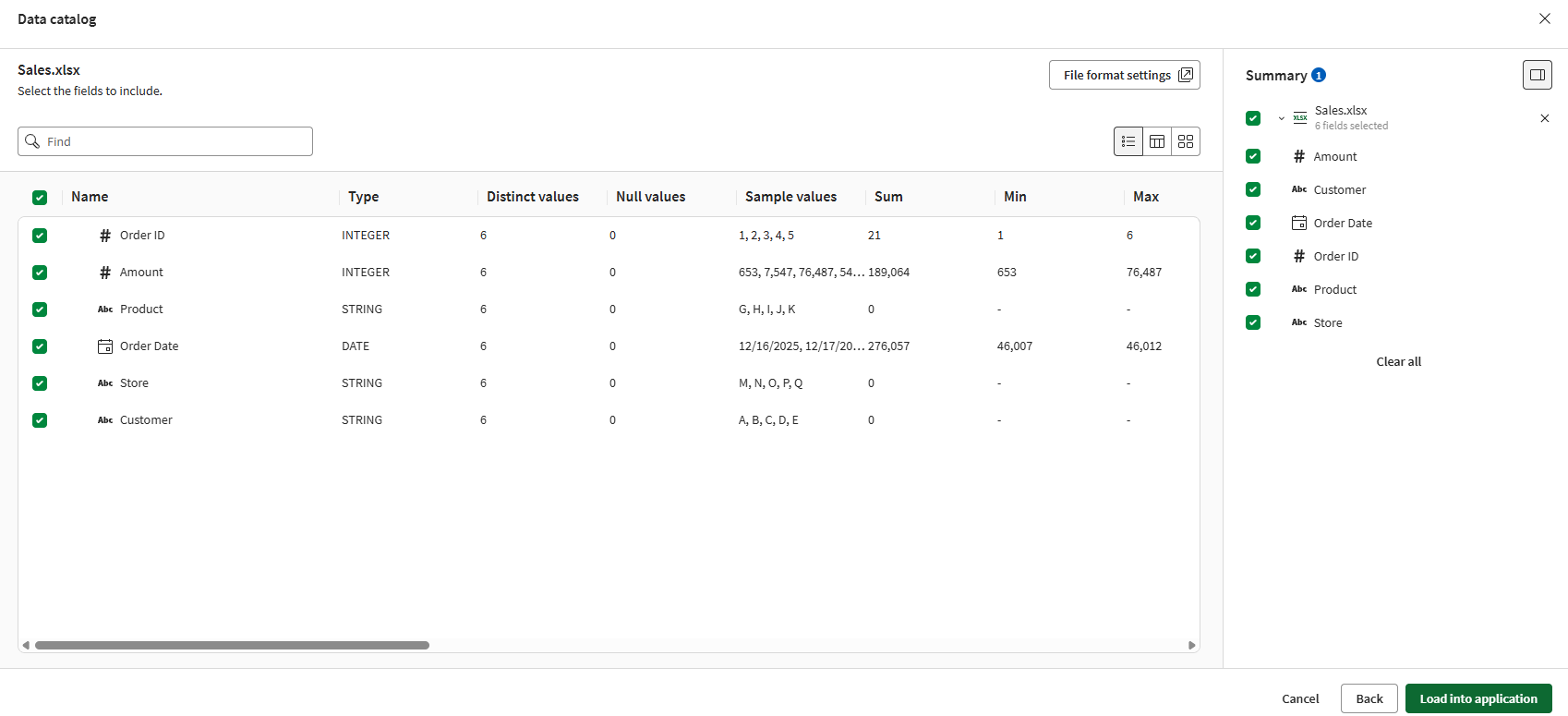
List view
The list view shows a summary of information about the fields and their values.
The list view
Preview view
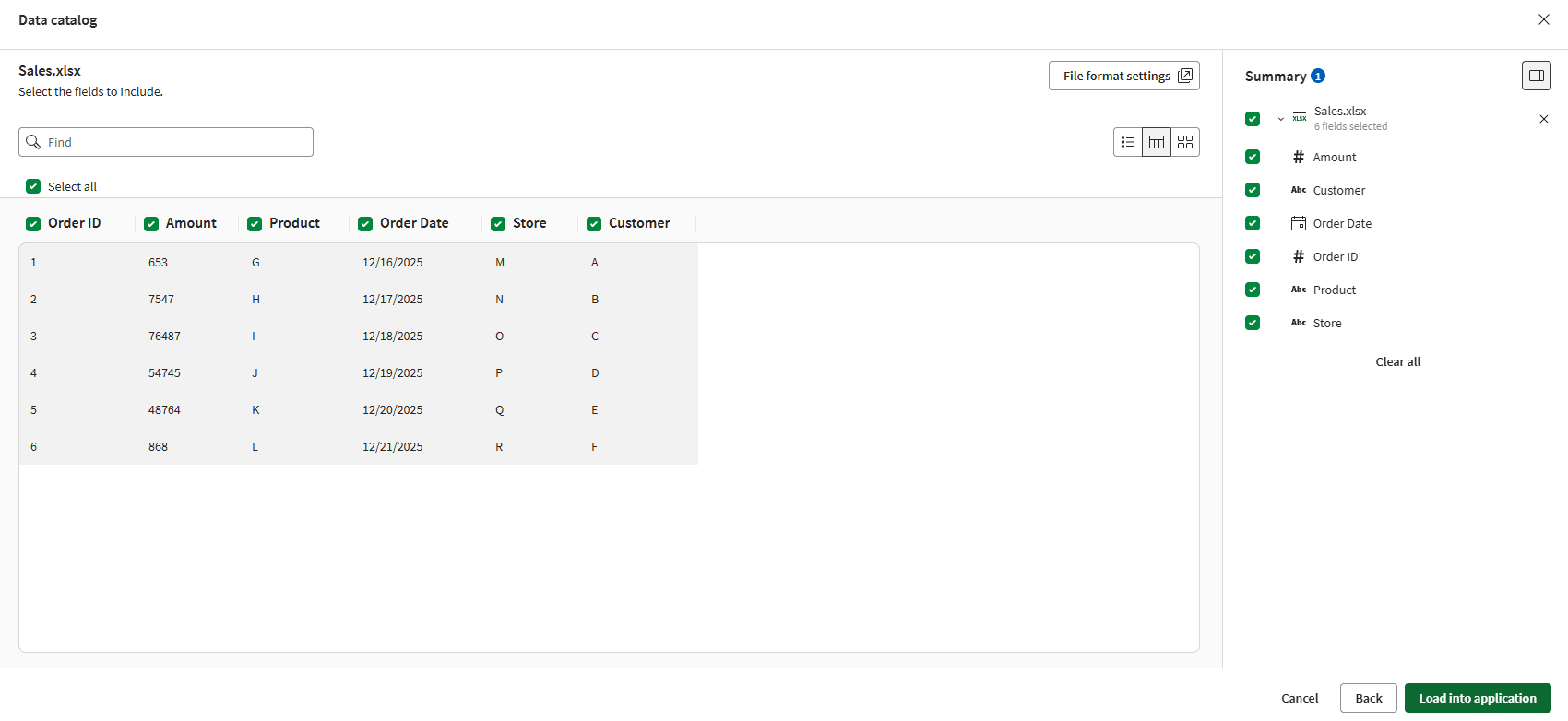
Preview view provides a displays a sample of the data in a table format.
The preview view
Card view
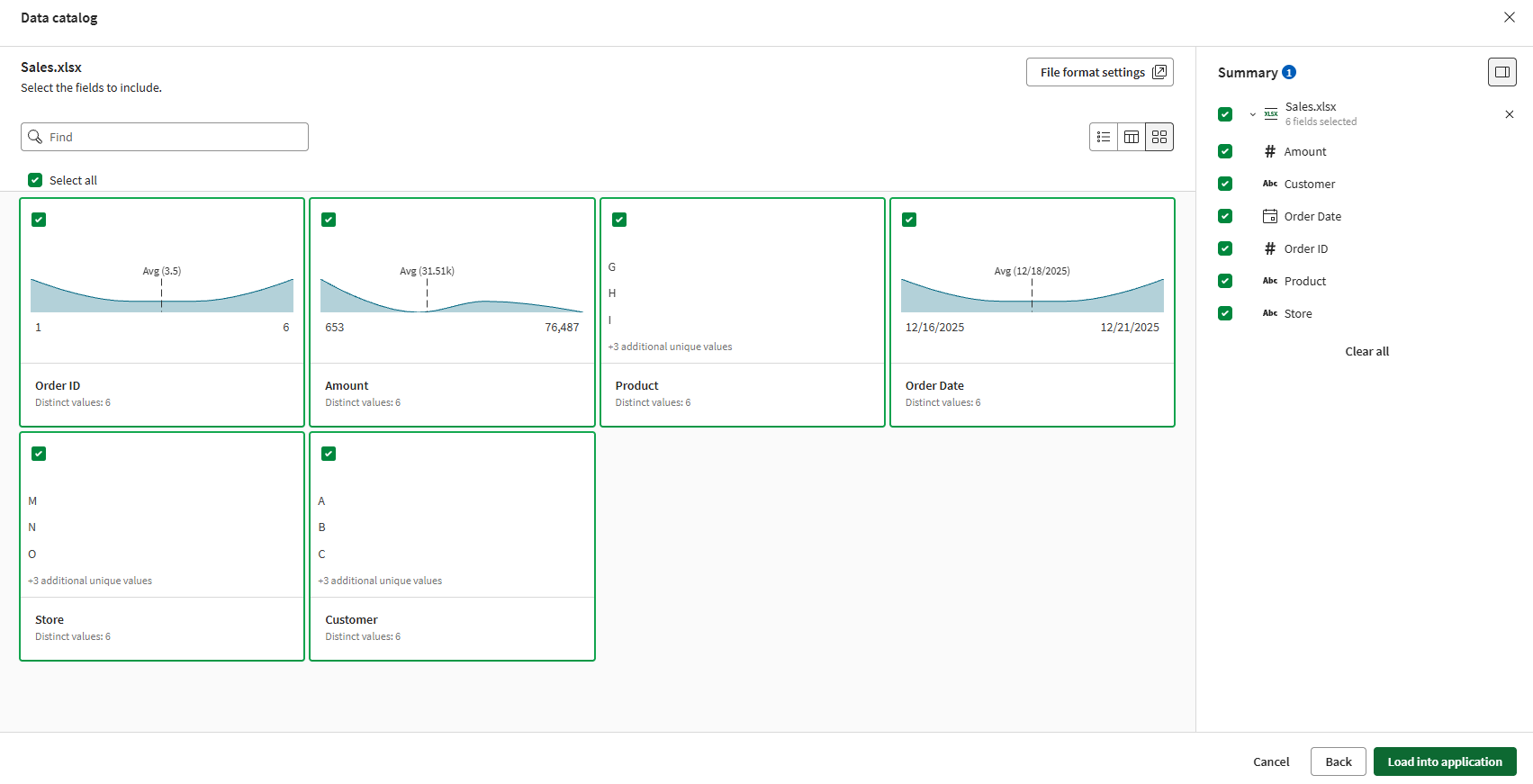
Card view displays available fields with a graphical profile of the data. Depending on the values in the field, each tile displays one of the following visualizations:
-
A list of the top three distinct values from the field.
-
An area chart showing the range of values, with the average value highlighted.
The card view
No results found view
The no results found view is used for loading data when a data source exceeds 1.07 GB in size. You can select the dataset to load, but you cannot preview it.
Limited data view
In the limited data view, you will only see the name and data type for each field. The limited data view is used when the Data Profiling Service is unavailable but there is cashed profiling information available. You can select fields and tables in the limited data view.
Data catalog and script files
You can insert others scripts and QVS files into your script from the data catalog in Data load editor and Script. This allows you to reuse blocks of script in load scripts across multiple applications and scripts.
When inserting scripts, the data catalog displays all scripts to which you have access. You can search for specific scripts or filter them.
Data catalog showing available scripts
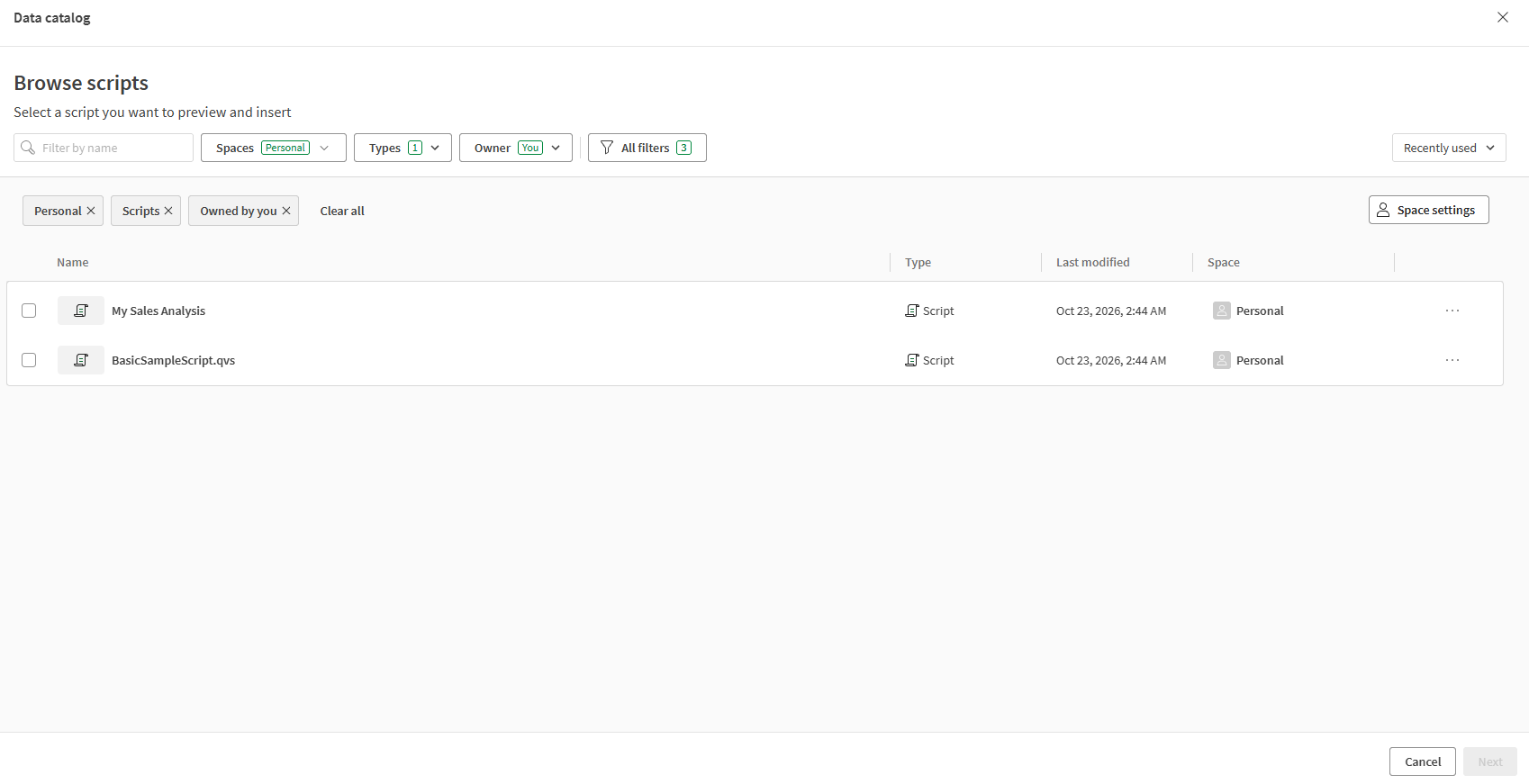
After selecting the script, the data catalog then shows a preview of both the script and the Include statement that will be inserted into your script.
Data catalog script preview
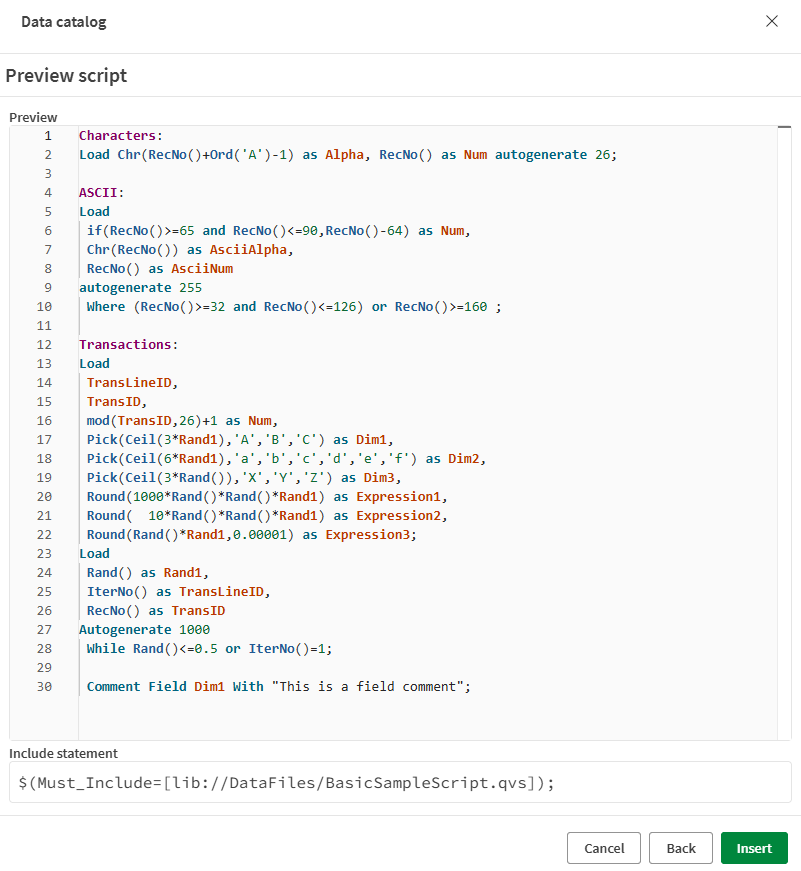
For more information about reusing scripts, see Inserting other scripts into load scripts.
Loading data products with semantic models
The data catalog also allows you to load data products with their semantic models. Semantic models include pre-defined relationships, measures, and dimensions that analytics developers can reuse in applications.
To load data products with their semantic models, you need to open data catalog from one of the following entry points:
-
Open Data load editor in an application, and select Add from data catalog.
-
Open a data product. From its options menu, select Use in > Application.
In other words, you cannot load semantic model information from the data product using entry points such as Data manager or the application creation landing page.
When you select a data product in the data catalog, you can:
- Browse the semantic model structure, viewing tables, relationships, measures, and dimensions.
- Select which tables, measures, and dimensions to include in your application.
- Configure auto-include settings to automatically inherit new measures and dimensions when the semantic model changes.
- Generate an IncludeModel script that loads the data product, with its semantic model, into your application.
Measures and dimensions from the semantic model automatically appear as master items in your application after reload, ready to use in visualizations.
For detailed procedures on consuming data products, see Consuming data products in applications.