
Application overview
Last updated: 10/7/2026When you open an application from the hub, you arrive at the application overview. This is where you see and manage all the content within the application. The content of the main area depends on what category you have selected: sheets, bookmarks, or stories.
If the hub has been disabled by your administrator, you arrive at the application overview when Qlik Sense starts up.
You find content that is part of the published application in the upper part of the main area. You cannot add any content to the base part of the published application. Your private content is displayed under My sheets/My bookmarks/My stories. Depending on access rights, you may be allowed to publish your private content so that other users of the application can explore it.
Application overview
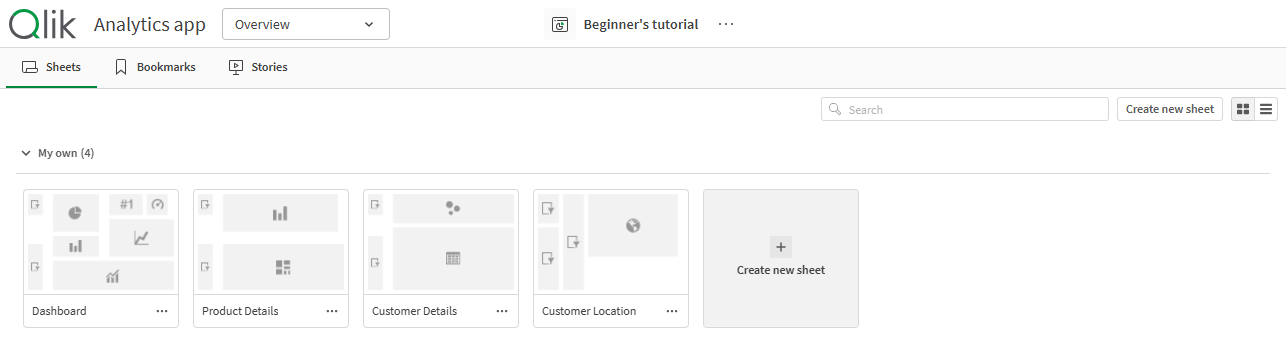
You can view additional information about your application from the application details area. The application details area displays the application name, publishing information, and data load information. It also shows when the application was created, published, and when the application was last updated. Additional application actions are available in the application details area by clicking  and selecting the action. You can open the application details area from the application navigation bar by clicking the application name or by clicking > Details.
Application details area

Navigation bar
Navigation bar in Application overview

In the navigation bar, you can:
- Click Qlik to navigate to the hub.
-
Navigate between area of the application using the application navigation menu.
The application navigation menu replaces the Analyze, Narrate, and Prepare tabs in the previous navigation bar.
Application navigation menu

- Click the application name to open application details, for example, to edit the application name or change application settings.
-
Click
to perform actions based on the view you are in. In all sections of applications, the following are available:
-
Show details/Hide details
-
Touch screen mode
-
Help
-
Settings
In Overview, Data manager, and Data model viewer, the following are available:
-
Add data
In Sheets, the following are available:
-
Download sheet as PDF
-
Duplicate sheet
-
Delete sheet
-
Embed sheet
In Storytelling, the following are available:
-
Download story as PowerPoint
-
Download story as PDF
-
Duplicate story
-
Delete story
-
Create new sheet button and view toggles
Create new sheet button and view options

| UI item | Description |
|---|---|
| Create new sheet | Create a new sheet. |

|
Toggle on grid view. |

|
Toggle on list view. |
Display sheets, bookmarks, or stories
Sheets, bookmarks, and stories

| UI item | Description |
|---|---|

|
Access to all sheets in the application and to creating a new sheet. |

|
Access to all bookmarks in the application. |

|
Access to all stories in the application and to creating a new story. |
Sheet details
Click and select Details on a sheet or a story to display its details, such as publish information and description.
Sheet details view

Private sheets
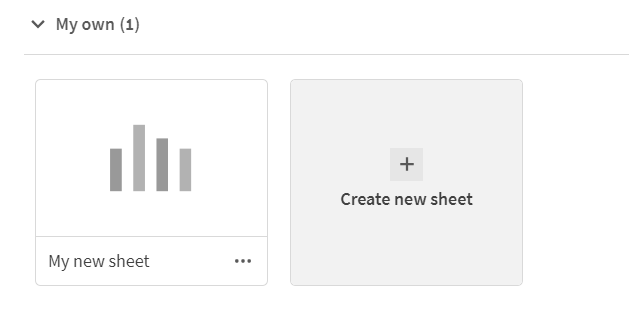
You can reorder and change title and description of private sheets and stories. You can also publish, edit, duplicate, and delete them.
Private sheets
Application settings
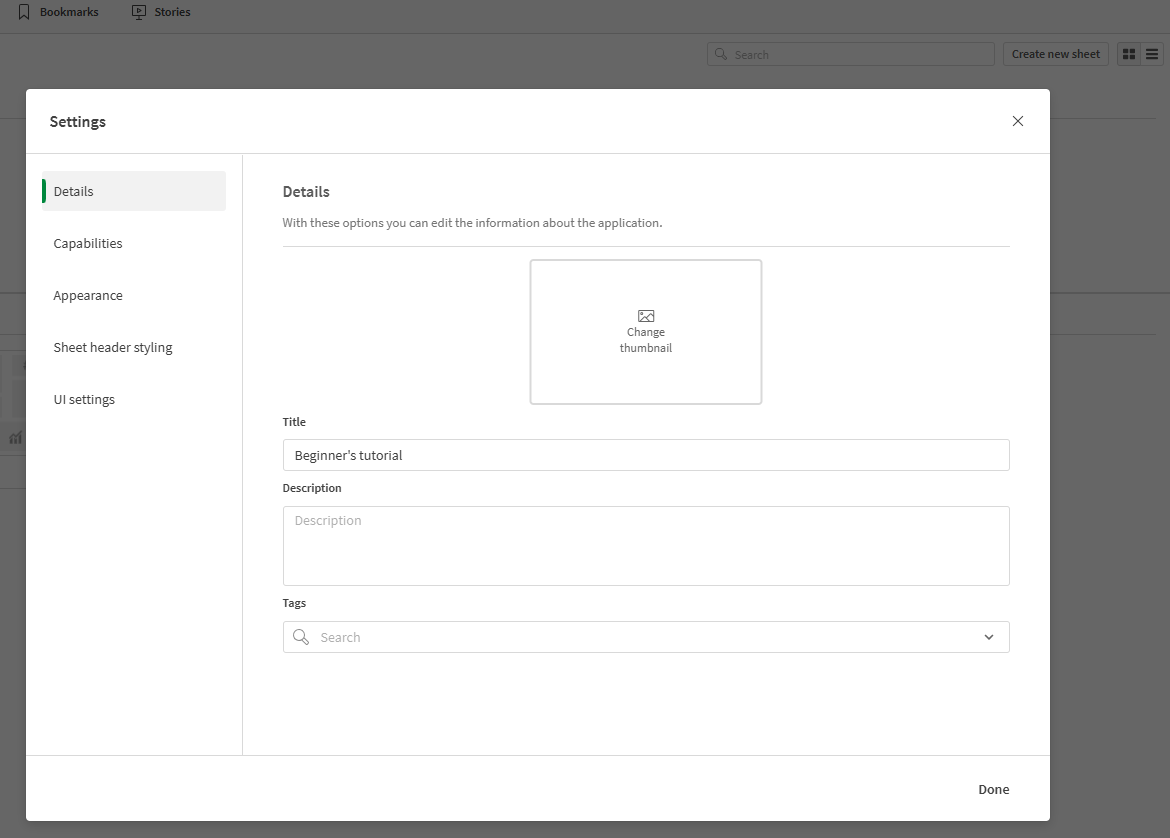
If your application has not been published, you can change application settings. Click >  Settings in the application navigation bar to open the application settings. For more information, see Styling an application.
Application settings menu opened over the application overview. The application is unpublished.
Touch gestures
| Action | Description |
|---|---|
| Long-touch and drag | Move an item to a new location. |
| Long-touch and release | Open the shortcut menu. |