
Managing report templates
Last updated: 10/2/2026In the Templates tab of the Reporting section of an application, you can manage all report templates you have added to the application, and upload new ones. You can also create and edit PixelPerfect and HTML templates.
The Templates tab allows you to add and manage report templates in a Qlik Sense application
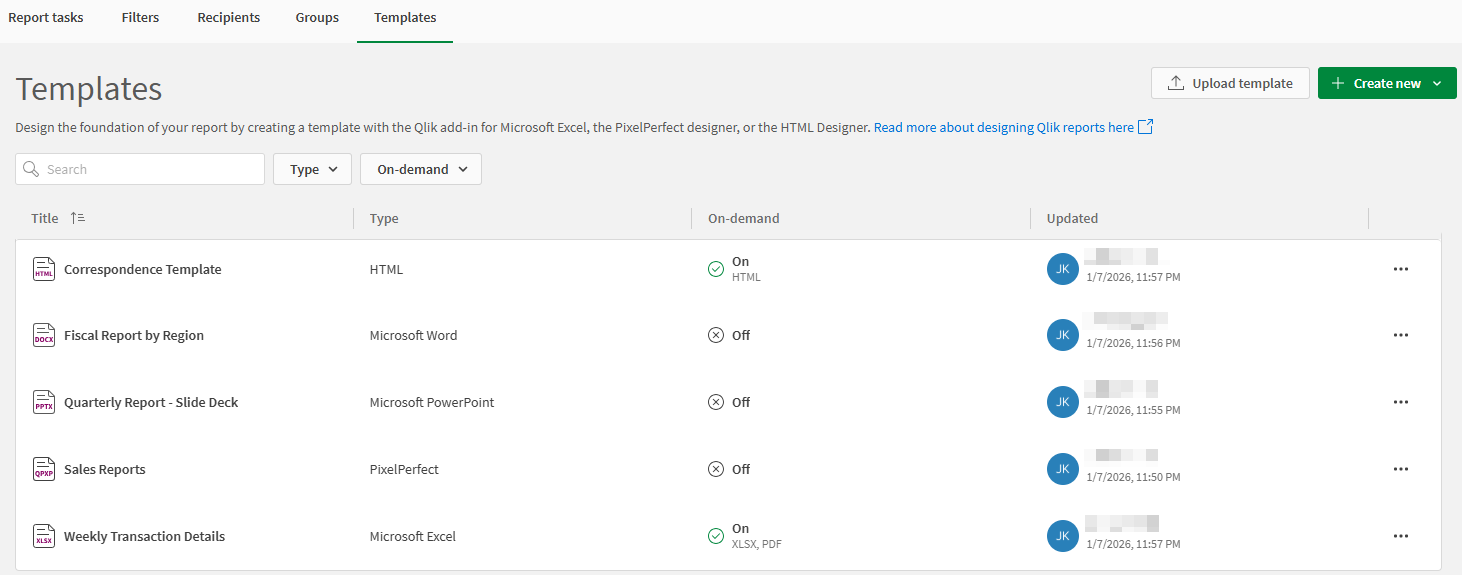
Creating report templates
Create report templates using Qlik Cloud template development tools. To create each type of compatible template, do the following:
-
Tabular report templates are created with the Qlik add-in for Microsoft Excel.
-
PixelPerfect report template are created directly in the application using the PixelPerfect designer. Click Create new > PixelPerfect template to create a template.
-
HTML report template are created directly in the application using the HTML designer. Click Create new > HTML template to create a template.
-
PowerPoint report templates are created with the Qlik add-in for Microsoft PowerPoint.
-
Word report templates are created with the Qlik add-in for Microsoft Word.
For information about creating report templates, see Designing report templates and related topics.
Uploading a report template
You can upload the following types of report templates into the application. Note that not all templates migrated from Qlik NPrinting are compatible with reporting in Qlik Cloud Analytics.
-
Tabular (.xlsx format)
-
PixelPerfect (.qpxp format)
-
HTML (.qhtml format)
-
PowerPoint (.pptx format)
-
Word (.docx format)
Upload multiple templates into the application for use in report generation. When you create the report template, it is specific to the application you are creating for. It can be connected to other applications that contain the same objects referenced by the template.
Do the following:
-
In a Qlik Sense application, open the Reporting section and go to the Templates tab.
-
Click Upload template.
-
Click Browse. Browse for a template file and add it.
Changing the connected Qlik Sense application
When you upload a template, you are notified if the template is already connected to a different Qlik Sense application. If this is the case, you can update the connected application in this template copy you are currently uploading. Multiple copies of the same template can be uploaded across different applications, allowing reuse of templates for moved, duplicated, exported, and migrated applications. This workflow is also applicable when publishing applications to managed spaces.
You can also update the connected Qlik Sense application when uploading a new version of the same template.
To connect a template to a different Qlik Sense application, all application objects referenced by the template need to be present in the new application. If you encounter errors when trying to change the connected application, see Troubleshooting - In-application reporting.
A best practice is to ensure you have created a backup copy of the template before connecting it to another Qlik Sense application.
Do the following:
-
Use the procedure above to upload your template into the application.
-
When prompted, click the checkbox to confirm you want to change the connected Qlik Sense application.
-
Click Update.
The connected Qlik Sense application for a template can also be changed when you open an Excel, PowerPoint, or Word template in the corresponding Microsoft 365 application. For more information, see Changing the connected Qlik Sense app. In some cases, you will need to use this method.
Managing your templates
For an existing template listed in the Templates tab, click the  icon to access the following options:
-
Edit template (HTML and PixelPerfect templates)
-
Rename template
-
Upload a new version of the same template
-
Download template
-
Configure the template to be usable for on-demand reports. See: Configuring on-demand reporting
-
Delete template
Section access considerations
If the application uses section access, report generation works differently. For more information, see In-application reporting and section access.
Permissions for report templates
Managing the templates in a Qlik Sense application requires specific roles. The permissions requirements vary depending on the type of space in which your application is located.
To manage the templates in an application, you need:
-
Permissions assigned to you by a tenant administrator. For more information, an administrator can refer to Setting permissions for metered reporting features.
-
For more information about space permissions for reporting, see Qlik Reporting Service permissions.
Space permissions
Managing the distribution list within a Qlik Sense application requires specific space roles. The requirements depend on the type of space in which your application is located.
Requirements for applications in shared spaces
For applications in shared spaces, you need Can edit permissions in the space to do the following:
-
View the templates in the application
-
Upload and re-upload a template
-
Download a template
-
Configure on-demand reporting
-
Delete a template
For more information, see Managing permissions in shared spaces.
Requirements for applications in managed spaces
Users with the Owner, Can manage, or Can operate roles can perform the following actions in a managed space:
-
View the templates in the application
-
Upload and re-upload a template
-
Download a template
-
Configure on-demand reporting
-
Delete a template
For more information, see Managing permissions in managed spaces.
Requirements for an application in your personal space
You must have the Private Analytics Content Creator user role in the tenant to have full control over the report templates added to the application.