
Date feature engineering
Last updated: 10/21/2026Qlik Predict generates auto-engineered features from eligible columns with the date feature type, which have been identified as containing date and time information. Auto-engineered date features, and the parent features from which they are derived, are marked with a  icon.
icon.
When Qlik Cloud Analytics profiles the training dataset you have selected for use in Qlik Predict, it links certain data types to the date feature type. This includes the following data types:
-
Date
-
Datetime
-
Time
-
Timestamp
Features that are assigned any of these data types during profiling are given the date feature type. For information about the available profile statistics that can be viewed for your data fields, see List view.
When possible, Qlik Predict displays a list of auto-engineered date features that can be created from eligible parent features that have the date feature type. Auto-engineered date features are included in the experiment by default. If you choose to include them, the new features are generated after v1 of the experiment.
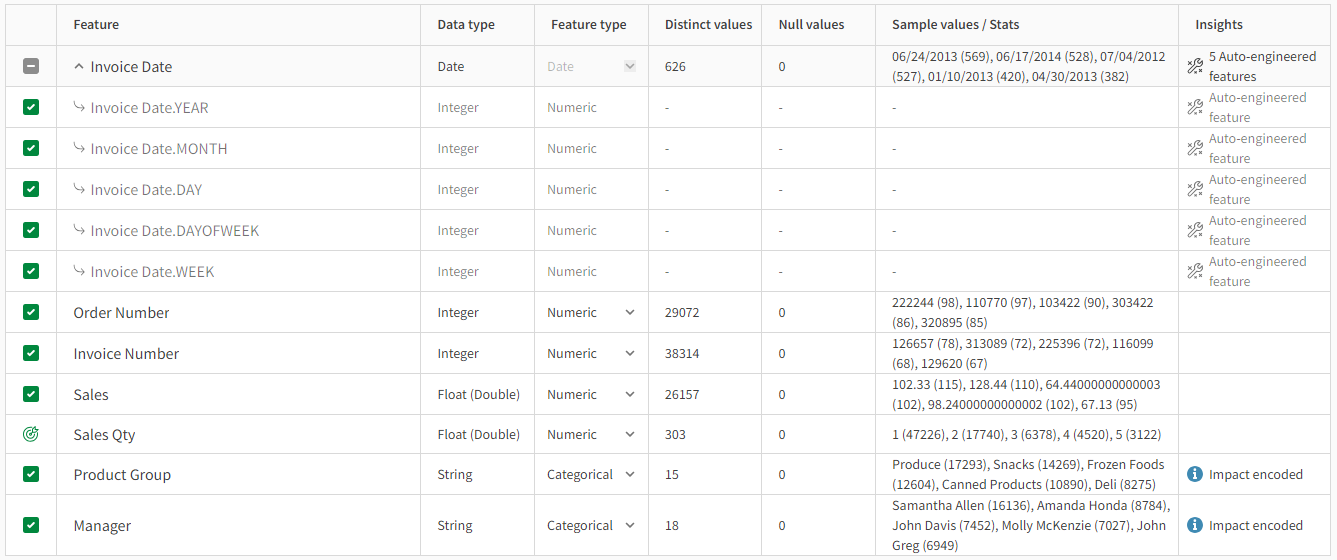
Auto-engineered date features have the numeric feature type. They are included in the experiment by default, but are optional. You can remove some, or all, of them before starting experiment training, or when configuring the next experiment version. When auto-engineered date features are included, the original parent date feature is removed from the experiment.
You can instead include the parent date feature as a categorical or numeric feature. When you do this, the auto-engineered date features are no longer usable. In most cases, it is recommended to use available auto-engineered features in your experiment, because they bring improved performance to your machine learning models. However, there may be scenarios where a column identified as a date feature but you need it to be treated as categorical or numeric. In these cases, you can manually change the feature type.
Auto-engineered date features do not count towards the Qlik Predict dataset size (maximum cell counts in training datasets and apply datasets) that has been specified in your Qlik Cloud subscription. Only the original date column cells are counted.
Schema view showing auto-engineered features that can be generated from a parent date feature 'Invoice Date'. Note the difference between the Data type and Feature type of each feature.
Using a date feature as the experiment target
In the rare case in which you want to use a feature with date and time information as the target of your experiment, the feature type of the column will be switched from date to categorical, and the auto-engineered features will be removed. If you select another target, then later would like to add the date and time feature as a regular feature, you will need to change it back to the date feature type manually if needed. If you return the feature to the date feature type, the auto-engineered date features are generated again.
For more information about how to change feature types, see Changing feature types.
Available auto-engineered date features
When generating auto-engineered date features from a column in your dataset, Qlik Predict extracts and calculates specific components of each date and date-time value, isolating each component in its own column. The table below lists the auto-engineered features that can be generated by Qlik Predict.
| Auto-engineered feature | Data type | Feature type | Description |
|---|---|---|---|
| YEAR | Integer | Numeric | Year field parsed directly from the source date or timestamp. |
| MONTH | Integer | Numeric | Month field parsed directly from the source date or timestamp. |
| DAY | Integer | Numeric | Day field parsed directly from the source date or timestamp. |
| HOUR | Integer | Numeric | Hour field parsed directly from the source timestamp. |
| MINUTE | Integer | Numeric | Minute field parsed directly from the source timestamp. |
| SECOND | Integer | Numeric | Second field parsed directly from the source timestamp. |
| DAYOFWEEK | Integer | Numeric | Day of the week, calculated from the source day, month and year. |
| WEEK | Integer | Numeric | Week of the year, calculated from the source day, month and year. |
For each new feature created, the original column name is suffixed by the applicable auto-engineered feature.
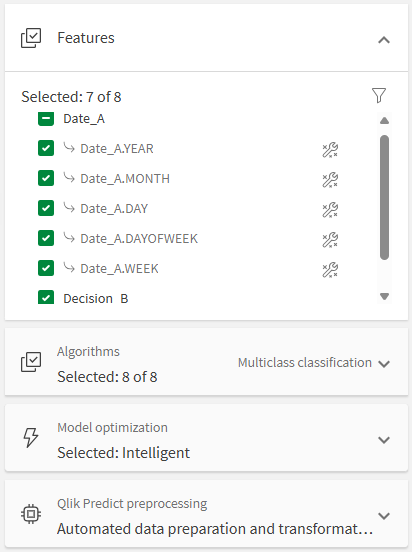
Auto-engineered date features in the experiment configuration panel
Auto-engineered date features and time series models
When you select a date index column for a time series experiment, the date feature type is used for this column. However, date feature engineering is not supported for time series models. Auto-engineered date features are not available to be derived from the column.
For more information about time series models, see Working with time series experiments and Working with multivariate time series forecasting.
Auto-engineered date features in predictions
For information about how to work with date features when running predictions, see Working with date features in predictions.