
The join prefix joins the loaded table with an existing named table or the last previously created data table.
The effect of joining data is to extend the target table by an additional set of fields or attributes, namely ones not already present in the target table. Any common field names between the source data set and the target table are used to work out how to associate the new incoming records. This is commonly referred to as a “natural join”. A Qlik join operation can lead to the resulting target table having more or fewer records than it started with, depending on the uniqueness of the join association and the type of join employed.

Types of joins
There are four types of joins:
-
Left join
-
Inner join
-
Outer join
-
Right join
Example results sets from different types of join operations

Left join
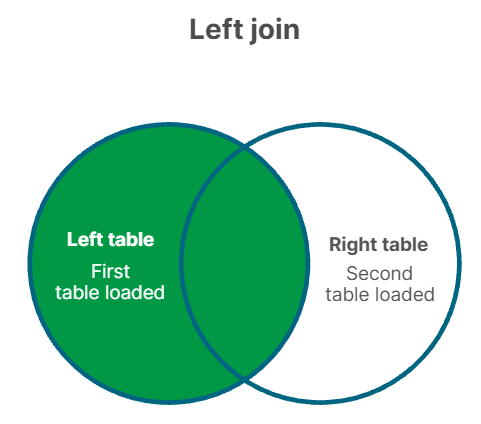
Left joins are the most common join type. For example, if you have a transaction data set and would like to combine it with a reference data set, you would typically use a Left Join. You would load the transaction table first, then load the reference data set while joining it via a Left Join prefix onto the already loaded transaction table. A Left Join would keep all transactions as-is and add on the supplementary reference data fields where a match is found.
Left join
Inner join
When you have two data sets where you only care about any results where there is a matching association, consider using an Inner Join. This will eliminate all records from both the source data loaded and the target table if no match is found. As a result, this may leave your target table with fewer records than before the join operation took place.
Inner join

Outer join (default)
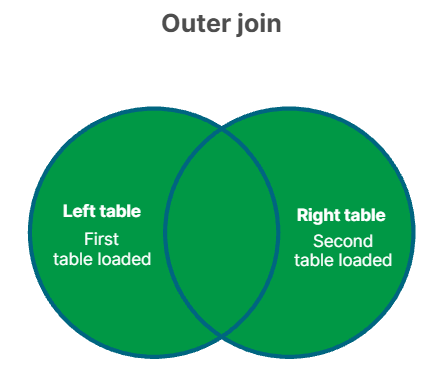
When you need to keep both the target records and all of the incoming records, use an Outer Join. Where no match is found, each set of records is still kept while the fields from the opposite side of the join will remain unpopulated (null).
If the type keyword is omitted, the default join type is an outer join.
Outer join
Right join
This join type keeps all the records about to be loaded, while reducing the records in the table targeted by the join to only those records where there is an association match in the incoming records. This is a niche join type that is sometimes used as a means of trimming down an already pre-loaded table of records to a required subset.
Right join

Cross join
Example result set from a "cross join" operation

Syntax and arguments
Syntax:
[inner | outer | left | right ]Join [ (tablename ) ]( loadstatement | selectstatement )
| Argument | Description |
|---|---|
| tablename | The named table to be compared to the loaded table. |
| loadstatement or selectstatement | The LOAD or SELECT statement for the loaded table. |
Related topics
These topics may help you work with this function:
| Topic | Description |
|---|---|
| Combining tables with Join and Keep | This topic provides further explanation of the concepts of “joining” and “keeping” data sets. |
| Keep | The Keep load prefix is similar to the Join prefix, but it does not combine the source and target datasets. Instead, it trims each dataset according to the type of operation adopted (inner, outer, left, or right). |
Load script examples - Left join
A left join keeps all records from your main (target) table and adds matching data from a second (source) table. If there is no match in the source, the main table’s record still appears, but with empty fields from the source table.
Add the example script to your application and run it. To see the result, add the fields listed in the results column to a sheet in your application.
Load script
Table1:
Load * inline [
Column1, Column2
A, B
1, aa
2, cc
3, ee ];

Table2:
Left Join Load * inline [
Column1, Column3
A, C
1, xx
4, yy ];
For more information about using inline loads, see Using inline loads to load data.
Results
| Column1 | Column2 | Column3 |
|---|---|---|
| A | B | C |
| 1 | aa | xx |
| 2 | cc | - |
| 3 | ee | - |
This example demonstrates the Left Join output where only values present in the first (left) table are joined.
Overview
Suppose you have a list of orders, but not all orders have a matching customer record.
Load script
Orders:
Load * inline [
OrderID, CustomerID, Amount
1, 101, 200
2, 102, 150
3, 104, 400
];

Customers:
Left Join (Orders)
Load * inline [
CustomerID, Name
101, Alice
102, Bob
103, Carol
];
Results
If you expand the preview window in the Data model viewer, you will see a portion of the full result set organized into a table:
|
OrderID |
CustomerID | Amount | Name |
|---|---|---|---|
|
1 |
101 | 200 | Alice |
|
2 |
102 | 150 | Bob |
|
3 |
104 | 400 | - |
OrderID 1 and 2 have matching customers. OrderID 3 does not have a matching customer, so Name is blank.
Overview
Open the Data load editor and add the load script below to a new section.
The load script contains:
-
A dataset representing change records, which is loaded into a table named Changes. It includes a Status ID key field.
-
A second dataset representing change statuses, which is loaded and combined with the original change records by joining it with a left Join load prefix.
This left join ensures that the change records remain intact while adding on status attributes where a match in the incoming status records is found based on a common Status ID.
Load script
Changes:
Load * inline [
Change ID	Status ID	Scheduled Start Date	Scheduled End Date	Business Impact
10030	4	19/01/2022	23/02/2022	None
10015	3	04/01/2022	15/02/2022	Low
10103	1	02/04/2022	29/05/2022	Medium
10185	2	23/06/2022	08/09/2022	None
10323	1	08/11/2022	26/11/2022	High
10326	2	11/11/2022	05/12/2022	None
10138	2	07/05/2022	03/08/2022	None
10031	3	20/01/2022	25/03/2022	Low
10040	1	29/01/2022	22/04/2022	None
10134	1	03/05/2022	08/07/2022	Low
10334	2	19/11/2022	06/02/2023	Low
10220	2	28/07/2022	06/09/2022	None
10264	1	10/09/2022	17/10/2022	Medium
10116	1	15/04/2022	24/04/2022	None
10187	2	25/06/2022	24/08/2022	Low
] (delimiter is '\t');

Status:
Left Join (Changes)
Load * inline [
Status ID	Status	Sub Status
1	Open	Not Started
2	Open	Started
3	Closed	Completed
4	Closed	Cancelled
5	Closed	Obsolete
] (delimiter is '\t');
Results
Open the Data model viewer and note the shape of the data model. Only one denormalized table is present. It is a combination of all the original change records, with the matching status attributes joined onto each change record.
|
Changes |
|---|
|
Change ID |
|
Status ID |
|
Scheduled Start Date |
|
Scheduled End Date |
|
Business Impact |
|
Status |
|
Sub Status |
If you expand the preview window in the Data model viewer, you will see a portion of this full result set organized into a table:
|
Change ID |
Status ID | Scheduled Start Date | Scheduled End Date | Business Impact | Status | Sub Status |
|---|---|---|---|---|---|---|
|
10030 |
4 | 19/01/2022 | 23/02/2022 | None | Closed | Cancelled |
|
10031 |
3 | 20/01/2022 | 25/03/2022 | Low | Closed | Completed |
|
10015 |
3 | 04/01/2022 | 15/02/2022 | Low | Closed | Completed |
|
10103 |
1 | 02/04/2022 | 29/05/2022 | Medium | Open | Not Started |
| 10116 | 1 | 15/04/2022 | 24/04/2022 | None | Open | Not Started |
|
10134 |
1 | 03/05/2022 | 08/07/2022 | Low | Open | Not Started |
| 10264 | 1 | 10/09/2022 | 17/10/2022 | Medium | Open | Not Started |
|
10040 |
1 | 29/01/2022 | 22/04/2022 | None | Open | Not Started |
| 10323 | 1 | 08/11/2022 | 26/11/2022 | High | Open | Not Started |
| 10187 | 2 | 25/06/2022 | 24/08/2022 | Low | Open | Started |
| 10185 | 2 | 23/06/2022 | 08/09/2022 | None | Open | Started |
| 10220 | 2 | 28/07/2022 | 06/09/2022 | None | Open | Started |
| 10326 | 2 | 11/11/2022 | 05/12/2022 | None | Open | Started |
|
10138 |
2 | 07/05/2022 | 03/08/2022 | None | Open | Started |
| 10334 | 2 | 19/11/2022 | 06/02/2023 | Low | Open | Started |
Since the fifth row in the Status table (Status ID: '5', Status: 'Closed', Sub Status: 'Obsolete') does not correspond to any of the records in the Changes table, the information in this row does not appear in the result set above.
Return to the Data load editor. Load the data and open a sheet. Create a new table and add this field as a dimension: Status.
Add this measure:
=Count([Change ID])
Now you can inspect the number of Changes by Status.
| Status | =Count([Change ID]) |
|---|---|
| Open | 12 |
| Closed | 3 |
Load script examples - Inner join
An inner join keeps only records that exist in both tables (based on matching field values).
Load script
Add the example script to your application and run it. To see the result, add the fields listed in the results column to a sheet in your application.
Table1:
Load * inline [
Column1, Column2
A, B
1, aa
2, cc
3, ee ];

Table2:
Inner Join Load * inline [
Column1, Column3
A, C
1, xx
4, yy ];
For more information about using inline loads, see Using inline loads to load data.
Results
| Column1 | Column2 | Column3 |
|---|---|---|
| A | B | C |
| 1 | aa | xx |
This example demonstrates the Inner Join output where only values present in both the first (left) and the second (right) tables are joined.
Overview
You have orders and a list of shipped orders. You want only the orders that have been shipped.
Load script
Orders:
Load * inline [
OrderID, Amount
1, 200
2, 150
3, 400
];

Shipped:
Inner Join (Orders)
Load * inline [
OrderID, ShipDate
2, 2022-05-01
3, 2022-05-02
4, 2022-05-03
];
Results
If you expand the preview window in the Data model viewer, you will see a portion of the full result set organized into a table:
| OrderID | Amount | ShipDate |
|---|---|---|
| 2 | 150 | 2022-05-01 |
| 3 | 400 | 2022-05-02 |
Only OrderID 2 and 3 appear, because they exist in both tables.
Overview
Open the Data load editor and add the load script below to a new section.
The load script contains:
-
A dataset representing change records, which is loaded into a table named Changes.
-
A second dataset representing change records originating from the source system JIRA.This is loaded and combined with the original records by joining it with an Inner Join load prefix.
This Inner Join ensures that only the five change records which are found in both datasets are kept.
Load script
Changes:
Load * inline [
Change ID	Status ID	Scheduled Start Date	Scheduled End Date	Business Impact
10030	4	19/01/2022	23/02/2022	None
10015	3	04/01/2022	15/02/2022	Low
10103	1	02/04/2022	29/05/2022	Medium
10185	2	23/06/2022	08/09/2022	None
10323	1	08/11/2022	26/11/2022	High
10326	2	11/11/2022	05/12/2022	None
10138	2	07/05/2022	03/08/2022	None
10031	3	20/01/2022	25/03/2022	Low
10040	1	29/01/2022	22/04/2022	None
10134	1	03/05/2022	08/07/2022	Low
10334	2	19/11/2022	06/02/2023	Low
10220	2	28/07/2022	06/09/2022	None
10264	1	10/09/2022	17/10/2022	Medium
10116	1	15/04/2022	24/04/2022	None
10187	2	25/06/2022	24/08/2022	Low
] (delimiter is '\t');

JIRA_changes:
Inner Join (Changes)
Load
  [Ticket ID] AS [Change ID],
  [Source System]
inline
[
Ticket ID	Source System
10000	JIRA
10030	JIRA
10323	JIRA
10134	JIRA
10334	JIRA
10220	JIRA
20000	TFS
] (delimiter is '\t');
Results
Load the data and open a sheet. Create a new table and add these fields as dimensions:
-
Source System
-
Change ID
-
Business Impact
Now you can inspect the five resulting records. The resultant table from an Inner Join will only include records with matching information in both datasets.
| Source System | Change ID | Business Impact |
|---|---|---|
| JIRA | 10030 | None |
| JIRA | 10134 | Low |
| JIRA | 10220 | None |
| JIRA | 10323 | High |
| JIRA | 10334 | Low |
Load script examples - Outer join
An outer join keeps all records from both tables. Where there is no match, fields are left blank.
Load script
Add the example script to your application and run it. To see the result, add the fields listed in the results column to a sheet in your application.
Table1:
Load * inline [
Column1, Column2
A, B
1, aa
2, cc
3, ee ];

Table2:
Outer Join Load * inline [
Column1, Column3
A, C
1, xx
4, yy ];
For more information about using inline loads, see Using inline loads to load data.
Results
| Column1 | Column2 | Column3 |
|---|---|---|
| A | B | C |
| 1 | aa | xx |
| 2 | cc | - |
| 3 | ee | - |
| 4 | - | yy |
In this example, the two tables, Table1 and Table2, are merged into a single table labeled Table1. In cases like this, the outer prefix is often used to join several tables into a single table to perform aggregations over the values of a single table.
Overview
You want a complete list of all customers and orders, even if some customers have no orders and some orders have no customer record.
Load script
Orders:
Load * inline [
OrderID, CustomerID
1, 101
2, 102
3, 104
];

Customers:
Outer Join (Orders)
Load * inline [
CustomerID, Name
101, Alice
102, Bob
103, Carol
];
Results
If you expand the preview window in the Data model viewer, you will see a portion of this full result set organized into a table:
| OrderID | CustomerID | Name |
|---|---|---|
| 1 | 101 | Alice |
| 2 | 102 | Bob |
| 3 | 104 | - |
| - | 103 | Carol |
OrderID 3 has no matching customer (Name blank).
CustomerID 103 (Carol) has no matching order (OrderID blank).
Overview
Open the Data load editor and add the load script below to a new section.
The load script contains:
-
A dataset representing change records, which is loaded into a table named Changes.
-
A second dataset representing change records originating from the source system JIRA, which is loaded and combined with the original records by joining it with an Outer Join load prefix.
This ensures that all the overlapping change records from both datasets are kept.
Load script
// 8 Change records

Changes:
Load * inline [
Change ID	Status ID	Scheduled Start Date	Scheduled End Date	Business Impact
10030	4	19/01/2022	23/02/2022	None
10015	3	04/01/2022	15/02/2022	Low
10138	2	07/05/2022	03/08/2022	None
10031	3	20/01/2022	25/03/2022	Low
10040	1	29/01/2022	22/04/2022	None
10134	1	03/05/2022	08/07/2022	Low
10334	2	19/11/2022	06/02/2023	Low
10220	2	28/07/2022	06/09/2022	None
] (delimiter is '\t');

// 6 Change records

JIRA_changes:
Outer Join (Changes)
Load
  [Ticket ID] AS [Change ID],
  [Source System]
inline
[
Ticket ID	Source System
10030	JIRA
10323	JIRA
10134	JIRA
10334	JIRA
10220	JIRA
10597	JIRA
] (delimiter is '\t');
Results
Load the data and open a sheet. Create a new table and add these fields as dimensions:
-
Source System
-
Change ID
-
Business Impact
Now you can inspect the 10 resulting records.
| Source System | Change ID | Business Impact |
|---|---|---|
| JIRA | 10030 | None |
| JIRA | 10134 | Low |
| JIRA | 10220 | None |
| JIRA | 10323 | - |
| JIRA | 10334 | Low |
| JIRA | 10597 | - |
| - | 10015 | Low |
| - | 10031 | Low |
| - | 10040 | None |
| - | 10138 | None |
Load script examples - Right join
A right join keeps all records from the source table and adds matching info from the target table. If the target table has no match, fields from it are blank.
Load script
Add the example script to your application and run it. To see the result, add the fields listed in the results column to a sheet in your application.
Table1:
Load * inline [
Column1, Column2
A, B
1, aa
2, cc
3, ee ];

Table2:
Right Join Load * inline [
Column1, Column3
A, C
1, xx
4, yy ];
For more information about using inline loads, see Using inline loads to load data.
Result
| Column1 | Column2 | Column3 |
|---|---|---|
| A | B | C |
| 1 | aa | xx |
| 4 | - | yy |
This example demonstrates the Right Join output where only values present in the second (right) table are joined.
Overview
Your source table is a list of customers; you want all customers, plus any matching orders.
Load script
Orders:
Load * inline [
OrderID, CustomerID
1, 101
2, 102
3, 104
];

Customers:
Right Join (Orders)
Load * inline [
CustomerID, Name
101, Alice
102, Bob
103, Carol
];
Results
If you expand the preview window in the Data model viewer, you will see a portion of this full result set organized into a table:
| CustomerID | Name | OrderID |
|---|---|---|
| 101 | Alice | 1 |
| 102 | Bob | 2 |
| 103 | Carol | - |
All customers appear. Carol has no orders (OrderID blank).
Overview
Open the Data load editor and add the load script below to a new section.
The load script contains:
-
A dataset representing change records, which is loaded into a table named Changes.
-
A second dataset representing change records originating from the source system Teamwork. This is loaded and combined with the original records by joining it with a Right Join load prefix.
This ensures that only Teamwork change records are kept, while not losing any Teamwork records if the target table does not have a matching Change ID.
Load script
Changes:

Load * inline [
Change ID	Status ID	Scheduled Start Date	Scheduled End Date	Business Impact
10030	4	19/01/2022	23/02/2022	None
10015	3	04/01/2022	15/02/2022	Low
10103	1	02/04/2022	29/05/2022	Medium
10185	2	23/06/2022	08/09/2022	None
10323	1	08/11/2022	26/11/2022	High
10326	2	11/11/2022	05/12/2022	None
10138	2	07/05/2022	03/08/2022	None
10031	3	20/01/2022	25/03/2022	Low
10040	1	29/01/2022	22/04/2022	None
10134	1	03/05/2022	08/07/2022	Low
10334	2	19/11/2022	06/02/2023	Low
10220	2	28/07/2022	06/09/2022	None
10264	1	10/09/2022	17/10/2022	Medium
10116	1	15/04/2022	24/04/2022	None
10187	2	25/06/2022	24/08/2022	Low
] (delimiter is '\t');

Teamwork_changes:
Right Join (Changes)
Load
  [Ticket ID] AS [Change ID],
  [Source System]
inline
[
Ticket ID	Source System
10040	Teamwork
10015	Teamwork
10103	Teamwork
10031	Teamwork
50231	Teamwork
] (delimiter is '\t');
Results
Load the data and open a sheet. Create a new table and add these fields as dimensions:
-
Source System
-
Change ID
-
Business Impact
Now you can inspect the five resulting records.
| Source System | Change ID | Business Impact |
|---|---|---|
| Teamwork | 10015 | Low |
| Teamwork | 10031 | Low |
| Teamwork | 10040 | None |
| Teamwork | 10103 | Medium |
| Teamwork | 50231 | - |
Troubleshooting - Cross join
Overview
If you join two tables with no matching field names, every row from the first table will be combined with every row from the second — potentially producing a huge number of records (a cartesian product) and leading to unexpected data associations.
Load script
TableA:
Load * inline [
A_ID, ValueA
1, foo
2, bar
];

TableB:
Join (TableA)
Load * inline [
B_ID, ValueB
10, baz
11, qux
];
Results
If you expand the preview window in the Data model viewer, you will see a portion of this full result set organized into a table:
| A_ID | ValueA | B_ID | ValueB |
|---|---|---|---|
| 1 | foo | 10 | baz |
| 1 | foo | 11 | qux |
| 2 | bar | 10 | baz |
| 2 | bar | 11 | qux |
Each A_ID is paired with each B_ID (total 4 rows).