
Formatting properties for tabular data in Word report templates
Last updated: 10/27/2026This help topic provides an overview of the available formatting properties for tabular data in a Word report template.
Applies to
This content applies to designing Word report templates using the Qlik add-in for Microsoft Word. See Qlik add-in for Microsoft Word.
Similar functionality exists for PowerPoint and Excel templates, with some notable differences. For more information, see:
Formatting properties for entire tables
In Word, tables added as single tags have the following Table settings:
-
Keep source formats: The add-in tries to keep the original object formats. By turning this setting off, you can apply customized Word formats to the table.
-
Wrap text: All text in the table will be wrapped.
- Display headers: Configure table column headers to be displayed or hidden.
If you change the Display headers or Keep source formats settings at the table level, you are prompted to automatically change any individual columns that have different values for these settings.
Each of these settings is explained in more detail below.
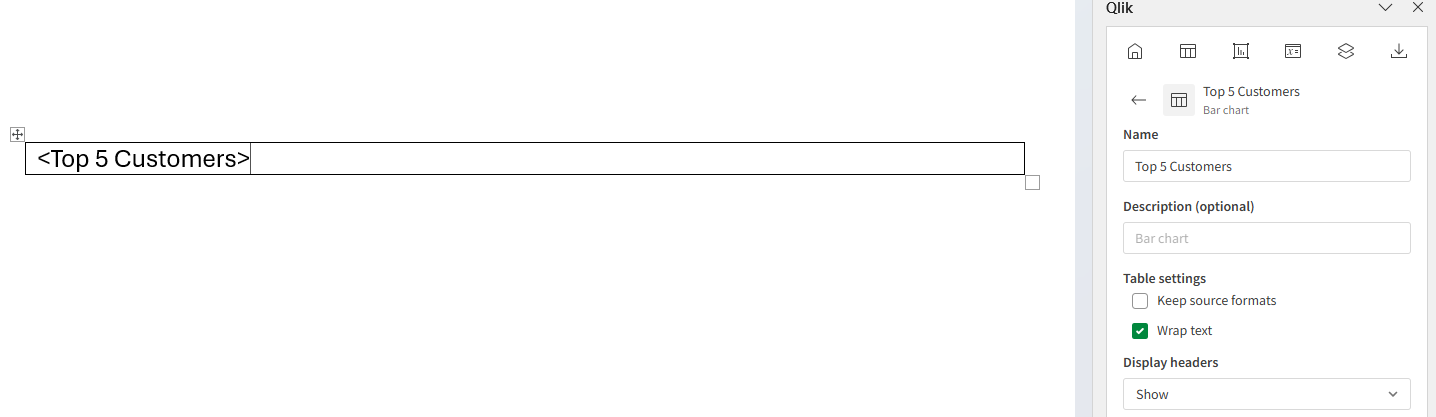
Adjustable settings for a Qlik Sense chart added with a single table tag. The table tag has been inserted into an existing single-cell Word table for best control over custom formatting.
Keep source formats setting at the table level
In your Word template, the Keep source formats setting is turned off by default. This allows you to add custom styling to the table tag using the native Word table editing features. With Keep source formats turned on, the table is rendered with minimal formatting.
When Keep source formats is turned on for a table or column in your template, you may encounter formatting differences between Qlik Sense objects and generated report objects. If you find that your report does not match the Qlik Sense application, you can turn off Keep source formats for a table or column and customize the report template manually.
When Keep source formats is turned off, you have more control over formatting. For optimal control over formatting of a table added as a single tag, you need to add the report object to a one-column, one-row Word table.
Do the following:
-
In the Word document, click Insert in the top bar.
-
Select Table and create a table with one column and one row.
-
Add the table tag as outlined in Adding an entire chart.
-
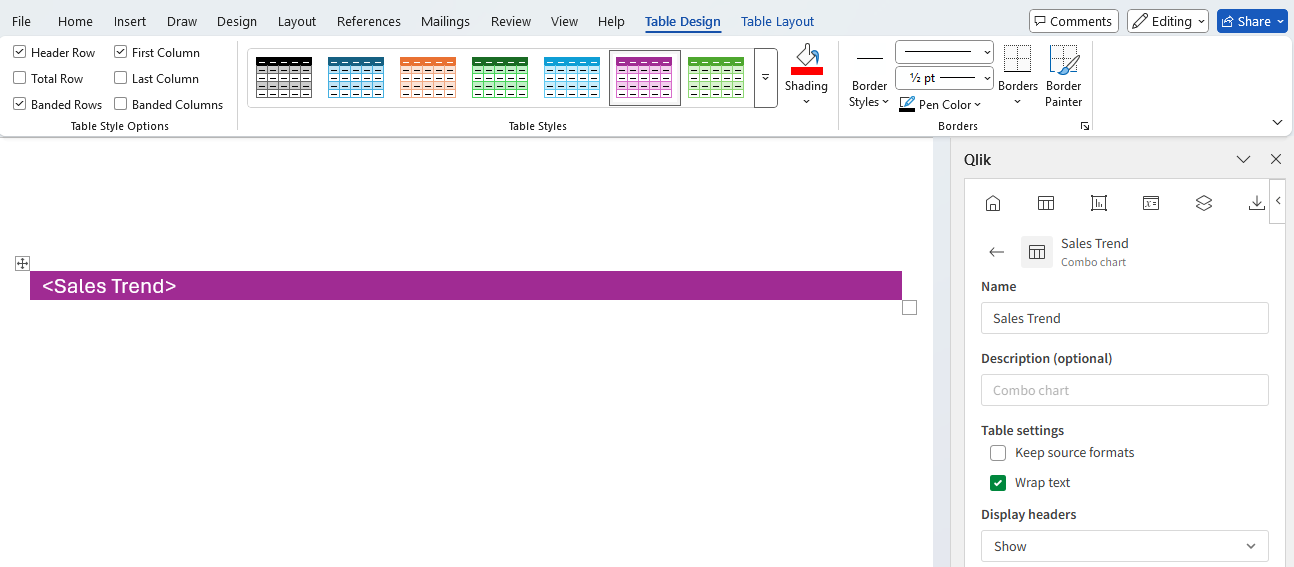
Select the entire Word table and customize settings in Table Design and Table Layout—likely available in the top bar in Word.
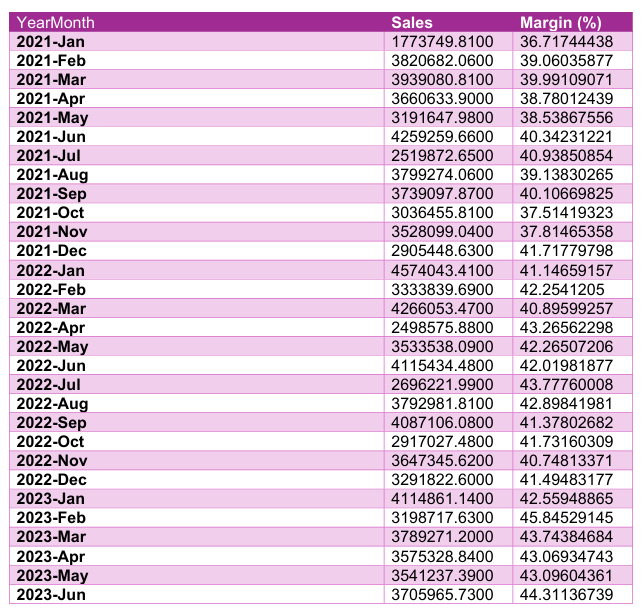
The images below show the template input, and resulting output, of using custom formatting in single-tag table in Word.
Report template with single-column, single-row table styled with custom Word table properties
Report output from template with single table tag styled with custom Word table properties
Wrap text
When Wrap text is turned on at the table level, every column in the table will have text wrapping automatically applied to it. Turn off this setting if this is not desired.
Header settings at the table level
Use the Display headers setting to configure column headers for the entire table. You have two options:
-
Show (default): Table headers are added to the top of the table automatically.
-
Hide: Table headers are removed from the table. This option is suitable if you do not need headers, or if you want to manually add headers for the table at a later time.
Formatting properties for individual columns
Keep source formats and Display header can be defined separately for each column.
If you change the Display headers or Keep source formats settings at the table level, you are prompted to automatically change any individual columns that have different values for these settings.
Each of these settings is explained in more detail below.
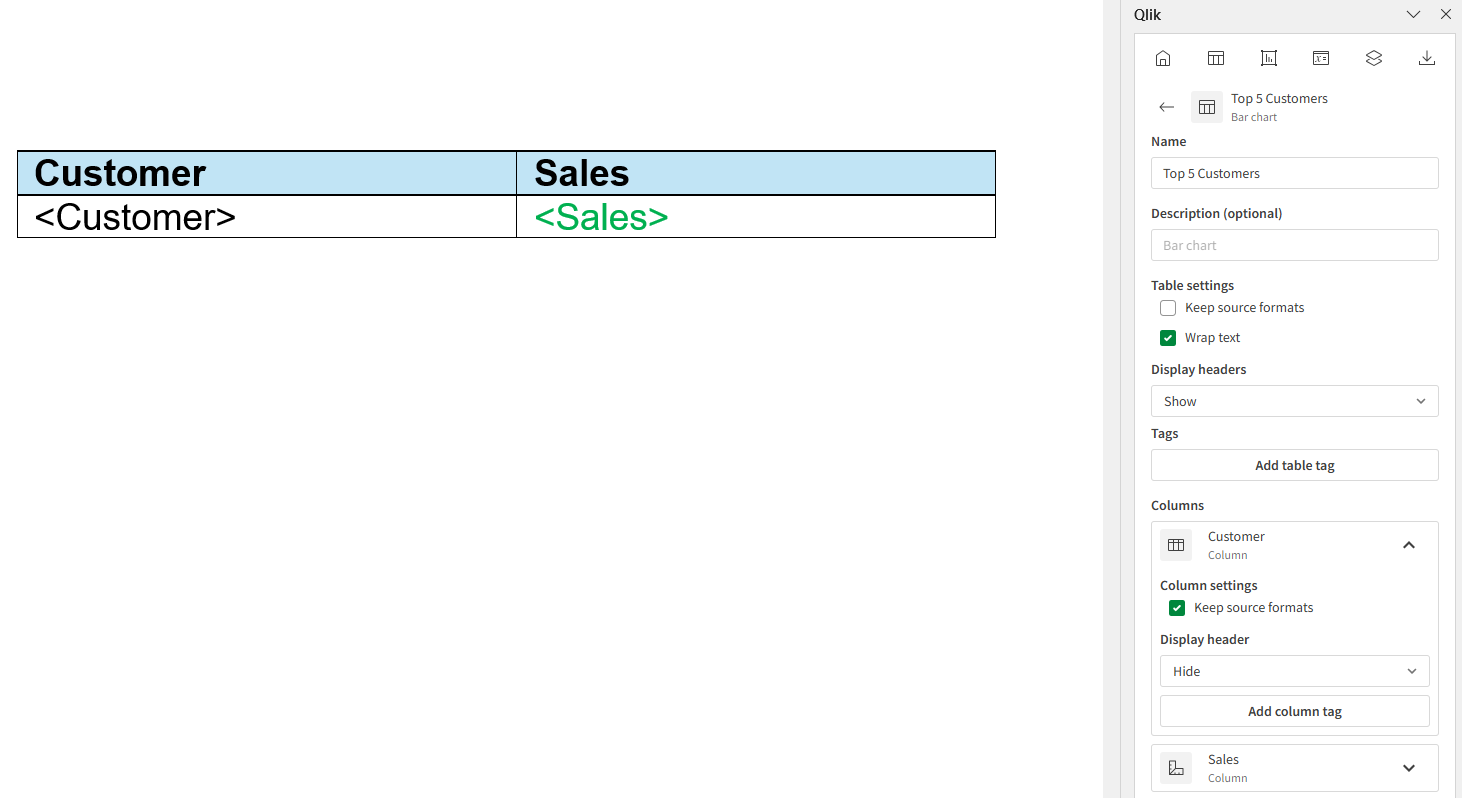
Changing formatting properties for individual columns in a Word report template
Keep source formats at the column level
Keep source formats can be set at the column level to customize the formats of every single column. Click on a column tag and uncheck the related Keep source formats checkbox. Alternatively, open the table in the Tables objects within the add-in, and expand the column. Then, uncheck the checkbox.
Changing the Keep source formats value at the table level will change the value of this setting for all individual columns in the table. For information about setting this at the table level, see Keep source formats setting at the table level.
When Keep source formats is turned on for a table or column in your template, you may encounter formatting differences between Qlik Sense objects and generated report objects. If you find that your report does not match the Qlik Sense application, you can turn off Keep source formats for a table or column and customize the report template manually.
Column header settings
You can set the header style at the column level. Use the Display header setting to configure headers for each column.