
Deploying and administering Qlik MCP server
Last updated: 10/2/2026Qlik MCP Server is available with all Qlik Cloud subscriptions, but it must be activated by a tenant administrator. Qlik MCP server is administered from the Administration activity center.
Deploying Qlik MCP server for a tenant
A tenant administrator must do the following to allow their tenant's users to use Qlik MCP server:
-
Update user roles or create a new user role with permission to access Qlik MCP server.
-
Create the first MCP connection from a LLM client using an OAuth client, such as Claude or ChatGPT.
This step must be repeated for each different LLM client identity that your users use to connect.
Allowing user access to Qlik MCP server
The tenant administrator grants users access to Qlik MCP server with user role permissions. To use Qlik MCP server, user need the permission Qlik MCP set to Allowed under Features and actions > Agentic AI.
Creating MCP connections from LLM clients
OAuth clients can be managed manually in the tenant or registered through Client ID Metadata Documents (CIMD) or OAuth Dynamic Client Registration (DCR), depending on your tenant configuration. For CIMD-capable clients, the connection starts from the LLM client and a tenant administrator approves it the first time it connects. For details, see Configuring OAuth Client ID Metadata Documents. For DCR setup details, see Configuring OAuth dynamic client registration. If you prefer to switch from DCR to CIMD, or vice versa, consult your LLM client's documentation to determine which methods it supports.
The tenant administrator must be the first user to create the connection to each new MCP client and then connect and authenticate with an OAuth client. This establishes tenant-level trust for the MCP client and the Qlik OAuth app. After the tenant administrator connects and authenticates, other users can connect to Qlik MCP server.
For Claude, Qlik Cloud has pre-generated static OAuth client IDs but these IDs are not necessary if you use the CIMD flow. Follow the connection steps here to create the connection and authenticate: Connecting to Claude
For ChatGPT, the tenant admin must start creating a MCP connection in ChatGPT. The tenant administrator must then create an OAuth client using the unique callback URL provided during the MCP connection creation process. After creating the OAuth client, the tenant admin finishes creating the MCP connection in ChatGPT. See the steps here for connecting to ChatGPT: Connecting to ChatGPT
The tenant admin must also create OAuth clients for other users, using their unique callback URLs.
For other LLM clients, the tenant admin must first create an OAuth client for that LLM client and then connect and authenticate with it. After creating the OAuth client, follow the steps here to create the connection and authenticate: Connecting to other LLM clients
Creating OAuth clients for LLM clients
Use this procedure when your tenant uses manually managed OAuth clients. If your tenant uses DCR, configure DCR settings and approval behavior first. For details, see Configuring OAuth dynamic client registration.
Do the following:
-
In the Administration activity center, go to OAuth.
-
Click Create new.
-
For the client type, select Native, Single-page application, or Web.
-
In the dialog, enter a name for the OAuth client.
-
Optionally, add a description.
-
Under Scopes, select user_default and mcp: execute.
Optionally, select offline_access. This setting reduces the need to re-authenticate to once every 30 days.
-
Under Add redirect URLs, enter the authentication callback URL for the LLM client and click Add.
These URLs come from your LLM client. For example, for Claude this is https://claude.ai/api/mcp/auth_callback. ChatGPT generates a unique callback URL for each user.
-
Click Create.
-
Copy the Client ID.
If you made a Web client, copy the Client secret as well.
It will be used to connect to the Qlik MCP server.
-
Click Done.
Administering Qlik MCP server
Qlik MCP server is administered from the Administration activity center, where you can monitor capacity usage
Qlik MCP server capacity
Your Qlik Cloud subscription determines the quota of questions asked by users. If you are licensed for Qlik Answers, both MCP and Qlik Answers will use your monthly questions capacity
Tool calls are aggregated per user, within a tenant. Every five billable tool calls made by a user consume one question. The counter only increments once the next multiple of five is reached, so a partial group of calls is not rounded up early.
Not every tool call is billable. Some tools are excluded from billing because of how frequently they are expected to be called as part of normal platform behaviour, for example status-polling tools, rather than as a direct result of a distinct user request. These tools are marked as non-billable in the tool table below.
-
qlik_get_automation_run
-
qlik_get_automation_run_display
Monitoring Qlik MCP server capacity
Metering of capacity consumption is visible from Home in the Administration activity center.
Capacity consumption meter
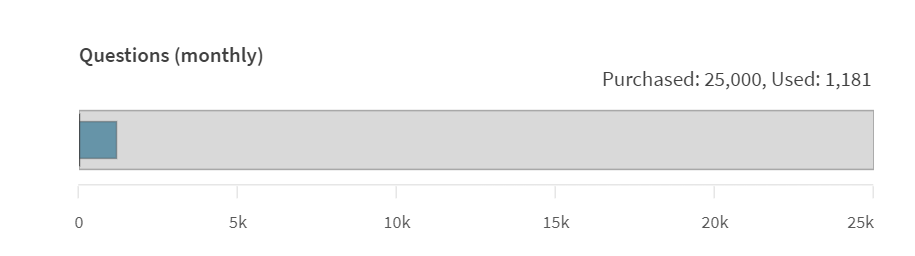
Questions (monthly) tracks the number of questions used from your monthly quota. Hover over the bars to see a tooltip with more details. The colors of the bars represent different metrics.
-
Blue bar: The consumed amount this period.
-
Red bar: Overage consumption. Overage is when the consumption of a resource exceeds the purchased amount for the period.
-
Dark gray vertical line: The consumed amount last period
For more information on subscriptions and quotas, see the Qlik MCP server product description.
Question capacity
Question quotas are per month and reset every month. Questions do not carry over between months. When you hit your limit, users can no longer ask questions until the next month. Overage is only allowed, depending on your subscription. For more information, see Qlik MCP server product description.
For more information on overage, see Overage.
Qlik MCP server guardrails
Guardrails are hard limits on capacities. They are used to ensure Qlik MCP server performance and stability. The following guardrails and capacities are used by Qlik MCP server:
-
A tenant's Qlik MCP server can have a maximum of 200 concurrent application sessions loaded into memory at one time. Any number of users can be connected to these applications, irrespective of whether the applications use Section Access. Connections to applications beyond 200 will fail.
-
There is a maximum of 300 MCP tool calls per user per minute through the Qlik API gateway.