
Working with machine learning in Qlik Answers
You can work with Qlik Predict automated machine learning using the AI-powered technology of Qlik Answers.
In the agentic Qlik Answers experience, you can create and run machine learning workflows in natural language. You can explore datasets, configure and train experiments, and run predictions from the same chat experience.
Working with Predict in Qlik Answers
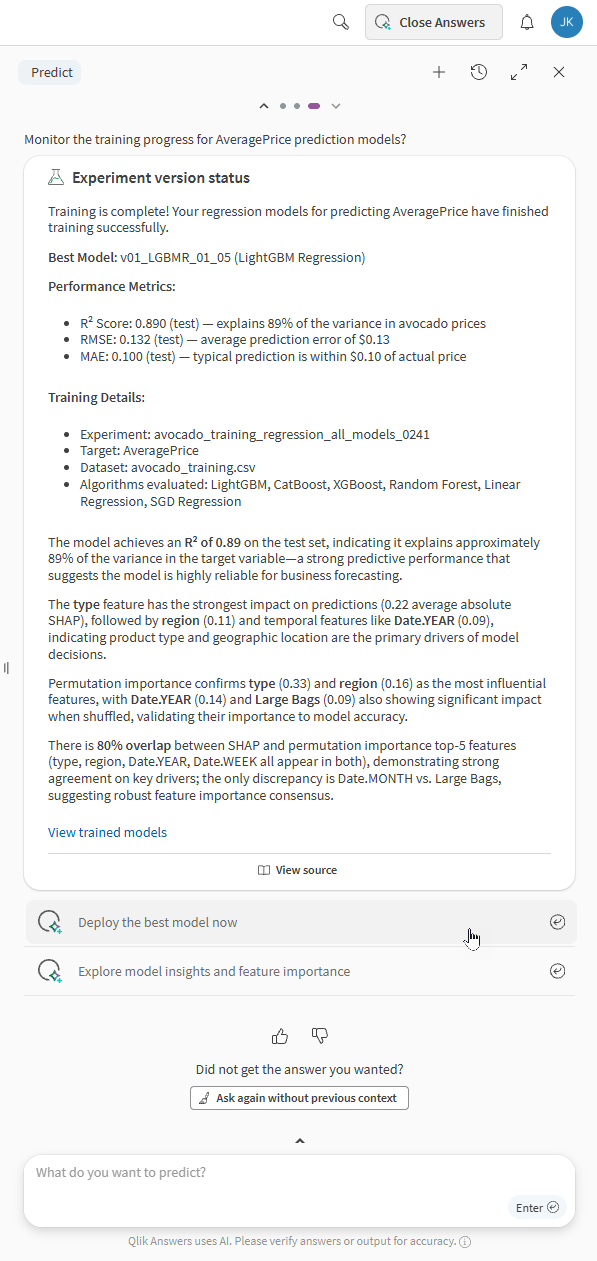
Before you begin
Prerequisites:
-
Your tenant has cross-region inference turned on—that is, the tenant needs to be enabled for the agentic Qlik Answers experience.
-
Your tenant and subscription have capacity for Qlik Answers.
-
You have access to the required datasets and Qlik Predict assets.
Opening Qlik Predict in Qlik Answers
Do the following:
-
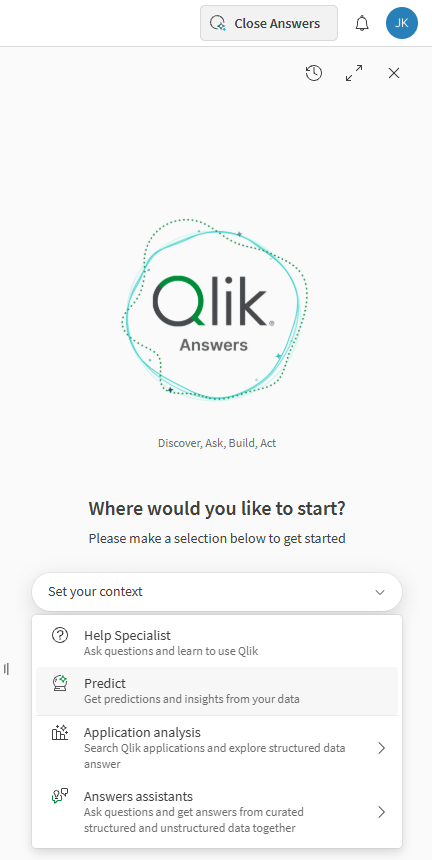
Click Open Answers to open Qlik Answers.
-
In the dropdown menu, select Predict.
Opening Predict
End-to-end workflows
Use the following workflows when working with Predict.
Step 1: Dataset exploration and insights
Use dataset insights to understand data quality and candidate fields before training. Ask for insights and target recommendations.
You also do not need to know the exact name of the dataset you want to use—you can ask for a list of available datasets.
| Action | Example questions | Notes |
|---|---|---|
| Dataset selection |
|
- |
| Dataset insights |
|
Alternatively, you can first open the dataset in Qlik Cloud, and then ask questions such as:
|
| Target recommendation |
|
Useful as follow-up questions after selecting a dataset and exploring insights. |
Step 2: Experiment training and monitoring
Describe your objective and let the agent configure and run an experiment. Regression and classification experiment types are supported. After you have selected a dataset and target, you are prompted to start training.
If you have already started a machine learning workflow previously, you can ask Predict to monitor existing experiments.
| Action | Example questions | Notes |
|---|---|---|
| Experiment training (with dataset already selected) |
|
Useful as follow-up questions after selecting a training dataset to use. |
| Experiment training (no dataset selected) |
|
These questions can help you get started directly without searching manually for datasets by name. |
| Experiment monitoring |
|
- |
Step 3: Model interpretation and recommendations
After training completes, you can ask for plain-language interpretation of model behavior and recommendations based on model output.
| Action | Example questions | Notes |
|---|---|---|
| Model recommendations |
|
For best results, you need to either have the experiment open in your browser or reference the experiment name in the prompt. |
| Model metrics and insights |
|
For best results, you need to either have the experiment open in your browser or reference the experiment name in the prompt. |
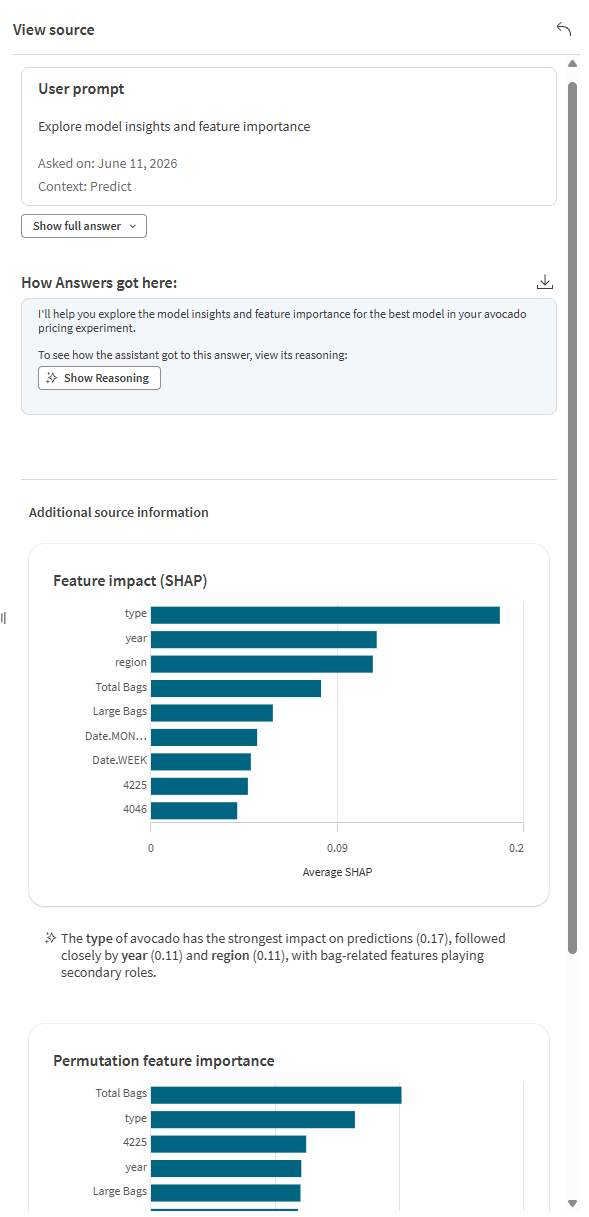
When analyzing models in chat, you can also click  View source to expand additional details, including feature importance breakdown charts and natural language insights.
Using View source to analyze models with embedded charts
Step 4: Deployment, activation, and predictions
After training, you can deploy a model, creating an ML deployment. After you have asked to deploy a model, you are prompted to confirm the deployment.
You can also run batch predictions using the models you have deployed. The system searches for compatible apply datasets and lists them for you to choose. You can also use natural language prompts to select a specific apply dataset.
Deployed models are activated automatically as predictions are created, depending on the available capacity for the subscription.
| Action | Example questions | Notes |
|---|---|---|
| Model deployment and monitoring |
|
Useful as follow-up questions directly after model analysis. For best results, you need to either have the experiment open in your browser or reference the experiment name in the prompt. |
| Predictions—start the request |
|
For best results, you need to either have the deployment open in your browser or reference the deployment name in the prompt. |
| Predictions—selecting an apply dataset |
|
For best results, you need to either have the deployment open in your browser or reference the deployment name in the prompt. |
| Predictions—monitor status |
|
For best results, you need to either have the deployment open in your browser or reference the deployment name in the prompt. |
| Predictions—explore prediction output |
|
For best results, you need to either have the deployment open in your browser or reference the deployment name in the prompt. |
Best practices for asking questions
For best results when working with Qlik Predict in Qlik Answers, follow these general guidelines:
-
If you are unsure of how to get started, ask Predict what it can do. Qlik Answers can provide a list of supported capabilities.
-
Start a new conversation when changing topics, or if you are not getting the response you need.
-
If you are not getting the required response, try providing more details and be specific about what you are looking to do. For example, referencing the exact names of datasets and other assets can better help Qlik Answers find them when starting training or running predictions.
-
Rephrase your question if it does not return the response you need at first.
For more information, see Best practices for chatting with Qlik Answers.
Permissions
You need both Qlik Answers and Qlik Predict permissions to complete end-to-end machine learning workflows.
Specifically, you need the following:
-
Professional user entitlement (only applicable to user-based subscriptions)
-
The required Agentic AI > Data analysis permission set to Allowed. This permission is assigned by a tenant admin.
-
The required Qlik Predict permissions for working with ML experiments and deployments, assigned to you by a tenant admin. See:
-
Access to the spaces where the datasets, experiments, and deployments are located. See:
Limitations
Datasets
Updating and deleting datasets
You cannot upload or delete datasets from chat.
Changing datasets
The following are not possible in chat:
-
Changing training datasets after running an experiment version.
-
Running multiple predictions with different apply datasets within the same chat.
As a workaround, when you need to train experiments or run predictions using a different dataset, start a new chat first. If you are training experiments, this will also require creating a new experiment in the new chat.
For more information about starting new chats, see Chatting with Qlik Answers.
Large datasets
Chat does not support datasets that exceed any of the following limits for the Qlik Cloud tenant:
-
Maximum dataset size (training datasets)
-
Maximum dataset cell count (training datasets)
-
Maximum number of included columns (training and apply datasets)
Experiment features
-
Bias detection is not supported.
-
It is not possible to analyze or download model training reports.
-
It is not possible to access embedded analytics (Compare and Analyze tabs) for the experiment.
-
All features and algorithms are selected for training when configuring the experiment. You cannot deselect features or algorithms. Further, intelligent model optimization is always used to train models—manual optimization is not supported.
-
It is not possible to train second and subsequent versions of an experiment.
Model types
Not available for time series models.
Prediction types
Not available for real-time or connector-based predictions.
ML model management
-
You cannot replace an existing deployed model from chat.
-
You cannot deploy multiple models from different experiment versions from chat.
-
It is not possible to access embedded analytics (model operations and drift monitoring) for the deployment.