
Organizing repositories
Last updated: 10/7/2026Creating a new repository
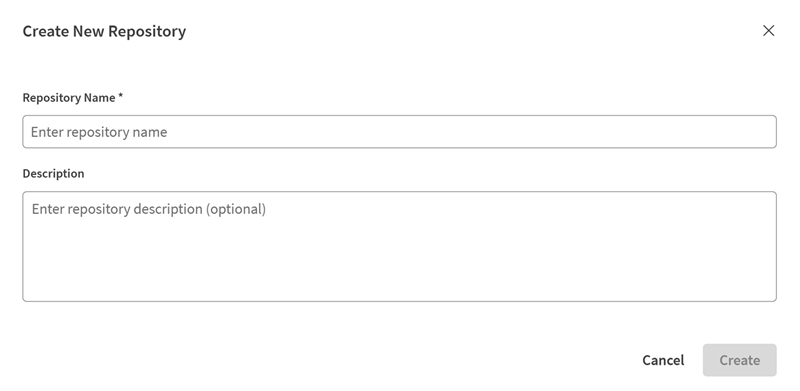
Create new repositories to better organize your APIs and folders.
- In the left panel, click
 next to the repository area.
- Enter a repository name and a description.
Moving and copying an API or a folder to another repository
Quickly move or copy APIs, folders, or versions between repositories to keep your work organized.
- You have at least two different repositories.
- The content you want to move or copy does not exist in the target repository.
- In the left panel, click next to the folder or API you want to move.
- Choose between MOVE and
COPY.

The selected content now appears in the target repository.
Moving and copying multiple APIs and folders to another repository
Copy or move multiple root-level APIs and folders to another repository in a single operation.
- You have at least one repository in addition to the Default repository.
- In the left panel, click next to the source repository and click Move / Copy to repository.

The Move or copy Folders/APIs to a repository dialog opens.
- In the Source panel, select the check boxes next to the root-level APIs and folders you want to copy or move, or click Select all.
Information noteNote: Only root-level folders and APIs can be selected. Selecting a folder includes all its contents, preserving the existing folder structure.
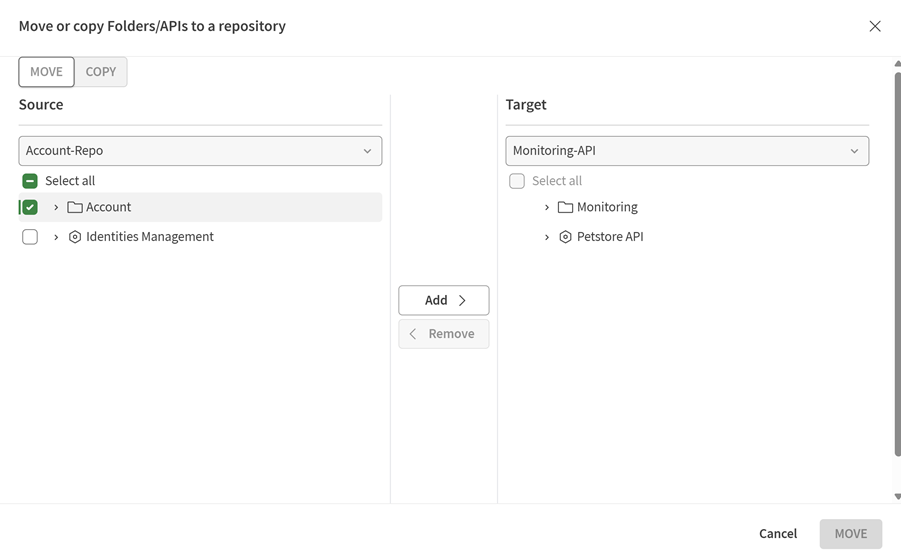
The selected items appear in the target repository.
Information noteNote: If any item being copied or moved has the same name as an existing item in the target repository, it is renamed by appending _1, _2, and so on.
Information noteNote: If you move a shared item, it is automatically unshared in the target repository. Copied items are not shared, regardless of the sharing status of the original.
Deleting a repository
Delete repositories you no longer need. This action permanently removes all APIs and data from the repository. Before deleting, make sure to move any content you want to keep.
- Click the button next to the repository and click Delete repository.
- Confirm by clicking Delete Repository.
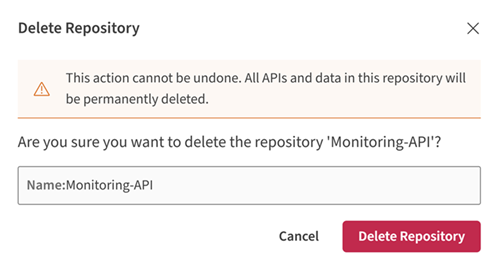
The repository and all its content have been permanently deleted and removed
from the left panel.