
Working with multiple versions
Last updated: 10/22/2026API Contracts lets you maintain multiple versions of the same API contract so you can keep a published version stable while you prepare changes in a new version.
- Maintain an existing API version in production while introducing breaking changes in a new version.
- Track and manage published versions from a single location.
- Work on API changes without affecting existing versions.
When you create a new version, all content is copied to the new version. The latest version can then be updated independently without affecting earlier versions.
Only the latest version is editable, and you can create a new version only from it. Older versions are read-only.
Creating a new API version
Create a new version of an existing API definition.
Note:
You can create a new version only from the latest version. Older versions are read-only and cannot be edited or used to create a new version.
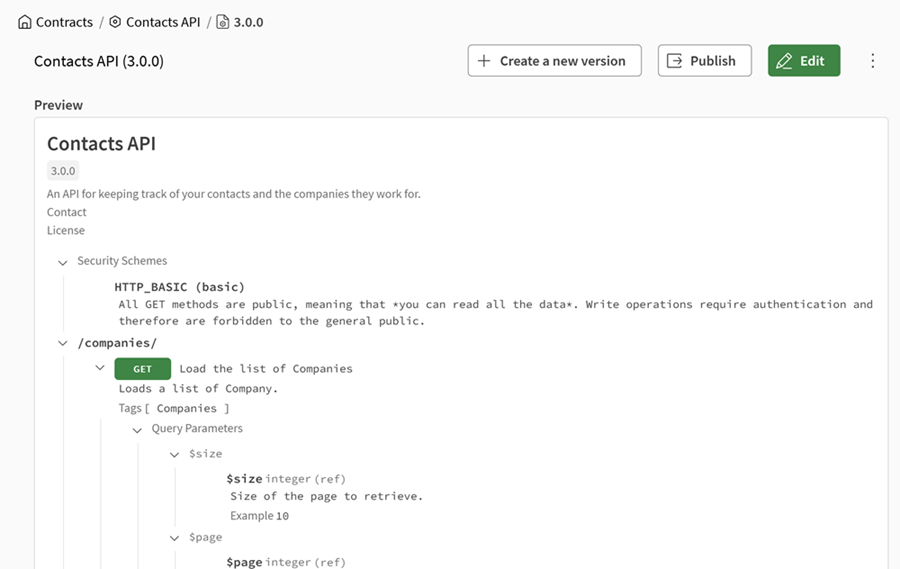
- Open the latest version to view the Preview, then click Create a new version.
Publishing an API version to Qlik Catalog
Publish a version of an API contract to a Qlik space so collaborators can find it in Qlik Catalog.
When you publish a version, the contract version becomes immutable and read-only in API Contracts. To make changes, create a new version from the latest version and continue working on the new version.
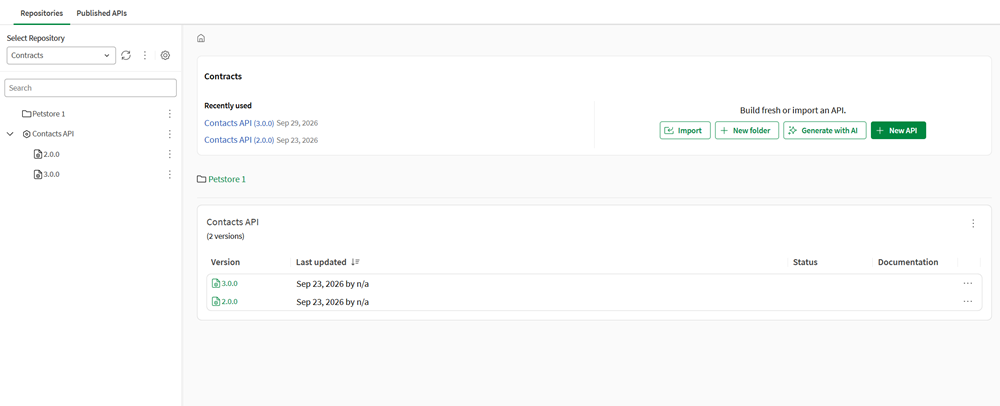
- On the homepage, click the version that you want to publish to open the Preview, then click
Publish.
The selected version is published to the chosen Qlik space and becomes read-only in API Contracts. If you need to edit the contract again, create a new version first.
Deleting an API version
- On the homepage, click the
 button next to the version that you want to delete and click
Delete.
button next to the version that you want to delete and click
Delete.
Importing version content
Import content from an existing contract into an API version, replacing or merging its current content.
Use this feature to update a version from an external contract file without creating a new version. The version identifier is preserved throughout the import.
This is different from importing a definition, which creates a new API in API Contracts.
- Open Import version content for the version you want to
update.
This action is unavailable for a read-only version.
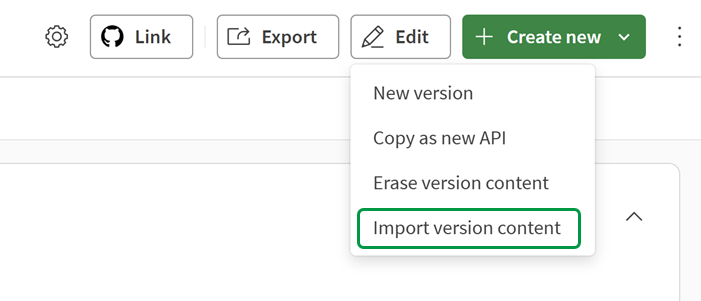
You can access this action from the following locations:
- On the homepage, click next to the version and click Import version content.
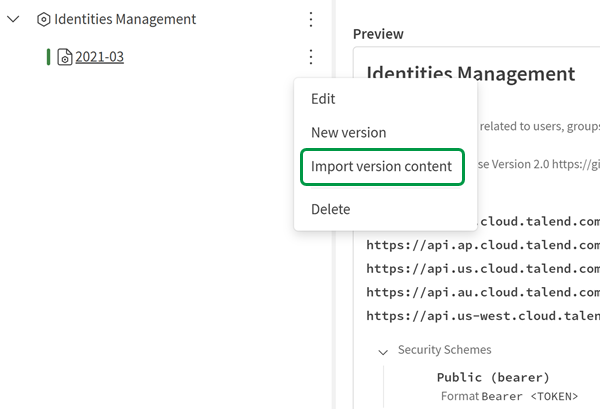
- On the Preview of the version, click > Import version content.
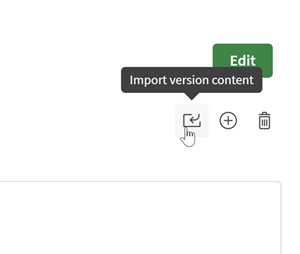
- In the version editor, click .
- On the homepage, click
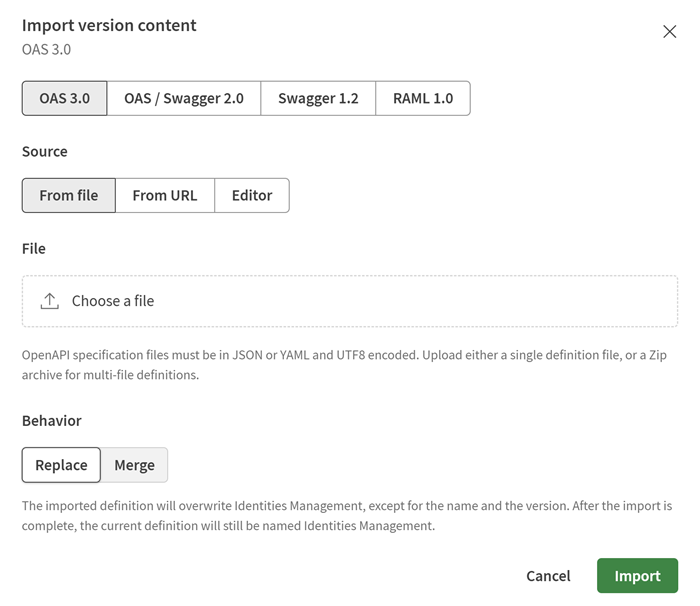
- Under Behavior, select how to apply the imported
content.
- Replace: overwrites all current content with the imported contract. The API name, version identifier, and specification version are preserved.
- Merge: combines the imported content with the existing version content. The API name and version identifier are preserved. If an imported element has the same name as an existing element, the imported element is renamed with a _merge suffix (for example, User_merge). Duplicate base URLs and media types are skipped.
The version editor opens with the updated content applied.