
Example - What-if analysis with the Qlik Predict analytics connector
In this example, you will configure a what-if analysis to simulate how predicted values change when different variables are adjusted. The example involves training and deploying a binary classification model in Qlik Predict, and using it to create predictions with the Qlik Predict analytics connector.
What-if analysis application
Before you start
Download example materials
Download the example resources here:
The materials consist of:
-
A training dataset—data-turnover-employees.xlsx. This dataset is used for both the training and predictions for the example.
-
An application—What-If Analysis.qvf. The application cannot be used to generate predictions without first training and deploying a model.
Prerequisites
Before you start, ensure:
-
Your Qlik Cloud subscription can run real-time predictions. Refer to the following, or contact the tenant service account owner.
-
Your tenant administrator has enabled machine learning endpoints.
-
You have the required permissions assigned to you by a tenant administrator:
-
The Data connections permission set to Allowed.
Assigning permissions for users to work with data connections
-
Permissions for working with experiments.
-
Permissions for working with deployments and working with the Qlik Predict analytics connector.
-
Part 1: Upload the dataset
Do the following:
-
Go to the Create page of the Analytics activity center and select Dataset.
-
Click Upload data file.
-
Drag and drop the data-turnover-employees.xlsx data file into the Add file dialog.
-
Select a destination space for the file. It can be your personal space or a shared space. Use the same space for all tutorial assets.
-
Click Upload.
Part 2: Train the experiment
Create, configure, and run an experiment to train a binary classification model. All available features will be included by default.
Do the following:
-
Go to the Create page of the Analytics activity center and select ML experiment.
-
Enter a name for your experiment, for example, Employee turnover analysis.
-
Choose a space for the experiment (use the same space you used in Part 1: Upload the dataset).
-
Click Create.
-
Select the training dataset file data-turnover-employees.xlsx.
-
Select the left column as the target. This is a column indicating whether or not an employee left the company.
-
Click Run experiment.
Part 3: Deploy and activate the top-performing model
Deployment
After experiment training completed, you land on the Models tab. Deploy the top-performing model as an ML deployment.
Do the following:
-
Click
 next to the model that has a
  icon next to it.
 -
Click
 Deploy.
 -
Select the option to deploy the model to A new deployment.
-
Type a name for your deployment, such as Employee Turnover Predictions.
-
If needed, adjust the space, description, and tags.
-
Turn on Enable real-time API access. This is required for running predictions with the Qlik Predict analytics connector.
-
Click Create.
Activation
Open the newly created deployment.
At the top of the ML deployment interface, a banner indicates that a model approver needs to activate the default model for making predictions.
Do the following:
-
In the banner at the top of the ML deployment, click Activate model.
-
In the dialog that opens, click Activate model to confirm.
Part 4: Create a connection to the Qlik Predict analytics connector
Next, create a connection to the Qlik Predict analytics connector. This will allow you to generate predictions on the fly within the analytics application.
Do the following:
-
Go to the Create page of the Analytics activity center and select Data connection.
-
Under Space, select the same space you used in Part 1: Upload the dataset.
-
Select the Qlik Predict connector.
-
Select the ML deployment that you created in Part 3: Deploy and activate the top-performing model.
-
Enter the following Name: MLModel.
-
Click Create.
Part 5: Upload the analytics application
Upload the analytics application you downloaded in Download example materials.
Do the following:
-
Go to the Create page of the Analytics activity center.
-
Under Data and upload, select Upload.
-
Drop the What-If Analysis.qvf application into the dialog.
-
Under Space, select the same space you used in Part 1: Upload the dataset and Part 4: Create a connection to the Qlik Predict analytics connector.
-
Click Upload.
After uploading the application, open it, and then open the What-If Analysis sheet.
Explore the results
You now have the What-If Analysis sheet opened in the application.
Do the following:
-
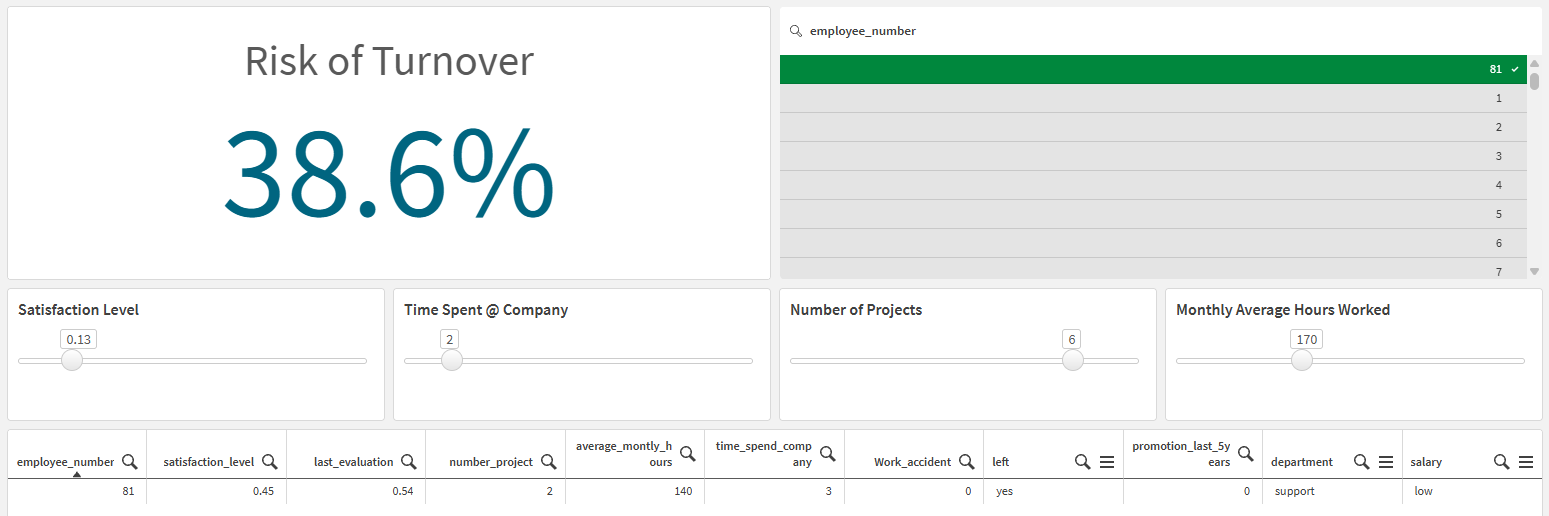
Select a single employee value in the employee_number field. A value appears in the Risk of Turnover KPI.
-
Adjust the sliders below the KPI. With each adjustment, a simulation is performed to predict the risk of employee churn.
What-if analysis with a single employee selected, and variables adjusted.
Understanding the application
Loaded data
The training dataset used in Part 2: Train the experiment is used as the application data. In real-world scenarios, this might not always be the case.
Sheet variables
The following variables were created, each with a blank default definition. The definition is left blank because the variable values are updated on the fly during analysis instead.
| Variable name | Model feature it represents | Variable default definition |
|---|---|---|
| vSatisfactionLevel | satisfaction_level | - |
| vTimeSpent | time_spend_company | - |
| vNumberOfProjects | number_project | - |
| vAvgMonthlyHoursWorked | average_monthly_hours | - |
KPI and expression
A KPI was added to the sheet. The following chart expression is used:
endpoints.ScriptEvalStr('{"RequestType":"endpoint", "endpoint":{"connectionname":":MLModel","column":"left_yes"}}',
	vSatisfactionLevel as satisfaction_level,
	vTimeSpent as time_spend_company,
	last_evaluation,
	vNumberOfProjects as number_project,
	vAvgMonthlyHoursWorked as average_monthly_hours)
The calculation represents the risk of turnover for the selected employee.
The sections below outline how this expression uses server-side extensions syntax to call the Machine Learning API for real-time predictions.
Breaking down the expression
The expression uses server-side extensions (SSE) syntax to generate predictions on the fly.
After specifying the target column, we need to specify the features in the model. The model features can be obtained by opening the ML deployment (created in Part 3: Deploy and activate the top-performing model), and then opening Deployment overview. This opens the model schema: the list of features and their feature types.
Deployment overview in an ML deployment, showing the Model schema
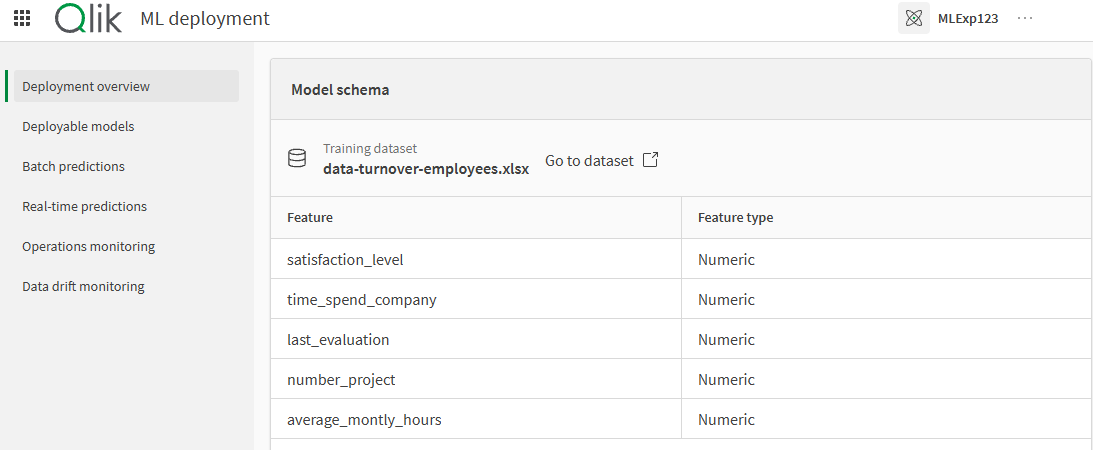
From here, the list of features can be constructed as a comma-separated list. Variable substitutions—using the "as" keyword—indicate that current values of variables are to be used as feature data, rather than the application data itself. These variable substitutions allow the interactive, "what-if" simulation that is demonstrated in this example.
vSatisfactionLevel as satisfaction_level,
vTimeSpent as time_spend_company,
last_evaluation,
vNumberOfProjects as number_project,
vAvgMonthlyHoursWorked as average_monthly_hours)Variable input objects
Four variable input controls were added to the sheet—one for each variable. The following configurations have been done:
-
The variable to use was selected.
-
The type of input was selected as Slider.
-
Minimum and maximum ranges for each variable were configured, based on values that could reasonably occur as per the original data.
For more information about variable input objects, see Creating variable input controls.
Filter pane
A filter pane was added to allow easy selection of the employee on which to focus.
Table with the original data
A straight table was also added at the bottom of the sheet, to make it easy to see the original data—before it was altered during the what-if analysis.