
Analytics activity center
Last updated: 10/6/2026The Analytics activity center provides creation options for creating and sharing analytic content with other users.
Previously, this was part of the Qlik Cloud Analytics hub experience. Analytics contains the Create page, which provides all creation options previously found under Add new in the old navigation bar.
Analytics activity center
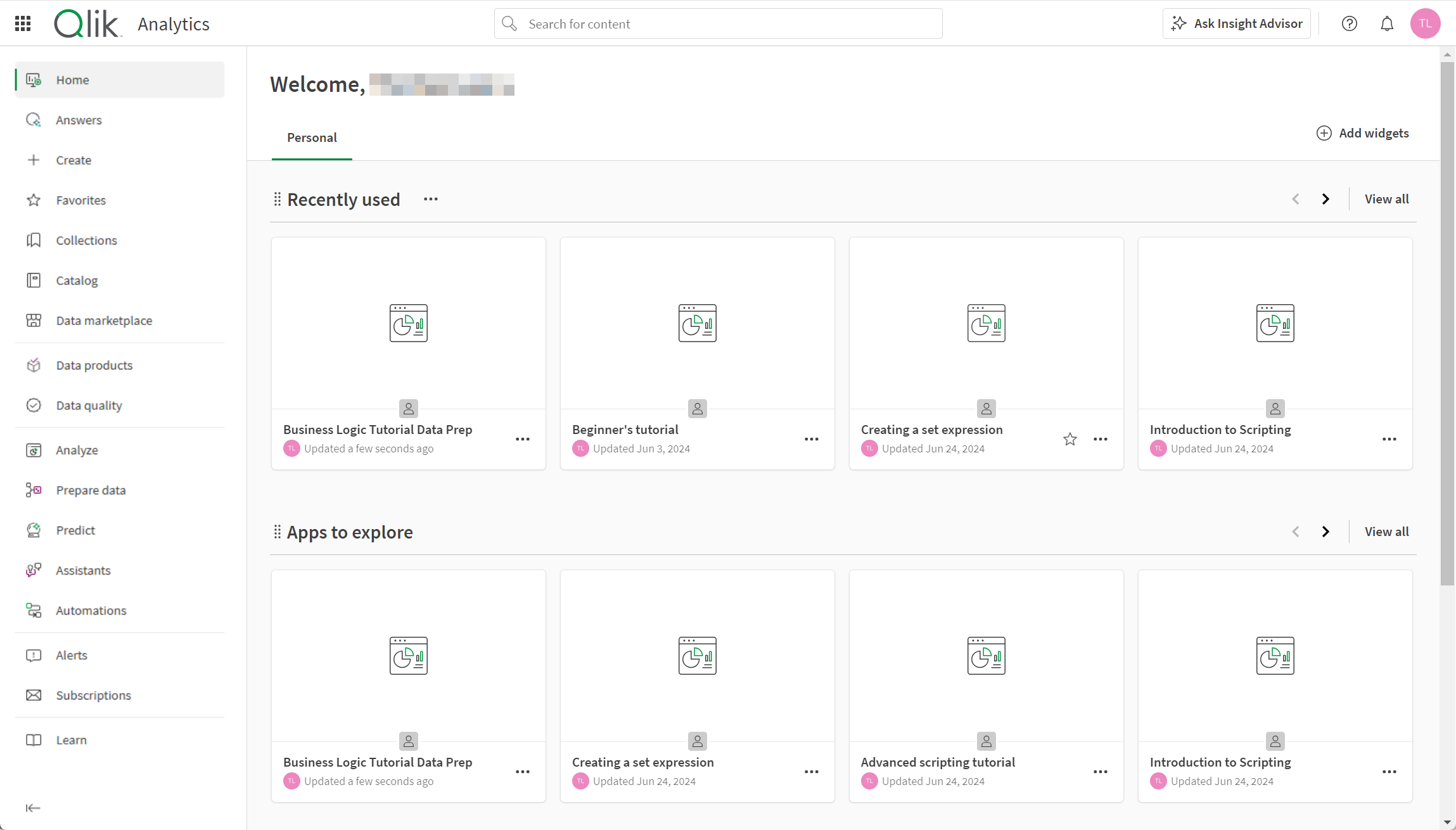
Home
After your first login, you will start in Home when you log into Qlik Cloud. Here, you can view various content, including your applications, scripts, charts, and notes. You can easily customize what collections of content appear in your home.
Customizing Home
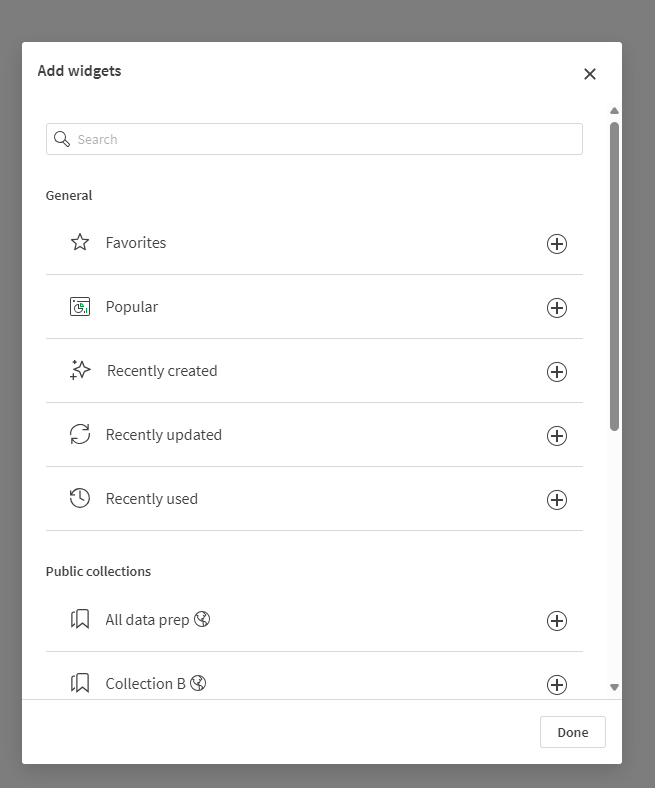
Click Add widgets to customize your personal Home. Choose from favorites, collections, applications, data, charts, notes, ML experiments, automations and scripts. You can also show content that has been recently used, created, or updated.
Click a widget to add or remove it from your home page.
Customize the widgets shown on your home page.
You can also rearrange or remove sections directly on the home page:
-
To move a widget vertically, click and hold
 next to the widget and move it into place.
 -
To remove a widget, hover to the right of the widget and click the More actions menu (
 ) that appears. Then select Remove.
Create
The Create page provides all options for creating analytic content in Qlik Cloud. Create replaces Add new in the old navigation bar. Click the content you want to create or upload. Click Learn more to read a description of the content, with links to the helpsite.
Favorites
The Favorites section contains all content you have favorited. Your favorites are not shared with other users. Favorite content in your activity centers by clicking  .
.
Catalog
In Catalog, you can view the applications and spaces to which you have access, as well as other content. You can also create new content by clicking Create new.
You can view content in either the Tile  or List
  view.
view.
Applications and other content can be sorted alphabetically, by creation date, by modification date, or recently used. You can filter content by those you own or by those others own.
The catalog uses filters to help you find the content available to you in Qlik Cloud. Catalog filtering is designed to reduce time spent managing and browsing for content with improved search accuracy.
The top filter bar provides the following filters:
- Content search: Enter a term to be searched on such as a word or phrase in the title of the dataset.
- Spaces: Filter on spaces to search and browse. Filter on Personal to see only your own private work area or All to see everyone's work. The five most Recently viewed spaces are listed first. If the tenant has less than 100 spaces, spaces are then categorized by type: Shared, Managed, and Data.
- Types: Select one or more content types including: Charts, Apps, Data, Scripts, Data flows, Notes, Links, Automations, ML deployments, ML experiments, Glossaries, Assistants, Knowledge bases, and Data products.
- Owner: Filter on content owners. Options include: Anyone, You, Others, and by user name.
- All filters: Select All filters to display the left side panel. When the left side panel is active the All filters box is grayed out. The box displays the number of active filters.
- Order search results by Recently used, Last created, Last modified, or Alphabetical.
Select All filters to open the left-hand panel with additional filters:
- Spaces: Filter on spaces to search and browse.
- Types: Select one or more content types including: Charts, Applications, Data, Scripts, Data flows, Notes, Links, Automations, ML deployments, ML experiments, Glossaries, Assistants, Knowledge bases, and Data products.
- Owner: Filter on content owners. Options include: Anyone, You, Others, and by user name.
- Creator: Filter on content creators. Options include: Anyone, You, and Others.
- Tags: Search on any user-defined tags that have been applied to datasets.
Spaces
Spaces are areas where applications and other content are stored. Spaces can be personal, shared, or managed.
All users have a personal space where applications they create are stored by default. Personal spaces are private. You can share your personal content by moving them to a shared space.
Users with the Shared Space Creator role can create shared spaces. Shared spaces are private when first created. Shared spaces allow collaborative development of applications and other content. Spaces also limit access to applications in the space. Access to applications in the space is granted by adding members to the space.
Managed spaces can be created by tenant or analytics administrators, or users with the Managed Space Creator role. Managed spaces are used to provide strictly controlled access to applications that might have sensitive data. Applications are developed in other spaces and then published to the managed space.
You can select spaces to which you have access from the drop-down in Catalog.
For information on spaces, see:
Data marketplace
In Data marketplace, you can browse, view and consume your curated and activated data products. For more information, see Consuming in the data marketplace.
Data products
In Data products, you can gather and package trusted datasets related to the same domain, or any grouping that makes sense for your business. You can also view, update, and deactivate your data products. For more information, see Working with data products.
Data quality
In Data quality, you can access several tabs that allow you to configure quality settings for your data:
-
Semantic types: From this tab you can create semantic types and manage the values for each of them. Semantic types are automatically assigned to each dataset column during data discovery. For more information, see Managing semantic types.
-
Validation rules: From this tab you can create validation rules and manage the conditions for each of them. Validation rules are a set of business requirements which helps you detect anomalies in datasets. For more information, see Working with validation rules.
-
Qlik Trust Score™: From this tab you can configure the dimensions that are used to calculate the trust score of your datasets and data products. The Qlik Trust Score™ aggregates several metrics into a single score, providing visibility on the healthiness of your data. For more information, see Qlik Trust Score™.
Collections
Collections enable you to group content such as applications, charts, notes, and links.
To add content to a collection, click > Manage > Add to collection on any content type.
If you are using the Qlik Analytics mobile app, you also have a Mobile Content collection. Applications that you have opened in the Qlik Analytics mobile app are automatically added to Mobile Content.
By default, collections are private. Tenant admins, analytics admins, and other designated users can make collections public to share them with all other members of the tenant. Public collections do not change members' access to content in spaces. Members will only be able to see content in public collections to which they already have access.
To make a collection public, click on the collection, select Make public, and click Make public. To make a public collection private again, click , select Make private, and click Make private.
For more information, see Managing public collections.
Feed
The Feed section is a curated, scrollable collection of insights from applications for which you have access. The feed is available with the Discovery Agent.
The feed is available from both the Insights and Analytics activity center.
For more information, see Analyzing Discovery Agent feeds.
Analyze
Analyze provides a curated selection of options for creating analytics applications and data sources for applications. You can create the following by either clicking the content type or by clicking Create new and selecting the content you want to create:
-
Analytic applications
-
Data connections
-
Datasets
-
Notes
Additionally, under Content, Analyze includes a view of the catalog, filtered to analytic applications. Filters applied in Content are unique to Analyze. The are kept between sessions and do not persist between Visualize and analyze and other views of the catalog.
Prepare data
Prepare data provides a curated selection of options for adding and transforming data sources. You can create the following by either clicking the content type or by clicking Create new and selecting the content you want to create:
-
Data flows
-
Scripts
-
Data connection
-
Dataset
Additionally, under Content, Prepare data includes a view of the catalog, filtered to scripts. Filters applied in Content are unique to Prepare data. The are kept between sessions and do not persist between Prepare data and other views of the catalog.
Predict
Predict provides a curated selection of options for creating machine-learning experiments. You can create the following by either clicking the content type or by clicking Create new and selecting the content you want to create:
-
ML experiments
-
Datasets
Additionally, under Content, Predict includes a view of the catalog, filtered to ML deployments and ML experiments. Filters applied in Content are unique to Predict. The are kept between sessions and do not persist between Predict and other views of the catalog.
Answer
Answer provides a curated selection of options for creating Qlik Answers assistants and knowledge bases. You can create the following by either clicking the content type or by clicking Create new and selecting the content you want to create:
-
Assistants
-
Knowledge bases
-
Data connections
-
Datasets
Additionally, under Content, Answer includes a view of the catalog, filtered to assistants and knowledge bases. Filters applied in Content are unique to Answer. The are kept between sessions and do not persist between Answer and other views of the catalog.
Automations
In Automations, you can view, create, and test automations. You require the Automations Creator role to create automations.
For more information, see Qlik Automate.
Alerts
In Alerts, you can view a list of all alerts owned by you, as well as alerts to which you have been added as a recipient. The Alerts page contains details about each alert, including its name, owner, associated application, and whether it is being evaluated on a schedule.
You can filter and sort the alerts on the Alerts page. You can refine your list by alert owner (anyone, you, or others), or search for alerts owned by a specific user. The alerts in the list can be sorted by time of last evaluation, the last time triggered, or alphabetically by name.
Subscriptions
In Subscriptions, you can view and modify subscriptions you own, as well as subscriptions to which you have been added as a recipient. The Subscriptions page contains details about each subscription, including its name, owner, associated application, and schedule.
You can filter and sort the subscriptions on the Subscriptions page. You can refine your list by owner (anyone, you, or others), or search for subscriptions owned by a specific user. The subscriptions in the list can be sorted by time last sent, time they are next scheduled to be sent, or alphabetically by name.
For more information about creating and managing subscriptions, see Scheduling reports with subscriptions.
Tasks
In Tasks, you can monitor existing tasks for refreshing the data in applications, scripts, data flows, and table recipes. You can:
-
View all tasks for assets you can access.
-
View details about which tasks have failed, succeeded, and are currently running.
-
Run tasks.
-
Delete tasks.
-
Activate and deactivate tasks.
For more information, see Monitoring tasks for refreshing data.
Learn
Learn contains videos, courses, and more to help you get started with analytics in Qlik Cloud. Learn provides both learning paths and learning resources for users new to Qlik Cloud.
Learning paths are courses designed to help you get started in your activity center. Each activity center has its own learning path. When you open Learn, your activity center's learning path will be selected. You can switch between learning paths by selecting them from the learning path menu.
Learning resources are other helpful content relevant to your learning path. These resources include:
-
Videos: Helpful videos showing tasks and features in Qlik Cloud.
-
Guided tours: Product tours that guide you through different sections and tasks in Qlik Cloud.
-
Courses: Links to enroll in relevant Qlik Learning courses.
-
Links: Links to useful resources and help content.
-
Demo applications: Add demo applications to your personal space. Demo applications highlight different Qlik Cloud application features and analytic use cases.
The learning resources displayed are initially filtered to your current learning path. You can filter the content by type. You can also filter it by activity centers.
Learn also includes links to Qlik Community, Qlik Continuous Classroom, and Qlik Support.