
Setting up Qlik Data Gateway - Direct Access on a Windows server
Last updated: 9/18/2026This topic outlines the how to set up Qlik Data Gateway - Direct Access on a Windows server. It provides prerequisites and installation instructions, and describes the limitations and considerations you should be aware of when working with Qlik Data Gateway - Direct Access on a Windows server.
Best practices when using Qlik Data Gateway - Direct Access
For a successful experience when using Qlik Data Gateway - Direct Access, it is strongly recommended to adhere to the following best practices:
-
Do not use the same Direct Access gateway for development, user acceptance testing, and production, as this will increase the risk of overloading the available resources and impact system stability. From a business perspective, the combination of insufficient resources and decreased stability, might result in delayed updates to production application data.
- For optimal performance, install the Direct Access gateway on a server that is as close as possible to your data source.
- Direct Access gateway should be installed on a dedicated Windows Server as stipulated in the system requirements below. Do not install it on the actual database server or alongside other Qlik products, including but not limited to, Qlik DataTransfer, Qlik Sense Desktop, and Qlik Sense Enterprise.
System prerequisites
This section describes the software, ports, and hardware requirements for using Qlik Data Gateway - Direct Access on a Windows server.
Software prerequisites
-
The Direct Access gateway should be installed on a Windows Server machine behind your firewall. The server should be able to access your data source.
Supported Windows Server editions:
- 2016
- 2019
- 2022
-
2025
Windows Server 2025 Requires Qlik Data Gateway - Direct Access 1.7.0 or later.
-
Three different .NET versions need to be installed. Install the following .NET versions only:
-
.NET 4.8: Required for the installation.
-
.NET 6.0.x Runtime (x64) and ASP.NET Core Runtime 6.0.x (x64) (latest patch)
News noteFrom Direct Access gateway 1.6.8, .NET 6.0.x is no longer required. -
.NET 8.0.x Runtime (x64) and ASP.NET Core Runtime 8.0.x (x64) (latest patch)
Information note- Installing .NET runtime versions higher than 8.0.x is not supported.
- Direct Access gateway 1.6.6 and 1.6.7 requires both versions - 6.0.x and 8.0.x - of the .NET and ASP.NET Core Runtimes.
For instructions on how to verify the currently installed .NET version, see https://docs.microsoft.com/en-us/dotnet/framework/migration-guide/how-to-determine-which-versions-are-installed.
-
-
Microsoft Visual C++ 2015-2022 Redistributable (x64). The Direct Access gateway setup will prompt you to install the redistributable if it detects that it is not currently installed.
Additional software prerequisites when using SAP data sources
- Install the SAP NetWeaver RFC SDK on the Qlik Data Gateway - Direct Access machine, as described in Installing SAP NetWeaver RFC SDK for Qlik Data Gateway - Direct Access.
- Install Microsoft Visual C++ 2013 Redistributable (x64) on the Qlik Data Gateway - Direct Access machine.
Required ports and protocols
For required ports and protocols, see Required ports and protocols.
Recommended hardware
-
8 cores
-
32 GB memory
-
5 GB storage
Minimum hardware
The minimum hardware is only suitable for specific scenarios using smaller dedicated server deployments (development, test, or production), with continuously low data volumes, and a limited number of concurrent reloads.
- 4 cores
- 8 GB memory
- 5 GB storage
More resources might be required to provide for consistent processing of increasing data volumes and higher counts of concurrent reloads. The point at which the performance becomes unacceptable depends on the use case and configuration within each unique environment.
System cryptography
Qlik Cloud Government supports using Qlik Data Gateway - Direct Access only when Windows is configured to run in a FIPS 140-2 approved mode of operation (FIPS mode). To turn on FIPS mode, enable the Windows policy: System cryptography: Use FIPS compliant algorithms for encryption, hashing, and signing. For more information, see step 3 of the procedure Using Windows in a FIPS 140-2 approved mode of operation.
Installing Qlik Data Gateway - Direct Access
Setting up the Direct Access gateway involves procedures that need to be performed both in the Administration activity center and on the Direct Access gateway server.
Qlik Data Gateway - Direct Access setup steps — Installation on a Windows server
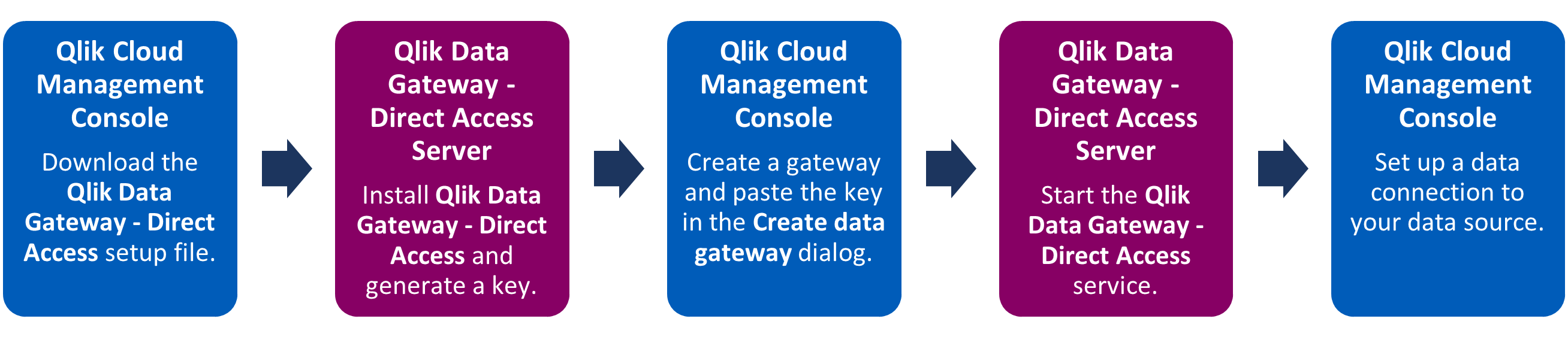
Stage one: Download Qlik Data Gateway - Direct Access
-
In the Administration activity center, select Data gateways.
Any existing data gateways will be listed in a table showing basic information about each gateway.
-
Click the Deploy toolbar button.
The Deploy Data Gateway dialog opens.
-
Select Data Gateway - Direct Access (Windows), accept the Qlik Customer Agreement, and click Download. The Direct Access gateway setup file (qlik-data-gateway-direct-access.exe) will be downloaded to your machine.
Stage two: Install Direct Access gateway on a server behind the firewall protecting your data sources
This stage involves installing Direct Access gateway. You can either install Direct Access gateway interactively or silently.
Interactively installing Direct Access gateway
-
When the download is complete, copy the setup file to a Windows Server machine behind the firewall. Make sure the machine can communicate with your data sources.
-
Open the qlik-data-gateway-direct-access.exe file to launch the Setup wizard.
Information note- Direct Access gateway requires Microsoft .NET 6.x and .NET 8.x. If setup detects that an earlier version is installed, you will be prompted to install the required version. When the .NET installation completes, you will need to restart the Direct Access gateway machine and then run the Direct Access gateway setup again.
-
Setup will prompt you to install Microsoft Visual C++ 2015-2022 Redistributable (x64) if it detects that it is not currently installed.
Information note- During setup, you can optionally override the following defaults:
- The installation path (C:\Program Files\Qlik\ConnectorAgent).
The Windows service account under which Direct Access gateway will be installed (LocalSystem). The specified Service Account must have both the "Log on as a Service" right and "Write" permission on the Direct Access gateway installation folder.
- Continue clicking Next until setup is complete.
Silently installing, upgrading, and uninstalling Direct Access gateway
Installing Direct Access gateway silently is useful, for example, if you need to install Direct Access gateway on several machines throughout your organization. If required, you can also override the default Windows service account (LocalSystem).
Prerequisites
Make sure to install the correct versions of all the prerequisite software before beginning the silent installation as, unlike the interactive installation, this cannot be done during the installation.
Installing or upgrading Direct Access gateway
Open a CMD prompt as administrator and run the following command from the folder containing the Direct Access gateway executable:
qlik-data-gateway-direct-access.exe /S InstallPath="full-path" AcceptEula=yes
Where full-path should be replaced with the actual installation path in quotation marks, for example, "C:\TMP\Qlik".
Overriding the default Windows service account
By default, Direct Access gateway is installed under the LocalSystem Windows service account.
To install Direct Access gateway under a different account, include the following parameters in your command:
-
ServiceAccount: The service account name.
Information noteThe specified Service Account must have both the "Log on as a Service" right and "Write" permission on the Direct Access gateway installation folder. - ServicePassword: The password for the specified service account.
Sample command with parameters for overriding the Windows service account
qlik-data-gateway-direct-access.exe /S InstallPath="C:\TMP\Qlik" AcceptEula=yes ServiceAccount="qliktech.com\user" ServicePassword=kZmbkb8m8BGGz91
Uninstalling Direct Access gateway
Open a CMD prompt as administrator and run the following command from the folder containing the Direct Access gateway executable:
qlik-data-gateway-direct-access.exe /S /uninstall
Troubleshooting the installation
The installation log files can be useful for troubleshooting issues with the installation or upgrade:
From Direct Access gateway 1.7.7, the full path to the log files is:
<Direct Access gateway installation folder>\data\logs\Qlik Data Gateway - Direct Access_<Timestamp>.log
If your Direct Access gateway version is earlier than 1.7.7, the full path to the log files is:
C:\Users\<user>\AppData\Local\Temp\Qlik Data Gateway - Direct Access_<Timestamp>.log
Stage three: Setting up Direct Access gateway
For detailed setup instructions, see Stage three: Set up Direct Access gateway.
Stage four: Register the data gateway
The next step is to register the data gateway. This can be done either through the Administration activity center or on the command line.
Stage five: Start the Qlik Data Gateway - Direct Access service on the Direct Access gateway server
On the Direct Access gateway server, do one of the following to start the service:
-
Open the Windows Services console and start the Qlik Data Gateway - Direct Access service.
-
Open a Command Prompt as an administrator and change the working directory to the ConnectorAgentsubfolder (C:\Program Files\Qlik\ConnectorAgent\ConnectorAgent with a default installation). Then, run the following command:
connectoragent service start
A confirmation that the service started successfully will be shown.
See also: Running the service under a different account
Stage six: Add a connection to your data source
See Stage six: Add a connection to your data source.
Supported data sources
The following ODBC connectors are supported for Windows server installations:
- ODBC sources. For more information, see ODBC databases ‒ Qlik Cloud.
- REST sources. For more information, see REST sources ‒ Qlik Cloud.
-
SAP BW, SAP SQL, and SAP ODP sources. Requires Direct Access gateway 1.2.0 or later.
For information on setting up connectivity to these sources, see SAP NetWeaver.