
Migrating runtime assets
Last updated: 10/6/2026The runtime assets migration transfers tasks, plans, and server references from the source TAC to the target TAC.
This is the third and final step in the on-premises migration workflow and requires both the administrative assets and Talend project migrations to be completed first.
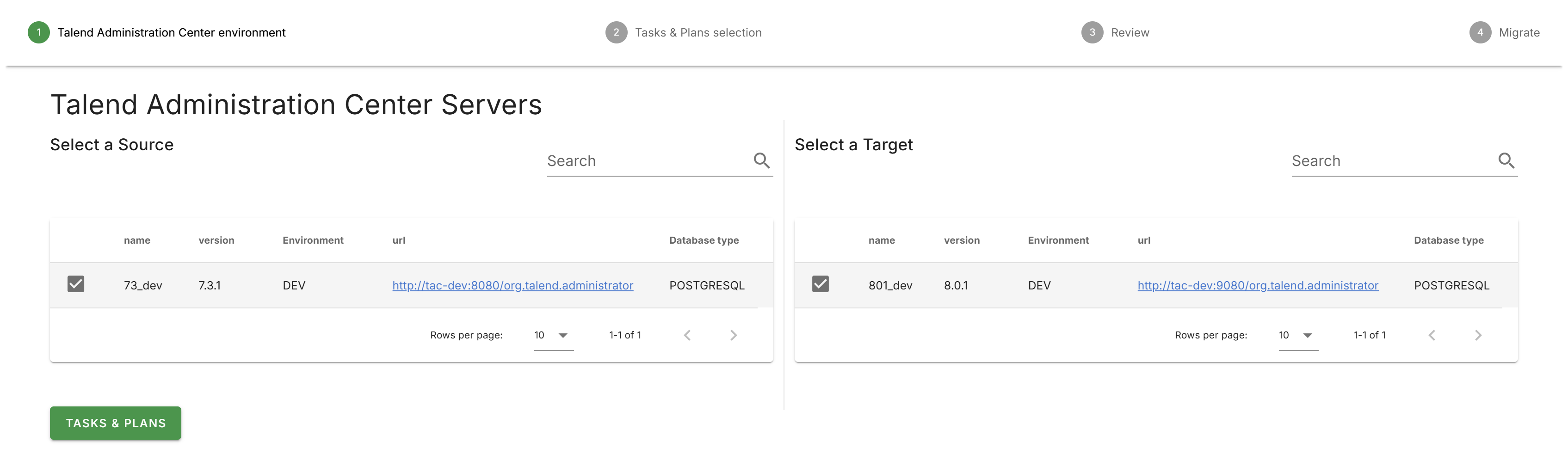
Selecting the TAC environments
- Select Migration in the left navigation drawer to open the migration selection page.
- Click the Runtime Assets tile.
- Select the source TAC server from the left table.
- Select the target TAC server from the right table.
- Click Tasks & Plans to proceed.
Migrating server references
A confirmation dialog prompts whether to migrate virtual servers, Job servers, and runtime servers.
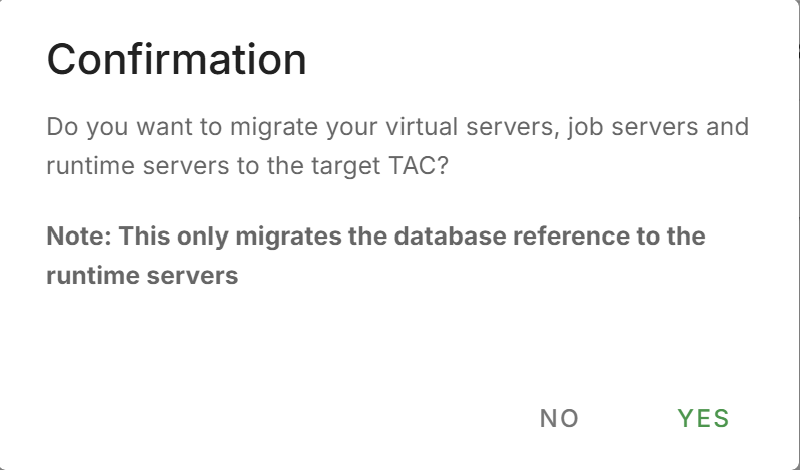
After the migration, the target TAC must be able to reach these servers on the network. Any required agents or runtime engines must be installed and configured manually on the physical machines through the target TAC.
A status alert confirms whether the server migration succeeded or failed.
Selecting tasks and plans
Two tree views are displayed: the source tree on the left and the target tree on the right.
- Expand the source tree to view the available tasks and plans.
- Select the assets to migrate by checking the corresponding checkboxes.
- Click the right arrow button to move the selected assets to the target tree.
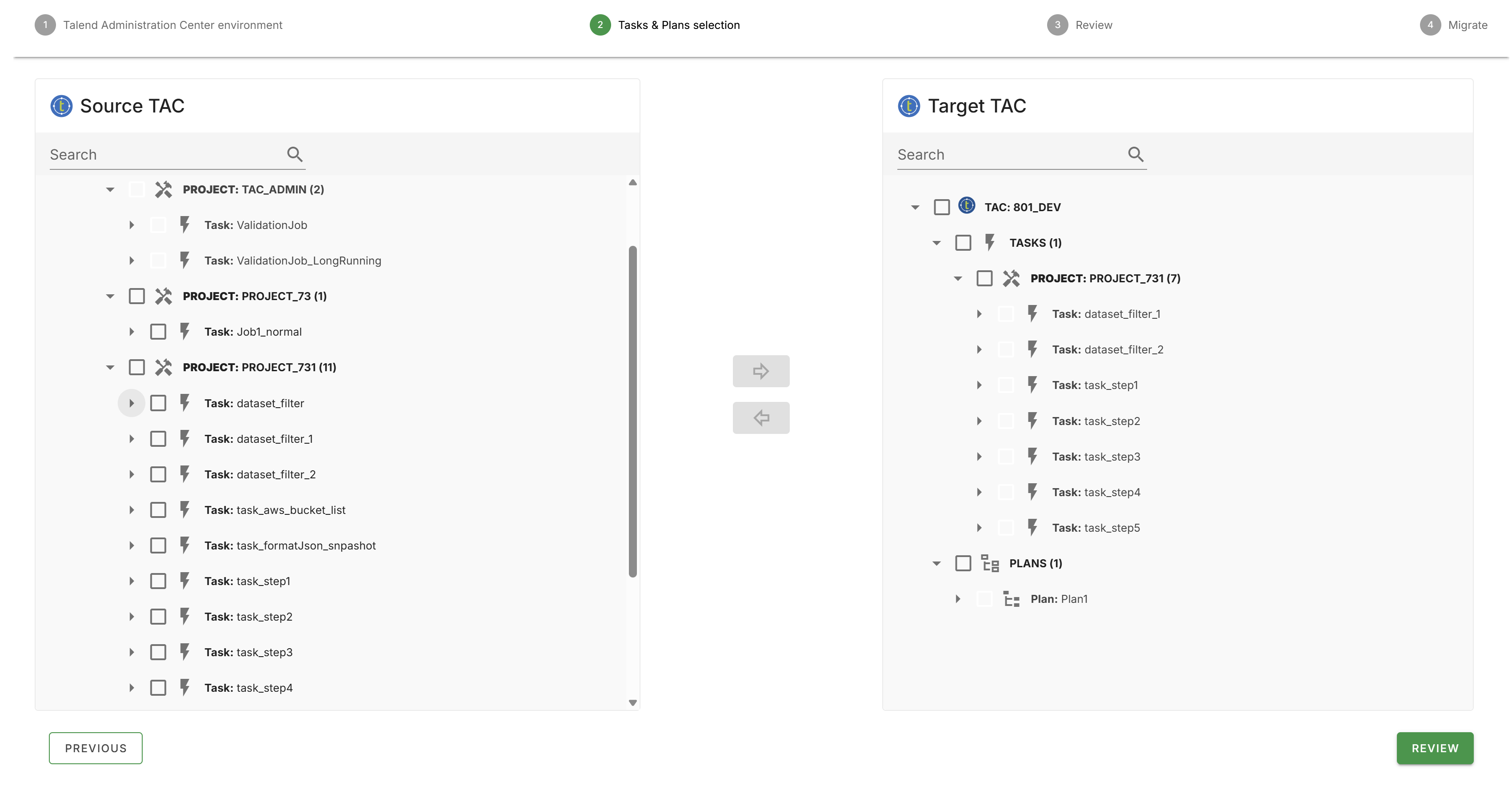
To remove an asset from the target tree, select the asset and click the left arrow button.
Reviewing the selection
- Click Review to view a summary of the selected assets.
- The review screen displays the following counts:
- Total Tasks
- Total Plans
- The target TAC environment details are displayed, including the TAC server name and version.
- Optionally enter a comment in the Comment field.
- Verify the target TAC tree structure on the right panel.
After the migration completes, review the tasks on the target TAC and manually resume the triggers when ready. The pause/play icon on each task in the review screen indicates the trigger state.
Running the migration
Click Migrate to begin the migration.
The migration progress screen displays real-time status updates for each asset.
- Checkmark: Migrated successfully
- Blue square: Migrated successfully with additional
information.
Hover over the icon to view details.
- Red circle: Migration failed with an error message.
Hover over the icon to view the error.
Migration behavior
- Server references: Only the database entries for virtual servers, Job servers, and runtime servers are copied. Physical server configuration is not affected.
- Task triggers: All task triggers are migrated in a paused
state.
Resume triggers manually on the target TAC after verifying the migration.
- Task parameters: Task context parameter overrides are preserved during the migration.
- Plans: Execution plans and associated task relationships are migrated.