
Managing semantic models in data products
Last updated: 10/28/2026You can create and edit semantic models within data products to define data structures, relationships, measures, and dimensions that can be consumed by analytics applications.
Semantic models are created using a visual modeling interface in data products. The semantic model of a data product can be used by any analytics developer with access to the data. When the data product is activated, the semantic model becomes available through the Data Marketplace, indicating it is ready for production use cases.
Prerequisites
Before creating a semantic model, ensure that:
-
You have created a data product and have at least one dataset you can add to it.
Information noteYou can either add datasets to the data product before working on the semantic model, or you can add the datasets as you develop the semantic model. -
You have permission to edit the data product.
- The datasets in your data product contain the tables and fields you want to include in the semantic model.
Adding information to a semantic model
To develop the semantic model in a data product:
- From the launcher menu
 , select Catalog and click the data product where you want to work on the semantic model.
 - Click the Semantic model tab of the data product to open the semantic model editor.
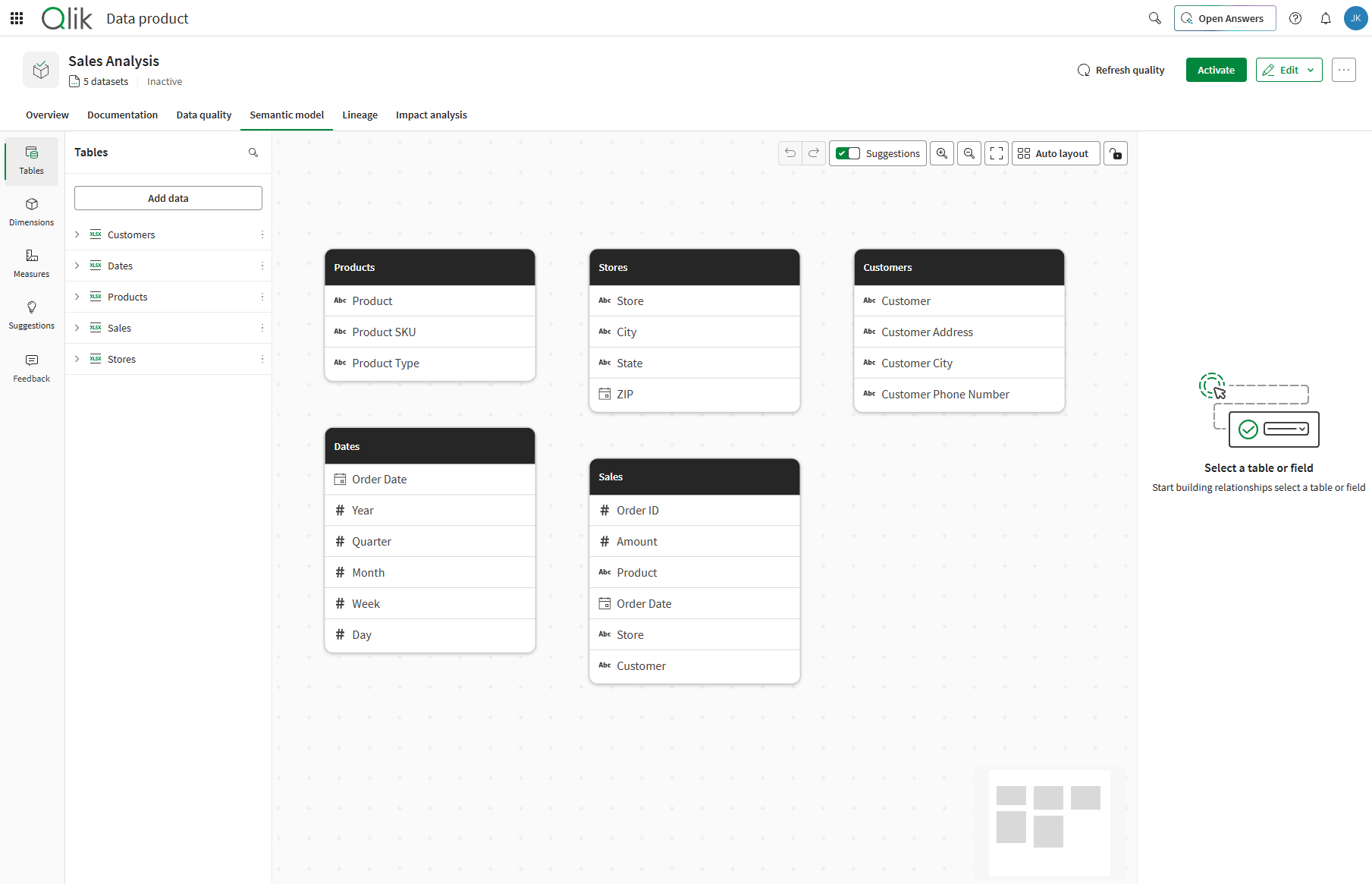
The semantic model editor opens with a visual canvas where you can define relationships, measures, and dimensions.
Clicking a table header displays a preview of the data and its quality.
Adding tables from datasets
Tables are the foundation of your semantic model. Each table represents data from a dataset in your data product.
By default the semantic model editor shows the tables already present in the data product, but you can always add more tables as needed.
To add tables:
- In the semantic model editor, go to the Tables tab and click Add data.

- From the catalog window that opens, select one or more datasets that contain the tables you want to add and click Confirm.
The table or tables appear on the canvas. Repeat this process to add additional tables to your semantic model.
Defining relationships
Relationships connect tables based on matching fields, enabling associative queries across your data. They are displayed as lines connecting tables on the canvas.
To create a relationship you can:
- Use the create relationship button.
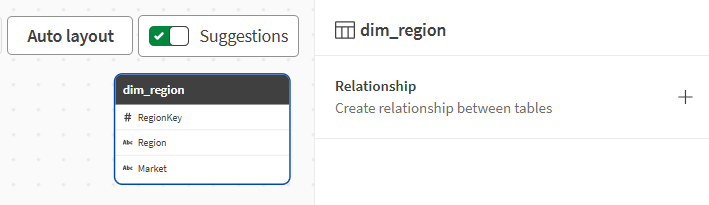
Click the header of the table you want to create a relationship from. Alternatively, click the specific field on which to create the relationship.
In the right panel that opens, click the Relationship + button.
Using the drop-down menus, select the names of the two tables to link and the names of their matching field.
Add a name, and select the Relationship cardinality (the relationship type). Modifying the relationship type is optional.
Relationship types between fields can include:
- One-to-one: One record in the first table matches one record in the second table.
- One-to-many: One record in the first table matches multiple records in the second table.
- Many-to-many: Multiple records in the first table can match multiple records in the second table.
- Many-to-one: Multiple records in the first table match one record in the second table.
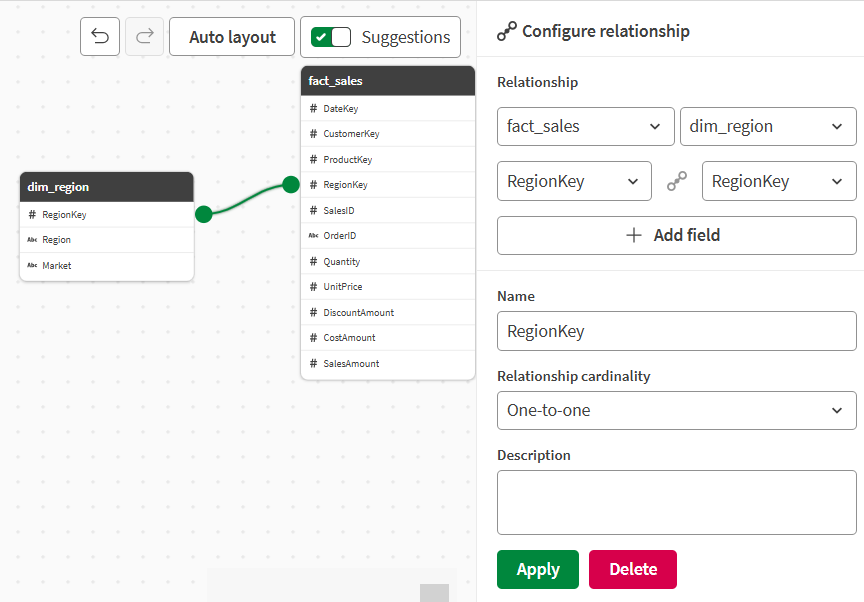
- Optionally, add a description.
- Click Apply.
- Use drag and drop.
- Point your mouse over a field and click and hold one of the nodes that appear on the sides of the field.
- Drag the node to the matching field in the other table and release to create the relationship.

- Review and validate suggestions.
Qlik automatically suggests relationships for:
Fields that share the same or similar names across tables.

For data products that are downstream from a Qlik Talend Data Integration data pipeline, original relationships from the source pipeline are provided as suggestions when you edit the semantic model.

Do the following:
Open the Suggestions tab of the left panel.
Review the suggested relationships. You can:
Accept suggestions.
Expand the Reasoning for a suggestion to understand more about it. For example, whether it comes from field name matching or if it is a relationship defined in an upstream Qlik Talend Data Integration data pipeline.
Dismiss suggestions.
Creating measures
Measures are calculated metrics that appear as master items in applications that consume the semantic model.
To create a measure:
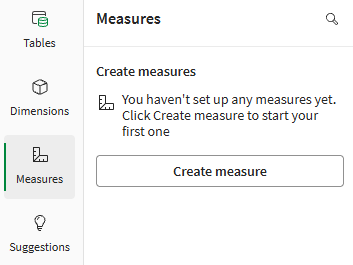
- Click the Measures tab of the left panel and click Create measure.
- Enter a name for your measure, such as Total sales.
- Using the Aggregation and Field drop-down lists, select the parameters of the expression behind the measure, Sum and Amount for example. Alternatively, click the Fx button to open the fully fledged expression editor. For details about writing expressions, see Writing expressions.
- Optionally, enter a description to document the measure's purpose and add tags.
- Select an option for the measure's Number formatting:
- Auto
- Number
- Money
- Date
- Duration
- Measure expression
Information noteThe Custom option is not available. -
Optionally, under Glossary terms, click Link glossary term to link the measure to one or more glossary terms.
-
Select an existing term from the list, or Create new term to add a new term that will be linked to the measure.
-
Select the relationship between the term and the measure:
-
Definition: The term contains the definition of the measure. Only a single term can be set as the definition.
-
Related: The term is related to the measure. Multiple terms can be set as related terms.
-
-
When done, click Select.
-
Add more terms as needed by clicking Add more.
-
-
Click Apply.

The measure is added to the semantic model. When an application consumes the semantic model, the measure appears as a master measure that can be used directly in visualizations.
Creating dimensions
Dimensions are fields used to categorize and group data in analytics applications.
To create a dimension:
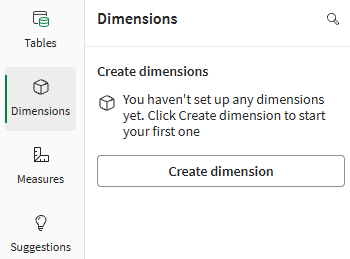
- Click the Dimensions tab of the left panel and click Create dimension.
- Enter a name for the dimension, such as Product name.
- Using the Field drop-down list, select a field of reference for the dimension, such as Product. Alternatively, click the Fx button to open the fully fledged expression editor. For details about writing expressions, see Writing expressions.
- Optionally, enter a description to document the dimension's purpose and add tags.
-
Optionally, under Glossary terms, click Link glossary term to link the dimension to one or more glossary terms.
-
Select an existing term from the list, or Create new term to add a new term that will be linked to the dimension.
-
Select the relationship between the term and the dimension:
-
Definition: The term contains the definition of the dimension. Only a single term can be set as the definition.
-
Related: The term is related to the dimension. Multiple terms can be set as related terms.
-
-
When done, click Select.
-
Add more terms as needed by clicking Add more.
-
-
Click Apply.
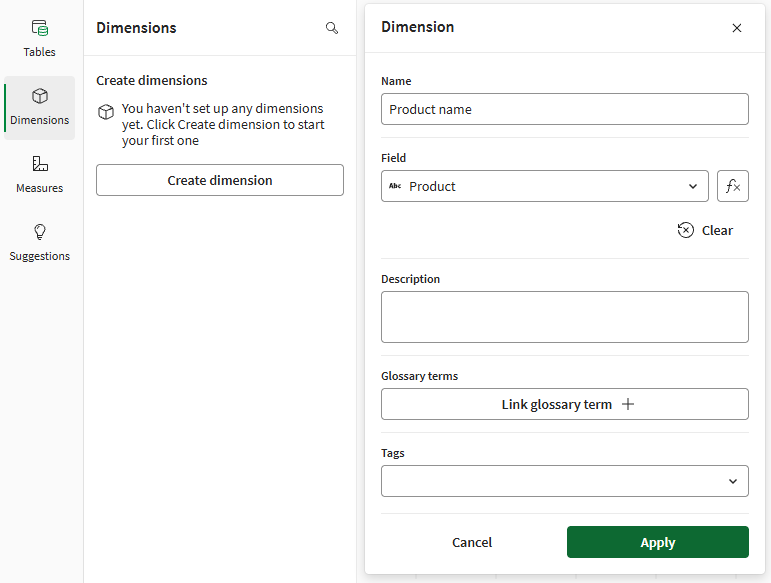
The dimension is added to the semantic model and appears as a master dimension in consuming applications.
Writing expressions
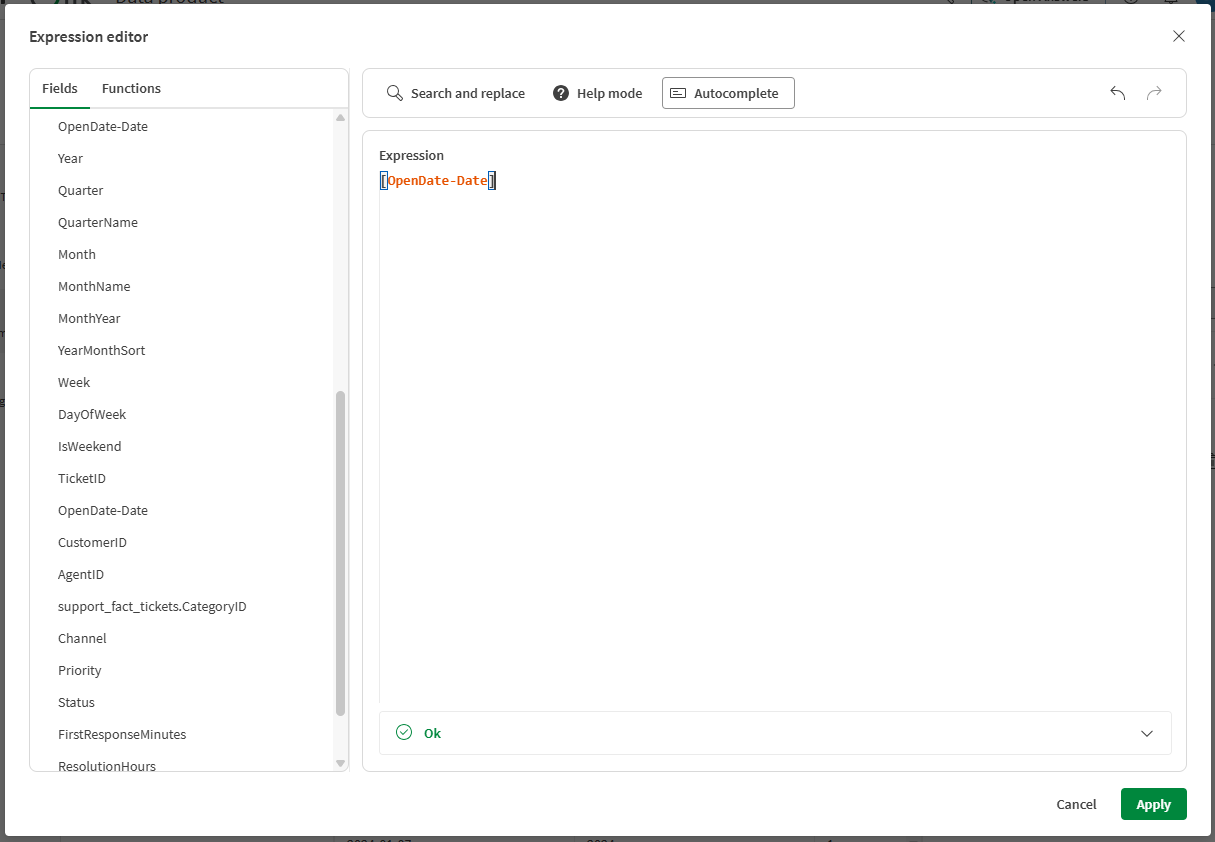
The Expression editor allows you to write custom measure and dimension expressions using Qlik analytics syntax. You can use Fields and Functions from the panels on the left side of the editor.
Considerations for field name use in expressions
When referencing fields that are used in relationships, your expression needs to use the new field name defined by the relationship. If, for example, a relationship connects two fields with different names, the new field name will use a combination of the original field names. For example, a relationship between Date and Order Date fields could result in a new field name OpenDate-Date.
These new field names are shown in the Fields section of the Expression editor. You can also find the new field names by clicking a field on the semantic model canvas. The new field name is shown as Field name in Qlik application.

Editing a semantic model
The following actions to edit your semantic model can be performed before or after activation of the data product.
- Add tables using the Tables tab of the left panel.
- Create, edit, or delete relationships in the right panel after selecting a table.
- Add, edit, or delete dimensions and measures using the Dimensions and Measures tabs of the left panel.
- Update expressions or descriptions.
Changes to the semantic model become available to consuming applications on their next reload. If applications use auto-include mode with wildcard selectors, new fields, dimensions and measures and are automatically included.
Validating expressions
When you create or edit measures and dimensions using the full Expression editor, your expressions are validated to ensure they use correct syntax and reference valid fields.
If an expression contains an error:
- The measure or dimension is marked with a warning indicator.
- An error message explains the issue, such as "Field not found" or "Invalid syntax".
- The expression is highlighted at the location of the error.
To fix validation errors:
- Review the error message to understand the issue.
- Edit the expression to correct the problem.
- Verify that function names and syntax follow Qlik expression syntax rules.
- Save the measure or dimension to revalidate the expression.
Activating the data product
When the semantic model in your data product is ready for production use cases, you can activate it. See Activating data products to the data marketplace.