
Consuming data products in applications
Last updated: 10/28/2026Analytics developers can load data products, with their semantic models, into analytics applications using the data catalog. The data catalog generates the necessary script and creates master items for measures and dimensions.
- Qlik Talend Cloud Enterprise
- Qlik Talend Cloud Premium
- Qlik Cloud Analytics Premium
- Qlik Cloud Analytics Enterprise
- Qlik Sense Enterprise SaaS
When you consume a data product, the data catalog generates an IncludeModel script statement that loads the selected tables, relationships, measures, and dimensions into your application. Measures and dimensions from the semantic model automatically appear as master items, ready to use in visualizations.
Prerequisites
To consume a data product and its semantic model, you need:
Permissions
To consume the semantic model of data products in shared, managed, and data spaces, you need the Can consume data or Can view permission in the space containing the data product.
For full details, see Data products roles and permissions.
Accessible datasets
You must have access to the datasets, as well as the connections to the underlying data, that are included in the semantic model.
Unique data product name
The data product must have a unique name within the space. If an application already contains a data product with the same name, loading the semantic model fails.
Consuming a data product and semantic model via the data product
You can create an analytics application directly from a data product. You can refine what to use from the data product and its semantic model: datasets, fields, and master items.
-
Open the data product, either by selecting one from the data marketplace or browsing the catalog.
- In the data product name header, click Use in > Application.

- In the Create a new application window, review the semantic model and the data that will be loaded.
- Click Continue.
The Data load editor of the newly created application opens, and you are directed to the data catalog. The data product is selected by default, but you can browse, refine your selection and review the data before loading it into the application. For more information, see Consuming a data product and semantic model via the Data load editor.
-
When you are ready, click Load data.
After the data loads, you can start adding sheets and work on the application, or navigate to the Data load editor to inspect and modify the script if needed. The semantic model's tables, relationships, measures, and dimensions are now available for use.
For more information about visualizing data in sheets, see Creating analytics and visualizing data.
Consuming a data product and semantic model via the Data load editor
The data catalog provides an interface for browsing and selecting data and semantic model information from data products, instead of manually entering script.
To load a data product and its semantic model:
- Open an application.
- Click Data load editor in the top navigation bar.
- In the Add data right panel, click Add from data catalog.
- The data catalog modal opens, showing available data, including data products with semantic models.
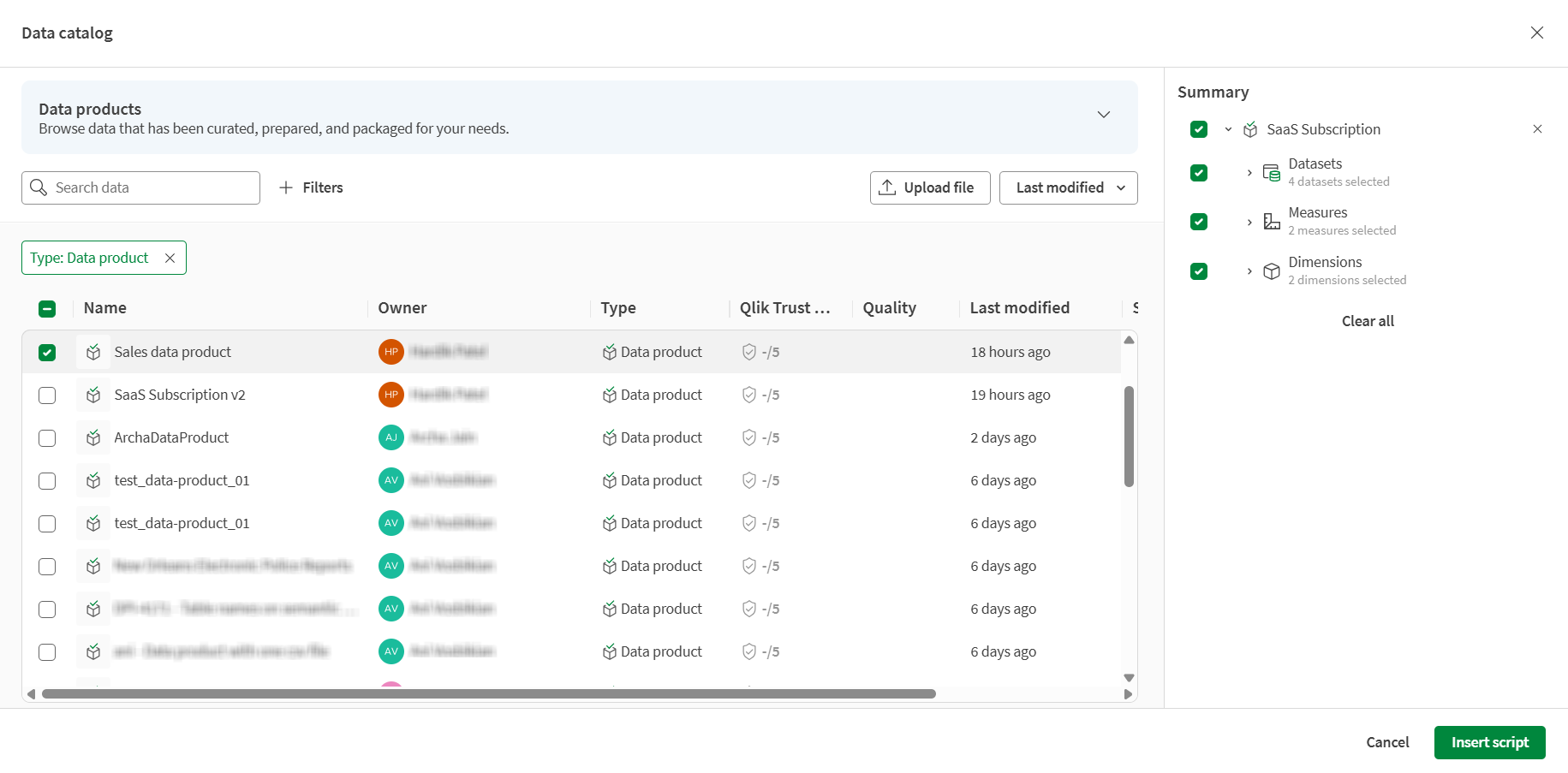
Browsing data products
The data catalog displays data products that contain semantic models. You can browse and search for data products by name, description, or tags.
Click a data product to view a summary of what will be loaded in the application script, including tables, measures, and dimensions.
If a dataset in the semantic model is inaccessible, it is marked with a warning indicator. You can still consume measures and dimensions related to it that are in the semantic model, but the inaccessible datasets and their fields are excluded.
Selecting and refining a semantic model
After selecting which data product to use, you can refine your selection and choose precisely which components of the semantic model to include in your application.
- Point your mouse over the selected data product and click Refine selection.

Three new tabs are available where you can navigate elements of the data product:
- Tables/fields
- Dimensions
- Measures
- Use the check boxes to refine your selection and choose which datasets, fields, measures, and dimensions to include.
- When your selection is ready, click Insert script.
Advanced users can toggle Auto-include added items on reload to control whether new items are automatically included when the semantic model changes.
When enabled, new fields, measures, and dimensions added to the semantic model are automatically added to the data model and master items upon reload. This only applies where all fields, measures, and dimensions are checked, respectively.
The generated IncludeModel script is inserted into the load script and can be viewed and edited in the Data load editor. To load the data into the application, click Load data.
After the data loads, you can start adding sheets and work on the application. For more information, see Creating analytics and visualizing data.
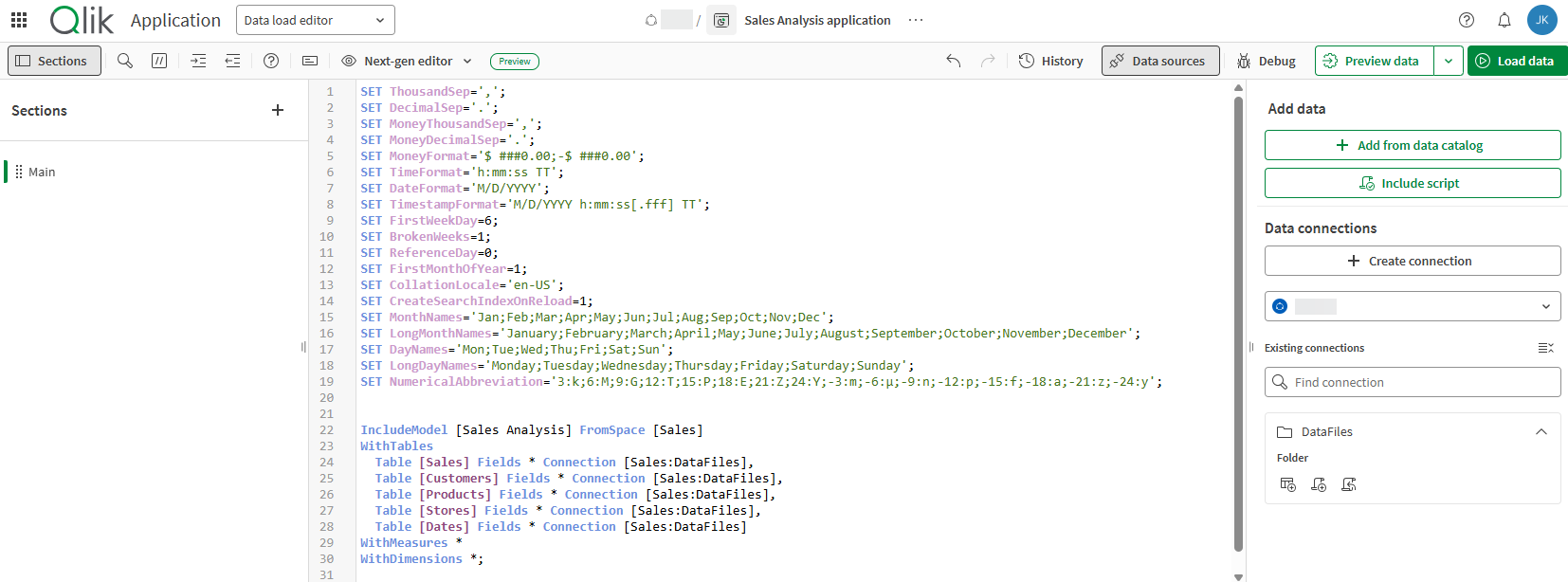
Understanding auto-include
The auto-include feature controls how your application responds when the semantic model changes.
When auto-include is enabled for a component type, the generated script uses a wildcard (*) selector:
- Fields *: Includes all fields from the specified table.
- WithMeasures: *: Includes all measures as master items.
- WithDimensions: *: Includes all dimensions as master items.
When auto-include is disabled, the script explicitly lists the selected items. For example:
- WithMeasures [Total sales], [Total quantity]: Includes only the specified measures.
- WithDimensions [Region], [Product]: Includes only the specified dimensions.
Auto-include is recommended for advanced users to reduce maintenance and ensure your application benefits from improvements to the semantic model. Disable auto-include if you need strict control over which items are included.
Understanding the generated IncludeModel script
The data generates an IncludeModel script statement that references the semantic model and specifies which components to load.
Example script:
IncludeModel [My Example Data Product] FromSpace [My Shared Space]
WithTables
  Table [dataset_dim_dateinfo] Fields * Connection [My Shared Space:DataFiles],
  Table [dataset_dim_customer] Fields * Connection [My Shared Space:DataFiles],
  Table [dataset_fact_transactions] Fields * Connection [My Shared Space:DataFiles],
  Table [dataset_dim_category] Fields * Connection [My Shared Space:DataFiles],
  Table [dataset_dim_sales_rep] Fields * Connection [My Shared Space:DataFiles]
WithMeasures *
WithDimensions *;
Script parameters:
- IncludeModel: The name of the data product containing the semantic model.
- FromSpace: Specifies the space containing the data product.
- WithTables: Specifies which tables to include. Use * for all tables or a list of specific table names.
- Table: Specifies a table to include. You can include Table statements for each table you want to use, separated by commas.
- Fields: Specifies which fields to include from the specified table. Use * for all fields or a comma-separated list of fields.
- Connection: Specifies the table location using the format environment:space:connection, space:connection, or connection.
- WithMeasures: Specifies which measures to include as master measures. Use * for all measures or a list of specific measure names.
- WithDimensions: Specifies which dimensions to include as master dimensions. Use * for all dimensions or a list of specific dimension names.
You can manually edit the IncludeModel statement to adjust which items are included or to switch between wildcard and explicit selection modes.
For full details about the IncludeModel statement, see IncludeModel.
Field and table naming
When a data product is loaded into an application, field and table names may be automatically adjusted to prevent naming conflicts and to transform relationships into name-based associations following Qlik analytics patterns.
- Same-name fields without a relationship: If two tables contain a field with the same name but the fields do not have a relationship, the field names are automatically qualified with their table name (for example, TableName.FieldName) to prevent an unintended automatic association in the application.
- Fields that have a relationship: If the two fields have a relationship but different names, they are renamed to the same name, the name of the relationship, when loaded into an application to form an association.
-
Composite keys: For composite keys, a new key field is added to involved tables.
- Same-name tables: If two tables have the same name, they are automatically renamed by appending a numeric suffix, for example TableName_1, TableName_2, and so on.
Working with inherited master items
When you reload an application that includes an IncludeModel statement, measures and dimensions from the semantic model automatically appear in the master items panel.
To use master items from a semantic model:
- Reload the application to load data from the semantic model.
- Open a sheet in edit mode.
- In the left panel, click Master items.
- The measures and dimensions from the semantic model appear in the list with a data product indicator.

- Drag a master measure or dimension onto a visualization to use it.
Master items inherited from semantic models display their source data product name and description. You can view the expression used by the measure or dimension by hovering over it.
Master item properties
Most attributes of master items inherited from semantic models are read-only in the consuming application. Some other master item attributes, such as those related to visualizations, can still be edited within the application.
The read-only behavior applies to the user interface only—you can set a number of master item properties via API:
-
Properties that are configurable in the semantic model but read-only in the consuming application's user interface. This includes title, description, and tags.
-
Properties that are not configured in the semantic model and not exposed in the consuming application's user interface.
Changes to properties defined by the semantic model will be overwritten when the application reloads.
Master item deletion
In an unpublished application, you can delete an inherited master item, but it reappears on the next reload if it is still referenced in the IncludeModel script. To permanently remove it, remove it from the script first. You can also duplicate an inherited master item. The duplicate is an ordinary application master item and is fully editable.
Master items and publishing applications
When an application is published, its inherited master items remain fixed to the version of the data product used when the application was published. Reloading a published application does not create, update, or delete master items from the data product. To use new or changed measures and dimensions, update the application and publish it again.
Addressing semantic model updates in an application
If the semantic model changes after you have consumed it, you can update your application to reflect the changes.
If you used auto-include mode with wildcard selectors, new measures and dimensions are automatically included. If you used explicit selection, only the items you originally selected are loaded.
To add new items from the semantic model:
- Open the Data load editor.
- Locate the IncludeModel statement in your script.
- Edit the statement to add new items or change selectors to
*for auto-include. - Reload the application.
Alternatively, you can remove the existing IncludeModel statement and use the data catalog to generate a new one with updated selections.
Consuming data products in other tools
In Script, it is possible to consume data products but the measures and dimensions are ignored.
When consuming data products in assets other than applications and scripts (such as data flows and table recipes), the data product acts as a set of trusted datasets to pick from. These tools uses the datasets as sources and the data product is not shown as a source node in lineage.