
Viewing all tenants across your subscriptions
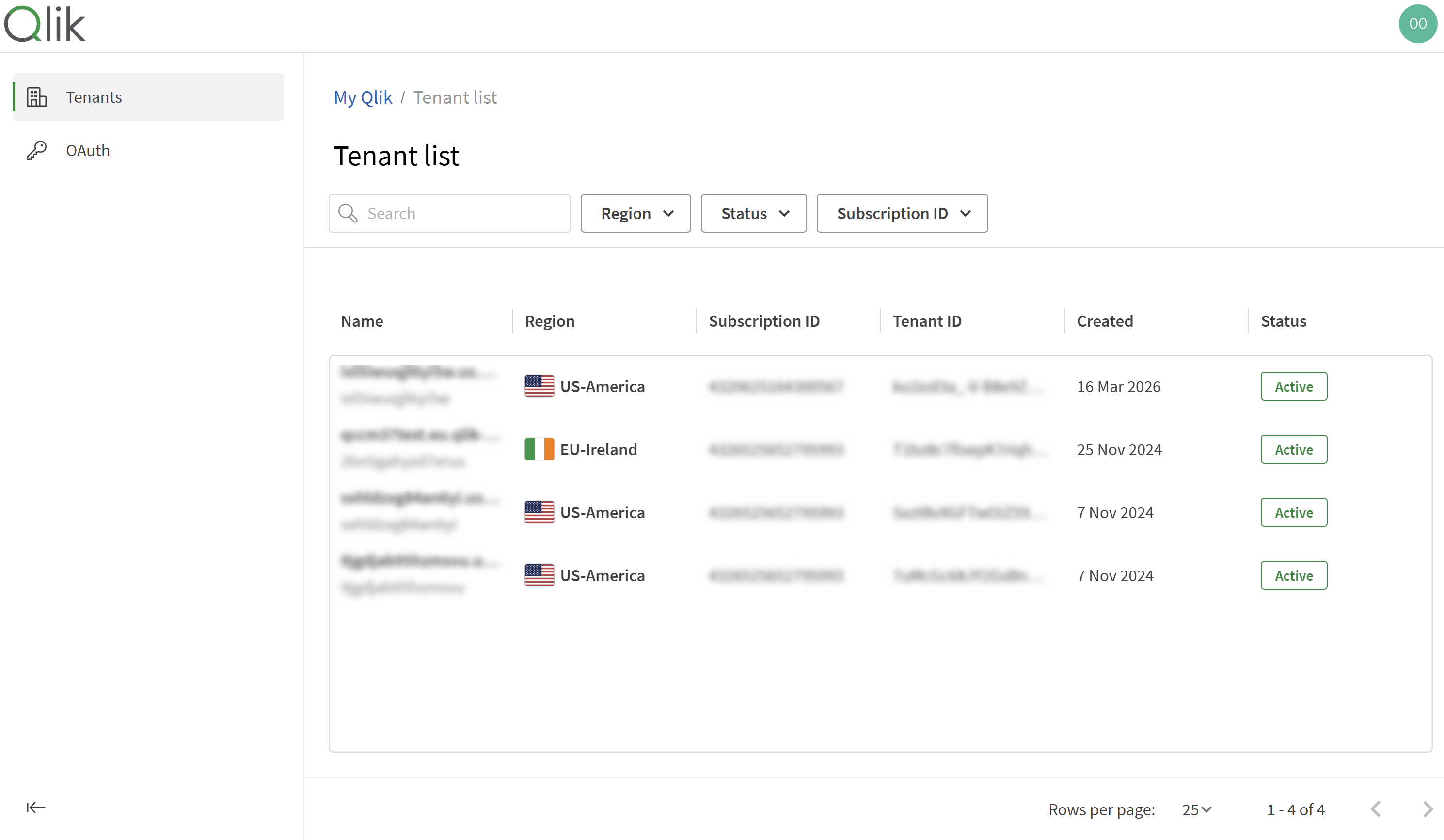
You can see all tenants associated with your subscriptions on the Tenant list page. This page includes search and filtering options, and is especially useful if you manage a large number of tenants, such as in an OEM scenario.
The Tenant list page: view all tenants across your subscriptions.
The Tenant list page shows only Qlik Cloud tenants in your subscriptions. To view all tenants you have access to—including Talend Cloud tenants—open the launcher menu  and select Qlik Cloud.
Accessing the tenant list
When you sign in to Qlik Cloud, the Tenant list page opens by default. You can also access the page at any time from My Qlik.
To open the Tenant list page:
-
Log in to My Qlik with your service account owner (SAO) credentials.
-
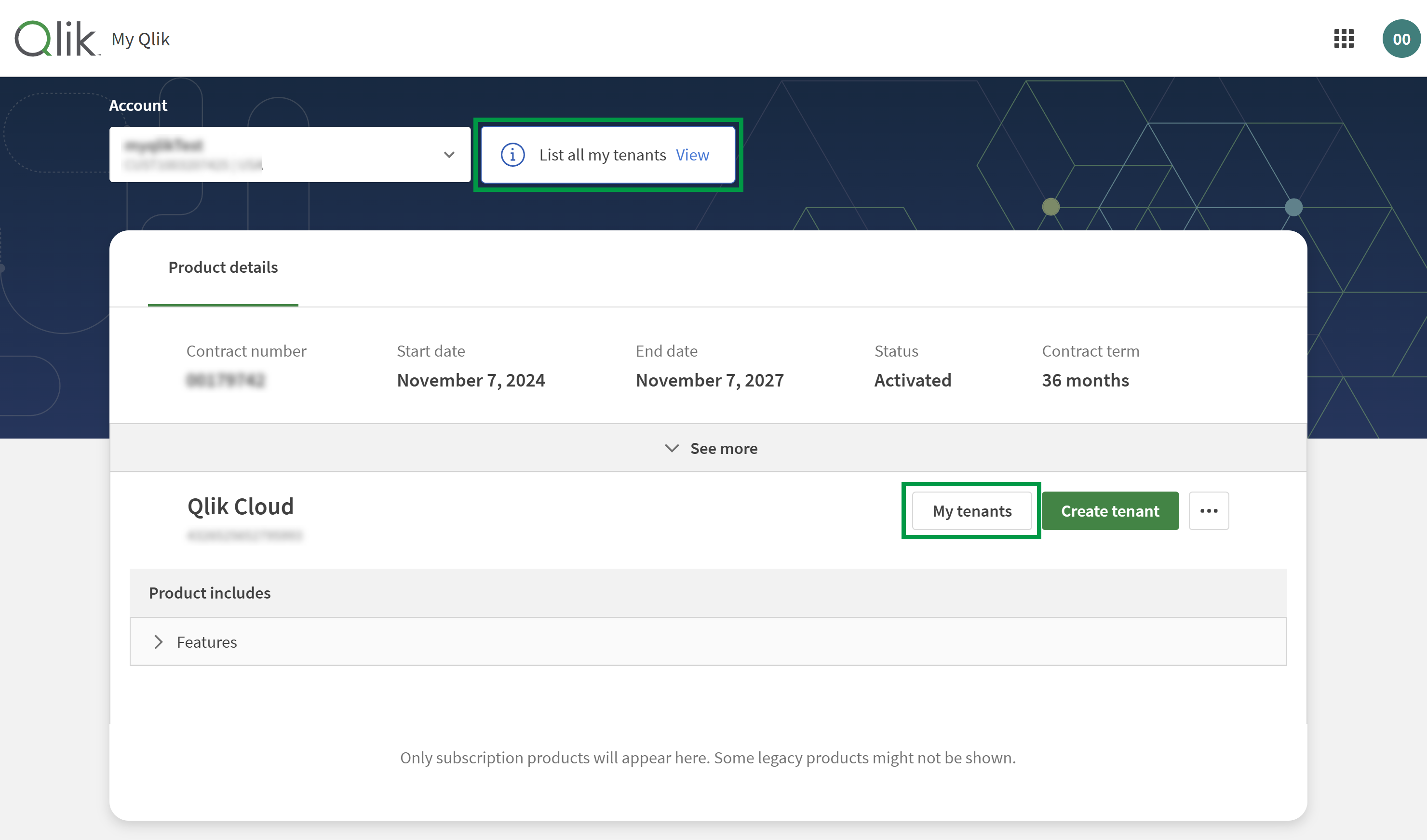
Click List all my tenants at the top of the page.
-
You can also click My tenants on a subscription. The tenant table is then pre-filtered by that subscription.
-
Navigating to the Tenant list page from My Qlik.
Finding and viewing tenants
The Tenant list page includes a table that lists your tenants. In the table, you can:
-
Search by name.
-
Filter by region, status, or subscription ID.
When you open the page, the table is pre-filtered to show only tenants with the Active status. You can change the status filter to show other tenants.
-
Sort by name, region, subscription ID, creation date, or status.
-
Hover over a tenant name to preview details.
-
Click a tenant name to open it in a new browser tab.
-
Manage table columns using the column menu (click
 in a column header). You can hide or show columns and drag them to reorder. The Name column is always shown.
Tenant table columns
The tenant table includes the following columns:
-
Name
-
Region
-
Subscription ID
-
Tenant ID
-
Created
-
Status
-
License activation
-
License expiration
-
Last updated
-
Upcoming deletion
Tenant statuses
A tenant can have one of the following statuses:
-
Active – The tenant is accessible.
-
Disabled – The tenant is not accessible.
-
Deactivated – The tenant is scheduled for deletion. Data is retained during the retention period.
-
Deleted – The tenant and all associated data are deleted.