
How to change the data type of a column
Last updated: 10/16/2026When you add a dataset and create a table recipe, each column is automatically assigned a data type based on the data it contains.
The data type corresponds to the category (names, emails, phone numbers, etc) of the data. If the data type that has been applied on a column is not the desired one, you have the possibility to manually change it to one of the other predefined types or even a custom one, based on your own experience.
Let's take the example of a dataset containing client data, including the job title of your customers. You can see in the header of the Occupation column that the data type has only been recognized as Text (string). You are going to change the data type of the column so that it more accurately reflects the data
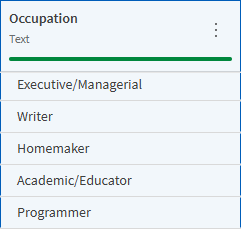
To change the data type assigned to a column:
-
In the table, right-click the header of the Occupation column or click
 to open the column menu.
 -
Click Change type....
-
To change the type:
-
Start typing the name of the type that you think would be appropriate in the Search field.
As you type, an auto-completion feature will suggest a list of available types for your data.
-
Select one of the suggestions, based on the matching percentage with your column.

-
-
Click the Job Title type from the suggestions in this case.
According to the statistics, this data type corresponds most closely to the values contained in the column.
-
Click Apply.
The column type is updated to Job Title, as you can see in the header of the Occupation column.
Every time that the data type of a column is modified, the column quality is calculated again
For more information on data types in Qlik Cloud, and how to manage and create custom types, see Managing semantic types.