
Creating character combs and check boxes
Last updated: 10/2/2026The  Character comb and
  Check box objects in PixelPerfect reporting allow you to style text in section headers using input from the Qlik Sense app. They can also be used to generate interactive reports that can be used as forms.
Character comb and check box in PixelPerfect report
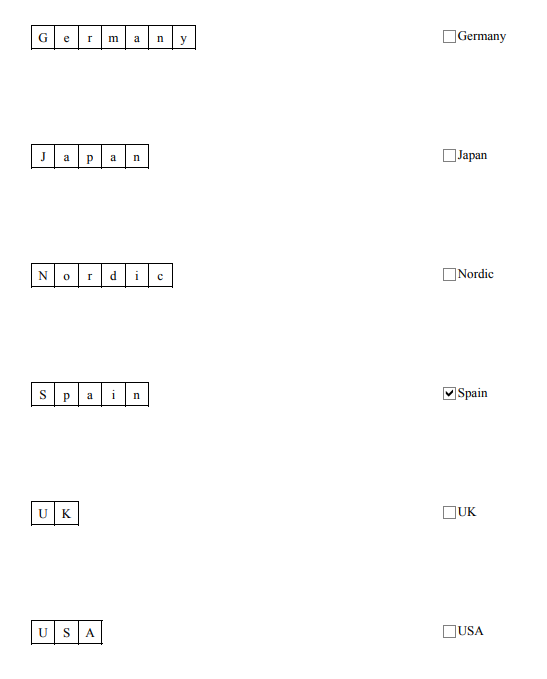
Adding a character comb
With the Character comb, you can style app data values as a series of cells, one for each letter. This can be used, for example, to add emphasis for section headers.
Do the following:
-
From the toolbox panel on the left side of the designer, drag a
Character comb onto the design surface.Consider placing it on a DetailReport band if you plan on looping the object with a level.
-
To use app data in the character comb, go to the
 Field List and create a data binding to use as the source. It can be a level or table data binding.
See Data binding.
-
Select the character comb and click
 in the right-side panel.
 -
Click the button to edit the Text property expression.
The Expression Editor opens.
-
Expand Fields and double-click the field you want to use, or type the field name enclosed in square brackets.
-
Click OK.
-
For best results, open
 Properties and turn on Auto Width under Character Comb Tasks.
Adding a check box
With the Check box, you can add text data from the app into check box elements, and use conditions to check or uncheck the boxes. This can be used to style section headers or to make the report resemble a form.
Do the following:
-
From the toolbox panel on the left side of the designer, drag a
Check box onto the design surface.Consider placing it on a DetailReport band if you plan on looping the object with a level.
-
To use app data in the check box, go the
Field List and create a data binding to use as the source. It can be a level or table data binding.See Data binding.
-
Select the check box and click
in the right-side panel. -
Click the button to edit the Text property expression.
The Expression Editor opens.
-
Expand Fields and double-click the field you want to use, or type the field name enclosed in square brackets.
-
Click OK.
-
Customize the check box as needed with the following:
-
All check boxes inherit the default state you set in the object properties. You can define a condition so that the check box only appears in a state for certain field values. For example:
Iif( [Country (Country_Level).Country] == 'Argentina', True , False )This setting is configured in the
Expressions panel under Check Box State. -
Open
Properties and set custom symbols and sizes under Check Box Tasks > Glyph Options.
-
Example - Character combs and check boxes
Refer to the example application sources here: Examples - In-application reporting. Upload the application and data files into a space, and then reload the application. You are ready to complete the example.
In this example, we create character combs and check boxes and loop them over a level.
Part 1: Add data binding
Do the following:
-
Create a new PixelPerfect template.
-
Open the
Field List menu available from the right-side panel in the designer.Field List menu in the PixelPerfect designer

-
Click the plus icon next to Levels.
-
Expand Fields, and click the
 icon next to Region.
The data binding is added.
Part 2: Add DetailReport band and connect it with data binding
You need to create a DetailReport band to use a level.
Do the following:
-
Right-click the Detail1 band, and then click Insert Band > DetailReport.
-
To bind the DetailReport1 band to the level, select the band and then open the
Properties menu. Under Detail Report Tasks > Data Member, select the Region level.
Part 3: Add a character comb and check box
Do the following:
-
From the toolbox panel on the left side of the designer, drag a
Character comb onto the DetailReport1 band. -
Resize the character comb so that its cells are on a single line.
-
From the same panel, drag a
Check box onto the DetailReport1 band. Place it to the right side of the character comb. -
Select the character comb and click
Expressions in the right-side panel. -
For the Text property expression, open the Expression Editor, and type the field [Region] as the expression.
-
Click OK.
-
Open
Properties and turn on Auto Width under Character Comb Tasks. -
Select the check box and click
Expressions in the right-side panel. -
For the Text property expression, open the Expression Editor, and type the field [Region] as the expression.
-
Click OK.
-
For the Check Box State property expression, open the Expression Editor and paste the following expression:
Iif( [Region] == 'Spain', True , False ) -
Click OK.
Character comb and check box added to template
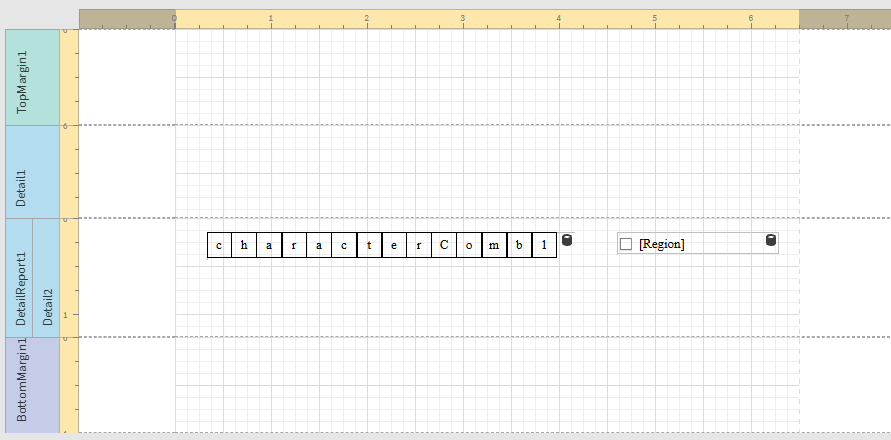
-
In the top right corner, click Save template.
-
Click Preview report. Download the report and open it.
Result