
Handling Qlik application data in PixelPerfect reports
Last updated: 10/22/2026This help topic provides guidelines for formatting certain types of Qlik analytics data in your PixelPerfect report.
Handling dates and dual values
Dates and dual values are supported in PixelPerfect reports—for example, those used in autocalendars.
For example, the My_Date_Field field in this script excerpt:
[autoCalendar]:
  DECLARE FIELD DEFINITION Tagged ('$date')
FIELDS
  Dual(Year($1), YearStart($1)) AS [Year] Tagged ('$axis', '$year'),
...
DERIVE FIELDS FROM FIELD [My_Date_Field] USING [autoCalendar] ;
In PixelPerfect reports, dual and date values are shown by default as serial numbers. To display them as dates, for example, you need to format them as dates in the template using the PixelPerfect designer.
Do the following:
-
Open the
 Field List menu available from the right-side panel in the designer.
 -
Under Levels, expand or create the item that you want to format as a date.
-
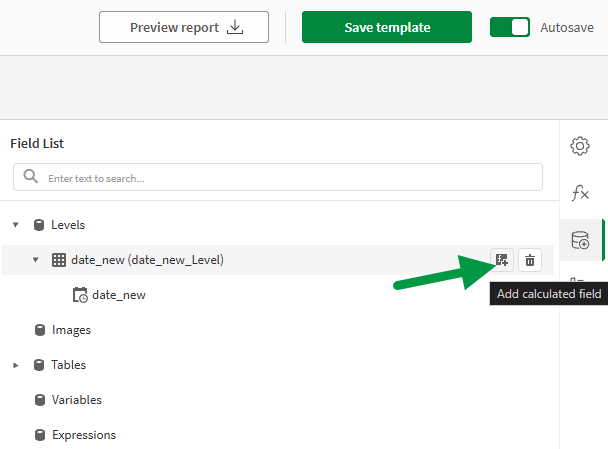
Hover your cursor over the item and click the Add calculated field icon.
Creating a calculated field
-
On the new calculated field, click the Edit icon.
-
Optionally, add a Name to change it from the default.
-
Next to Expression, click
 .
. -
In the Expression Editor, paste the following expression, replacing my_date_field with the name of your date field:
AddDays( #1899-12-30#, [my_date_field] ) -
Click OK.
-
Add the item to the report design surface.
-
Set the date format you want to use in the Format String Editor. Do the following:
-
On the design surface, select the item.
-
Click the three-dot icon next to the item, and then click the gear icon.
-
Click
under Text Format String. -
Select the date format you want to use, and click OK.
-