
Managing insight triggers
Last updated: 10/13/2026In sheet view in an application, you can manage insight triggers in the assets panel.
Editing an insight trigger group
If the group contains no active insight triggers yet, click Continue editing.
You can also edit and rename insight triggers and their groups, doing any of the following:
-
Adding and removing insight triggers in the group
-
Modifying group and insight trigger properties
-
Activating and deactivating insight triggers
Do the following:
-
Open
 Insight triggers in the Assets panel.
 -
Click
 next to a group or active insight trigger.
 -
Select Edit, Rename, or Rename group.
Editing an insight trigger group
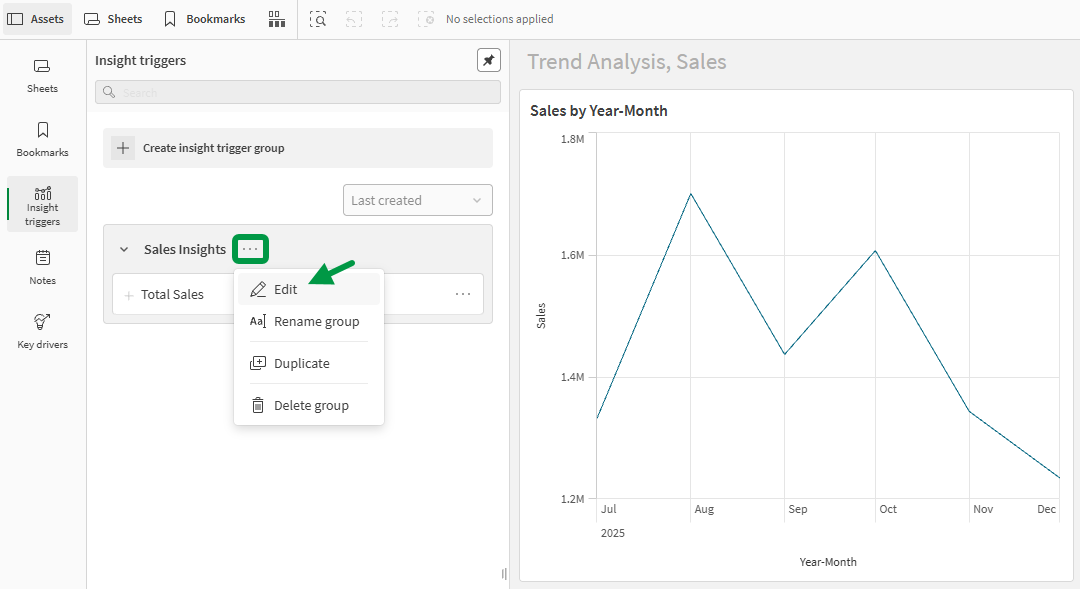
-
Update the properties for the insight trigger or insight trigger group. For information about these properties, see Creating an insight trigger.
Deleting an insight trigger
You can delete insight triggers or groups of insight triggers.
When you delete an insight trigger, insights related to that trigger will be removed from feeds.
Do the following:
-
Open
Insight triggers in the Assets panel. -
Next to an insight trigger group or active insight trigger, click
, and then click Delete group or Delete.
To delete an inactive insight trigger, edit the insight trigger and then click  next to it.
Duplicating an insight trigger group
Do the following:
-
Open
Insight triggers in the Assets panel. -
Next to an insight trigger group, click
, and then click Duplicate.
Viewing insight trigger details
You can view details about an active insight trigger, such as owner, time periods, and a visualization of its current data, by opening Details.
Do the following:
-
Open
Insight triggers in the Assets panel. -
Next to an insight trigger, click
, and then click Details.
Monitoring insight calculations from a trigger
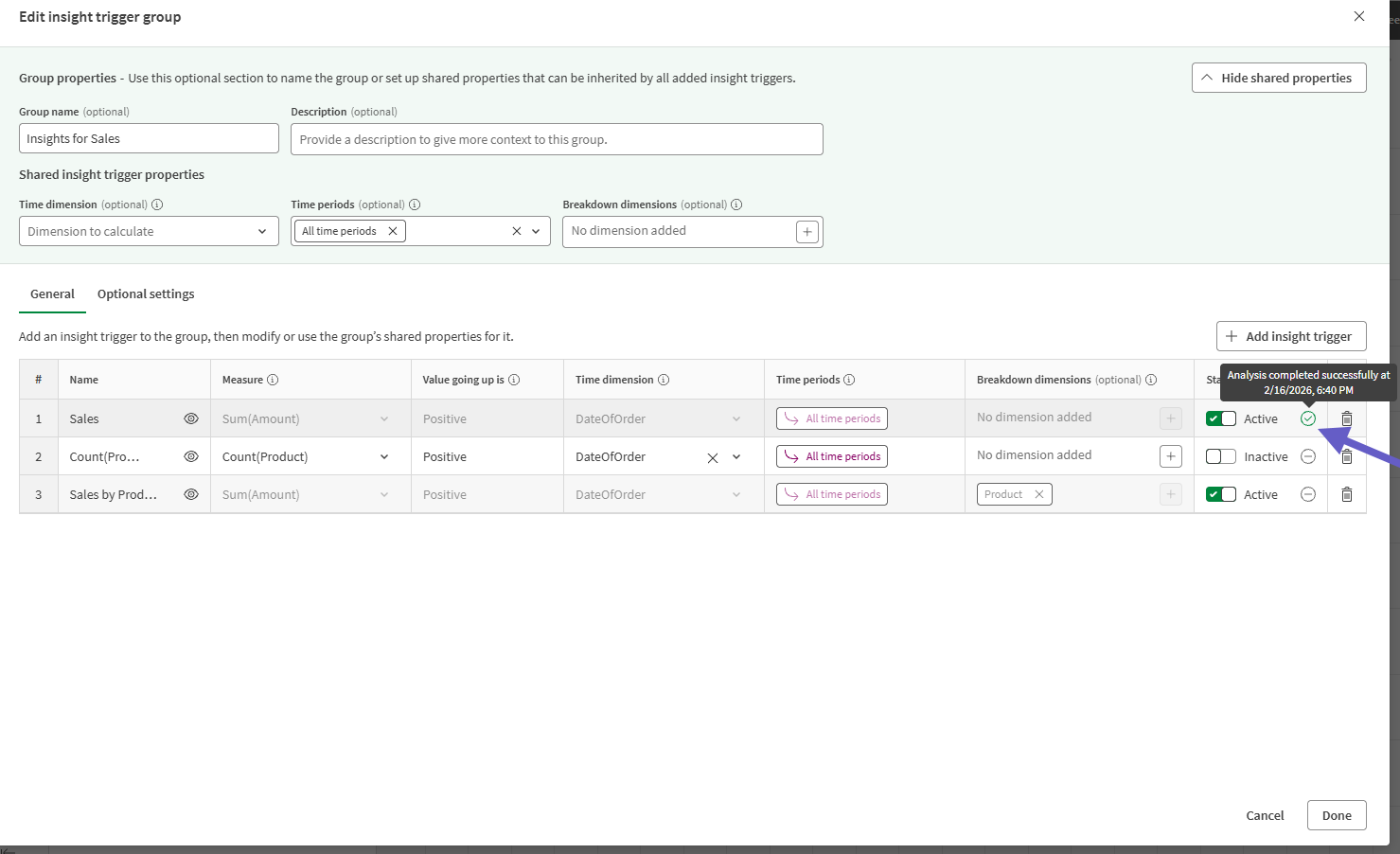
Insight triggers are evaluated whenever data changes (see When are insights generated?). When editing an insight trigger, you can view the status of its last evaluation.
You will need permissions to edit the insight trigger to view this information. See Discovery Agent permissions.
Do the following:
-
Open
Insight triggers in the Assets panel. -
Next to an insight trigger or group, click
, and then click Edit. -
In the dialog, under General, inspect the Status column. You can see whether the trigger is active or inactive, as well as the following icons. Hover over the icon for more details about the evaluation.
-
 : The insight trigger has never been evaluated.
 -
 : The last evaluation was successful.
 -
 : The last evaluation failed.
-
Checking the status of the last evaluation for an insight trigger.
Permissions
For more information about permissions for managing insight triggers, see Discovery Agent permissions.