
Data for Analysis
Last updated: 10/27/2026The Data for Analysis metric shows how much of your capacity is used. This topic explains what data is counted and what is excluded. It also covers how usage is calculated. Understanding these details helps you see what uses up your Qlik Cloud capacity and manage your data more efficiently.
Data included in the metric
The Data for Analysis metric measures the total volume of data loaded into and stored in your environment.
Data counted
The metric includes:
-
Data loaded into Qlik Cloud from external sources
Information noteIn this metric, data loaded means the uncompressed size of the data when it is ingested into Qlik Cloud. Many databases store table data in a compressed format at rest. Qlik Cloud meters the expanded data volume that is loaded into the platform, not the compressed size stored in the source database.
Uncompressed size can vary by database and compression method. To estimate it, you can export the data from your database (for example, to TXT or CSV). For more options, see your database vendor’s documentation or contact their support team.
-
Reloads increase the data count when new incremental data is added. If a reload contains less data than before, the data count decreases accordingly.
-
Data loaded into multiple tenants is counted separately for each tenant.
-
Data loaded once and used in multiple applications within the same tenant is counted only once.
-
-
Data files uploaded to or created in Qlik Cloud
-
The file size of uploaded or created files is counted.
-
Copying a data file within Qlik Cloud counts the new file toward the metric.
-
Duplicating an application in shared space without reloading does not increase the count.
-
Example: Qlik Answers knowledge sources
The following example shows how unstructured data used as a Qlik Answers knowledge source is treated. Whether the data counts toward the Data for Analysis metric depends on how it is provided:
-
PDF uploaded to Qlik Cloud: The PDF counts toward the Data for Analysis metric.
-
PDF accessed through an external connection: The PDF does not count toward the Data for Analysis metric.
In both cases, the PDF consumes Qlik Answers knowledge base indexing capacity when it is indexed for use in Qlik Answers.
How the metric is calculated
The Data for Analysis metric is calculated as:
-
The volume of external data ingested into Qlik Cloud via a Qlik Sense application.
-
The resulting QVD file size from external data being loaded into Qlik Cloud via Qlik Data Gateway - Data Movement.
-
The file size of data files uploaded to Qlik Cloud.
-
The file size of an application uploaded as a QVF, measured as the application’s base RAM footprint.
Data not counted
The following are not included in the metric:
-
Applications and data in a user’s personal space. This includes any applications or data loaded from any source or generated in a personal space using On-demand application generation (ODAG).
-
The metric is based on the application’s location, not the location of its data connection: applications in personal spaces are not counted, even if using a connection in a shared space; applications in shared spaces are always counted for the metric.
-
-
Applications that only binary load another application stored in Qlik Cloud. The original application is already counted, so the loading application does not add to the metric.
-
Applications that only load data from files that are stored in Qlik Cloud (for example, QVDs). The source files are already counted separately.
-
Applications and data published to managed spaces. However, reloads of applications in managed spaces are counted.
-
Data loaded through Direct Query.
Subscribing to Data for Analysis capacity
You subscribe to data packs based on your Data for Analysis requirements.
Each user has a certain amount of capacity available in their personal space, in addition to the volume included with your subscription. This amount does not count toward the total Data for Analysis metric.
The Qlik Cloud Analytics Starter edition has a fixed data capacity, with subscriptions for this edition based on the number of users.
Moving data into Qlik Cloud
Your options for moving data include:
-
Direct data connections from Qlik Sense
-
Qlik Data Gateway - Direct Access
-
Data movement to Qlik Cloud with Qlik Talend Data Integration
With the Premium and Enterprise editions of Qlik Cloud Analytics, you can move data from any source into Qlik Cloud. The Standard edition allows data movement from any source except SAP, mainframe, and legacy sources.
Calculating Data for Analysis volume
Understanding how Data for Analysis is calculated can help you use your capacity efficiently. This section explains how the monthly peak, data loading, application reloads, and data creation are measured.
Monthly and daily peak
When you purchase Data for Analysis capacity, your usage is measured against the amount you’ve purchased. Each day, the system records your usage, and the day with the highest usage during the month becomes the monthly peak, or high watermark. For example, if you purchase 250 GB of capacity and the monthly peak exceeds this, overage charges may apply.
How daily usage is tracked
Your usage is tracked daily. Each day, the system calculates your daily peak as the total of:
-
The total size of files stored
-
The amount of data ingested during application reloads
-
The amount of derived or created data
Applications that were loaded earlier but are not reloaded are still included in your usage. The system carries forward their data from the last reload until a new reload occurs or the application is deleted.
Carry-forward behavior
If an application does not reload on a given day, the system carries forward the data ingested from its last successful reload. The application continues to contribute this amount to the daily peak until a new reload ingests a different amount, which then updates the reported usage.
At the start of a new month, the monthly peak resets. However, the daily peak for the first day of the new month may still include the carried-forward value from the last reload of the previous month. This can make the reported usage appear higher than the data currently visible in the application.
Example:
-
Day 1: The tenant stores 70 GB of data files and ingests 40 GB through an application reload. The daily peak is 110 GB.
-
Day 2: The tenant stores 70 GB of data files, and no reload occurs (0 GB ingested). The daily peak still shows 110 GB because the previously ingested 40 GB carries forward. Only a new reload that ingests less than 40 GB will reduce this value.
Monthly peak and high watermark
The monthly peak is the highest daily peak recorded during the month. It acts as a high watermark, showing the single day when your total data usage was highest. The monthly peak is compared against your purchased capacity to determine whether overage charges apply.
Example – Identifying the monthly peak from daily usage
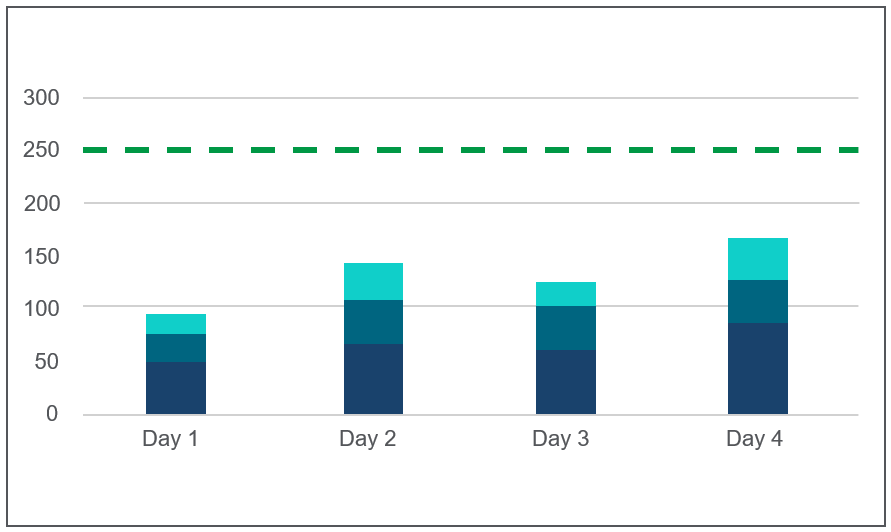
To demonstrate how the monthly peak is determined, this example uses a simplified scenario covering just four days and a purchased capacity of 250 GB. The usage values help illustrate how the highest daily peak becomes the monthly peak.
The table presents data usage over four days, categorized by type:
| Day | Stored | Reload | Created | Daily peak |
|---|---|---|---|---|
| 1 | 50 GB | 30 GB | 15 GB | 95 GB |
| 2 | 70 GB | 40 GB | 30 GB | 140 GB |
| 3 | 60 GB | 0 GB | 20 GB | 120 GB |
| 4 | 80 GB | 50 GB | 40 GB | 170 GB |
Understanding the table data:
-
Day 3 has no data reload. The reload portion from Day 2 (40 GB) is carried forward and contributes to the daily peak (120 GB).
-
Day 4 has the highest daily peak (170 GB), which becomes the monthly peak.
Because the monthly peak is within the purchased capacity of 250 GB, no overage applies. If usage had exceeded 250 GB on any day, overage charges could apply or a capacity upgrade might be required.
Daily usage over four days, showing stored, ingested, and created data. The green line marks the purchased capacity.
Loading data into Qlik Cloud
Data loaded into Qlik Cloud from external sources counts toward the daily peak.
-
If the same data set is loaded into multiple applications separately, each load is counted individually.
-
Data loaded once into a tenant can be reused by multiple applications within that tenant without being counted again. To avoid multiple counts, consider loading data once into QVD files and having multiple applications read from those QVDs.
-
Data loaded into multiple tenants is counted separately for each tenant.
How data contributes to the daily peak:
-
File-based data loaded via applications: Measured by file size.
-
Application reloads using queries or connectors: Counted as the maximum bytes ingested from the data source. If multiple reloads occur on the same day, only the largest reload counts toward the daily peak.
Example: An application reloads three times with 0.75 GB, 1.25 GB, and 1 GB in a day. Only 1.25 GB contributes to the daily peak.
Information noteOnce a reload is counted, it remains part of the daily peak even if the application is deleted later that day. The maximum bytes ingested are counted as long as the application exists in the tenant. -
Data loaded into Qlik Cloud via Qlik Data Gateway - Data Movement: Measured by the size of the resulting QVD file.
-
Applications uploaded or loaded via file import through the Analytics activity center or qlik-cli: Measured by the application's static byte size.
-
Uploaded QVD files: Measured by file size.
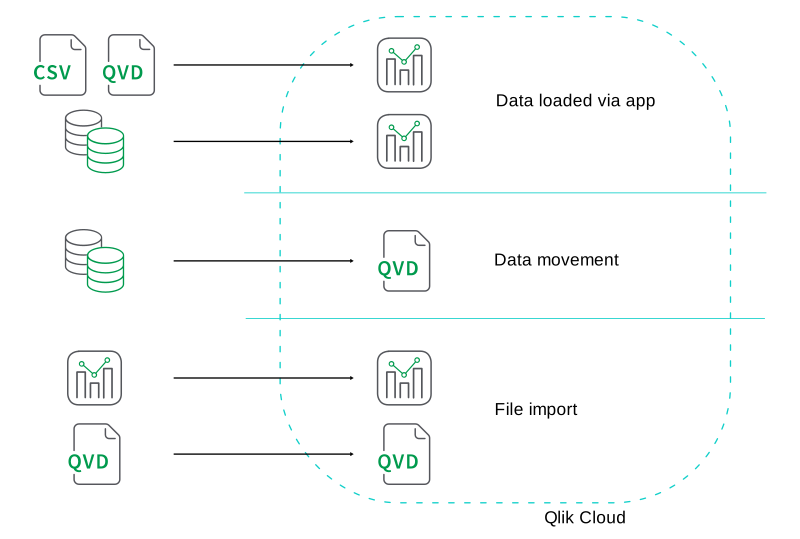
Data can be loaded into Qlik Cloud in different ways: via applications, through data movement, or by importing using the Analytics activity center or qlik-cli.
In the following situations, data is not included in the calculation of the daily peak:
-
Data loaded into a user's personal space is not counted, as long as it is restricted to that space. If the user moves the data to a shared space to collaborate with others, it will be counted.
-
If a reload fails, the bytes ingested are not counted. However, any resulting QVD files are counted.
-
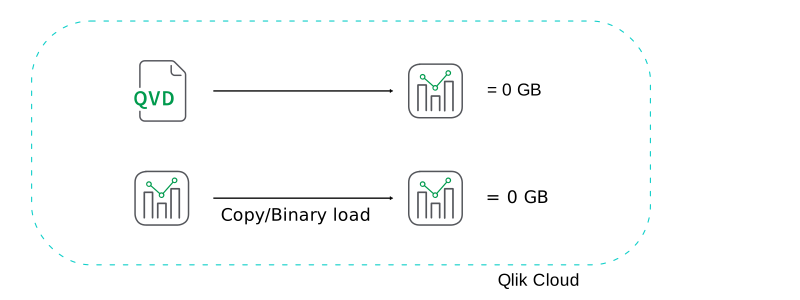
When you load an application with data that already resides in Qlik Cloud, the data load is not counted. For example, copied or binary loaded applications (loading data from another Qlik Sense application) do not impact the daily peak, provided they’re not reloaded from an external source.
Application reloads from internal sources have no impact on the daily peak.
Measuring bytes ingested for application reloads
The following applies when you reload a Qlik Sense application from an external source:
-
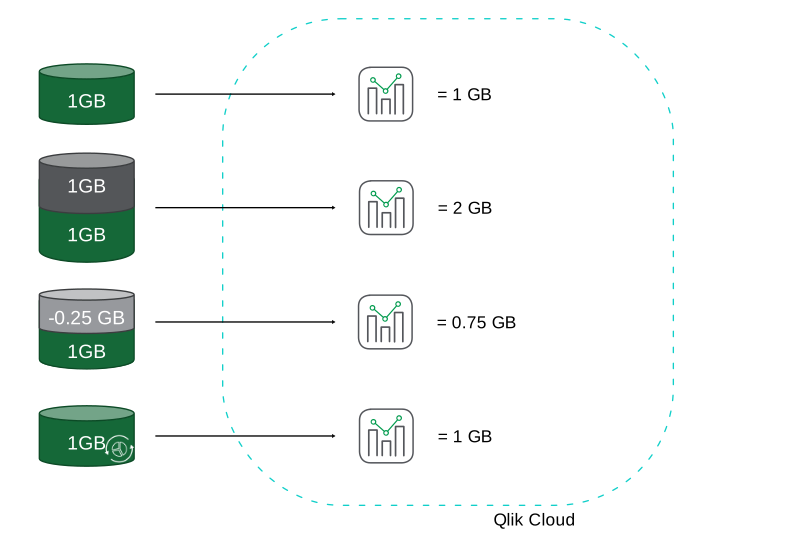
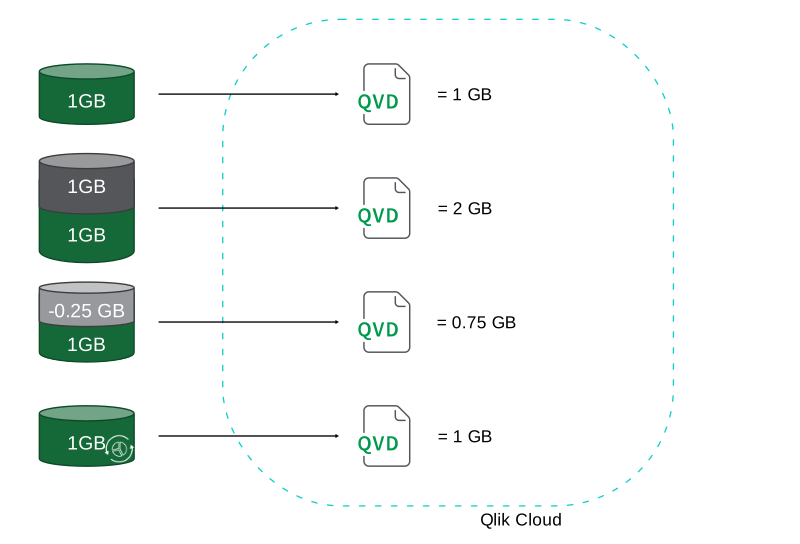
You can reload an application multiple times from the same source dataset without affecting the daily peak, as long as the data volume remains unchanged.
-
If the source dataset increases in size, the daily peak is affected. Each additional GB of data added to the dataset contributes an equivalent amount to the data ingested during the reload.
-
Conversely, if the source dataset decreases in size, this reduction is also reflected in the daily peak.
Example: If the dataset size is reduced by 0.25 GB, the reload size decreases by the same amount. However, if a 1 GB reload occurred earlier in the day, the daily peak for that day remains 1 GB. The reduction is only reflected in the daily peak for the following day.
-
Changes in the content of the source dataset, without changing its size, do not impact the daily peak. Only the data volume affects the daily peak.
Measuring bytes ingested when size or content of the source dataset is changed.
-
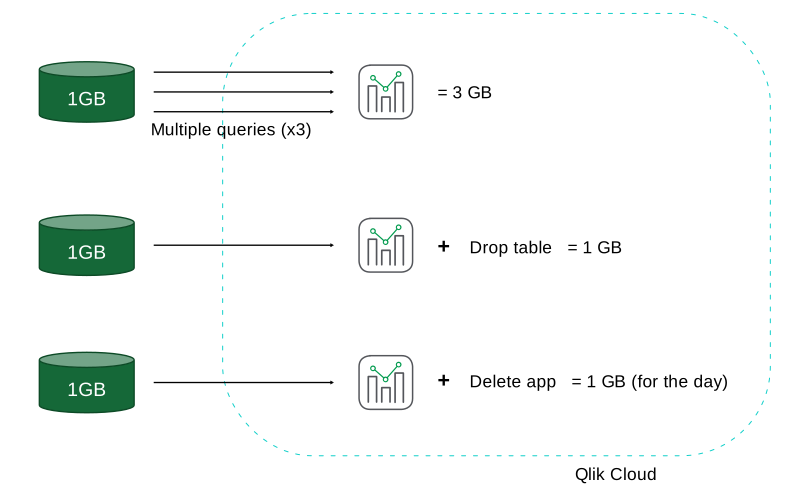
If you query the same dataset multiple times within a single load script, each query is counted separately. The total data volume is the sum of all queries.
Example: If you have a load script that includes three queries of 1 GB each from the same dataset, all three of those queries are counted individually. So, the total data counted toward your daily peak is 3 GB.
-
Loading an application and subsequently dropping the table does not reduce the daily peak, as the daily peak is based on the maximum application reload size for the day.
-
If you load an application and then delete it on the same day, it still counts toward that day's daily peak because it existed during the day. On the following day, the application no longer exists and does not contribute to the daily peak.
Measuring bytes ingested for different application reload scenarios.
Measuring data loaded into QVD files with Qlik Talend Data Integration
The following applies when you load data into a QVD file from an external source using Qlik Data Gateway - Data Movement:
-
Uploading, importing, or generating a dataset multiple times does not affect the daily peak, as long as the data volume remains unchanged.
-
If the source dataset increases in size, the daily peak is affected. Each additional GB of data added contributes an equivalent increase to the resulting QVD file size.
-
If a QVD file changes size during the day, the largest size reached is recorded. The daily peak always reflects the highest observed size for that day.
-
If the source dataset decreases in size, the reduction is also reflected in the daily peak.
Example: A 0.25 GB reduction in the dataset reduces the QVD file size by the same amount.
-
Changes in the content of the dataset that do not change its size do not impact the daily peak. Only the data volume affects the daily peak.
Measuring QVD file size when the size or content of the source dataset is changed.
Loading applications from external and internal sources
How data loaded into applications affects the daily peak depends on the source. The following scenarios show how different types of data contribute.
-
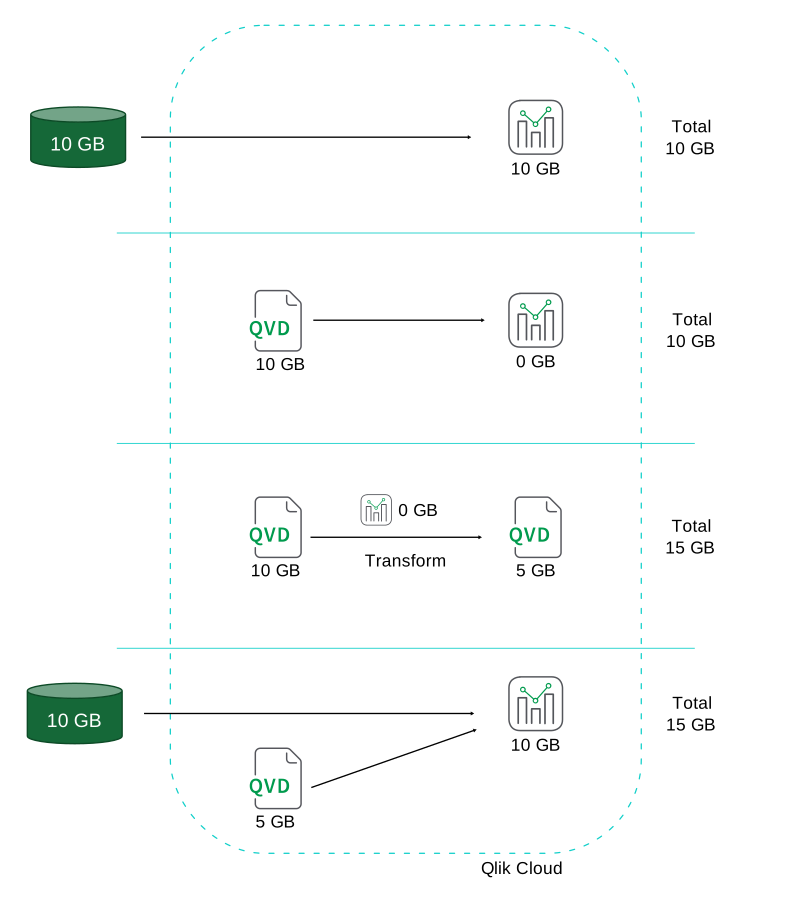
An application is loaded from an external source
Data loaded from an external source counts as bytes ingested.
Example: If 10 GB is loaded, the application contributes 10 GB to the daily peak.
-
An application is loaded from a QVD in Qlik Cloud
Loading data from a QVD file stored in Qlik Cloud does not count as external ingestion for the application.
Example: If the application loads 10 GB from a QVD, the application contributes 0 GB. The QVD file contributes 10 GB separately.
-
A new QVD file is generated from a QVD in Qlik Cloud
When a QVD generator application loads data from an existing QVD in Qlik Cloud, the application contributes 0 GB. The resulting QVD file is counted.
Example: If a 10 GB QVD is transformed into a new 5 GB QVD, the total daily peak contribution is 15 GB.
-
An application is loaded from both external and internal sources
If an application loads 10 GB from an external source and 5 GB from a QVD in Qlik Cloud, only the 10 GB of external ingestion is counted for the application. The QVD file contributes its 5 GB separately, so the total contribution to the daily peak is 15 GB.
Measuring the total of data files plus data ingested when loading from internal and external sources.
Creating data in Qlik Cloud
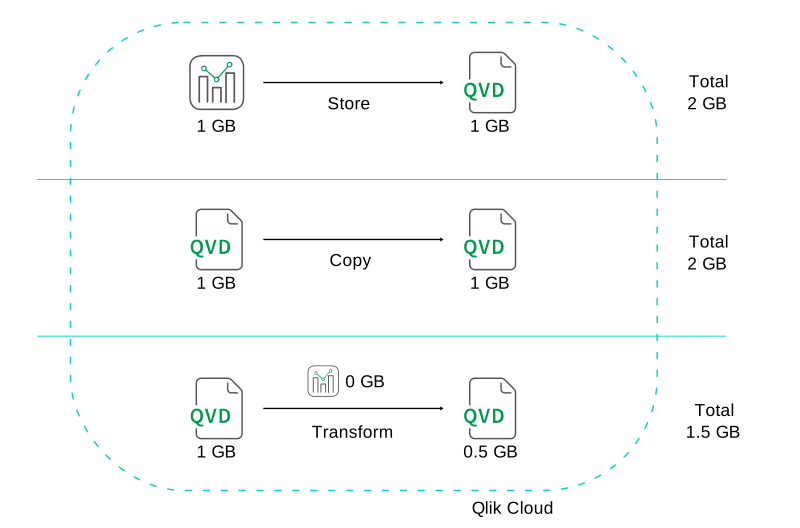
When you create new data in Qlik Cloud—whether by copying data files or deriving it by combining and processing existing raw data—it counts toward the daily peak. Data is measured as the total size of the files generated during the creation process. The created data is only counted once, regardless of how many applications use it.
Examples:
-
Creating a 1 GB QVD file using the STORE statement adds 1 GB to the daily peak.
-
Copying a 1 GB QVD file adds 1 GB to the daily peak, as both copies contribute to the total.
-
Creating a 0.5 GB QVD file through transformation adds 0.5 GB to the daily peak. Only the resulting QVD file is counted; the QVD generator application isn't counted as it loads data that is already in Qlik Cloud.
Measuring data files created in Qlik Cloud.
Best practices for managing data
Effective data management helps you get the most value out of your Data for Analysis capacity. The recommendations below cover how to optimize data loading, reduce unnecessary storage, and manage older or inactive content in Qlik Cloud.
Creating QVD files for data reuse
Use QVD files when data is shared across multiple applications. Loading external data once and storing it as a QVD reduces repeated ingestion and helps keep the daily peak lower. Using QVD files for data reuse with Qlik Data Gateway - Data Movement is generally more efficient than reloading data directly into applications.
Example:
If you load 10 GB of external data once and store it as a 5 GB QVD file, the total data counted toward the daily peak is 15 GB. Applications that load the 5 GB QVD do not re-ingest the original 10 GB. If you instead load the same 10 GB of external data directly into two applications, the ingestion happens twice, resulting in 20 GB counted.
It is more efficient to create a QVD and load data from it into multiple applications than to load external data directly into each application.
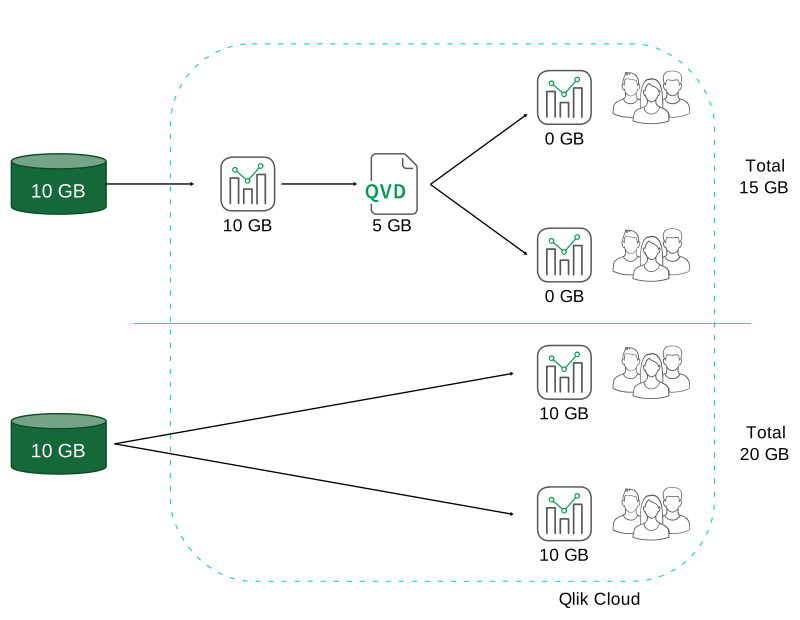
Using efficient data loading methods
Apply filtering and transformations at the data source (SQL pushdown) to reduce data transferred during reloads.
Example:
In this query, the filter is applied at the source so only a subset of the data is transferred.
Using On-demand applications for large datasets
On-demand application generation (ODAG) lets you work with large datasets by loading aggregated data first and retrieving detailed subsets only when needed.
For more information, see On-demand apps.
Handling large datasets with Direct Query and Dynamic Views
Direct Query and Dynamic Views let you query large datasets on demand without loading all data into memory. By querying only the data you need, these approaches reduce ingestion and help keep usage within your capacity.
For more information, see:
Managing old or unused applications
Applications in the tenant continue to contribute to Data for Analysis usage based on their last successful reload. As long as an application exists with its data loaded, it contributes to your capacity reporting.
To avoid unnecessary usage:
Reduce or remove unnecessary data
Remove data from applications that no longer require full datasets or create applications without data when only the structure is needed. Reloading an application with a smaller dataset updates its reported usage.
Avoid unnecessary duplication
Copy applications only when needed. Each copy is treated as a separate application and contributes to capacity usage.
Use shared spaces intentionally
Shared spaces can help control where and how reloads occur.
Delete applications you no longer need
Regular cleanup prevents outdated content from consuming capacity.
-
Identify unused items in Catalog by checking Last updated, Viewed by, and Used in.
-
Use impact analysis and lineage to understand where data files are used.
-
Delete unused applications and data files from activity centers. Administrators can also delete applications from Administration.
For more information, see:
Reducing reload-related consumption
An application’s reported reload size only decreases if the reload produces a smaller dataset. To reduce the reported size, reload the application with less data so the reported size is updated.
Application reload behavior
-
Reloading without new data:
If an application is reloaded without adding new data, the reported size remains the same.
Example: An application reloads with the same dataset it had previously. The reported usage does not change because no additional or smaller data was ingested.
-
Application emptied after ingestion:
Even if an application drops all tables, leaving the data model empty, the last successful ingestion still contributes to daily usage.
Example: An application ingests 10 GB of external data, generates QVD files, and drops all tables at the end of the script. The application is now empty, but the 10 GB ingested still counts toward daily usage.
-
Copying applications to another space:
When an application is copied to another space, it is treated as a separate application and counted again toward capacity usage.
Approaches to limit reload-related consumption
You can reduce reload-related data consumption using one of the following two methods. Both methods remove data from the application.
-
Stopping the load script early: Add an Exit script; statement at the start of the load script to reload the application without data. When full data is needed, comment out the statement or apply a condition so it only runs in specific scenarios (for example, when the application is in a particular space).
-
Recreating the application without data: Download the application without data and import it as a new application. After validating the new version, delete the original application.