
Configuration de la version de Java pour construire des artefacts dans Studio Talend
Dernière mise à jour : 15/10/2026
Vous pouvez configurer la version de Java utilisée pour compiler des routines et des Jobs de sorte qu'ils correspondent à votre environnement d'exécution cible.
Procédure
-
Cliquez sur
 dans la barre d'outil de la fenêtre principale du Studio Talend ou cliquez sur dans le menu, pour ouvrir la boîte de dialogue Project Settings.
-
Développez le nœud Build et cliquez sur Java Version pour ouvrir les paramètres de la version de Java.
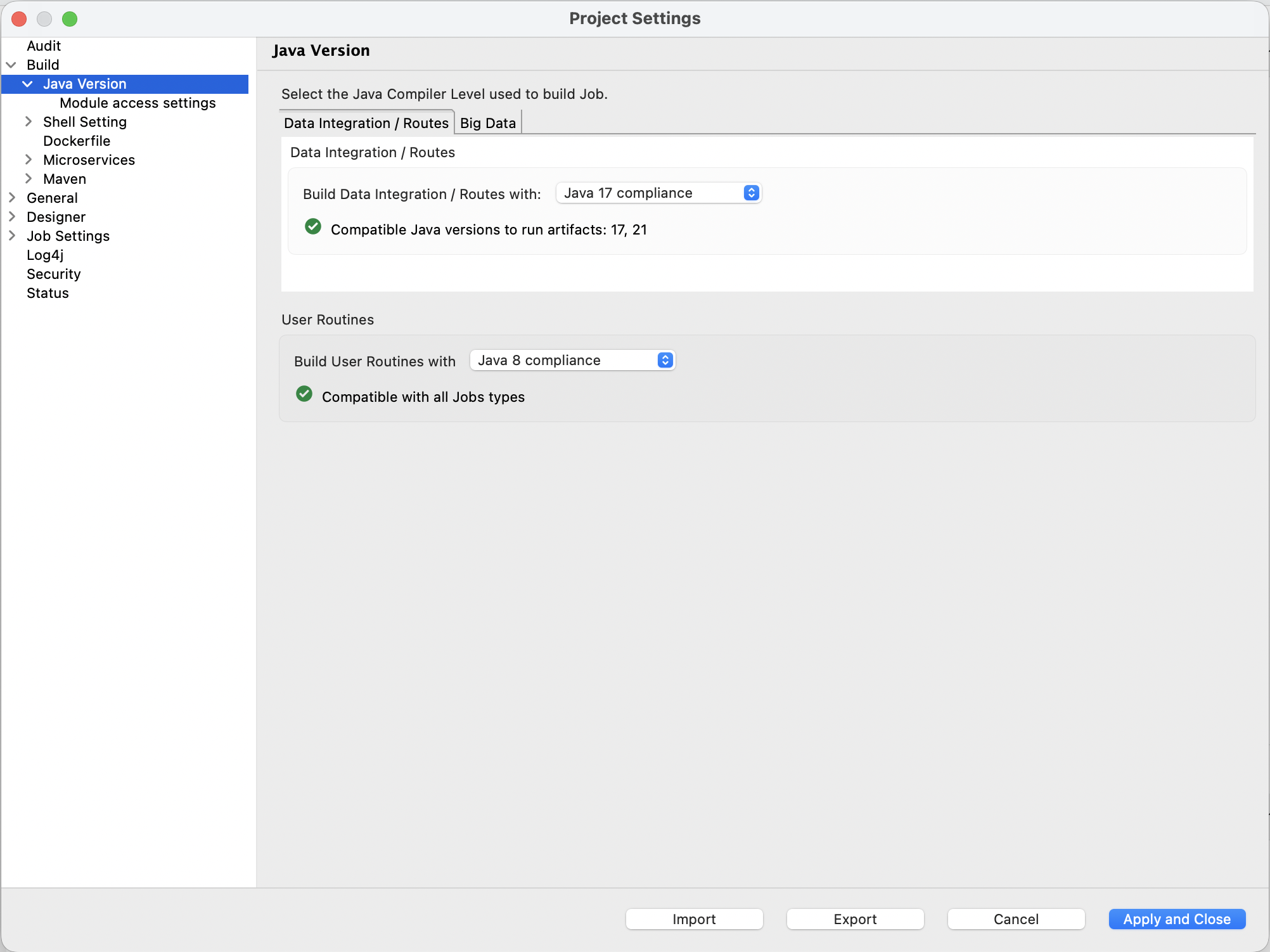
Les paramètres disponibles dépendent de l'installation ou non de fonctionnalités Big Data dans Studio Talend :
- Sans fonctionnalités Big Data, la vue Java Version affiche les paramètres suivants :
- Build Data Integration / Routes with (Créer une intégration de données/des Routes avec) : Java 17 ou Java 21. Versions de Java supportées pour l'exécution : Java 17 et Java 21.
- Build User Routines with (Créer des routines utilisateur avec) : Java 8, Java 17 ou Java 21.
- Avec les fonctionnalités Big Data installées, la vue Java Version affiche deux onglets :
- Data integration / Routes (Intégration de données/Routes) : affiche les mêmes paramètres que ceux de la vue sans fonctionnalités Big Data.
- Big Data : affiche les options de compilation Spark et les versions de Java supportées pour chaque type Spark :
- Big Data Spark Batch < 3.5 / Streaming : compilé avec la conformité Java 8 uniquement. Version de Java supportée pour le lanceur : Java 17. Versions de Java supportées dans le cluster : 8, 11 et 17.
- Big Data Spark Batch 3.5 et 3.x : compilé avec la conformité Java 8 ou Java 17. Versions de Java supportées pour l'exécution : 17 et 21. Versions de Java supportées dans le cluster : 8, 11 et 17.
- Big Data Spark Batch 4.0 : compilé avec la conformité Java 17 uniquement. Versions de Java supportées pour le lanceur : 17 et 21. Versions de Java supportées dans le cluster : 17.
Note InformationsRemarque : Le niveau de compilation des routines ne doit pas dépasser le niveau de compilation des Jobs. Sinon, le Studio affiche un avertissement listant les types de Job incompatibles. - Sans fonctionnalités Big Data, la vue Java Version affiche les paramètres suivants :