Double-click tFileInputExcel to display its
Basic settings view.
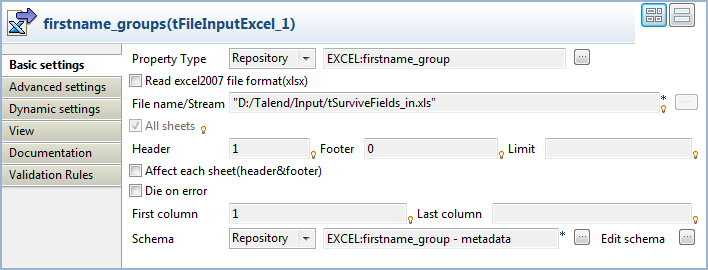
All tFileInputExcel property fields are
automatically filled in. If you did not define your input schemas locally in the
Repository, fill in the details manually after selecting Built-in in the Schema and Property Type fields.
Double-click tSurviveFields to display its
Basic settings view and define the component
properties.
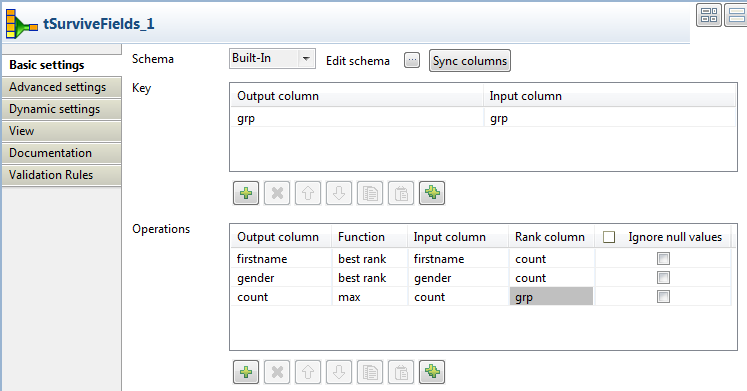
Click Sync columns to retrieve the schema from the
preceding component. You can click the [...] next to
Edit schema to view the schema.
In the Key area, click the [+] button to add a new line, and click the field and select the name of
the column you want to use to merge the data from the list.
You can select multiple columns as an aggregation set if you want to merge data
based on multiple criteria. For this scenario, we want to use the
grp column to merge the data.
In the Operations area, click the [+] button to add new rows. Here you can define the output
columns that will hold the results of the merge operation. In this scenario, we want to
merge the data in the firstname, gender and
count columns.
Click in the first field of the Output column and
select the first output column that will hold the merge results.
Click in the first field of the Function column
and select the merge operation you want to perform.
Click in the first field of the Input Column
list and select the column from which the input values are to be taken.
Click in the first field of the Rank column and
select the column that will be used as a basis for the merge operation.
Repeat the same process to define the parameters for the merge operation for all
the columns you want to write in the output file.
Here we want to read data from the firstname and
gender input columns and write only the values with the
maximum rank (row count) in firstname and
gender output columns. We also want to read data from the
count input column and write its maximum value in a
count output column.
Double-click the tFileOutputExcel component to open
its Basic settings view.
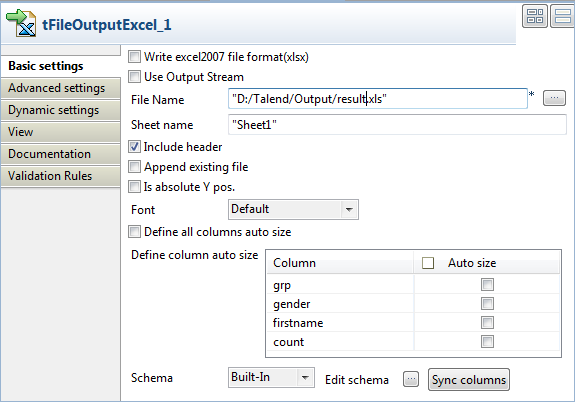
Specify the path to the target file, select the Include
header check box, and leave the other settings as they are.
Did this page help you?
If you find any issues with this page or its content – a typo, a missing step, or a technical error – please let us know!