
Adding search results directly to your selection
Last updated: 10/8/2026Click Add selection in the selection toolbar for an easy way to refine the data shown in your analytics application. You can search dimensions, fields, and values, and add a matching result directly to your current selection, without leaving the sheet you are analyzing.
Add selection
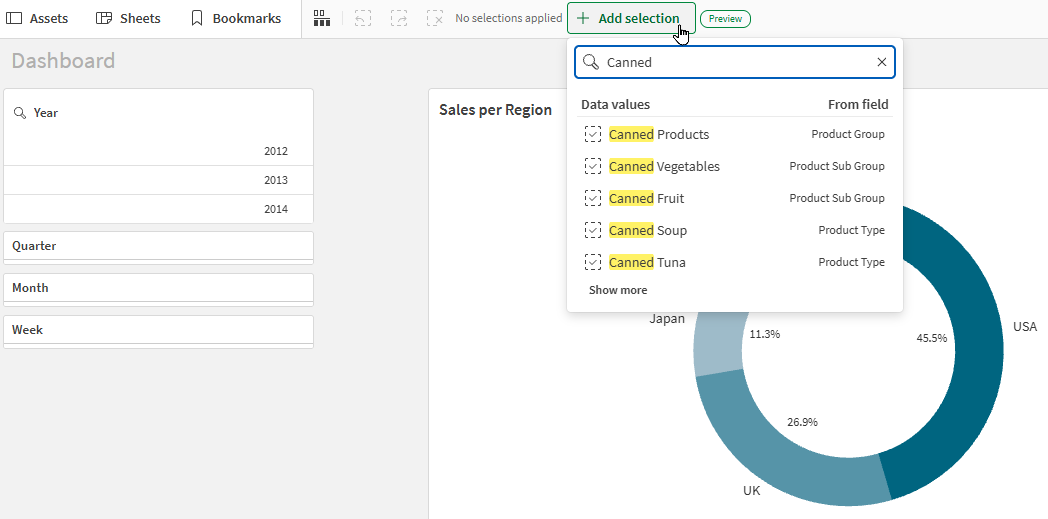
Do the following:
-
Open a sheet in analysis mode.
You can start with no existing selections, or add selections to existing selections you have already made.
-
In the selections bar, click
 Add selection.
 -
You can search for the following:
-
Values: Matching field and master dimension values are shown under Data values.
Clicking a value selects it in the application, and visualizations update accordingly.
-
Fields and dimensions: Matching field and master dimension names are shown under Fields and Dimensions respectively.
Clicking a field or master dimensions opens a listbox where you can select values or search further with selection search (see Searching within selections or visualizations).
-
The result is added to your current selection, and the visualizations on the sheet update accordingly.
Search limitations
The Add selection search has the following limitations. These do not apply to the selection search that can be performed when you first click on the name of a field or dimension.
-
Wildcards are not supported.
-
You can search for only one term at a time. Multiple search terms in a single search are not supported.