
Creating insight triggers
You can create an insight trigger when editing or analyzing a sheet.
Creating an insight trigger
Do the following:
-
In sheet view in an application, do any of the following:
-
Expand the Assets panel and click
 Insight triggers, then click Create insight trigger group.
 -
Right-click a visualization and select
Create insight trigger. -
Right-click a master measure in the Assets panel and select
Create insight trigger.
Information noteYou create groups of insight triggers to collect related metrics together. A group is created by default even if you are creating a single insight trigger.
Creating insight triggers
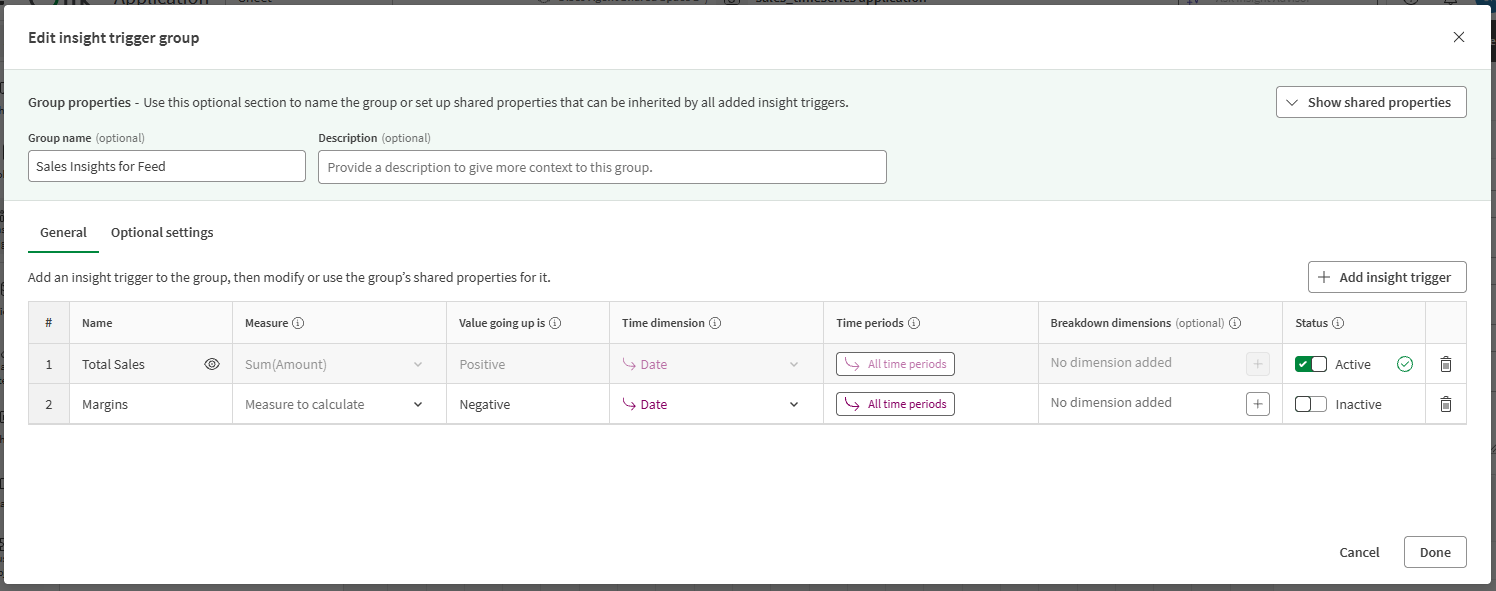
-
-
Optionally, update the Group properties with a name and description.
-
As needed, expand Show shared properties to set other group properties. Insight triggers in the group will inherit these group properties, unless you change the individual insight trigger properties.
-
Time dimension: Select a dimension containing the date and time information on which you want to track data trends.
-
Time periods: Select one or more time periods on which the data is aggregated. The setting defaults to using all time periods.
-
Breakdown dimensions: Set specific fields and values to use when calculating insights.
Follow these guidelines to add filters to a breakdown dimension:
-
Click
 to add a filter, and select a field.
 -
After adding a field, click it to select the values to use. To calculate insights individually for the first 50 values in the dimension, do not select any values.
-
Click
 to remove filters.
-
You can also configure these properties after adding insight triggers to the group.
-
-
Click
Add insight trigger. -
In the Measure drop down menu, select a master measure, or define a field-based aggregation, that contains the calculation you want to monitor.
For example, Sum(Sales).
-
Configure the rest of the General settings:
-
Name: Define a custom name for the insight trigger.
-
Value going up is: Define the underlying meaning behind increasing values across the Measure.
This depends on your application data and use case. For example, an increase to total sales is positive and an increase to total cost of sales is negative.
-
Time dimension: Select the date and time dimension on which you want to track trends.
-
Time periods: Select one or more time periods on which the data is aggregated.
Use the Inherit from group option to use the setting defined in the Shared insight trigger properties.
-
Breakdown dimensions: Select a dimension containing the date and time information on which you want to track data updates.
For more information, see Breakdown dimensions.
Tip noteAfter adjusting properties, you can click to preview the current data in the application. This helps to understand whether you have configured your measure and dimensions as intended.
 -
-
If desired, switch to Optional settings to configure some additional settings:
-
Offset: Specify a number of days by which to delay insight calculation. This can help if there are delays in your data collection process—for example, a database does not sync with the sales for a date until a processing period of one week.
-
Insight types: Select the insight types to evaluate. If you do not select anything, insights are calculated based on all insight types.
For a description of each insight type means, see Insight types.
-
Bookmarks: Specify a bookmark from the application to apply a selection state to the trigger before calculations are done. This allows custom, dynamic filtering of data used to calculate insights.
-
Link to sheet: Link to a sheet in the application.
-
-
When ready for insights to start being generated from the trigger, set the Status to Active.
-
Click Create.
After creating the insight trigger, you can manage it and change its properties. For more information, see Managing insight triggers.
Permissions
For more information about permissions for creating insight triggers, see Discovery Agent permissions.