
Adding sparklines
A sparkline is a simple visualization, usually styled in the form of a line, that is helpful for analyzing trends for a single metric. You can add sparklines to your PixelPerfect report using the Sparkline object.
A sparkline generally consists of a field (equivalent to a dimension) and a value member (equivalent to a measure).

Sparkline

Requirements
The data you use for a sparkline has to be added as a table data binding. These data bindings are added under Tables in the  Field List menu.
The source data for the sparkline should ideally contain a single dimension and a single measure. To use sparklines to visualize more complex, multi-dimensional data, it is recommended that you apply a level to the band where you add the sparkline. In this case, the level should be an additional dimension along which you want to cycle the generation of multiple filtered sparklines.
Creating sparklines
This is the recommended workflow for adding sparklines in your report.
Procédez comme suit :
-
Open the
Field List menu available from the right-side panel in the designer. -
Click the plus icon next to Tables.
-
From the available sheets, select the Qlik Sense chart you want to add as a table. Click the
 icon next to it.
The data binding is added.
-
From the toolbox panel on the left side of the designer, drag a Sparkline onto the design surface.
-
Click the gear icon that appears next to the sparkline. In the pop-up menu, for Data Member, select the table data binding you created earlier.
-
Open the
 Properties menu from the right side of the designer, and expand Data.
 -
For Value Member, select the variable metric you want to visualize (for example, sales).
Refreshing source data for data bindings
Au fil du temps, la configuration du graphique source peut changer, ce qui nécessite une action dans votre modèle de rapport PixelPerfect. Vous pouvez actualiser les données d'application sources des liaisons de données qui définissent votre sparkline. Cela s'avère utile dans les cas suivants :
-
Des dimensions et des mesures ont été ajoutées au graphique source ou en ont été supprimées depuis que vous avez créé la liaison de données.
-
Les définitions de dimensions et de mesures ont été modifiées dans le graphique source depuis que vous avez créé la liaison de données.
L'actualisation des sources de liaison de données vous permet de conserver les mêmes objets dans votre menu Liste de champs sans avoir à en créer de nouveaux lorsque les configurations des graphiques changent.
Procédez comme suit :
-
Ouvrez le menu
Liste des champs disponible dans le panneau droit du concepteur. -
Double-cliquez sur Tables pour les développer.
-
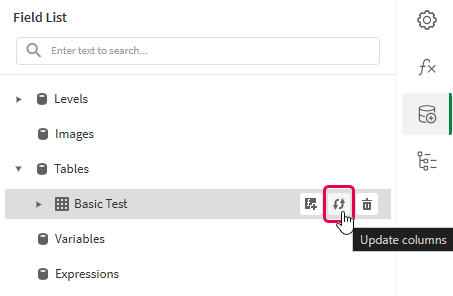
À l'aide du curseur, survolez l'élément à actualiser.
-
Cliquez sur l'icône d'actualisation (Mettre à jour les colonnes).
Actualisation d'une liaison de données de table dans le menu Liste de champs
-
Poursuivez le développement de votre modèle en fonction de votre cas d'utilisation. Cela peut impliquer la reconfiguration du contenu existant ou l'ajout de nouveau contenu. Après l'actualisation de la liaison de données, les colonnes de graphique récemment ajoutées deviennent disponibles et peuvent être utilisées dans le menu
Liste de champs.
Example - Sparklines with a level
Reportez-vous aux sources d'application de l'exemple ici : Ressources contenant des exemples - Génération de rapports dans l'application. Chargez les fichiers d'application et de données dans un espace, puis actualisez l'application. Vous êtes prêt à suivre l'exemple.
We will create sparklines with monthly sales by region.
Part 1: Add data bindings
Procédez comme suit :
-
Create a new PixelPerfect template.
-
Open the
Field List menu available from the right-side panel in the designer.Field List menu in the PixelPerfect designer

-
Click the plus icon next to Levels.
-
Expand Fields, and click the
icon next to Region.The data binding is added.
-
You are brought back to the main
Field List menu. Click the plus icon next to Tables. -
Expand the Sales Table sheet, and click the
icon next to the Regional Sales over Time chart.The data binding is added.
Part 2: Add DetailReport band and connect it with data banding
You need to create a DetailReport band to use a level.
Procédez comme suit :
-
Right-click the Detail1 band, and then click Insert Band > DetailReport.
-
To bind the DetailReport1 band to the level, select the band and then open the
Properties menu. Under Detail Report Tasks > Data Member, select the Region level.
Part 3: Add a label and sparkline
Procédez comme suit :
-
Open the
Field List menu, and double-click Levels to expand it. -
For Region, expand the level object and drag the Region field within it onto the DetailReport1 band.
Position the label at the top of the band, centered horizontally.
-
From the toolbox panel on the left side of the designer, drag a Sparkline onto the DetailReport1 band, below the Region label.
-
Resize the sparkline so that it occupies all horizontal space on the band, and its shape is a narrow rectangle.
-
Resize the DetailReport1 band so there is a small space at the bottom of the sparkline.
Region label and empty sparkline added to template

-
Select the sparkline and then open the
Properties menu. -
Expand Appearance > View.
-
Check Highlight Max Point and Highlight Min Point.
-
For Color, expand the drop down menu. Paste the following hex code in the # field: 0d00ff. Click OK.
-
For Max Point Color, expand the drop down menu. Paste the following hex code in the # field: 0dff00. Click OK.
-
For Min Point Color, expand the drop down menu. Paste the following hex code in the # field: ff0000. Click OK.
-
In the top right corner, click Save template.
-
Click Preview report. Download the report and open it.
Report preview with sparklines
