
Last updated: 10/15/2026
You can add data to your application quickly. Open the Data manager and then click  . You can also click Add data in
  in the top bar. You are also prompted to add data when you create a new application. When you are editing a sheet, you can also click Add in the Fields panel to add data.
Add data view
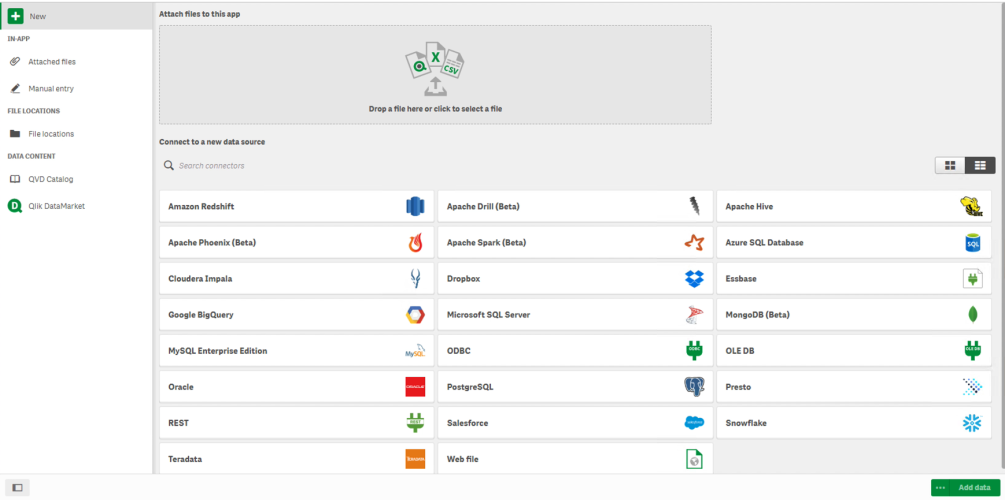
In-Application
Attached files. Deployments: Qlik Sense Enterprise on Windows. Click to attach files to the application, or to view the files that have been attached to the application. You can load data from these files.
Manual entry. Click to create a table in-application and add the data to the application.
File locations
File locations. Deployments: Qlik Sense Enterprise on Windows. Provides access to folder locations that your administrator has defined.
My computer. Deployments: Qlik Sense Desktop.
Click to upload a data file, or to add data from a file that has already been uploaded.
Data connections
Deployments: All.
Displays connections that have been created to an external data source. The connection appears after it has been created under Connect to a new data source.
Click a connection to add data to the application.
Data content
Qlik Catalog Service. Platforms: Qlik Sense Enterprise on Windows.
Provides access to Qlik Catalog Service QVD sources. Only available if your administrator has created a connection to Qlik Catalog.
Click to add data to the application.
Attach files to this application
Click to attach a file to the application.
Connect to a new data source
Click to create a connection to a new data source.
Add data
Click to add data to an application. The button is enabled after you have created a connection and selected your data to load. You can add data with profiling enabled or disabled. Data profiling is recommended and enabled by default. Click to disable data profiling.
Which data sources are available to me?
What data source types are available to you depends on a number of factors:
-
Access settings
Administrator settings determine which types of data sources you can connect to.
-
Installed connectors
Qlik Sense contains built-in support for many data sources. Built-in connectors are installed automatically by Qlik Sense. To connect to additional data sources you may need to install connectors separately that are specifically for those data sources. Such separately installed connectors are supplied by Qlik or a third party.
-
Local file availability
Local files on your desktop computer are only available in Qlik Sense Desktop. They are not available for use with a server installation of Qlik Sense.
Tip noteIf you have local files that you want to load on a server installation of Qlik Sense, you need to attach the files to the application, or transfer the files to a folder available to the Qlik Sense server, preferably a folder that is already defined as a folder data connection.