
Monitoring tasks for refreshing data
In the Tasks section of the Analytics activity center, you can monitor tasks for refreshing the data of applications, scripts, data flows, and table recipes.
Tasks section of Analytics activity center.
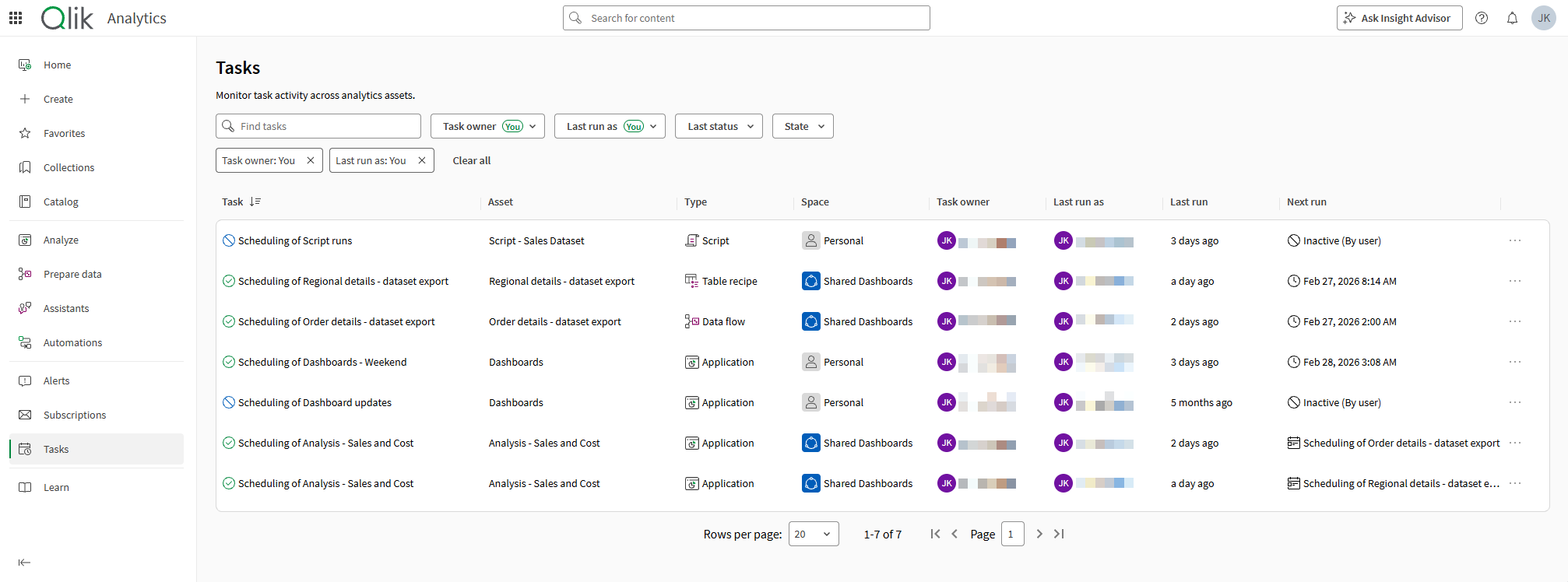
Viewing tasks
Do the following:
-
In the Analytics activity center, open the Tasks section from the side panel.
What you can do
In the Tasks section of the Analytics activity center, you can:
-
See all tasks for assets you can access.
-
Monitor ongoing task runs.
-
Activate and deactivate tasks.
-
Delete tasks.
-
Filter tasks by owner, user on behalf of whom tasks have run, last status, and current state.
-
Search for tasks by name.
-
View details about when tasks have last run, when they run next, or what other tasks they depend on.
-
Sort on task name and last run.
-
Click
 next to column names to access more column options. Click Hide column to hide the selected column, or Manage columns to add and remove other columns containing more information.
To further manage these tasks, you can open the individual asset—application, script, data flow, or table recipe— from its menu. See Managing tasks for data refreshes.
To further manage these tasks, click > Reload/Run > Schedule on the asset from catalog.
Permissions
For tasks to appear in the Tasks section of the Analytics activity center, you need to have sufficient access to the space for running and reloading analytics assets. For the specific permissions, see Permissions.