
Adding images to the report template
You can insert images into your PixelPerfect report template. Add images of content from the Qlik Sense app, which use the latest app data at time of report generation.
You can also add images from external sources such as your computer or a web URL. See Adding external images to the report template.
Adding Qlik Sense charts as images
You can add images of charts in the Qlik Sense app. You first need to add a data binding for the image that you want to use, then add it to the template with a Picture Box.
Gehen Sie folgendermaßen vor:
-
Open the
 Field List menu available from the right-side panel in the designer.
 -
Hover your cursor over Images, and then click
 .
. -
Navigate through the sheets to find the image you want to add. You can use the search bar to search for specific charts or sheets. You can preview an object by clicking
 next to it. Click View in Qlik Sense app when previewing a chart to open the sheet where the chart is located.
 -
To add a chart image as a data binding, click
next to it.You are brought back to the
Field List menu. Double-click the Images node in the menu to expand it. -
After adding the image as a data binding, you can edit it to customize the zoom and description. See Adjusting zoom level of image bindings.
-
Drag the image data binding you added onto the report design surface. It is added as a Picture Box.
Adjusting zoom level of image bindings
After you add an image binding, you can modify it to set a custom zoom level. You can also edit the description and generate previews as you customize.
Gehen Sie folgendermaßen vor:
-
Open the
Field List menu available from the right-side panel in the designer. -
Double-click Images to expand it.
-
Hover over an item, and click the pencil icon.
-
Optionally, add a Description. Changes to the description are auto-saved.
-
Adjust the Zoom as needed. As you modify the zoom, click Image preview to check the appearance of the image.
InformationshinweisTo preview what the image zoom will look like, you first need to add the binding to the template. -
Click Save to confirm the changes to the zoom level.
Example - Adding a Qlik Sense object as an image
Sehen Sie sich die Quellen der Beispiel-App hier an: Beispielmaterialien – In-App-Berichte. Laden Sie die App und die Datendateien in einen Bereich hoch und laden Sie dann die App neu. Sie sind bereit, das Beispiel fertigzustellen.
In this example, we add a Qlik Sense image to the default Detail1 band. You can add images to other bands as well.
Gehen Sie folgendermaßen vor:
-
Create a new PixelPerfect template.
-
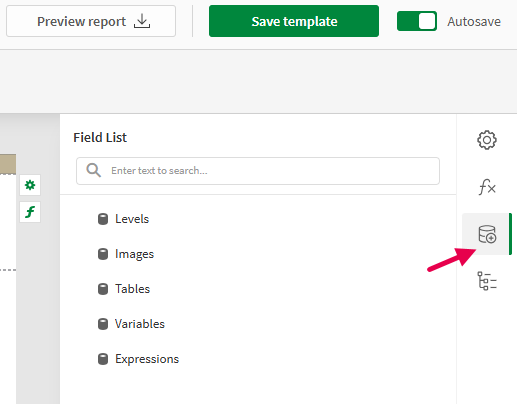
Open the
Field List menu available from the right-side panel in the designer.Field List menu in the PixelPerfect designer
-
In the
Field List menu, hover your cursor over Images, and then click . -
From the available sheets, expand Dashboard.
-
Click the
icon next to the Sales per Region pie chart. This creates the data binding.You are brought back to the
Field List menu. Double-click the Images node in the menu. -
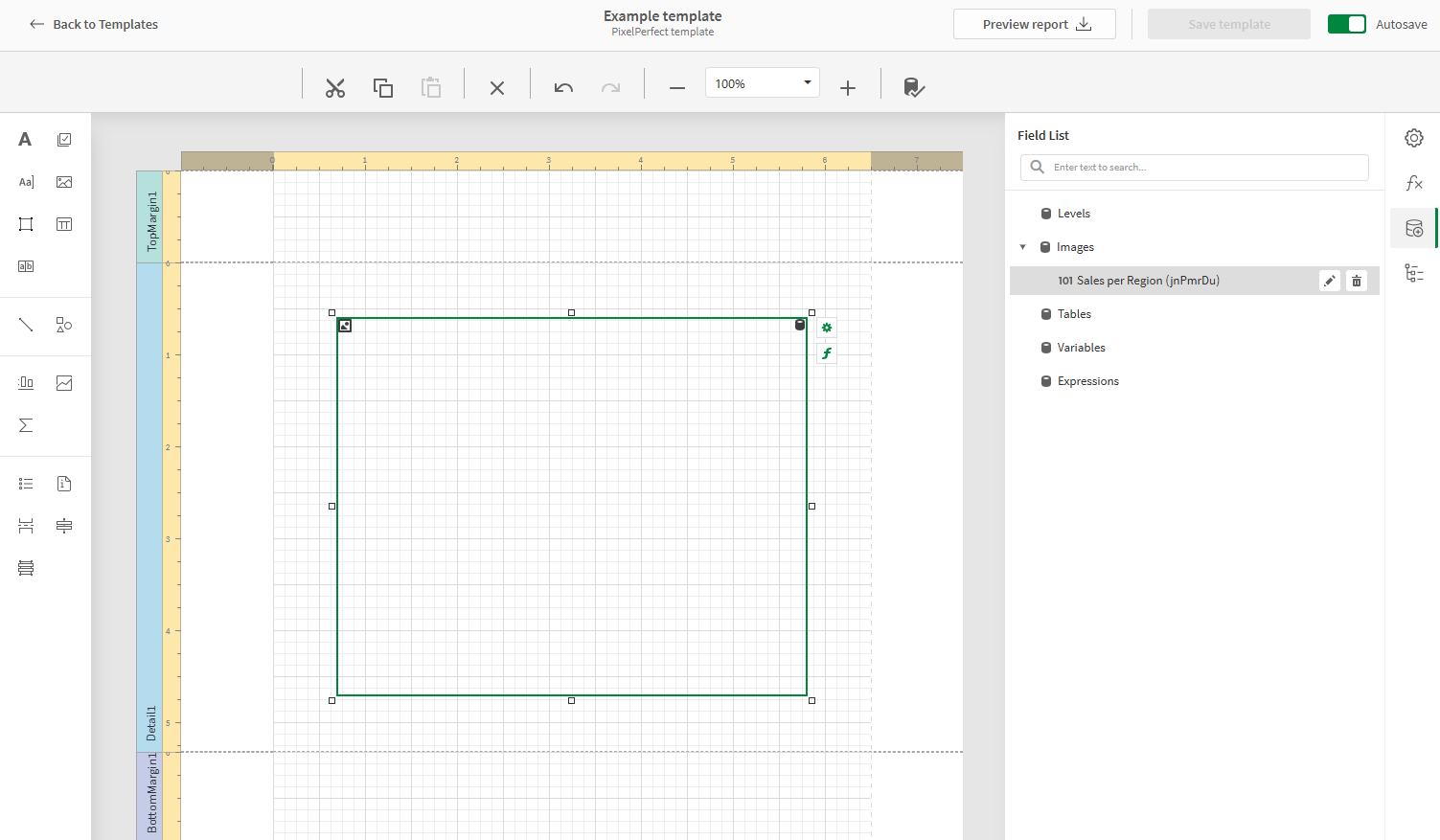
Drag the Sales per Region data binding onto the Detail1 band in the design surface.
-
Resize and reposition the Picture Box and the Detail1 band as desired.
Picture Box with a Qlik Sense chart added as an image
-
In the top right corner, click Save template.
-
Click Preview report. Download the report and open it.
Report preview
