
Adding charts as images to report templates with Qlik add-ins for Microsoft Office
Last updated: 10/2/2026You can add a chart as an image to your Excel, PowerPoint, or Word report template. When the report output is generated, an image of the chart is placed in the selected cell. The chart will use the data from the application's most recent reload.
Adding a chart image
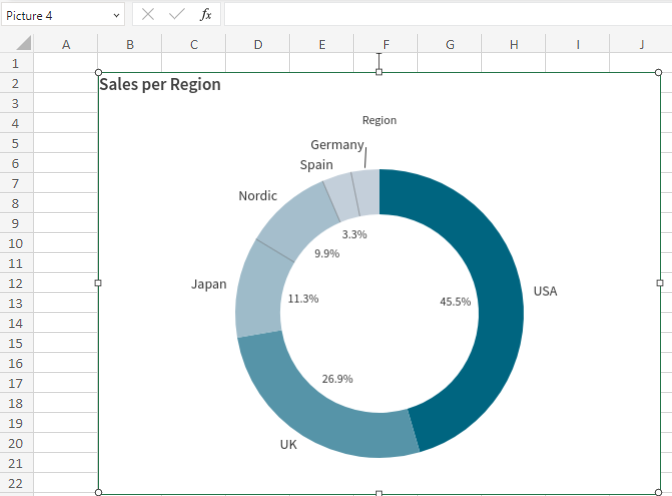
When you add a chart image to the template, it is added as a placeholder image, representing a snapshot of what the chart looks like during your current session. This might include selections made in the application.
The selections in the chart snapshot are not included in the report output. When reports are generated, data reduction is instead controlled by:
-
Report filters
-
Cycles
-
Section access
-
For on-demand reporting, the application user's current selections
Do the following:
-
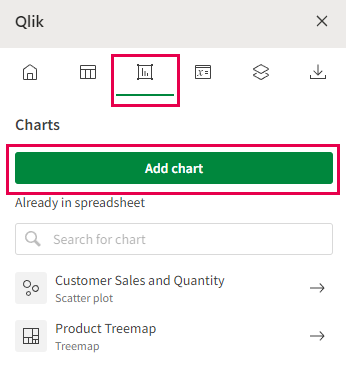
Click the
 icon on the top toolbar of the add-in.
 -
Click Add chart. A list of available sheets appears.
Charts tab in a Qlik add-in, allowing you to add a new chart or re-visit a chart that you have already added
-
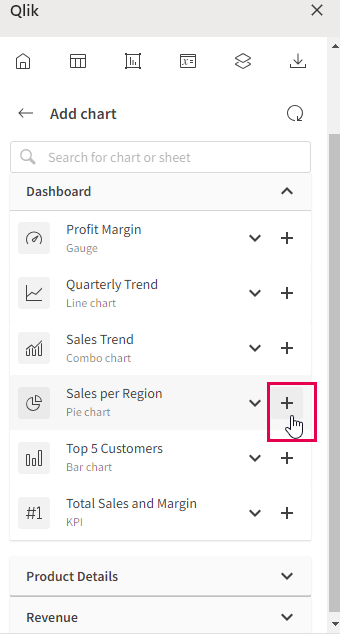
Expand the sheet containing the chart you want to add. You can search the chart's name to refine the list of sheets if needed.
-
Click the
 icon to add the chart.
You can preview the chart directly in the add-in before adding it by clicking the chart's name.
Select a chart you want to add to the template as an image
-
The chart is added, and the settings page for the image appears. You can adjust:
-
Name: It is recommended to provide a unique name to the image so you can identify it in the add-in if you later need to change its settings.
-
Description (optional): Add a description to the object if desired.
-
Zoom: Use the Zoom setting in the add-in as needed. You can also change the size of the image as you normally do with images in the Microsoft Office application you are using.
-
Filter: Add up to one filter to the object individually. This allows you to customize the data used in the chart without affecting the data used in other template objects. Click Manage filters to configure the report filter you want to use. For more information about object-level filters, see Using object-level filters in report templates.
Chart image placeholder added to template
-
Revisit any chart you have added at any point for modifications to its configuration, to locate it in the workbook, or to add another instance of it to the Excel, PowerPoint, or Word file. Click the icon in the add-in to open the Charts landing page, and click  to navigate to the area where it is inserted. Adjust any settings as needed in the add-in.
Limitations
For Word reports, there are limitations for chart images that are inserted as floating images. For more information, see Word reporting.