
Toggl (v1)
Last updated: 9/15/2026This integration is powered by Singer's Toggl tap. For support, visit the GitHub repo or join the Singer Slack.
Toggl integration summary
Stitch’s Toggl integration replicates data using the Toggl API v8. Refer to the Schema section for a list of objects available for replication.
Toggl feature snapshot
A high-level look at Stitch's Toggl (v1) integration, including release status, useful links, and the features supported in Stitch.
| STITCH | |||
| Release status |
Released on February 13, 2019 |
Supported by
|
|
|
Stitch plan
|
Standard |
API availability
|
Available
|
| Singer GitHub repository | |||
| REPLICATION SETTINGS | |||
|
Anchor Scheduling
|
Supported
|
Advanced Scheduling
|
Supported
|
|
Table-level reset
|
Unsupported
|
Configurable Replication Methods
|
Unsupported
|
| DATA SELECTION | |||
|
Table selection
|
Supported
|
Column selection
|
Supported
|
|
Select all
|
Supported
|
||
| TRANSPARENCY | |||
|
Extraction Logs
|
Supported
|
Loading Reports
|
Supported
|
Connecting Toggl
Toggl setup requirements
To set up Toggl in Stitch, you need:
-
Admin access to the workspaces you want to replicate time entry data from, if replicating from multiple workspaces. Stitch is only able to access the same data as the user whose API token is used to authenticate the integration. Toggl’s API limits retrieving time entry data to the user’s own time entries and the time entries in a workspace where they are also an Admin.
Step 1: Retrieve your Toggl API token
Verify your Toggl workspace permissions:
Your Toggl API token is specific to you. When replicating data, Stitch will only be able to access the same data as you in Toggl.
To replicate time entry data from multiple workspaces, you must be an Admin in the workspace you want to replicate data from. Verify that you have this permission in Toggl before proceeding.
- Sign into your Toggl account.
- Click the Workspace menu in the lower left corner.
- Click Profile settings.
-
Locate the API token field, which is highlighted in the image below:
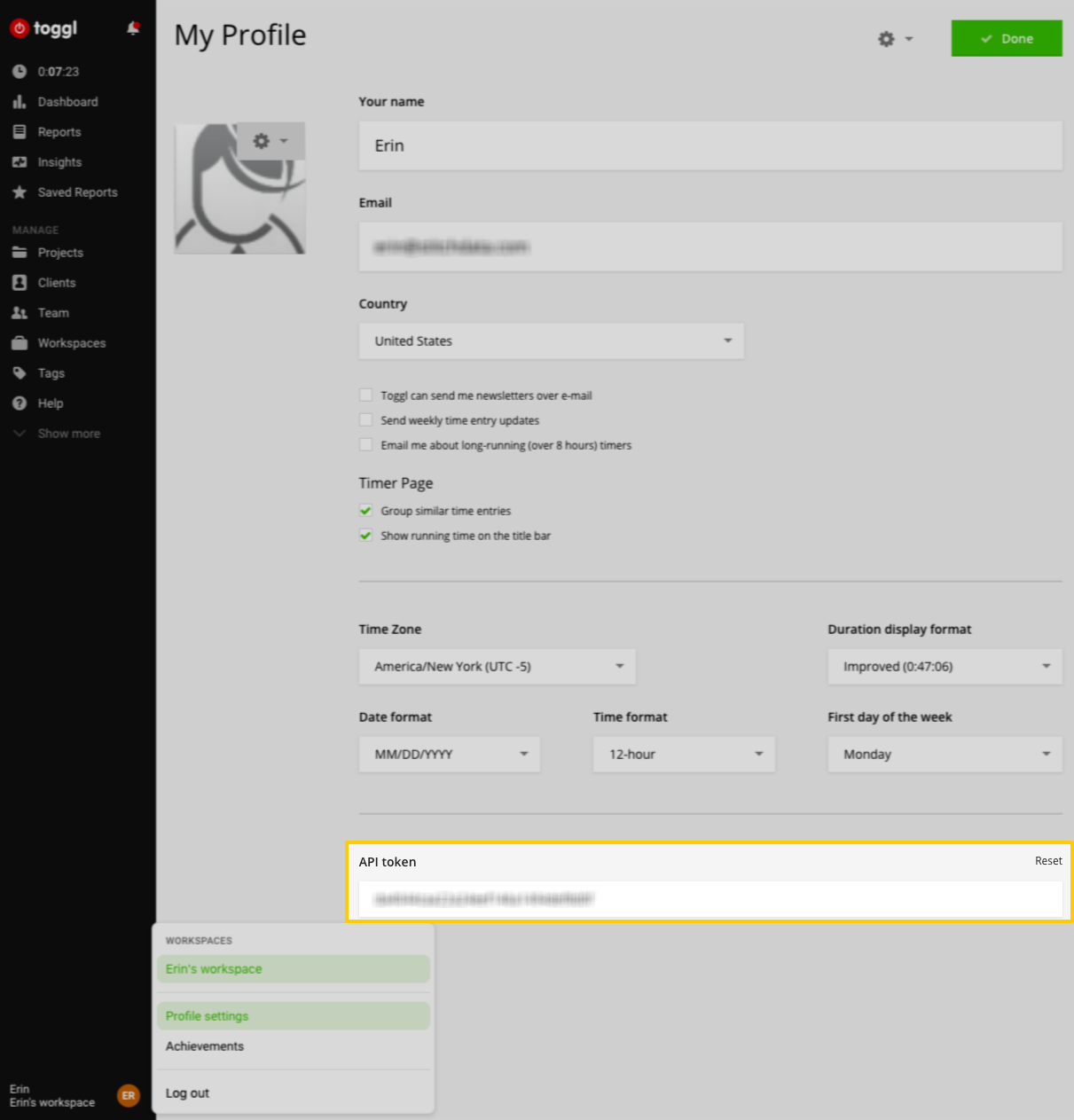
The API token field, highlighted in the Toggl Profile Settings page - Copy the API token.
Keep this handy - you’ll need it to complete the next step.
Step 2: Add Toggl as a Stitch data source
- Sign into your Stitch account.
-
On the Stitch Dashboard page, click the Add Integration button.
-
Click the Toggl icon.
-
Enter a name for the integration. This is the name that will display on the Stitch Dashboard for the integration; it’ll also be used to create the schema in your destination.
For example, the name “Stitch Toggl” would create a schema called
stitch_togglin the destination. Note: Schema names cannot be changed after you save the integration. - In the API Token field, paste the API token you retrieve in Step 1.
-
In the Trailing Days field, enter the number of days Stitch should use as an attribution window when replicating time entry data. Note: This is only applicable to the
time_entriestable.For example: If this value is
5, Stitch will replicate the past five days’ worth of data for thetime_entriestable during every replication job.
Step 3: Define the historical replication start date
The Sync Historical Data setting defines the starting date for your Toggl integration. This means that data equal to or newer than this date will be replicated to your data warehouse.
Change this setting if you want to replicate data beyond Toggl’s default setting of 1 year. For a detailed look at historical replication jobs, check out the Syncing Historical SaaS Data guide.
Step 4: Create a replication schedule
In the Replication Frequency section, you’ll create the integration’s replication schedule. An integration’s replication schedule determines how often Stitch runs a replication job, and the time that job begins.
Toggl integrations support the following replication scheduling methods:
-
Advanced Scheduling using Cron (Advanced or Premium plans only)
To keep your row usage low, consider setting the integration to replicate less frequently. See the Understanding and Reducing Your Row Usage guide for tips on reducing your usage.
Step 5: Set objects to replicate
The last step is to select the tables and columns you want to replicate. Learn about the available tables for this integration.
Note: If a replication job is currently in progress, new selections won’t be used until the next job starts.
For Toggl integrations, you can select:
-
Individual tables and columns
-
All tables and columns
Click the tabs to view instructions for each selection method.
- In the integration’s Tables to Replicate tab, locate a table you want to replicate.
-
To track a table, click the checkbox next to the table’s name. A blue checkmark means the table is set to replicate.
-
To track a column, click the checkbox next to the column’s name. A blue checkmark means the column is set to replicate.
- Repeat this process for all the tables and columns you want to replicate.
- When finished, click the Finalize Your Selections button at the bottom of the screen to save your selections.
- Click into the integration from the Stitch Dashboard page.
-
Click the Tables to Replicate tab.
- In the list of tables, click the box next to the Table Names column.
-
In the menu that displays, click Track all Tables and Fields:
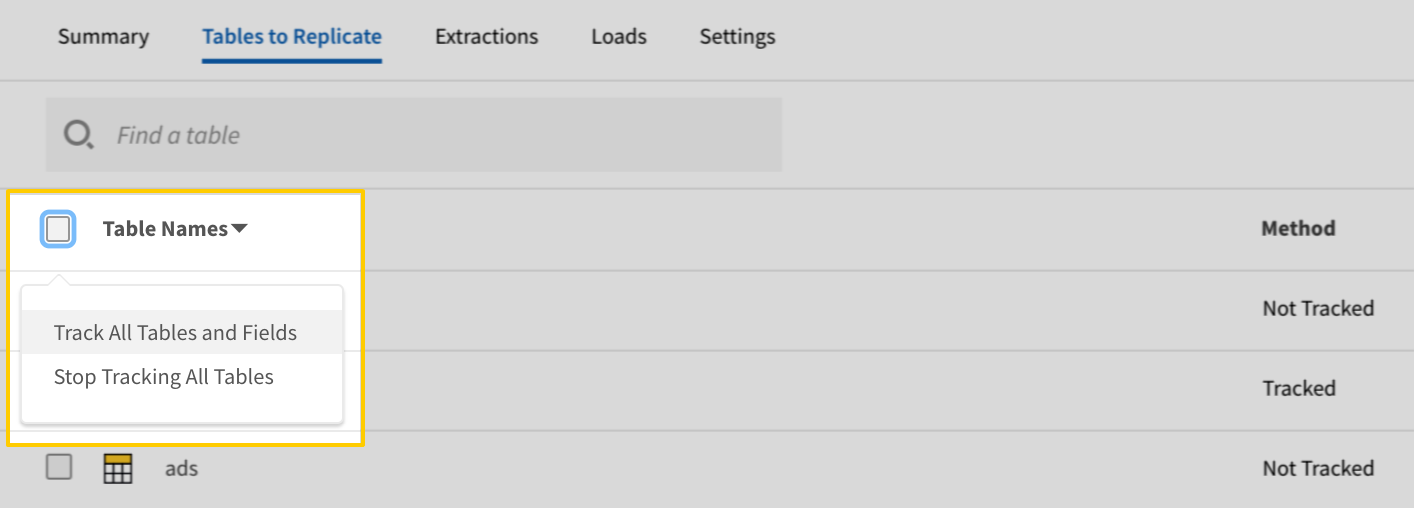
The Track all Tables and Fields menu in the Tables to Replicate tab - Click the Finalize Your Selections button at the bottom of the page to save your data selections.
Initial and historical replication jobs
After you finish setting up Toggl, its Sync Status may show as Pending on either the Stitch Dashboard or in the Integration Details page.
For a new integration, a Pending status indicates that Stitch is in the process of scheduling the initial replication job for the integration. This may take some time to complete.
Initial replication jobs with Anchor Scheduling
If using Anchor Scheduling, an initial replication job may not kick off immediately. This depends on the selected Replication Frequency and Anchor Time. Refer to the Anchor Scheduling documentation for more information.
Free historical data loads
The first seven days of replication, beginning when data is first replicated, are free. Rows replicated from the new integration during this time won’t count towards your quota. Stitch offers this as a way of testing new integrations, measuring usage, and ensuring historical data volumes don’t quickly consume your quota.
Toggl replication
Replicating time entry data
The time_entries table uses the Trailing Days setting as an attribution window during replication. This means that the number entered into the Trailing Days field in the Integration Settings page is the number of days Stitch will query time entry data for during every replication job.
For example: If you set Trailing Days to 5, Stitch will query for and replicate the past five days’ worth of data during every replication job for the time_entries table.
While time_entries is replicated incrementally - in that only data from the number of trailing days is replicated during each job - a high number of days being used as the attribution window can increase your row usage.
Toggl table reference
Schemas and versioning
Schemas and naming conventions can change from version to version, so we recommend verifying your integration’s version before continuing.
The schema and info displayed below is for version 1 of this integration.
This is the latest version of the Toggl integration.
Table and column names in your destination
Depending on your destination, table and column names may not appear as they are outlined below.
For example: Object names are lowercased in Redshift (CusTomERs > customers), while case is maintained in PostgreSQL destinations (CusTomERs > CusTomERs). Refer to the Loading Guide for your destination for more info.
clients
The clients table contains info about the clients in your Toggl account.
|
Key-based Incremental |
|
|
Primary Key |
id |
|
Replication Key |
at |
| Useful links |


groups
The groups table contains info about the groups in your Toggl account.
|
Key-based Incremental |
|
|
Primary Key |
id |
|
Replication Key |
at |
| Useful links |
projects
The projects table contains info about the projects in your Toggl account.
|
Key-based Incremental |
|
|
Primary Key |
id |
|
Replication Key |
at |
| Useful links |
tags
The tags table contains info about the tags in your Toggl account.
|
Full Table |
|
|
Primary Key |
id |
| Useful links |
tasks
The tasks table contains info about the tasks in your Toggl account.
Note: Tasks are only available for Toggl starter and other paid workspaces.
|
Key-based Incremental |
|
|
Primary Key |
id |
|
Replication Key |
at |
| Useful links |
time_entries
The time_entries table contains info about time entries. Note: This table uses an attribution window to replicate data. Refer to the Replicating time entry data section for more info.
Time entries and user permissions
The time entries Stitch replicates are dependent upon the user whose API token is used to create the integration in Stitch. Stitch is only able to access the same data as the user whose token is used.
For example: If the user is unable to access a workspace, or is not an Admin in that workspace, Stitch will not be able to replicate time entry data for those workspaces. In this case, only the user’s own time entries will be accessible by Stitch.
If data from a workspace is missing, verify that the user whose API token is being used in Stitch has Admin permissions in that workspace.
|
Key-based Incremental |
|
|
Primary Key |
id |
|
Replication Key |
updated |
| Useful links |
users
The users table contains info about the users in your Toggl account.
|
Key-based Incremental |
|
|
Primary Key |
id |
|
Replication Key |
at |
| Useful links |
workspace_users
The workspace_users table contains info about the users in a workspace.
|
Key-based Incremental |
|
|
Primary Key |
id |
|
Replication Key |
at |
| Useful links |
workspaces
The workspaces table contains info about the workspaces in your Toggl account.
|
Key-based Incremental |
|
|
Primary Key |
id |
|
Replication Key |
at |
| Useful links |