
Facebook Ads (v1)
Last updated: 9/15/2026This integration is powered by Singer's Facebook Ads tap and certified by Stitch. Check out and contribute to the repo on GitHub.
For support, contact Support.
Facebook Ads integration summary
Stitch’s Facebook Ads integration replicates ad, campaign, and adcreative data using the Facebook Marketing API 10.0.
Note: This integration does not currently support replicating data for reviews, pages, etc.
Refer to the Schema section for a list of objects available for replication.
Facebook Ads feature snapshot
A high-level look at Stitch's Facebook Ads (v1) integration, including release status, useful links, and the features supported in Stitch.
| STITCH | |||
| Release status |
Released on September 11, 2017 |
Supported by
Indicates if the integration is supported by Stitch or the Singer community. |
|
|
Stitch plan
The type of Stitch plan required to use the integration. |
Standard |
API availability
Indicates if the integration is available as a source in Stitch Connect. |
This version of the integration is available via the API. |
| Singer GitHub repository | |||
| REPLICATION SETTINGS | |||
|
Anchor Scheduling
A type of replication scheduling where an integration's Replication Frequency is anchored to a time you select. |
This feature is supported for this version of the integration. |
Advanced Scheduling
A type of replication scheduling that allows you to specify granular start times for data extraction using cron expressions. |
Advanced Scheduling is not supported for this integration. |
|
Table-level reset
Indicates if data can be reset at the table level. If unsupported, data can only be reset at the integration level. |
This feature is supported for this version of the integration. |
Configurable Replication Methods
Indicates if Replication Methods can be defined by you for tables in the integration. |
Configurable Replication Methods are not supported for this integration. Stitch will use pre-defined replication methods for tables you set to replicate. |
| DATA SELECTION | |||
|
Table selection
The ability to select individual tables for replication in the Stitch interface. If table selection is unavailable, all tables and all the columns they contain will be set to replicate by default. |
This feature is supported for this version of the integration. |
Column selection
The ability to select individual columns for replication in the Stitch interface. If column selection is unavailable, all columns will be set to replicate by default. |
This feature is supported for this version of the integration. |
|
Select all
Indicates if the integration supports selecting all available tables and columns. |
Supported |
||
| TRANSPARENCY | |||
|
Extraction Logs
Logs detailing the Extraction phase of the replication process for a given integration. Includes error info, should an error occur. |
This feature is supported for this version of the integration. |
Loading Reports
Reports detailing the Loading phase of the replication process for a given integration. Includes the number of rows loaded for each table and error info, should an error occur. |
This feature is supported for this version of the integration. |
Connecting Facebook Ads
Facebook Ads setup requirements
To set up Facebook Ads in Stitch, you need:
-
Verify your access in Facebook Ads. If the user who creates the integration has restricted permissions - meaning the user doesn’t have access to all campaigns or ads - Stitch may encounter issues replicating data.
Even if you only intend to sync certain pieces of data post-setup, the user completing the initial setup should still have full access.
-
Pause all ad-blocking software currently in use. Because Facebook authentication uses pop ups, you may encounter issues if ad blockers aren’t disabled during the setup.
Step 1: Add Facebook Ads as a Stitch data source
- Sign into your Stitch account.
-
On the Stitch Dashboard page, click the Add Integration button.
-
Click the Facebook Ads icon.
-
Enter a name for the integration. This is the name that will display on the Stitch Dashboard for the integration; it’ll also be used to create the schema in your destination.
For example, the name “Stitch Facebook Ads” would create a schema called
stitch_facebook_adsin the destination. Note: Schema names cannot be changed after you save the integration.
Step 1.1: Select an attribution window
An attribution window is the amount of time for attributing results to ads and the lookback period after those actions occur during which ad results are counted.
We recommend selecting the same attribution window you use in Facebook Ads to prevent discrepancies between Facebook’s UI and data replicated by Stitch. For example: If the attribution window in Facebook Ads is 7 days, you should define this setting as 7 days.
Then, during every replication job, Stitch will replicate the past seven days’ worth of data to account for result attribution. This will ensure that records updated during the attribution period are correctly captured by Stitch.
For more info, see the Attribution windows and data extraction section.
What if clicks and views have different windows in Facebook Ads?
In this case, you should select the greater of the two. For example: If clicks have a window of 7 days and views have a window of 1 day, you should select 7 days as the setting in Stitch. This will ensure that the values for clicks and views are correctly updated.
Step 1.2: Include deleted data
Check the Include data from deleted campaigns, ads, and adsets box to have Stitch replicate data for these deleted objects.
Note: Data for deleted campaigns, ads, and adsets will be included only in Core Object tables.
Step 2: Define the historical replication start date
The Sync Historical Data setting defines the starting date for your Facebook Ads integration. This means that data equal to or newer than this date will be replicated to your data warehouse.
Change this setting if you want to replicate data beyond Facebook Ads’s default setting of 1 year. For a detailed look at historical replication jobs, check out the Syncing Historical SaaS Data guide.
Step 3: Create a replication schedule
In the Replication Frequency section, you’ll create the integration’s replication schedule. An integration’s replication schedule determines how often Stitch runs a replication job, and the time that job begins.
Facebook Ads integrations support the following replication scheduling methods:
To keep your row usage low, consider setting the integration to replicate less frequently. See the Understanding and Reducing Your Row Usage guide for tips on reducing your usage.
Step 4: Authorize Stitch to access Facebook Ads
-
After clicking the Authorize button, a small pop-up window will display.
You’ll be taken through a series of steps to allow Stitch to access data from your Public Profile, Facebook Ads, and related stats.
- Click Okay to advance through these steps.
-
After you’ve finished authorizing Stitch, you’ll be prompted to select the Facebook Ad Account you want to pull data from. Select the desired account by clicking the checkbox in the Connect column.
If you don’t see the profiles that you would expect to, verify your Facebook Ads permissions before reaching out to support.
- Click the Save Connections button.
After your credentials are validated, you’ll be directed back to Stitch (click the All Done button to wrap things up) and the Integration Details page will display.
Step 5: Set objects to replicate
The last step is to select the tables and columns you want to replicate. Learn about the available tables for this integration.
Note: If a replication job is currently in progress, new selections won’t be used until the next job starts.
For Facebook Ads integrations, you can select:
-
Individual tables and columns
-
All tables and columns
Click the tabs to view instructions for each selection method.
- In the integration’s Tables to Replicate tab, locate a table you want to replicate.
-
To track a table, click the checkbox next to the table’s name. A blue checkmark means the table is set to replicate.
-
To track a column, click the checkbox next to the column’s name. A blue checkmark means the column is set to replicate.
- Repeat this process for all the tables and columns you want to replicate.
- When finished, click the Finalize Your Selections button at the bottom of the screen to save your selections.
- Click into the integration from the Stitch Dashboard page.
-
Click the Tables to Replicate tab.
- In the list of tables, click the box next to the Table Names column.
-
In the menu that displays, click Track all Tables and Fields:
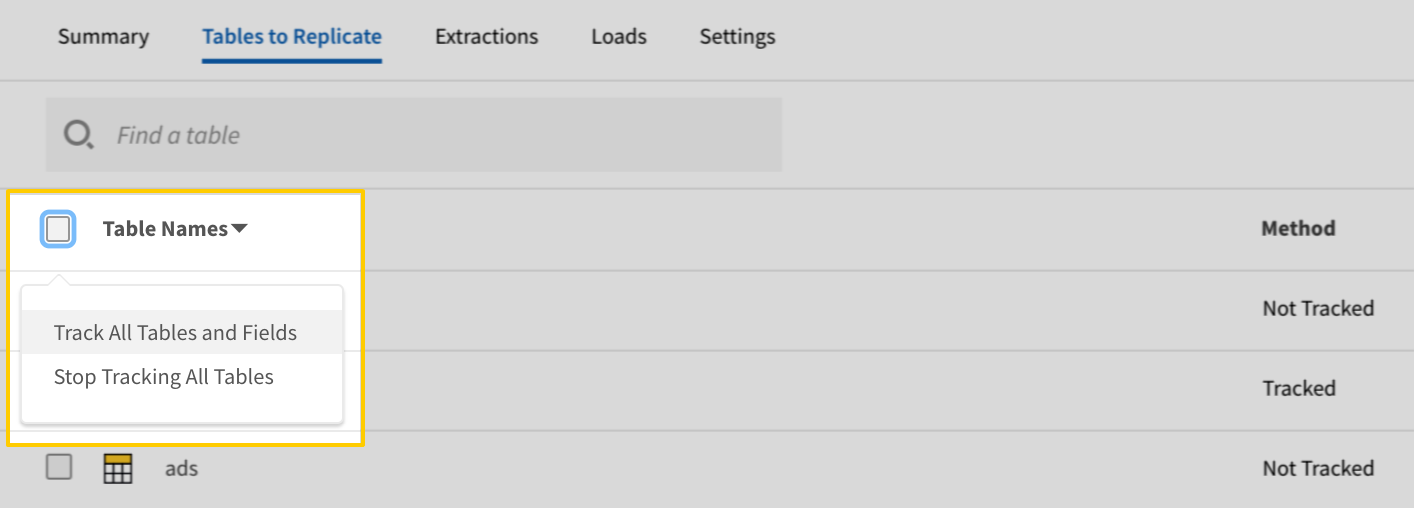
The Track all Tables and Fields menu in the Tables to Replicate tab - Click the Finalize Your Selections button at the bottom of the page to save your data selections.
Initial and historical replication jobs
After you finish setting up Facebook Ads, its Sync Status may show as Pending on either the Stitch Dashboard or in the Integration Details page.
For a new integration, a Pending status indicates that Stitch is in the process of scheduling the initial replication job for the integration. This may take some time to complete.
Initial replication jobs with Anchor Scheduling
If using Anchor Scheduling, an initial replication job may not kick off immediately. This depends on the selected Replication Frequency and Anchor Time. Refer to the Anchor Scheduling documentation for more information.
Free historical data loads
The first seven days of replication, beginning when data is first replicated, are free. Rows replicated from the new integration during this time won’t count towards your quota. Stitch offers this as a way of testing new integrations, measuring usage, and ensuring historical data volumes don’t quickly consume your quota.
Facebook Ads replication
Attribution windows and data extraction
When Stitch runs a replication job for Facebook Ads, it will use the value of the Attribution Window setting to query for and extract data for Incremental tables. An attribution window is a period of time for attributing results to ads and the lookback period after those actions occur during which ad results are counted.
For example: If set to 7 days, Stitch will replicate the past seven days’ worth of data every time a replication job runs. While Stitch replicates data in this way to account for updates to records made during the attribution window, it can have a substantial impact on your overall row usage.
In the sections below are examples of how attribution windows impact how Stitch extracts data during historical and ongoing replication jobs.
For historical and full re-replications of Facebook Ads data, Stitch will query for and extract data newer than or equal to the date defined in the Start Date field in the Integration Settings page.
The Start Date, in conjunction with the Attribution Window, defines the minimum date Stitch should query for when extracting historical data. This is calculated as:
Start Date - Attribution Window = Minimum Extraction Date
Note: For the ads_insights stream, the Minimum Extraction Date cannot be more than 37 months ago.
Example
During the initial set up, the Attribution Window and Start Date settings are defined as:
- Attribution Window: 28 days (default setting)
- Start Date:
07/03/2017, or2017-07-03 00:00:00
To account for the Attribution Window, Stitch would calculate the Minimum Extraction Date value as: 2017-07-03 00:00:00 - 28 days = 2017-06-05 00:00:00
If you were to write a SQL query using this date for the ads table, it might look like this:
  SELECT *
    FROM facebook_ads.ads
   WHERE updated_time >= '2017-06-05 00:00:00'   /* Min. Extraction Date */
ORDER BY updated_time
For ongoing replication jobs, Stitch will query for and extract data using the last saved maximum value in the table’s Replication Key column and the Attribution Window for the table.
Note: This applies to every replication job that takes place after the historical replication job.
Example
The last maximum saved Replication Key value for the ads table is 2017-10-01 00:00:00.
To account for the Attribution Window of 28 days, we’d subtract this from the last maximum saved Replication Key value:
2017-10-01 00:00:00 - 28 days = 2017-09-03 00:00:00
In this case, Stitch would query for and extract data that is newer than or equal to 2017-09-03 00:00:00 and older than or equal to 2017-10-01 00:00:00.
If this were a SQL query, it might look like this:
  SELECT *
    FROM ads
   WHERE updated_time >= '2017-09-03 00:00:00'
                              /* max Replication Key value - Attribution Window */
     AND updated_time <= '2017-10-01 00:00:00'
                              /* max Replication Key value from previous job */
ORDER BY updated_time
Attribution windows and row count impact
Due to the attribution window, a high Replication Frequency may not be necessary. Because Stitch will replicate data from the past N days during every replication job, recent data will be re-replicated and count towards your row quota.
To reduce your row usage and replicating redundant data, consider setting the integration to replicate less frequently. For example: every 12 or 24 hours.
Facebook Ads table reference
Schemas and versioning
Schemas and naming conventions can change from version to version, so we recommend verifying your integration’s version before continuing.
The schema and info displayed below is for version 1 of this integration.
This is the latest version of the Facebook Ads integration.
There are two types of tables in Stitch’s Facebook Ads integration: Core Object and Insights.
DMA to Comscore migration
Note: The ads_insights_dma table is deprecated because Meta removed DMA support on June 22, 2026. Use ads_insights_comscore_market for market-level geographic reporting.
What changed:
- Old table:
ads_insights_dmawithdmafield - New table:
ads_insights_comscore_marketwithcomscore_marketfield
Migration steps:
- In your Facebook Ads integration, deselect
ads_insights_dma. - Select
ads_insights_comscore_market. - Update any downstream queries and reports to use the new table and field name.
Note: Comscore Market IDs differ from DMA codes. Refer to Meta’s DMA to Comscore mapping table if needed.
- Core Object tables contain foundational data that’s useful for analysis. These are the
adcreative,ads,adsets, andcampaignstables. To learn more about how Facebook Ads data is structured, we recommend checking out their API guide. - Insights tables contain performance data for every campaign/adset/ad combination, segmented by day and demographics specific to each table. For example: The
ads_insights_age_and_gendertable is segmented by day, age, and gender.
Table and column names in your destination
Depending on your destination, table and column names may not appear as they are outlined below.
For example: Object names are lowercased in Redshift (CusTomERs > customers), while case is maintained in PostgreSQL destinations (CusTomERs > CusTomERs). Refer to the Loading Guide for your destination for more info.
adcreative
The adcreative table contains info about the creatives used in ads, in your Facebook Ads account.
This is a Core Object table.
Limits
Facebook’s API limits the number of ad creatives that can be retrieved through their API to 50,000, which is documented here. If you’re missing data from this table and have more than 50,000 ad creatives in your Facebook Ads account, this may be the cause of the discrepancy.
|
Full Table |
|
|
Primary Key |
id |
| Useful links |

| Join adcreative with | on |
|---|---|
| ads |
adcreative.account_id = ads.account_id adcreative.adlabels.id = ads.id adcreative.id = ads.creative.creative_id |
| ads_insights |
adcreative.account_id = ads_insights.account_id |
| ads_insights_age_and_gender |
adcreative.account_id = ads_insights_age_and_gender.account_id |
| ads_insights_country |
adcreative.account_id = ads_insights_country.account_id |
| ads_insights_dma |
adcreative.account_id = ads_insights_dma.account_id |
| ads_insights_comscore_market |
adcreative.account_id = ads_insights_comscore_market.account_id |
| ads_insights_platform_and_device |
adcreative.account_id = ads_insights_platform_and_device.account_id |
| ads_insights_region |
adcreative.account_id = ads_insights_region.account_id |
| adsets |
adcreative.adlabels.id = adsets.id adcreative.object_story_spec.link_data.offer_id = adsets.promoted_object.offer_id adcreative.object_story_spec.template_data.offer_id = adsets.promoted_object.offer_id adcreative.object_story_spec.video_data.offer_id = adsets.promoted_object.offer_id adcreative.object_story_spec.page_id = adsets.promoted_object.page_id adcreative.product_set_id = adsets.promoted_object.product_set_id |
|
account_id STRING |
||||||||||||||||||||||||||||||||||||||||||||||||||||||||||||||||||||||||||||||||||||||||||||||||||||||||||||||||||||||||||||||||||||||||||||||||||||||||||||||||||||||||||||||||||||||||||||||||||||||||||||||||||||||||||||||||||||||||||||||||||||||||||||||||||||||||||||||||||||||||||||||||||||||||||||||||||||||||||||||||||||||||||||||||||||||||||||||||||||||||||||||||||||||||||||||||||||||||||||||||||||||||||||||||||||||||||||||||||||||||||||||||||||||||||||||||||||||||||||||||||||||||||||||||||
|
actor_id STRING |
||||||||||||||||||||||||||||||||||||||||||||||||||||||||||||||||||||||||||||||||||||||||||||||||||||||||||||||||||||||||||||||||||||||||||||||||||||||||||||||||||||||||||||||||||||||||||||||||||||||||||||||||||||||||||||||||||||||||||||||||||||||||||||||||||||||||||||||||||||||||||||||||||||||||||||||||||||||||||||||||||||||||||||||||||||||||||||||||||||||||||||||||||||||||||||||||||||||||||||||||||||||||||||||||||||||||||||||||||||||||||||||||||||||||||||||||||||||||||||||||||||||||||||||||||
|
adlabels ARRAY This is a nested data structure. If your destination doesn't natively support nested data, attributes will be denested into a subtable. <a href='/en-US/stitch/replication/loading/understanding-loading-row-usage-for-nested-data-structures' target='new'>Learn more</a>.
|
||||||||||||||||||||||||||||||||||||||||||||||||||||||||||||||||||||||||||||||||||||||||||||||||||||||||||||||||||||||||||||||||||||||||||||||||||||||||||||||||||||||||||||||||||||||||||||||||||||||||||||||||||||||||||||||||||||||||||||||||||||||||||||||||||||||||||||||||||||||||||||||||||||||||||||||||||||||||||||||||||||||||||||||||||||||||||||||||||||||||||||||||||||||||||||||||||||||||||||||||||||||||||||||||||||||||||||||||||||||||||||||||||||||||||||||||||||||||||||||||||||||||||||||||||
|
applink_treatment STRING |
||||||||||||||||||||||||||||||||||||||||||||||||||||||||||||||||||||||||||||||||||||||||||||||||||||||||||||||||||||||||||||||||||||||||||||||||||||||||||||||||||||||||||||||||||||||||||||||||||||||||||||||||||||||||||||||||||||||||||||||||||||||||||||||||||||||||||||||||||||||||||||||||||||||||||||||||||||||||||||||||||||||||||||||||||||||||||||||||||||||||||||||||||||||||||||||||||||||||||||||||||||||||||||||||||||||||||||||||||||||||||||||||||||||||||||||||||||||||||||||||||||||||||||||||||
|
body STRING |
||||||||||||||||||||||||||||||||||||||||||||||||||||||||||||||||||||||||||||||||||||||||||||||||||||||||||||||||||||||||||||||||||||||||||||||||||||||||||||||||||||||||||||||||||||||||||||||||||||||||||||||||||||||||||||||||||||||||||||||||||||||||||||||||||||||||||||||||||||||||||||||||||||||||||||||||||||||||||||||||||||||||||||||||||||||||||||||||||||||||||||||||||||||||||||||||||||||||||||||||||||||||||||||||||||||||||||||||||||||||||||||||||||||||||||||||||||||||||||||||||||||||||||||||||
|
call_to_action_type STRING |
||||||||||||||||||||||||||||||||||||||||||||||||||||||||||||||||||||||||||||||||||||||||||||||||||||||||||||||||||||||||||||||||||||||||||||||||||||||||||||||||||||||||||||||||||||||||||||||||||||||||||||||||||||||||||||||||||||||||||||||||||||||||||||||||||||||||||||||||||||||||||||||||||||||||||||||||||||||||||||||||||||||||||||||||||||||||||||||||||||||||||||||||||||||||||||||||||||||||||||||||||||||||||||||||||||||||||||||||||||||||||||||||||||||||||||||||||||||||||||||||||||||||||||||||||
|
effective_instagram_story_id STRING |
||||||||||||||||||||||||||||||||||||||||||||||||||||||||||||||||||||||||||||||||||||||||||||||||||||||||||||||||||||||||||||||||||||||||||||||||||||||||||||||||||||||||||||||||||||||||||||||||||||||||||||||||||||||||||||||||||||||||||||||||||||||||||||||||||||||||||||||||||||||||||||||||||||||||||||||||||||||||||||||||||||||||||||||||||||||||||||||||||||||||||||||||||||||||||||||||||||||||||||||||||||||||||||||||||||||||||||||||||||||||||||||||||||||||||||||||||||||||||||||||||||||||||||||||||
|
effective_object_story_id STRING |
||||||||||||||||||||||||||||||||||||||||||||||||||||||||||||||||||||||||||||||||||||||||||||||||||||||||||||||||||||||||||||||||||||||||||||||||||||||||||||||||||||||||||||||||||||||||||||||||||||||||||||||||||||||||||||||||||||||||||||||||||||||||||||||||||||||||||||||||||||||||||||||||||||||||||||||||||||||||||||||||||||||||||||||||||||||||||||||||||||||||||||||||||||||||||||||||||||||||||||||||||||||||||||||||||||||||||||||||||||||||||||||||||||||||||||||||||||||||||||||||||||||||||||||||||
|
id STRING |
||||||||||||||||||||||||||||||||||||||||||||||||||||||||||||||||||||||||||||||||||||||||||||||||||||||||||||||||||||||||||||||||||||||||||||||||||||||||||||||||||||||||||||||||||||||||||||||||||||||||||||||||||||||||||||||||||||||||||||||||||||||||||||||||||||||||||||||||||||||||||||||||||||||||||||||||||||||||||||||||||||||||||||||||||||||||||||||||||||||||||||||||||||||||||||||||||||||||||||||||||||||||||||||||||||||||||||||||||||||||||||||||||||||||||||||||||||||||||||||||||||||||||||||||||
|
image_crops OBJECT This is a nested data structure. If your destination doesn't natively support nested data, attributes in this object will be flattened into the table. <a href='/en-US/stitch/replication/loading/understanding-loading-row-usage-for-nested-data-structures' target='new'>Learn more</a>.
|
||||||||||||||||||||||||||||||||||||||||||||||||||||||||||||||||||||||||||||||||||||||||||||||||||||||||||||||||||||||||||||||||||||||||||||||||||||||||||||||||||||||||||||||||||||||||||||||||||||||||||||||||||||||||||||||||||||||||||||||||||||||||||||||||||||||||||||||||||||||||||||||||||||||||||||||||||||||||||||||||||||||||||||||||||||||||||||||||||||||||||||||||||||||||||||||||||||||||||||||||||||||||||||||||||||||||||||||||||||||||||||||||||||||||||||||||||||||||||||||||||||||||||||||||||
|
image_hash STRING |
||||||||||||||||||||||||||||||||||||||||||||||||||||||||||||||||||||||||||||||||||||||||||||||||||||||||||||||||||||||||||||||||||||||||||||||||||||||||||||||||||||||||||||||||||||||||||||||||||||||||||||||||||||||||||||||||||||||||||||||||||||||||||||||||||||||||||||||||||||||||||||||||||||||||||||||||||||||||||||||||||||||||||||||||||||||||||||||||||||||||||||||||||||||||||||||||||||||||||||||||||||||||||||||||||||||||||||||||||||||||||||||||||||||||||||||||||||||||||||||||||||||||||||||||||
|
image_url STRING |
||||||||||||||||||||||||||||||||||||||||||||||||||||||||||||||||||||||||||||||||||||||||||||||||||||||||||||||||||||||||||||||||||||||||||||||||||||||||||||||||||||||||||||||||||||||||||||||||||||||||||||||||||||||||||||||||||||||||||||||||||||||||||||||||||||||||||||||||||||||||||||||||||||||||||||||||||||||||||||||||||||||||||||||||||||||||||||||||||||||||||||||||||||||||||||||||||||||||||||||||||||||||||||||||||||||||||||||||||||||||||||||||||||||||||||||||||||||||||||||||||||||||||||||||||
|
instagram_actor_id STRING |
||||||||||||||||||||||||||||||||||||||||||||||||||||||||||||||||||||||||||||||||||||||||||||||||||||||||||||||||||||||||||||||||||||||||||||||||||||||||||||||||||||||||||||||||||||||||||||||||||||||||||||||||||||||||||||||||||||||||||||||||||||||||||||||||||||||||||||||||||||||||||||||||||||||||||||||||||||||||||||||||||||||||||||||||||||||||||||||||||||||||||||||||||||||||||||||||||||||||||||||||||||||||||||||||||||||||||||||||||||||||||||||||||||||||||||||||||||||||||||||||||||||||||||||||||
|
instagram_permalink_url STRING |
||||||||||||||||||||||||||||||||||||||||||||||||||||||||||||||||||||||||||||||||||||||||||||||||||||||||||||||||||||||||||||||||||||||||||||||||||||||||||||||||||||||||||||||||||||||||||||||||||||||||||||||||||||||||||||||||||||||||||||||||||||||||||||||||||||||||||||||||||||||||||||||||||||||||||||||||||||||||||||||||||||||||||||||||||||||||||||||||||||||||||||||||||||||||||||||||||||||||||||||||||||||||||||||||||||||||||||||||||||||||||||||||||||||||||||||||||||||||||||||||||||||||||||||||||
|
instagram_story_id STRING |
||||||||||||||||||||||||||||||||||||||||||||||||||||||||||||||||||||||||||||||||||||||||||||||||||||||||||||||||||||||||||||||||||||||||||||||||||||||||||||||||||||||||||||||||||||||||||||||||||||||||||||||||||||||||||||||||||||||||||||||||||||||||||||||||||||||||||||||||||||||||||||||||||||||||||||||||||||||||||||||||||||||||||||||||||||||||||||||||||||||||||||||||||||||||||||||||||||||||||||||||||||||||||||||||||||||||||||||||||||||||||||||||||||||||||||||||||||||||||||||||||||||||||||||||||
|
link_og_id STRING |
||||||||||||||||||||||||||||||||||||||||||||||||||||||||||||||||||||||||||||||||||||||||||||||||||||||||||||||||||||||||||||||||||||||||||||||||||||||||||||||||||||||||||||||||||||||||||||||||||||||||||||||||||||||||||||||||||||||||||||||||||||||||||||||||||||||||||||||||||||||||||||||||||||||||||||||||||||||||||||||||||||||||||||||||||||||||||||||||||||||||||||||||||||||||||||||||||||||||||||||||||||||||||||||||||||||||||||||||||||||||||||||||||||||||||||||||||||||||||||||||||||||||||||||||||
|
link_url STRING |
||||||||||||||||||||||||||||||||||||||||||||||||||||||||||||||||||||||||||||||||||||||||||||||||||||||||||||||||||||||||||||||||||||||||||||||||||||||||||||||||||||||||||||||||||||||||||||||||||||||||||||||||||||||||||||||||||||||||||||||||||||||||||||||||||||||||||||||||||||||||||||||||||||||||||||||||||||||||||||||||||||||||||||||||||||||||||||||||||||||||||||||||||||||||||||||||||||||||||||||||||||||||||||||||||||||||||||||||||||||||||||||||||||||||||||||||||||||||||||||||||||||||||||||||||
|
name STRING |
||||||||||||||||||||||||||||||||||||||||||||||||||||||||||||||||||||||||||||||||||||||||||||||||||||||||||||||||||||||||||||||||||||||||||||||||||||||||||||||||||||||||||||||||||||||||||||||||||||||||||||||||||||||||||||||||||||||||||||||||||||||||||||||||||||||||||||||||||||||||||||||||||||||||||||||||||||||||||||||||||||||||||||||||||||||||||||||||||||||||||||||||||||||||||||||||||||||||||||||||||||||||||||||||||||||||||||||||||||||||||||||||||||||||||||||||||||||||||||||||||||||||||||||||||
|
object_id STRING |
||||||||||||||||||||||||||||||||||||||||||||||||||||||||||||||||||||||||||||||||||||||||||||||||||||||||||||||||||||||||||||||||||||||||||||||||||||||||||||||||||||||||||||||||||||||||||||||||||||||||||||||||||||||||||||||||||||||||||||||||||||||||||||||||||||||||||||||||||||||||||||||||||||||||||||||||||||||||||||||||||||||||||||||||||||||||||||||||||||||||||||||||||||||||||||||||||||||||||||||||||||||||||||||||||||||||||||||||||||||||||||||||||||||||||||||||||||||||||||||||||||||||||||||||||
|
object_story_id STRING |
||||||||||||||||||||||||||||||||||||||||||||||||||||||||||||||||||||||||||||||||||||||||||||||||||||||||||||||||||||||||||||||||||||||||||||||||||||||||||||||||||||||||||||||||||||||||||||||||||||||||||||||||||||||||||||||||||||||||||||||||||||||||||||||||||||||||||||||||||||||||||||||||||||||||||||||||||||||||||||||||||||||||||||||||||||||||||||||||||||||||||||||||||||||||||||||||||||||||||||||||||||||||||||||||||||||||||||||||||||||||||||||||||||||||||||||||||||||||||||||||||||||||||||||||||
|
object_story_spec OBJECT This is a nested data structure. If your destination doesn't natively support nested data, attributes in this object will be flattened into the table. <a href='/en-US/stitch/replication/loading/understanding-loading-row-usage-for-nested-data-structures' target='new'>Learn more</a>.
|
||||||||||||||||||||||||||||||||||||||||||||||||||||||||||||||||||||||||||||||||||||||||||||||||||||||||||||||||||||||||||||||||||||||||||||||||||||||||||||||||||||||||||||||||||||||||||||||||||||||||||||||||||||||||||||||||||||||||||||||||||||||||||||||||||||||||||||||||||||||||||||||||||||||||||||||||||||||||||||||||||||||||||||||||||||||||||||||||||||||||||||||||||||||||||||||||||||||||||||||||||||||||||||||||||||||||||||||||||||||||||||||||||||||||||||||||||||||||||||||||||||||||||||||||||
|
object_type STRING |
||||||||||||||||||||||||||||||||||||||||||||||||||||||||||||||||||||||||||||||||||||||||||||||||||||||||||||||||||||||||||||||||||||||||||||||||||||||||||||||||||||||||||||||||||||||||||||||||||||||||||||||||||||||||||||||||||||||||||||||||||||||||||||||||||||||||||||||||||||||||||||||||||||||||||||||||||||||||||||||||||||||||||||||||||||||||||||||||||||||||||||||||||||||||||||||||||||||||||||||||||||||||||||||||||||||||||||||||||||||||||||||||||||||||||||||||||||||||||||||||||||||||||||||||||
|
object_url STRING |
||||||||||||||||||||||||||||||||||||||||||||||||||||||||||||||||||||||||||||||||||||||||||||||||||||||||||||||||||||||||||||||||||||||||||||||||||||||||||||||||||||||||||||||||||||||||||||||||||||||||||||||||||||||||||||||||||||||||||||||||||||||||||||||||||||||||||||||||||||||||||||||||||||||||||||||||||||||||||||||||||||||||||||||||||||||||||||||||||||||||||||||||||||||||||||||||||||||||||||||||||||||||||||||||||||||||||||||||||||||||||||||||||||||||||||||||||||||||||||||||||||||||||||||||||
|
product_set_id STRING |
||||||||||||||||||||||||||||||||||||||||||||||||||||||||||||||||||||||||||||||||||||||||||||||||||||||||||||||||||||||||||||||||||||||||||||||||||||||||||||||||||||||||||||||||||||||||||||||||||||||||||||||||||||||||||||||||||||||||||||||||||||||||||||||||||||||||||||||||||||||||||||||||||||||||||||||||||||||||||||||||||||||||||||||||||||||||||||||||||||||||||||||||||||||||||||||||||||||||||||||||||||||||||||||||||||||||||||||||||||||||||||||||||||||||||||||||||||||||||||||||||||||||||||||||||
|
status STRING |
||||||||||||||||||||||||||||||||||||||||||||||||||||||||||||||||||||||||||||||||||||||||||||||||||||||||||||||||||||||||||||||||||||||||||||||||||||||||||||||||||||||||||||||||||||||||||||||||||||||||||||||||||||||||||||||||||||||||||||||||||||||||||||||||||||||||||||||||||||||||||||||||||||||||||||||||||||||||||||||||||||||||||||||||||||||||||||||||||||||||||||||||||||||||||||||||||||||||||||||||||||||||||||||||||||||||||||||||||||||||||||||||||||||||||||||||||||||||||||||||||||||||||||||||||
|
template_url STRING |
||||||||||||||||||||||||||||||||||||||||||||||||||||||||||||||||||||||||||||||||||||||||||||||||||||||||||||||||||||||||||||||||||||||||||||||||||||||||||||||||||||||||||||||||||||||||||||||||||||||||||||||||||||||||||||||||||||||||||||||||||||||||||||||||||||||||||||||||||||||||||||||||||||||||||||||||||||||||||||||||||||||||||||||||||||||||||||||||||||||||||||||||||||||||||||||||||||||||||||||||||||||||||||||||||||||||||||||||||||||||||||||||||||||||||||||||||||||||||||||||||||||||||||||||||
|
template_url_spec OBJECT This is a nested data structure. If your destination doesn't natively support nested data, attributes in this object will be flattened into the table. <a href='/en-US/stitch/replication/loading/understanding-loading-row-usage-for-nested-data-structures' target='new'>Learn more</a>.
|
||||||||||||||||||||||||||||||||||||||||||||||||||||||||||||||||||||||||||||||||||||||||||||||||||||||||||||||||||||||||||||||||||||||||||||||||||||||||||||||||||||||||||||||||||||||||||||||||||||||||||||||||||||||||||||||||||||||||||||||||||||||||||||||||||||||||||||||||||||||||||||||||||||||||||||||||||||||||||||||||||||||||||||||||||||||||||||||||||||||||||||||||||||||||||||||||||||||||||||||||||||||||||||||||||||||||||||||||||||||||||||||||||||||||||||||||||||||||||||||||||||||||||||||||||
|
thumbnail_url STRING |
||||||||||||||||||||||||||||||||||||||||||||||||||||||||||||||||||||||||||||||||||||||||||||||||||||||||||||||||||||||||||||||||||||||||||||||||||||||||||||||||||||||||||||||||||||||||||||||||||||||||||||||||||||||||||||||||||||||||||||||||||||||||||||||||||||||||||||||||||||||||||||||||||||||||||||||||||||||||||||||||||||||||||||||||||||||||||||||||||||||||||||||||||||||||||||||||||||||||||||||||||||||||||||||||||||||||||||||||||||||||||||||||||||||||||||||||||||||||||||||||||||||||||||||||||
|
title STRING |
||||||||||||||||||||||||||||||||||||||||||||||||||||||||||||||||||||||||||||||||||||||||||||||||||||||||||||||||||||||||||||||||||||||||||||||||||||||||||||||||||||||||||||||||||||||||||||||||||||||||||||||||||||||||||||||||||||||||||||||||||||||||||||||||||||||||||||||||||||||||||||||||||||||||||||||||||||||||||||||||||||||||||||||||||||||||||||||||||||||||||||||||||||||||||||||||||||||||||||||||||||||||||||||||||||||||||||||||||||||||||||||||||||||||||||||||||||||||||||||||||||||||||||||||||
|
url_tags STRING |
||||||||||||||||||||||||||||||||||||||||||||||||||||||||||||||||||||||||||||||||||||||||||||||||||||||||||||||||||||||||||||||||||||||||||||||||||||||||||||||||||||||||||||||||||||||||||||||||||||||||||||||||||||||||||||||||||||||||||||||||||||||||||||||||||||||||||||||||||||||||||||||||||||||||||||||||||||||||||||||||||||||||||||||||||||||||||||||||||||||||||||||||||||||||||||||||||||||||||||||||||||||||||||||||||||||||||||||||||||||||||||||||||||||||||||||||||||||||||||||||||||||||||||||||||
|
video_id STRING |
ads
The ads table contains info about the ads in your Facebook Ads account.
This is a Core Object table.
updated_time and querying
Because this table uses updated_time as part of the Primary Key, query results might return various versions of the same adgroup.
To reflect the latest state of the adgroup, use the latest updated_time timestamp.
Deleted ads
If the Include data from deleted campaigns, ads, and adsets box in the integration’s settings is checked, this table will include data for deleted ads.
|
Key-based Incremental |
|
|
Primary Keys |
id updated_time |
|
Replication Key |
updated_time |
| Useful links |

| Join ads with | on |
|---|---|
| adcreative |
ads.account_id = adcreative.account_id ads.id = adcreative.adlabels.id ads.creative.creative_id = adcreative.id |
| ads_insights |
ads.account_id = ads_insights.account_id ads.adset_id = ads_insights.adset_id ads.id = ads_insights.ad_id ads.campaign_id = ads_insights.campaign_id |
| ads_insights_age_and_gender |
ads.account_id = ads_insights_age_and_gender.account_id ads.adset_id = ads_insights_age_and_gender.adset_id ads.id = ads_insights_age_and_gender.ad_id ads.campaign_id = ads_insights_age_and_gender.campaign_id |
| ads_insights_country |
ads.account_id = ads_insights_country.account_id ads.adset_id = ads_insights_country.adset_id ads.id = ads_insights_country.ad_id ads.campaign_id = ads_insights_country.campaign_id |
| ads_insights_dma |
ads.account_id = ads_insights_dma.account_id ads.adset_id = ads_insights_dma.adset_id ads.id = ads_insights_dma.ad_id ads.campaign_id = ads_insights_dma.campaign_id |
| ads_insights_comscore_market |
ads.account_id = ads_insights_comscore_market.account_id ads.adset_id = ads_insights_comscore_market.adset_id ads.id = ads_insights_comscore_market.ad_id ads.campaign_id = ads_insights_comscore_market.campaign_id |
| ads_insights_platform_and_device |
ads.account_id = ads_insights_platform_and_device.account_id ads.adset_id = ads_insights_platform_and_device.adset_id ads.id = ads_insights_platform_and_device.ad_id ads.campaign_id = ads_insights_platform_and_device.campaign_id |
| ads_insights_region |
ads.account_id = ads_insights_region.account_id ads.adset_id = ads_insights_region.adset_id ads.id = ads_insights_region.ad_id ads.campaign_id = ads_insights_region.campaign_id |
| adsets |
ads.id = adsets.id ads.adset_id = adsets.id |
| campaigns |
ads.id = campaigns.ads.data.id ads.campaign_id = campaigns.id |
|
account_id STRING |
||||||||||||||||||||||||||||||||||||||||||||||||||||||||||||||||||||||||||||||||||||||||||||||||||||||||||||||||||||||||||||||||||||||||||||||||||||||||||||||||||||||||||||||||||||||||||||||||||||||||||||||||||||||||||||||||||||||||||||||||||||||||||||||||||||||||||||||||||||||||||
|
adlabels ARRAY This is a nested data structure. If your destination doesn't natively support nested data, attributes will be denested into a subtable. <a href='/en-US/stitch/replication/loading/understanding-loading-row-usage-for-nested-data-structures' target='new'>Learn more</a>.
|
||||||||||||||||||||||||||||||||||||||||||||||||||||||||||||||||||||||||||||||||||||||||||||||||||||||||||||||||||||||||||||||||||||||||||||||||||||||||||||||||||||||||||||||||||||||||||||||||||||||||||||||||||||||||||||||||||||||||||||||||||||||||||||||||||||||||||||||||||||||||||
|
adset_id STRING |
||||||||||||||||||||||||||||||||||||||||||||||||||||||||||||||||||||||||||||||||||||||||||||||||||||||||||||||||||||||||||||||||||||||||||||||||||||||||||||||||||||||||||||||||||||||||||||||||||||||||||||||||||||||||||||||||||||||||||||||||||||||||||||||||||||||||||||||||||||||||||
|
bid_amount INTEGER |
||||||||||||||||||||||||||||||||||||||||||||||||||||||||||||||||||||||||||||||||||||||||||||||||||||||||||||||||||||||||||||||||||||||||||||||||||||||||||||||||||||||||||||||||||||||||||||||||||||||||||||||||||||||||||||||||||||||||||||||||||||||||||||||||||||||||||||||||||||||||||
|
bid_info OBJECT This is a nested data structure. If your destination doesn't natively support nested data, attributes in this object will be flattened into the table. <a href='/en-US/stitch/replication/loading/understanding-loading-row-usage-for-nested-data-structures' target='new'>Learn more</a>.
|
||||||||||||||||||||||||||||||||||||||||||||||||||||||||||||||||||||||||||||||||||||||||||||||||||||||||||||||||||||||||||||||||||||||||||||||||||||||||||||||||||||||||||||||||||||||||||||||||||||||||||||||||||||||||||||||||||||||||||||||||||||||||||||||||||||||||||||||||||||||||||
|
bid_type STRING |
||||||||||||||||||||||||||||||||||||||||||||||||||||||||||||||||||||||||||||||||||||||||||||||||||||||||||||||||||||||||||||||||||||||||||||||||||||||||||||||||||||||||||||||||||||||||||||||||||||||||||||||||||||||||||||||||||||||||||||||||||||||||||||||||||||||||||||||||||||||||||
|
campaign_id STRING |
||||||||||||||||||||||||||||||||||||||||||||||||||||||||||||||||||||||||||||||||||||||||||||||||||||||||||||||||||||||||||||||||||||||||||||||||||||||||||||||||||||||||||||||||||||||||||||||||||||||||||||||||||||||||||||||||||||||||||||||||||||||||||||||||||||||||||||||||||||||||||
|
conversion_specs ARRAY This is a nested data structure. If your destination doesn't natively support nested data, attributes will be denested into a subtable. <a href='/en-US/stitch/replication/loading/understanding-loading-row-usage-for-nested-data-structures' target='new'>Learn more</a>.
|
||||||||||||||||||||||||||||||||||||||||||||||||||||||||||||||||||||||||||||||||||||||||||||||||||||||||||||||||||||||||||||||||||||||||||||||||||||||||||||||||||||||||||||||||||||||||||||||||||||||||||||||||||||||||||||||||||||||||||||||||||||||||||||||||||||||||||||||||||||||||||
|
created_time DATE-TIME |
||||||||||||||||||||||||||||||||||||||||||||||||||||||||||||||||||||||||||||||||||||||||||||||||||||||||||||||||||||||||||||||||||||||||||||||||||||||||||||||||||||||||||||||||||||||||||||||||||||||||||||||||||||||||||||||||||||||||||||||||||||||||||||||||||||||||||||||||||||||||||
|
creative OBJECT This is a nested data structure. If your destination doesn't natively support nested data, attributes in this object will be flattened into the table. <a href='/en-US/stitch/replication/loading/understanding-loading-row-usage-for-nested-data-structures' target='new'>Learn more</a>.
|
||||||||||||||||||||||||||||||||||||||||||||||||||||||||||||||||||||||||||||||||||||||||||||||||||||||||||||||||||||||||||||||||||||||||||||||||||||||||||||||||||||||||||||||||||||||||||||||||||||||||||||||||||||||||||||||||||||||||||||||||||||||||||||||||||||||||||||||||||||||||||
|
effective_status STRING |
||||||||||||||||||||||||||||||||||||||||||||||||||||||||||||||||||||||||||||||||||||||||||||||||||||||||||||||||||||||||||||||||||||||||||||||||||||||||||||||||||||||||||||||||||||||||||||||||||||||||||||||||||||||||||||||||||||||||||||||||||||||||||||||||||||||||||||||||||||||||||
|
id STRING |
||||||||||||||||||||||||||||||||||||||||||||||||||||||||||||||||||||||||||||||||||||||||||||||||||||||||||||||||||||||||||||||||||||||||||||||||||||||||||||||||||||||||||||||||||||||||||||||||||||||||||||||||||||||||||||||||||||||||||||||||||||||||||||||||||||||||||||||||||||||||||
|
last_updated_by_app_id STRING |
||||||||||||||||||||||||||||||||||||||||||||||||||||||||||||||||||||||||||||||||||||||||||||||||||||||||||||||||||||||||||||||||||||||||||||||||||||||||||||||||||||||||||||||||||||||||||||||||||||||||||||||||||||||||||||||||||||||||||||||||||||||||||||||||||||||||||||||||||||||||||
|
name STRING |
||||||||||||||||||||||||||||||||||||||||||||||||||||||||||||||||||||||||||||||||||||||||||||||||||||||||||||||||||||||||||||||||||||||||||||||||||||||||||||||||||||||||||||||||||||||||||||||||||||||||||||||||||||||||||||||||||||||||||||||||||||||||||||||||||||||||||||||||||||||||||
|
recommendations ARRAY This is a nested data structure. If your destination doesn't natively support nested data, attributes will be denested into a subtable. <a href='/en-US/stitch/replication/loading/understanding-loading-row-usage-for-nested-data-structures' target='new'>Learn more</a>.
|
||||||||||||||||||||||||||||||||||||||||||||||||||||||||||||||||||||||||||||||||||||||||||||||||||||||||||||||||||||||||||||||||||||||||||||||||||||||||||||||||||||||||||||||||||||||||||||||||||||||||||||||||||||||||||||||||||||||||||||||||||||||||||||||||||||||||||||||||||||||||||
|
source_ad_id STRING |
||||||||||||||||||||||||||||||||||||||||||||||||||||||||||||||||||||||||||||||||||||||||||||||||||||||||||||||||||||||||||||||||||||||||||||||||||||||||||||||||||||||||||||||||||||||||||||||||||||||||||||||||||||||||||||||||||||||||||||||||||||||||||||||||||||||||||||||||||||||||||
|
status STRING |
||||||||||||||||||||||||||||||||||||||||||||||||||||||||||||||||||||||||||||||||||||||||||||||||||||||||||||||||||||||||||||||||||||||||||||||||||||||||||||||||||||||||||||||||||||||||||||||||||||||||||||||||||||||||||||||||||||||||||||||||||||||||||||||||||||||||||||||||||||||||||
|
targeting OBJECT This is a nested data structure. If your destination doesn't natively support nested data, attributes in this object will be flattened into the table. <a href='/en-US/stitch/replication/loading/understanding-loading-row-usage-for-nested-data-structures' target='new'>Learn more</a>.
|
||||||||||||||||||||||||||||||||||||||||||||||||||||||||||||||||||||||||||||||||||||||||||||||||||||||||||||||||||||||||||||||||||||||||||||||||||||||||||||||||||||||||||||||||||||||||||||||||||||||||||||||||||||||||||||||||||||||||||||||||||||||||||||||||||||||||||||||||||||||||||
|
tracking_specs ARRAY This is a nested data structure. If your destination doesn't natively support nested data, attributes will be denested into a subtable. <a href='/en-US/stitch/replication/loading/understanding-loading-row-usage-for-nested-data-structures' target='new'>Learn more</a>.
|
||||||||||||||||||||||||||||||||||||||||||||||||||||||||||||||||||||||||||||||||||||||||||||||||||||||||||||||||||||||||||||||||||||||||||||||||||||||||||||||||||||||||||||||||||||||||||||||||||||||||||||||||||||||||||||||||||||||||||||||||||||||||||||||||||||||||||||||||||||||||||
|
updated_time DATE-TIME |
ads_insights
The ads_insights table contains entries for each campaign/set/ad combination for each day, along with detailed statistics.
Note: Data for deleted ads, adsets, and campaigns will not appear in this table even if the Include data from deleted campaigns, ads, and adsets option in the integration’s settings is enabled.
Segmented insights data
To analyze data that’s been segmented by various characteristics, consider tracking some of the other ads_insights tables in this integration. The following tables contain the same fields as this one (ads_insights), but include additional dimensions to segment the data:
ads_insights_age_and_gender- Data segmented by age and genderads_insights_country- Data segmented by countryads_insights_comscore_market- Data segmented by Comscore Marketads_insights_platform_and_device- Data segmented by platform and deviceads_insights_region- Data segmented by region
|
Key-based Incremental |
|
|
Primary Keys |
ad_id adset_id campaign_id date_start |
|
Replication Key |
date_start |
| Useful links |
| Join ads_insights with | on |
|---|---|
| adcreative |
ads_insights.account_id = adcreative.account_id |
| ads |
ads_insights.account_id = ads.account_id ads_insights.adset_id = ads.adset_id ads_insights.ad_id = ads.id ads_insights.campaign_id = ads.campaign_id |
| ads_insights_age_and_gender |
ads_insights.account_id = ads_insights_age_and_gender.account_id ads_insights.adset_id = ads_insights_age_and_gender.adset_id ads_insights.ad_id = ads_insights_age_and_gender.ad_id ads_insights.campaign_id = ads_insights_age_and_gender.campaign_id |
| ads_insights_country |
ads_insights.account_id = ads_insights_country.account_id ads_insights.adset_id = ads_insights_country.adset_id ads_insights.ad_id = ads_insights_country.ad_id ads_insights.campaign_id = ads_insights_country.campaign_id |
| ads_insights_dma |
ads_insights.account_id = ads_insights_dma.account_id ads_insights.adset_id = ads_insights_dma.adset_id ads_insights.ad_id = ads_insights_dma.ad_id ads_insights.campaign_id = ads_insights_dma.campaign_id |
| ads_insights_comscore_market |
ads_insights.account_id = ads_insights_comscore_market.account_id ads_insights.adset_id = ads_insights_comscore_market.adset_id ads_insights.ad_id = ads_insights_comscore_market.ad_id ads_insights.campaign_id = ads_insights_comscore_market.campaign_id |
| ads_insights_platform_and_device |
ads_insights.account_id = ads_insights_platform_and_device.account_id ads_insights.adset_id = ads_insights_platform_and_device.adset_id ads_insights.ad_id = ads_insights_platform_and_device.ad_id ads_insights.campaign_id = ads_insights_platform_and_device.campaign_id |
| ads_insights_region |
ads_insights.account_id = ads_insights_region.account_id ads_insights.adset_id = ads_insights_region.adset_id ads_insights.ad_id = ads_insights_region.ad_id ads_insights.campaign_id = ads_insights_region.campaign_id |
| adsets |
ads_insights.adset_id = adsets.id |
| campaigns |
ads_insights.ad_id = campaigns.ads.data.id ads_insights.campaign_id = campaigns.id |
|
account_id STRING |
||||||||||
|
account_name STRING |
||||||||||
|
action_values ARRAY This is a nested data structure. If your destination doesn't natively support nested data, attributes will be denested into a subtable. <a href='/en-US/stitch/replication/loading/understanding-loading-row-usage-for-nested-data-structures' target='new'>Learn more</a>.
|
||||||||||
|
actions ARRAY This is a nested data structure. If your destination doesn't natively support nested data, attributes will be denested into a subtable. <a href='/en-US/stitch/replication/loading/understanding-loading-row-usage-for-nested-data-structures' target='new'>Learn more</a>.
|
||||||||||
|
ad_id STRING |
||||||||||
|
ad_name STRING |
||||||||||
|
adset_id STRING |
||||||||||
|
adset_name STRING |
||||||||||
|
campaign_id STRING |
||||||||||
|
campaign_name STRING |
||||||||||
|
canvas_avg_view_percent NUMBER |
||||||||||
|
canvas_avg_view_time NUMBER |
||||||||||
|
clicks INTEGER |
||||||||||
|
conversion_rate_ranking STRING |
||||||||||
|
conversion_values ARRAY This is a nested data structure. If your destination doesn't natively support nested data, attributes will be denested into a subtable. <a href='/en-US/stitch/replication/loading/understanding-loading-row-usage-for-nested-data-structures' target='new'>Learn more</a>.
|
||||||||||
|
conversions ARRAY This is a nested data structure. If your destination doesn't natively support nested data, attributes will be denested into a subtable. <a href='/en-US/stitch/replication/loading/understanding-loading-row-usage-for-nested-data-structures' target='new'>Learn more</a>.
|
||||||||||
|
cost_per_action_type ARRAY This is a nested data structure. If your destination doesn't natively support nested data, attributes will be denested into a subtable. <a href='/en-US/stitch/replication/loading/understanding-loading-row-usage-for-nested-data-structures' target='new'>Learn more</a>.
|
||||||||||
|
cost_per_inline_link_click NUMBER |
||||||||||
|
cost_per_inline_post_engagement NUMBER |
||||||||||
|
cost_per_unique_action_type ARRAY This is a nested data structure. If your destination doesn't natively support nested data, attributes will be denested into a subtable. <a href='/en-US/stitch/replication/loading/understanding-loading-row-usage-for-nested-data-structures' target='new'>Learn more</a>.
|
||||||||||
|
cost_per_unique_click NUMBER |
||||||||||
|
cost_per_unique_inline_link_click NUMBER |
||||||||||
|
cpc NUMBER |
||||||||||
|
cpm NUMBER |
||||||||||
|
cpp NUMBER |
||||||||||
|
ctr NUMBER |
||||||||||
|
date_start DATE-TIME |
||||||||||
|
date_stop DATE-TIME |
||||||||||
|
engagement_rate_ranking STRING |
||||||||||
|
frequency NUMBER |
||||||||||
|
impressions INTEGER |
||||||||||
|
inline_link_click_ctr NUMBER |
||||||||||
|
inline_link_clicks INTEGER |
||||||||||
|
inline_post_engagement INTEGER |
||||||||||
|
objective STRING |
||||||||||
|
outbound_clicks ARRAY This is a nested data structure. If your destination doesn't natively support nested data, attributes will be denested into a subtable. <a href='/en-US/stitch/replication/loading/understanding-loading-row-usage-for-nested-data-structures' target='new'>Learn more</a>.
|
||||||||||
|
quality_ranking STRING |
||||||||||
|
reach INTEGER |
||||||||||
|
social_spend NUMBER |
||||||||||
|
spend NUMBER |
||||||||||
|
unique_actions ARRAY This is a nested data structure. If your destination doesn't natively support nested data, attributes will be denested into a subtable. <a href='/en-US/stitch/replication/loading/understanding-loading-row-usage-for-nested-data-structures' target='new'>Learn more</a>.
|
||||||||||
|
unique_clicks INTEGER |
||||||||||
|
unique_ctr NUMBER |
||||||||||
|
unique_inline_link_click_ctr NUMBER |
||||||||||
|
unique_inline_link_clicks INTEGER |
||||||||||
|
unique_link_clicks_ctr NUMBER |
||||||||||
|
unique_outbound_clicks ARRAY This is a nested data structure. If your destination doesn't natively support nested data, attributes will be denested into a subtable. <a href='/en-US/stitch/replication/loading/understanding-loading-row-usage-for-nested-data-structures' target='new'>Learn more</a>.
|
||||||||||
|
video_30_sec_watched_actions ARRAY This is a nested data structure. If your destination doesn't natively support nested data, attributes will be denested into a subtable. <a href='/en-US/stitch/replication/loading/understanding-loading-row-usage-for-nested-data-structures' target='new'>Learn more</a>.
|
||||||||||
|
video_p100_watched_actions ARRAY This is a nested data structure. If your destination doesn't natively support nested data, attributes will be denested into a subtable. <a href='/en-US/stitch/replication/loading/understanding-loading-row-usage-for-nested-data-structures' target='new'>Learn more</a>.
|
||||||||||
|
video_p25_watched_actions ARRAY This is a nested data structure. If your destination doesn't natively support nested data, attributes will be denested into a subtable. <a href='/en-US/stitch/replication/loading/understanding-loading-row-usage-for-nested-data-structures' target='new'>Learn more</a>.
|
||||||||||
|
video_p50_watched_actions ARRAY This is a nested data structure. If your destination doesn't natively support nested data, attributes will be denested into a subtable. <a href='/en-US/stitch/replication/loading/understanding-loading-row-usage-for-nested-data-structures' target='new'>Learn more</a>.
|
||||||||||
|
video_p75_watched_actions ARRAY This is a nested data structure. If your destination doesn't natively support nested data, attributes will be denested into a subtable. <a href='/en-US/stitch/replication/loading/understanding-loading-row-usage-for-nested-data-structures' target='new'>Learn more</a>.
|
||||||||||
|
video_play_curve_actions ARRAY This is a nested data structure. If your destination doesn't natively support nested data, attributes will be denested into a subtable. <a href='/en-US/stitch/replication/loading/understanding-loading-row-usage-for-nested-data-structures' target='new'>Learn more</a>.
|
||||||||||
|
website_ctr ARRAY This is a nested data structure. If your destination doesn't natively support nested data, attributes will be denested into a subtable. <a href='/en-US/stitch/replication/loading/understanding-loading-row-usage-for-nested-data-structures' target='new'>Learn more</a>.
|
ads_insights_age_and_gender
The ads_insights_age_and_gender table contains entries for each campaign/set/ad combination for each day, along with detailed statistics, segmented by age and gender.
This table contains the same fields as the ads_insights table, with the exception of age and gender.
Note: Data for deleted ads, adsets, and campaigns will not appear in this table even if the Include data from deleted campaigns, ads, and adsets option in the integration’s settings is enabled.
|
Key-based Incremental |
|
|
Primary Keys |
ad_id adset_id campaign_id date_start age gender |
|
Replication Key |
date_start |
| Useful links |
| Join ads_insights_age_and_gender with | on |
|---|---|
| adcreative |
ads_insights_age_and_gender.account_id = adcreative.account_id |
| ads |
ads_insights_age_and_gender.account_id = ads.account_id ads_insights_age_and_gender.adset_id = ads.adset_id ads_insights_age_and_gender.ad_id = ads.id ads_insights_age_and_gender.campaign_id = ads.campaign_id |
| ads_insights |
ads_insights_age_and_gender.account_id = ads_insights.account_id ads_insights_age_and_gender.adset_id = ads_insights.adset_id ads_insights_age_and_gender.ad_id = ads_insights.ad_id ads_insights_age_and_gender.campaign_id = ads_insights.campaign_id |
| ads_insights_country |
ads_insights_age_and_gender.account_id = ads_insights_country.account_id ads_insights_age_and_gender.adset_id = ads_insights_country.adset_id ads_insights_age_and_gender.ad_id = ads_insights_country.ad_id ads_insights_age_and_gender.campaign_id = ads_insights_country.campaign_id |
| ads_insights_dma |
ads_insights_age_and_gender.account_id = ads_insights_dma.account_id ads_insights_age_and_gender.adset_id = ads_insights_dma.adset_id ads_insights_age_and_gender.ad_id = ads_insights_dma.ad_id ads_insights_age_and_gender.campaign_id = ads_insights_dma.campaign_id |
| ads_insights_comscore_market |
ads_insights_age_and_gender.account_id = ads_insights_comscore_market.account_id ads_insights_age_and_gender.adset_id = ads_insights_comscore_market.adset_id ads_insights_age_and_gender.ad_id = ads_insights_comscore_market.ad_id ads_insights_age_and_gender.campaign_id = ads_insights_comscore_market.campaign_id |
| ads_insights_platform_and_device |
ads_insights_age_and_gender.account_id = ads_insights_platform_and_device.account_id ads_insights_age_and_gender.adset_id = ads_insights_platform_and_device.adset_id ads_insights_age_and_gender.ad_id = ads_insights_platform_and_device.ad_id ads_insights_age_and_gender.campaign_id = ads_insights_platform_and_device.campaign_id |
| ads_insights_region |
ads_insights_age_and_gender.account_id = ads_insights_region.account_id ads_insights_age_and_gender.adset_id = ads_insights_region.adset_id ads_insights_age_and_gender.ad_id = ads_insights_region.ad_id ads_insights_age_and_gender.campaign_id = ads_insights_region.campaign_id |
| adsets |
ads_insights_age_and_gender.adset_id = adsets.id |
| campaigns |
ads_insights_age_and_gender.ad_id = campaigns.ads.data.id ads_insights_age_and_gender.campaign_id = campaigns.id |
|
account_id STRING |
||||||||||
|
account_name STRING |
||||||||||
|
action_values ARRAY This is a nested data structure. If your destination doesn't natively support nested data, attributes will be denested into a subtable. <a href='/en-US/stitch/replication/loading/understanding-loading-row-usage-for-nested-data-structures' target='new'>Learn more</a>.
|
||||||||||
|
actions ARRAY This is a nested data structure. If your destination doesn't natively support nested data, attributes will be denested into a subtable. <a href='/en-US/stitch/replication/loading/understanding-loading-row-usage-for-nested-data-structures' target='new'>Learn more</a>.
|
||||||||||
|
ad_id STRING |
||||||||||
|
ad_name STRING |
||||||||||
|
adset_id STRING |
||||||||||
|
adset_name STRING |
||||||||||
|
age INTEGER, STRING |
||||||||||
|
campaign_id STRING |
||||||||||
|
campaign_name STRING |
||||||||||
|
canvas_avg_view_percent NUMBER |
||||||||||
|
canvas_avg_view_time NUMBER |
||||||||||
|
clicks INTEGER |
||||||||||
|
conversion_rate_ranking STRING |
||||||||||
|
conversion_values ARRAY This is a nested data structure. If your destination doesn't natively support nested data, attributes will be denested into a subtable. <a href='/en-US/stitch/replication/loading/understanding-loading-row-usage-for-nested-data-structures' target='new'>Learn more</a>.
|
||||||||||
|
conversions ARRAY This is a nested data structure. If your destination doesn't natively support nested data, attributes will be denested into a subtable. <a href='/en-US/stitch/replication/loading/understanding-loading-row-usage-for-nested-data-structures' target='new'>Learn more</a>.
|
||||||||||
|
cost_per_action_type ARRAY This is a nested data structure. If your destination doesn't natively support nested data, attributes will be denested into a subtable. <a href='/en-US/stitch/replication/loading/understanding-loading-row-usage-for-nested-data-structures' target='new'>Learn more</a>.
|
||||||||||
|
cost_per_inline_link_click NUMBER |
||||||||||
|
cost_per_inline_post_engagement NUMBER |
||||||||||
|
cost_per_unique_action_type ARRAY This is a nested data structure. If your destination doesn't natively support nested data, attributes will be denested into a subtable. <a href='/en-US/stitch/replication/loading/understanding-loading-row-usage-for-nested-data-structures' target='new'>Learn more</a>.
|
||||||||||
|
cost_per_unique_click NUMBER |
||||||||||
|
cost_per_unique_inline_link_click NUMBER |
||||||||||
|
cpc NUMBER |
||||||||||
|
cpm NUMBER |
||||||||||
|
cpp NUMBER |
||||||||||
|
ctr NUMBER |
||||||||||
|
date_start DATE-TIME |
||||||||||
|
date_stop DATE-TIME |
||||||||||
|
engagement_rate_ranking STRING |
||||||||||
|
frequency NUMBER |
||||||||||
|
gender STRING |
||||||||||
|
impressions INTEGER |
||||||||||
|
inline_link_click_ctr NUMBER |
||||||||||
|
inline_link_clicks INTEGER |
||||||||||
|
inline_post_engagement INTEGER |
||||||||||
|
objective STRING |
||||||||||
|
outbound_clicks ARRAY This is a nested data structure. If your destination doesn't natively support nested data, attributes will be denested into a subtable. <a href='/en-US/stitch/replication/loading/understanding-loading-row-usage-for-nested-data-structures' target='new'>Learn more</a>.
|
||||||||||
|
quality_ranking STRING |
||||||||||
|
reach INTEGER |
||||||||||
|
social_spend NUMBER |
||||||||||
|
spend NUMBER |
||||||||||
|
unique_actions ARRAY This is a nested data structure. If your destination doesn't natively support nested data, attributes will be denested into a subtable. <a href='/en-US/stitch/replication/loading/understanding-loading-row-usage-for-nested-data-structures' target='new'>Learn more</a>.
|
||||||||||
|
unique_clicks INTEGER |
||||||||||
|
unique_ctr NUMBER |
||||||||||
|
unique_inline_link_click_ctr NUMBER |
||||||||||
|
unique_inline_link_clicks INTEGER |
||||||||||
|
unique_link_clicks_ctr NUMBER |
||||||||||
|
unique_outbound_clicks ARRAY This is a nested data structure. If your destination doesn't natively support nested data, attributes will be denested into a subtable. <a href='/en-US/stitch/replication/loading/understanding-loading-row-usage-for-nested-data-structures' target='new'>Learn more</a>.
|
||||||||||
|
video_30_sec_watched_actions ARRAY This is a nested data structure. If your destination doesn't natively support nested data, attributes will be denested into a subtable. <a href='/en-US/stitch/replication/loading/understanding-loading-row-usage-for-nested-data-structures' target='new'>Learn more</a>.
|
||||||||||
|
video_p100_watched_actions ARRAY This is a nested data structure. If your destination doesn't natively support nested data, attributes will be denested into a subtable. <a href='/en-US/stitch/replication/loading/understanding-loading-row-usage-for-nested-data-structures' target='new'>Learn more</a>.
|
||||||||||
|
video_p25_watched_actions ARRAY This is a nested data structure. If your destination doesn't natively support nested data, attributes will be denested into a subtable. <a href='/en-US/stitch/replication/loading/understanding-loading-row-usage-for-nested-data-structures' target='new'>Learn more</a>.
|
||||||||||
|
video_p50_watched_actions ARRAY This is a nested data structure. If your destination doesn't natively support nested data, attributes will be denested into a subtable. <a href='/en-US/stitch/replication/loading/understanding-loading-row-usage-for-nested-data-structures' target='new'>Learn more</a>.
|
||||||||||
|
video_p75_watched_actions ARRAY This is a nested data structure. If your destination doesn't natively support nested data, attributes will be denested into a subtable. <a href='/en-US/stitch/replication/loading/understanding-loading-row-usage-for-nested-data-structures' target='new'>Learn more</a>.
|
||||||||||
|
video_play_curve_actions ARRAY This is a nested data structure. If your destination doesn't natively support nested data, attributes will be denested into a subtable. <a href='/en-US/stitch/replication/loading/understanding-loading-row-usage-for-nested-data-structures' target='new'>Learn more</a>.
|
||||||||||
|
website_ctr ARRAY This is a nested data structure. If your destination doesn't natively support nested data, attributes will be denested into a subtable. <a href='/en-US/stitch/replication/loading/understanding-loading-row-usage-for-nested-data-structures' target='new'>Learn more</a>.
|
ads_insights_comscore_market
The ads_insights_comscore_market table contains entries for each campaign/set/ad combination for each day, along with detailed statistics, segmented by Comscore Market.
This table contains the same fields as the ads_insights table, with the exception of comscore_market.
Note: Data for deleted ads, adsets, and campaigns will not appear in this table even if the Include data from deleted campaigns, ads, and adsets option in the integration’s settings is enabled.
|
Key-based Incremental |
|
|
Primary Keys |
ad_id adset_id campaign_id comscore_market date_start |
|
Replication Key |
date_start |
| Useful links |
| Join ads_insights_comscore_market with | on |
|---|---|
| adcreative |
ads_insights_comscore_market.account_id = adcreative.account_id |
| ads |
ads_insights_comscore_market.account_id = ads.account_id ads_insights_comscore_market.adset_id = ads.adset_id ads_insights_comscore_market.ad_id = ads.id ads_insights_comscore_market.campaign_id = ads.campaign_id |
| ads_insights |
ads_insights_comscore_market.account_id = ads_insights.account_id ads_insights_comscore_market.adset_id = ads_insights.adset_id ads_insights_comscore_market.ad_id = ads_insights.ad_id ads_insights_comscore_market.campaign_id = ads_insights.campaign_id |
| ads_insights_age_and_gender |
ads_insights_comscore_market.account_id = ads_insights_age_and_gender.account_id ads_insights_comscore_market.adset_id = ads_insights_age_and_gender.adset_id ads_insights_comscore_market.ad_id = ads_insights_age_and_gender.ad_id ads_insights_comscore_market.campaign_id = ads_insights_age_and_gender.campaign_id |
| ads_insights_country |
ads_insights_comscore_market.account_id = ads_insights_country.account_id ads_insights_comscore_market.adset_id = ads_insights_country.adset_id ads_insights_comscore_market.ad_id = ads_insights_country.ad_id ads_insights_comscore_market.campaign_id = ads_insights_country.campaign_id |
| ads_insights_dma |
ads_insights_comscore_market.account_id = ads_insights_dma.account_id ads_insights_comscore_market.adset_id = ads_insights_dma.adset_id ads_insights_comscore_market.ad_id = ads_insights_dma.ad_id ads_insights_comscore_market.campaign_id = ads_insights_dma.campaign_id |
| ads_insights_platform_and_device |
ads_insights_comscore_market.account_id = ads_insights_platform_and_device.account_id ads_insights_comscore_market.adset_id = ads_insights_platform_and_device.adset_id ads_insights_comscore_market.ad_id = ads_insights_platform_and_device.ad_id ads_insights_comscore_market.campaign_id = ads_insights_platform_and_device.campaign_id |
| ads_insights_region |
ads_insights_comscore_market.account_id = ads_insights_region.account_id ads_insights_comscore_market.adset_id = ads_insights_region.adset_id ads_insights_comscore_market.ad_id = ads_insights_region.ad_id ads_insights_comscore_market.campaign_id = ads_insights_region.campaign_id |
| adsets |
ads_insights_comscore_market.adset_id = adsets.id |
| campaigns |
ads_insights_comscore_market.ad_id = campaigns.ads.data.id ads_insights_comscore_market.campaign_id = campaigns.id |
|
account_id STRING |
||||||||||
|
account_name STRING |
||||||||||
|
action_values ARRAY This is a nested data structure. If your destination doesn't natively support nested data, attributes will be denested into a subtable. <a href='/en-US/stitch/replication/loading/understanding-loading-row-usage-for-nested-data-structures' target='new'>Learn more</a>.
|
||||||||||
|
actions ARRAY This is a nested data structure. If your destination doesn't natively support nested data, attributes will be denested into a subtable. <a href='/en-US/stitch/replication/loading/understanding-loading-row-usage-for-nested-data-structures' target='new'>Learn more</a>.
|
||||||||||
|
ad_id STRING |
||||||||||
|
ad_name STRING |
||||||||||
|
adset_id STRING |
||||||||||
|
adset_name STRING |
||||||||||
|
campaign_id STRING |
||||||||||
|
campaign_name STRING |
||||||||||
|
canvas_avg_view_percent NUMBER |
||||||||||
|
canvas_avg_view_time NUMBER |
||||||||||
|
clicks INTEGER |
||||||||||
|
conversion_rate_ranking STRING |
||||||||||
|
conversion_values ARRAY This is a nested data structure. If your destination doesn't natively support nested data, attributes will be denested into a subtable. <a href='/en-US/stitch/replication/loading/understanding-loading-row-usage-for-nested-data-structures' target='new'>Learn more</a>.
|
||||||||||
|
conversions ARRAY This is a nested data structure. If your destination doesn't natively support nested data, attributes will be denested into a subtable. <a href='/en-US/stitch/replication/loading/understanding-loading-row-usage-for-nested-data-structures' target='new'>Learn more</a>.
|
||||||||||
|
cost_per_action_type ARRAY This is a nested data structure. If your destination doesn't natively support nested data, attributes will be denested into a subtable. <a href='/en-US/stitch/replication/loading/understanding-loading-row-usage-for-nested-data-structures' target='new'>Learn more</a>.
|
||||||||||
|
cost_per_inline_link_click NUMBER |
||||||||||
|
cost_per_inline_post_engagement NUMBER |
||||||||||
|
cost_per_unique_action_type ARRAY This is a nested data structure. If your destination doesn't natively support nested data, attributes will be denested into a subtable. <a href='/en-US/stitch/replication/loading/understanding-loading-row-usage-for-nested-data-structures' target='new'>Learn more</a>.
|
||||||||||
|
cost_per_unique_click NUMBER |
||||||||||
|
cost_per_unique_inline_link_click NUMBER |
||||||||||
|
cpc NUMBER |
||||||||||
|
cpm NUMBER |
||||||||||
|
cpp NUMBER |
||||||||||
|
ctr NUMBER |
||||||||||
|
date_start DATE-TIME |
||||||||||
|
date_stop DATE-TIME |
||||||||||
|
comscore_market STRING |
||||||||||
|
engagement_rate_ranking STRING |
||||||||||
|
frequency NUMBER |
||||||||||
|
impressions INTEGER |
||||||||||
|
inline_link_click_ctr NUMBER |
||||||||||
|
inline_link_clicks INTEGER |
||||||||||
|
inline_post_engagement INTEGER |
||||||||||
|
objective STRING |
||||||||||
|
outbound_clicks ARRAY This is a nested data structure. If your destination doesn't natively support nested data, attributes will be denested into a subtable. <a href='/en-US/stitch/replication/loading/understanding-loading-row-usage-for-nested-data-structures' target='new'>Learn more</a>.
|
||||||||||
|
quality_ranking STRING |
||||||||||
|
reach INTEGER |
||||||||||
|
social_spend NUMBER |
||||||||||
|
spend NUMBER |
||||||||||
|
unique_actions ARRAY This is a nested data structure. If your destination doesn't natively support nested data, attributes will be denested into a subtable. <a href='/en-US/stitch/replication/loading/understanding-loading-row-usage-for-nested-data-structures' target='new'>Learn more</a>.
|
||||||||||
|
unique_clicks INTEGER |
||||||||||
|
unique_ctr NUMBER |
||||||||||
|
unique_inline_link_click_ctr NUMBER |
||||||||||
|
unique_inline_link_clicks INTEGER |
||||||||||
|
unique_link_clicks_ctr NUMBER |
||||||||||
|
unique_outbound_clicks ARRAY This is a nested data structure. If your destination doesn't natively support nested data, attributes will be denested into a subtable. <a href='/en-US/stitch/replication/loading/understanding-loading-row-usage-for-nested-data-structures' target='new'>Learn more</a>.
|
||||||||||
|
video_30_sec_watched_actions ARRAY This is a nested data structure. If your destination doesn't natively support nested data, attributes will be denested into a subtable. <a href='/en-US/stitch/replication/loading/understanding-loading-row-usage-for-nested-data-structures' target='new'>Learn more</a>.
|
||||||||||
|
video_p100_watched_actions ARRAY This is a nested data structure. If your destination doesn't natively support nested data, attributes will be denested into a subtable. <a href='/en-US/stitch/replication/loading/understanding-loading-row-usage-for-nested-data-structures' target='new'>Learn more</a>.
|
||||||||||
|
video_p25_watched_actions ARRAY This is a nested data structure. If your destination doesn't natively support nested data, attributes will be denested into a subtable. <a href='/en-US/stitch/replication/loading/understanding-loading-row-usage-for-nested-data-structures' target='new'>Learn more</a>.
|
||||||||||
|
video_p50_watched_actions ARRAY This is a nested data structure. If your destination doesn't natively support nested data, attributes will be denested into a subtable. <a href='/en-US/stitch/replication/loading/understanding-loading-row-usage-for-nested-data-structures' target='new'>Learn more</a>.
|
||||||||||
|
video_p75_watched_actions ARRAY This is a nested data structure. If your destination doesn't natively support nested data, attributes will be denested into a subtable. <a href='/en-US/stitch/replication/loading/understanding-loading-row-usage-for-nested-data-structures' target='new'>Learn more</a>.
|
||||||||||
|
video_play_curve_actions ARRAY This is a nested data structure. If your destination doesn't natively support nested data, attributes will be denested into a subtable. <a href='/en-US/stitch/replication/loading/understanding-loading-row-usage-for-nested-data-structures' target='new'>Learn more</a>.
|
||||||||||
|
website_ctr ARRAY This is a nested data structure. If your destination doesn't natively support nested data, attributes will be denested into a subtable. <a href='/en-US/stitch/replication/loading/understanding-loading-row-usage-for-nested-data-structures' target='new'>Learn more</a>.
|
ads_insights_country
The ads_insights_country table contains entries for each campaign/set/ad combination for each day, along with detailed statistics, segmented by country.
This table contains the same fields as the ads_insights table, with the exception of country.
Note: Data for deleted ads, adsets, and campaigns will not appear in this table even if the Include data from deleted campaigns, ads, and adsets option in the integration’s settings is enabled.
|
Key-based Incremental |
|
|
Primary Keys |
ad_id adset_id campaign_id date_start country |
|
Replication Key |
date_start |
| Useful links |
| Join ads_insights_country with | on |
|---|---|
| adcreative |
ads_insights_country.account_id = adcreative.account_id |
| ads |
ads_insights_country.account_id = ads.account_id ads_insights_country.adset_id = ads.adset_id ads_insights_country.ad_id = ads.id ads_insights_country.campaign_id = ads.campaign_id |
| ads_insights |
ads_insights_country.account_id = ads_insights.account_id ads_insights_country.adset_id = ads_insights.adset_id ads_insights_country.ad_id = ads_insights.ad_id ads_insights_country.campaign_id = ads_insights.campaign_id |
| ads_insights_age_and_gender |
ads_insights_country.account_id = ads_insights_age_and_gender.account_id ads_insights_country.adset_id = ads_insights_age_and_gender.adset_id ads_insights_country.ad_id = ads_insights_age_and_gender.ad_id ads_insights_country.campaign_id = ads_insights_age_and_gender.campaign_id |
| ads_insights_dma |
ads_insights_country.account_id = ads_insights_dma.account_id ads_insights_country.adset_id = ads_insights_dma.adset_id ads_insights_country.ad_id = ads_insights_dma.ad_id ads_insights_country.campaign_id = ads_insights_dma.campaign_id |
| ads_insights_comscore_market |
ads_insights_country.account_id = ads_insights_comscore_market.account_id ads_insights_country.adset_id = ads_insights_comscore_market.adset_id ads_insights_country.ad_id = ads_insights_comscore_market.ad_id ads_insights_country.campaign_id = ads_insights_comscore_market.campaign_id |
| ads_insights_platform_and_device |
ads_insights_country.account_id = ads_insights_platform_and_device.account_id ads_insights_country.adset_id = ads_insights_platform_and_device.adset_id ads_insights_country.ad_id = ads_insights_platform_and_device.ad_id ads_insights_country.campaign_id = ads_insights_platform_and_device.campaign_id |
| ads_insights_region |
ads_insights_country.account_id = ads_insights_region.account_id ads_insights_country.adset_id = ads_insights_region.adset_id ads_insights_country.ad_id = ads_insights_region.ad_id ads_insights_country.campaign_id = ads_insights_region.campaign_id |
| adsets |
ads_insights_country.adset_id = adsets.id |
| campaigns |
ads_insights_country.ad_id = campaigns.ads.data.id ads_insights_country.campaign_id = campaigns.id |
|
account_id STRING |
||||||||||
|
account_name STRING |
||||||||||
|
action_values ARRAY This is a nested data structure. If your destination doesn't natively support nested data, attributes will be denested into a subtable. <a href='/en-US/stitch/replication/loading/understanding-loading-row-usage-for-nested-data-structures' target='new'>Learn more</a>.
|
||||||||||
|
actions ARRAY This is a nested data structure. If your destination doesn't natively support nested data, attributes will be denested into a subtable. <a href='/en-US/stitch/replication/loading/understanding-loading-row-usage-for-nested-data-structures' target='new'>Learn more</a>.
|
||||||||||
|
ad_id STRING |
||||||||||
|
ad_name STRING |
||||||||||
|
adset_id STRING |
||||||||||
|
adset_name STRING |
||||||||||
|
campaign_id STRING |
||||||||||
|
campaign_name STRING |
||||||||||
|
canvas_avg_view_percent NUMBER |
||||||||||
|
canvas_avg_view_time NUMBER |
||||||||||
|
clicks INTEGER |
||||||||||
|
conversion_rate_ranking STRING |
||||||||||
|
conversion_values ARRAY This is a nested data structure. If your destination doesn't natively support nested data, attributes will be denested into a subtable. <a href='/en-US/stitch/replication/loading/understanding-loading-row-usage-for-nested-data-structures' target='new'>Learn more</a>.
|
||||||||||
|
conversions ARRAY This is a nested data structure. If your destination doesn't natively support nested data, attributes will be denested into a subtable. <a href='/en-US/stitch/replication/loading/understanding-loading-row-usage-for-nested-data-structures' target='new'>Learn more</a>.
|
||||||||||
|
cost_per_action_type ARRAY This is a nested data structure. If your destination doesn't natively support nested data, attributes will be denested into a subtable. <a href='/en-US/stitch/replication/loading/understanding-loading-row-usage-for-nested-data-structures' target='new'>Learn more</a>.
|
||||||||||
|
cost_per_inline_link_click NUMBER |
||||||||||
|
cost_per_inline_post_engagement NUMBER |
||||||||||
|
cost_per_unique_action_type ARRAY This is a nested data structure. If your destination doesn't natively support nested data, attributes will be denested into a subtable. <a href='/en-US/stitch/replication/loading/understanding-loading-row-usage-for-nested-data-structures' target='new'>Learn more</a>.
|
||||||||||
|
cost_per_unique_click NUMBER |
||||||||||
|
cost_per_unique_inline_link_click NUMBER |
||||||||||
|
country STRING |
||||||||||
|
cpc NUMBER |
||||||||||
|
cpm NUMBER |
||||||||||
|
cpp NUMBER |
||||||||||
|
ctr NUMBER |
||||||||||
|
date_start DATE-TIME |
||||||||||
|
date_stop DATE-TIME |
||||||||||
|
engagement_rate_ranking STRING |
||||||||||
|
frequency NUMBER |
||||||||||
|
impressions INTEGER |
||||||||||
|
inline_link_click_ctr NUMBER |
||||||||||
|
inline_link_clicks INTEGER |
||||||||||
|
inline_post_engagement INTEGER |
||||||||||
|
objective STRING |
||||||||||
|
outbound_clicks ARRAY This is a nested data structure. If your destination doesn't natively support nested data, attributes will be denested into a subtable. <a href='/en-US/stitch/replication/loading/understanding-loading-row-usage-for-nested-data-structures' target='new'>Learn more</a>.
|
||||||||||
|
quality_ranking STRING |
||||||||||
|
reach INTEGER |
||||||||||
|
social_spend NUMBER |
||||||||||
|
spend NUMBER |
||||||||||
|
unique_actions ARRAY This is a nested data structure. If your destination doesn't natively support nested data, attributes will be denested into a subtable. <a href='/en-US/stitch/replication/loading/understanding-loading-row-usage-for-nested-data-structures' target='new'>Learn more</a>.
|
||||||||||
|
unique_clicks INTEGER |
||||||||||
|
unique_ctr NUMBER |
||||||||||
|
unique_inline_link_click_ctr NUMBER |
||||||||||
|
unique_inline_link_clicks INTEGER |
||||||||||
|
unique_link_clicks_ctr NUMBER |
||||||||||
|
unique_outbound_clicks ARRAY This is a nested data structure. If your destination doesn't natively support nested data, attributes will be denested into a subtable. <a href='/en-US/stitch/replication/loading/understanding-loading-row-usage-for-nested-data-structures' target='new'>Learn more</a>.
|
||||||||||
|
video_30_sec_watched_actions ARRAY This is a nested data structure. If your destination doesn't natively support nested data, attributes will be denested into a subtable. <a href='/en-US/stitch/replication/loading/understanding-loading-row-usage-for-nested-data-structures' target='new'>Learn more</a>.
|
||||||||||
|
video_p100_watched_actions ARRAY This is a nested data structure. If your destination doesn't natively support nested data, attributes will be denested into a subtable. <a href='/en-US/stitch/replication/loading/understanding-loading-row-usage-for-nested-data-structures' target='new'>Learn more</a>.
|
||||||||||
|
video_p25_watched_actions ARRAY This is a nested data structure. If your destination doesn't natively support nested data, attributes will be denested into a subtable. <a href='/en-US/stitch/replication/loading/understanding-loading-row-usage-for-nested-data-structures' target='new'>Learn more</a>.
|
||||||||||
|
video_p50_watched_actions ARRAY This is a nested data structure. If your destination doesn't natively support nested data, attributes will be denested into a subtable. <a href='/en-US/stitch/replication/loading/understanding-loading-row-usage-for-nested-data-structures' target='new'>Learn more</a>.
|
||||||||||
|
video_p75_watched_actions ARRAY This is a nested data structure. If your destination doesn't natively support nested data, attributes will be denested into a subtable. <a href='/en-US/stitch/replication/loading/understanding-loading-row-usage-for-nested-data-structures' target='new'>Learn more</a>.
|
||||||||||
|
video_play_curve_actions ARRAY This is a nested data structure. If your destination doesn't natively support nested data, attributes will be denested into a subtable. <a href='/en-US/stitch/replication/loading/understanding-loading-row-usage-for-nested-data-structures' target='new'>Learn more</a>.
|
||||||||||
|
website_ctr ARRAY This is a nested data structure. If your destination doesn't natively support nested data, attributes will be denested into a subtable. <a href='/en-US/stitch/replication/loading/understanding-loading-row-usage-for-nested-data-structures' target='new'>Learn more</a>.
|
ads_insights_hourly_advertiser
The ads_insights_hourly_advertiser table contains entries for each campaign/set/ad combination for each day, along with detailed statistics, segmented by audience and advertiser time zones.
This table contains the same fields as the ads_insights table, with the exception of hourly_stats_aggregated_by_advertiser_time_zone.
Note: Data for deleted ads, adsets, and campaigns will not appear in this table even if the Include data from deleted campaigns, ads, and adsets option in the integration’s settings is enabled.
|
Key-based Incremental |
|
|
Primary Keys |
hourly_stats_aggregated_by_advertiser_time_zone ad_id adset_id campaign_id date_start |
|
Replication Key |
date_start |
| Useful links |
|
account_currency STRING |
||||||||||
|
account_id STRING |
||||||||||
|
account_name STRING |
||||||||||
|
action_values ARRAY This is a nested data structure. If your destination doesn't natively support nested data, attributes will be denested into a subtable. <a href='/en-US/stitch/replication/loading/understanding-loading-row-usage-for-nested-data-structures' target='new'>Learn more</a>.
|
||||||||||
|
actions ARRAY This is a nested data structure. If your destination doesn't natively support nested data, attributes will be denested into a subtable. <a href='/en-US/stitch/replication/loading/understanding-loading-row-usage-for-nested-data-structures' target='new'>Learn more</a>.
|
||||||||||
|
ad_id STRING |
||||||||||
|
ad_name STRING |
||||||||||
|
adset_id STRING |
||||||||||
|
adset_name STRING |
||||||||||
|
attribution_setting STRING |
||||||||||
|
buying_type STRING |
||||||||||
|
campaign_id STRING |
||||||||||
|
campaign_name STRING |
||||||||||
|
canvas_avg_view_percent STRING |
||||||||||
|
canvas_avg_view_time STRING |
||||||||||
|
catalog_segment_value ARRAY This is a nested data structure. If your destination doesn't natively support nested data, attributes will be denested into a subtable. <a href='/en-US/stitch/replication/loading/understanding-loading-row-usage-for-nested-data-structures' target='new'>Learn more</a>.
|
||||||||||
|
clicks STRING |
||||||||||
|
conversion_rate_ranking STRING |
||||||||||
|
conversion_values ARRAY This is a nested data structure. If your destination doesn't natively support nested data, attributes will be denested into a subtable. <a href='/en-US/stitch/replication/loading/understanding-loading-row-usage-for-nested-data-structures' target='new'>Learn more</a>.
|
||||||||||
|
conversions ARRAY This is a nested data structure. If your destination doesn't natively support nested data, attributes will be denested into a subtable. <a href='/en-US/stitch/replication/loading/understanding-loading-row-usage-for-nested-data-structures' target='new'>Learn more</a>.
|
||||||||||
|
converted_product_quantity ARRAY This is a nested data structure. If your destination doesn't natively support nested data, attributes will be denested into a subtable. <a href='/en-US/stitch/replication/loading/understanding-loading-row-usage-for-nested-data-structures' target='new'>Learn more</a>.
|
||||||||||
|
converted_product_value ARRAY This is a nested data structure. If your destination doesn't natively support nested data, attributes will be denested into a subtable. <a href='/en-US/stitch/replication/loading/understanding-loading-row-usage-for-nested-data-structures' target='new'>Learn more</a>.
|
||||||||||
|
cost_per_action_type ARRAY This is a nested data structure. If your destination doesn't natively support nested data, attributes will be denested into a subtable. <a href='/en-US/stitch/replication/loading/understanding-loading-row-usage-for-nested-data-structures' target='new'>Learn more</a>.
|
||||||||||
|
cost_per_conversion ARRAY This is a nested data structure. If your destination doesn't natively support nested data, attributes will be denested into a subtable. <a href='/en-US/stitch/replication/loading/understanding-loading-row-usage-for-nested-data-structures' target='new'>Learn more</a>.
|
||||||||||
|
cost_per_estimated_ad_recallers STRING |
||||||||||
|
cost_per_inline_link_click STRING |
||||||||||
|
cost_per_inline_post_engagement STRING |
||||||||||
|
cost_per_outbound_click ARRAY This is a nested data structure. If your destination doesn't natively support nested data, attributes will be denested into a subtable. <a href='/en-US/stitch/replication/loading/understanding-loading-row-usage-for-nested-data-structures' target='new'>Learn more</a>.
|
||||||||||
|
cost_per_thruplay ARRAY This is a nested data structure. If your destination doesn't natively support nested data, attributes will be denested into a subtable. <a href='/en-US/stitch/replication/loading/understanding-loading-row-usage-for-nested-data-structures' target='new'>Learn more</a>.
|
||||||||||
|
cost_per_unique_action_type ARRAY This is a nested data structure. If your destination doesn't natively support nested data, attributes will be denested into a subtable. <a href='/en-US/stitch/replication/loading/understanding-loading-row-usage-for-nested-data-structures' target='new'>Learn more</a>.
|
||||||||||
|
cost_per_unique_click STRING |
||||||||||
|
cost_per_unique_inline_link_click STRING |
||||||||||
|
cost_per_unique_outbound_click ARRAY This is a nested data structure. If your destination doesn't natively support nested data, attributes will be denested into a subtable. <a href='/en-US/stitch/replication/loading/understanding-loading-row-usage-for-nested-data-structures' target='new'>Learn more</a>.
|
||||||||||
|
cpc STRING |
||||||||||
|
cpm STRING |
||||||||||
|
cpp STRING |
||||||||||
|
ctr STRING |
||||||||||
|
date_start DATE-TIME |
||||||||||
|
date_stop DATE-TIME |
||||||||||
|
engagement_rate_ranking STRING |
||||||||||
|
estimated_ad_recall_rate STRING |
||||||||||
|
estimated_ad_recallers STRING |
||||||||||
|
frequency STRING |
||||||||||
|
full_view_impressions STRING |
||||||||||
|
hourly_stats_aggregated_by_advertiser_time_zone STRING |
||||||||||
|
impressions STRING |
||||||||||
|
inline_link_click_ctr STRING |
||||||||||
|
inline_link_clicks STRING |
||||||||||
|
inline_post_engagement STRING |
||||||||||
|
instant_experience_clicks_to_open STRING |
||||||||||
|
instant_experience_clicks_to_start STRING |
||||||||||
|
instant_experience_outbound_clicks STRING |
||||||||||
|
mobile_app_purchase_roas ARRAY This is a nested data structure. If your destination doesn't natively support nested data, attributes will be denested into a subtable. <a href='/en-US/stitch/replication/loading/understanding-loading-row-usage-for-nested-data-structures' target='new'>Learn more</a>.
|
||||||||||
|
objective STRING |
||||||||||
|
optimization_goal STRING |
||||||||||
|
outbound_clicks ARRAY This is a nested data structure. If your destination doesn't natively support nested data, attributes will be denested into a subtable. <a href='/en-US/stitch/replication/loading/understanding-loading-row-usage-for-nested-data-structures' target='new'>Learn more</a>.
|
||||||||||
|
outbound_clicks_ctr ARRAY This is a nested data structure. If your destination doesn't natively support nested data, attributes will be denested into a subtable. <a href='/en-US/stitch/replication/loading/understanding-loading-row-usage-for-nested-data-structures' target='new'>Learn more</a>.
|
||||||||||
|
place_page_name STRING |
||||||||||
|
purchase_roas ARRAY This is a nested data structure. If your destination doesn't natively support nested data, attributes will be denested into a subtable. <a href='/en-US/stitch/replication/loading/understanding-loading-row-usage-for-nested-data-structures' target='new'>Learn more</a>.
|
||||||||||
|
qualifying_question_qualify_answer_rate STRING |
||||||||||
|
quality_ranking STRING |
||||||||||
|
reach STRING |
||||||||||
|
social_spend STRING |
||||||||||
|
spend STRING |
||||||||||
|
website_ctr ARRAY This is a nested data structure. If your destination doesn't natively support nested data, attributes will be denested into a subtable. <a href='/en-US/stitch/replication/loading/understanding-loading-row-usage-for-nested-data-structures' target='new'>Learn more</a>.
|
||||||||||
|
website_purchase_roas ARRAY This is a nested data structure. If your destination doesn't natively support nested data, attributes will be denested into a subtable. <a href='/en-US/stitch/replication/loading/understanding-loading-row-usage-for-nested-data-structures' target='new'>Learn more</a>.
|
ads_insights_platform_and_device
The ads_insights_platform_and_device table contains entries for each campaign/set/ad combination for each day, along with detailed statistics, segmented by publisher platform, platform position, and device.
This table contains the same fields as the ads_insights table, with the exception of the following fields:
publisher_platformplatform_positionimpression_device
Note: Data for deleted ads, adsets, and campaigns will not appear in this table even if the Include data from deleted campaigns, ads, and adsets option in the integration’s settings is enabled.
|
Key-based Incremental |
|
|
Primary Keys |
ad_id adset_id campaign_id date_start publisher_platform platform_position impression_device |
|
Replication Key |
date_start |
| Useful links |
| Join ads_insights_platform_and_device with | on |
|---|---|
| adcreative |
ads_insights_platform_and_device.account_id = adcreative.account_id |
| ads |
ads_insights_platform_and_device.account_id = ads.account_id ads_insights_platform_and_device.adset_id = ads.adset_id ads_insights_platform_and_device.ad_id = ads.id ads_insights_platform_and_device.campaign_id = ads.campaign_id |
| ads_insights |
ads_insights_platform_and_device.account_id = ads_insights.account_id ads_insights_platform_and_device.adset_id = ads_insights.adset_id ads_insights_platform_and_device.ad_id = ads_insights.ad_id ads_insights_platform_and_device.campaign_id = ads_insights.campaign_id |
| ads_insights_age_and_gender |
ads_insights_platform_and_device.account_id = ads_insights_age_and_gender.account_id ads_insights_platform_and_device.adset_id = ads_insights_age_and_gender.adset_id ads_insights_platform_and_device.ad_id = ads_insights_age_and_gender.ad_id ads_insights_platform_and_device.campaign_id = ads_insights_age_and_gender.campaign_id |
| ads_insights_country |
ads_insights_platform_and_device.account_id = ads_insights_country.account_id ads_insights_platform_and_device.adset_id = ads_insights_country.adset_id ads_insights_platform_and_device.ad_id = ads_insights_country.ad_id ads_insights_platform_and_device.campaign_id = ads_insights_country.campaign_id |
| ads_insights_dma |
ads_insights_platform_and_device.account_id = ads_insights_dma.account_id ads_insights_platform_and_device.adset_id = ads_insights_dma.adset_id ads_insights_platform_and_device.ad_id = ads_insights_dma.ad_id ads_insights_platform_and_device.campaign_id = ads_insights_dma.campaign_id |
| ads_insights_comscore_market |
ads_insights_platform_and_device.account_id = ads_insights_comscore_market.account_id ads_insights_platform_and_device.adset_id = ads_insights_comscore_market.adset_id ads_insights_platform_and_device.ad_id = ads_insights_comscore_market.ad_id ads_insights_platform_and_device.campaign_id = ads_insights_comscore_market.campaign_id |
| ads_insights_region |
ads_insights_platform_and_device.account_id = ads_insights_region.account_id ads_insights_platform_and_device.adset_id = ads_insights_region.adset_id ads_insights_platform_and_device.ad_id = ads_insights_region.ad_id ads_insights_platform_and_device.campaign_id = ads_insights_region.campaign_id |
| adsets |
ads_insights_platform_and_device.adset_id = adsets.id |
| campaigns |
ads_insights_platform_and_device.ad_id = campaigns.ads.data.id ads_insights_platform_and_device.campaign_id = campaigns.id |
|
account_id STRING |
||||||||||
|
account_name STRING |
||||||||||
|
action_values ARRAY This is a nested data structure. If your destination doesn't natively support nested data, attributes will be denested into a subtable. <a href='/en-US/stitch/replication/loading/understanding-loading-row-usage-for-nested-data-structures' target='new'>Learn more</a>.
|
||||||||||
|
actions ARRAY This is a nested data structure. If your destination doesn't natively support nested data, attributes will be denested into a subtable. <a href='/en-US/stitch/replication/loading/understanding-loading-row-usage-for-nested-data-structures' target='new'>Learn more</a>.
|
||||||||||
|
ad_id STRING |
||||||||||
|
ad_name STRING |
||||||||||
|
adset_id STRING |
||||||||||
|
adset_name STRING |
||||||||||
|
campaign_id STRING |
||||||||||
|
campaign_name STRING |
||||||||||
|
canvas_avg_view_percent NUMBER |
||||||||||
|
canvas_avg_view_time NUMBER |
||||||||||
|
clicks INTEGER |
||||||||||
|
conversion_rate_ranking STRING |
||||||||||
|
conversion_values ARRAY This is a nested data structure. If your destination doesn't natively support nested data, attributes will be denested into a subtable. <a href='/en-US/stitch/replication/loading/understanding-loading-row-usage-for-nested-data-structures' target='new'>Learn more</a>.
|
||||||||||
|
conversions ARRAY This is a nested data structure. If your destination doesn't natively support nested data, attributes will be denested into a subtable. <a href='/en-US/stitch/replication/loading/understanding-loading-row-usage-for-nested-data-structures' target='new'>Learn more</a>.
|
||||||||||
|
cost_per_action_type ARRAY This is a nested data structure. If your destination doesn't natively support nested data, attributes will be denested into a subtable. <a href='/en-US/stitch/replication/loading/understanding-loading-row-usage-for-nested-data-structures' target='new'>Learn more</a>.
|
||||||||||
|
cost_per_inline_link_click NUMBER |
||||||||||
|
cost_per_inline_post_engagement NUMBER |
||||||||||
|
cost_per_unique_action_type ARRAY This is a nested data structure. If your destination doesn't natively support nested data, attributes will be denested into a subtable. <a href='/en-US/stitch/replication/loading/understanding-loading-row-usage-for-nested-data-structures' target='new'>Learn more</a>.
|
||||||||||
|
cost_per_unique_click NUMBER |
||||||||||
|
cost_per_unique_inline_link_click NUMBER |
||||||||||
|
cpc NUMBER |
||||||||||
|
cpm NUMBER |
||||||||||
|
cpp NUMBER |
||||||||||
|
ctr NUMBER |
||||||||||
|
date_start DATE-TIME |
||||||||||
|
date_stop DATE-TIME |
||||||||||
|
engagement_rate_ranking STRING |
||||||||||
|
frequency NUMBER |
||||||||||
|
impression_device STRING |
||||||||||
|
impressions INTEGER |
||||||||||
|
inline_link_click_ctr NUMBER |
||||||||||
|
inline_link_clicks INTEGER |
||||||||||
|
inline_post_engagement INTEGER |
||||||||||
|
objective STRING |
||||||||||
|
outbound_clicks ARRAY This is a nested data structure. If your destination doesn't natively support nested data, attributes will be denested into a subtable. <a href='/en-US/stitch/replication/loading/understanding-loading-row-usage-for-nested-data-structures' target='new'>Learn more</a>.
|
||||||||||
|
placement STRING |
||||||||||
|
platform_position STRING |
||||||||||
|
publisher_platform STRING |
||||||||||
|
quality_ranking STRING |
||||||||||
|
reach INTEGER |
||||||||||
|
social_spend NUMBER |
||||||||||
|
spend NUMBER |
||||||||||
|
unique_actions ARRAY This is a nested data structure. If your destination doesn't natively support nested data, attributes will be denested into a subtable. <a href='/en-US/stitch/replication/loading/understanding-loading-row-usage-for-nested-data-structures' target='new'>Learn more</a>.
|
||||||||||
|
unique_clicks INTEGER |
||||||||||
|
unique_ctr NUMBER |
||||||||||
|
unique_inline_link_click_ctr NUMBER |
||||||||||
|
unique_inline_link_clicks INTEGER |
||||||||||
|
unique_link_clicks_ctr NUMBER |
||||||||||
|
unique_outbound_clicks ARRAY This is a nested data structure. If your destination doesn't natively support nested data, attributes will be denested into a subtable. <a href='/en-US/stitch/replication/loading/understanding-loading-row-usage-for-nested-data-structures' target='new'>Learn more</a>.
|
||||||||||
|
video_30_sec_watched_actions ARRAY This is a nested data structure. If your destination doesn't natively support nested data, attributes will be denested into a subtable. <a href='/en-US/stitch/replication/loading/understanding-loading-row-usage-for-nested-data-structures' target='new'>Learn more</a>.
|
||||||||||
|
video_p100_watched_actions ARRAY This is a nested data structure. If your destination doesn't natively support nested data, attributes will be denested into a subtable. <a href='/en-US/stitch/replication/loading/understanding-loading-row-usage-for-nested-data-structures' target='new'>Learn more</a>.
|
||||||||||
|
video_p25_watched_actions ARRAY This is a nested data structure. If your destination doesn't natively support nested data, attributes will be denested into a subtable. <a href='/en-US/stitch/replication/loading/understanding-loading-row-usage-for-nested-data-structures' target='new'>Learn more</a>.
|
||||||||||
|
video_p50_watched_actions ARRAY This is a nested data structure. If your destination doesn't natively support nested data, attributes will be denested into a subtable. <a href='/en-US/stitch/replication/loading/understanding-loading-row-usage-for-nested-data-structures' target='new'>Learn more</a>.
|
||||||||||
|
video_p75_watched_actions ARRAY This is a nested data structure. If your destination doesn't natively support nested data, attributes will be denested into a subtable. <a href='/en-US/stitch/replication/loading/understanding-loading-row-usage-for-nested-data-structures' target='new'>Learn more</a>.
|
||||||||||
|
video_play_curve_actions ARRAY This is a nested data structure. If your destination doesn't natively support nested data, attributes will be denested into a subtable. <a href='/en-US/stitch/replication/loading/understanding-loading-row-usage-for-nested-data-structures' target='new'>Learn more</a>.
|
||||||||||
|
website_ctr ARRAY This is a nested data structure. If your destination doesn't natively support nested data, attributes will be denested into a subtable. <a href='/en-US/stitch/replication/loading/understanding-loading-row-usage-for-nested-data-structures' target='new'>Learn more</a>.
|
ads_insights_region
The ads_insights_region table contains entries for each campaign/set/ad combination for each day, along with detailed statistics, segmented by region. This table enables you to view your data by the region (ex: state or province) where people live or were located when they saw your ads, depending on how the location targeting was set.
This table contains the same fields as the ads_insights table, with the exception of region.
Note: Data for deleted ads, adsets, and campaigns will not appear in this table even if the Include data from deleted campaigns, ads, and adsets option in the integration’s settings is enabled.
|
Key-based Incremental |
|
|
Primary Keys |
ad_id adset_id campaign_id date_start region |
|
Replication Key |
date_start |
| Useful links |
| Join ads_insights_region with | on |
|---|---|
| adcreative |
ads_insights_region.account_id = adcreative.account_id |
| ads |
ads_insights_region.account_id = ads.account_id ads_insights_region.adset_id = ads.adset_id ads_insights_region.ad_id = ads.id ads_insights_region.campaign_id = ads.campaign_id |
| ads_insights |
ads_insights_region.account_id = ads_insights.account_id ads_insights_region.adset_id = ads_insights.adset_id ads_insights_region.ad_id = ads_insights.ad_id ads_insights_region.campaign_id = ads_insights.campaign_id |
| ads_insights_age_and_gender |
ads_insights_region.account_id = ads_insights_age_and_gender.account_id ads_insights_region.adset_id = ads_insights_age_and_gender.adset_id ads_insights_region.ad_id = ads_insights_age_and_gender.ad_id ads_insights_region.campaign_id = ads_insights_age_and_gender.campaign_id |
| ads_insights_country |
ads_insights_region.account_id = ads_insights_country.account_id ads_insights_region.adset_id = ads_insights_country.adset_id ads_insights_region.ad_id = ads_insights_country.ad_id ads_insights_region.campaign_id = ads_insights_country.campaign_id |
| ads_insights_dma |
ads_insights_region.account_id = ads_insights_dma.account_id ads_insights_region.adset_id = ads_insights_dma.adset_id ads_insights_region.ad_id = ads_insights_dma.ad_id ads_insights_region.campaign_id = ads_insights_dma.campaign_id |
| ads_insights_comscore_market |
ads_insights_region.account_id = ads_insights_comscore_market.account_id ads_insights_region.adset_id = ads_insights_comscore_market.adset_id ads_insights_region.ad_id = ads_insights_comscore_market.ad_id ads_insights_region.campaign_id = ads_insights_comscore_market.campaign_id |
| ads_insights_platform_and_device |
ads_insights_region.account_id = ads_insights_platform_and_device.account_id ads_insights_region.adset_id = ads_insights_platform_and_device.adset_id ads_insights_region.ad_id = ads_insights_platform_and_device.ad_id ads_insights_region.campaign_id = ads_insights_platform_and_device.campaign_id |
| adsets |
ads_insights_region.adset_id = adsets.id |
| campaigns |
ads_insights_region.ad_id = campaigns.ads.data.id ads_insights_region.campaign_id = campaigns.id |
|
account_id STRING |
||||||||||
|
account_name STRING |
||||||||||
|
action_values ARRAY This is a nested data structure. If your destination doesn't natively support nested data, attributes will be denested into a subtable. <a href='/en-US/stitch/replication/loading/understanding-loading-row-usage-for-nested-data-structures' target='new'>Learn more</a>.
|
||||||||||
|
actions ARRAY This is a nested data structure. If your destination doesn't natively support nested data, attributes will be denested into a subtable. <a href='/en-US/stitch/replication/loading/understanding-loading-row-usage-for-nested-data-structures' target='new'>Learn more</a>.
|
||||||||||
|
ad_id STRING |
||||||||||
|
ad_name STRING |
||||||||||
|
adset_id STRING |
||||||||||
|
adset_name STRING |
||||||||||
|
campaign_id STRING |
||||||||||
|
campaign_name STRING |
||||||||||
|
canvas_avg_view_percent NUMBER |
||||||||||
|
canvas_avg_view_time NUMBER |
||||||||||
|
clicks INTEGER |
||||||||||
|
conversion_rate_ranking STRING |
||||||||||
|
conversion_values ARRAY This is a nested data structure. If your destination doesn't natively support nested data, attributes will be denested into a subtable. <a href='/en-US/stitch/replication/loading/understanding-loading-row-usage-for-nested-data-structures' target='new'>Learn more</a>.
|
||||||||||
|
conversions ARRAY This is a nested data structure. If your destination doesn't natively support nested data, attributes will be denested into a subtable. <a href='/en-US/stitch/replication/loading/understanding-loading-row-usage-for-nested-data-structures' target='new'>Learn more</a>.
|
||||||||||
|
cost_per_action_type ARRAY This is a nested data structure. If your destination doesn't natively support nested data, attributes will be denested into a subtable. <a href='/en-US/stitch/replication/loading/understanding-loading-row-usage-for-nested-data-structures' target='new'>Learn more</a>.
|
||||||||||
|
cost_per_inline_link_click NUMBER |
||||||||||
|
cost_per_inline_post_engagement NUMBER |
||||||||||
|
cost_per_unique_action_type ARRAY This is a nested data structure. If your destination doesn't natively support nested data, attributes will be denested into a subtable. <a href='/en-US/stitch/replication/loading/understanding-loading-row-usage-for-nested-data-structures' target='new'>Learn more</a>.
|
||||||||||
|
cost_per_unique_click NUMBER |
||||||||||
|
cost_per_unique_inline_link_click NUMBER |
||||||||||
|
cpc NUMBER |
||||||||||
|
cpm NUMBER |
||||||||||
|
cpp NUMBER |
||||||||||
|
ctr NUMBER |
||||||||||
|
date_start DATE-TIME |
||||||||||
|
date_stop DATE-TIME |
||||||||||
|
engagement_rate_ranking STRING |
||||||||||
|
frequency NUMBER |
||||||||||
|
impressions INTEGER |
||||||||||
|
inline_link_click_ctr NUMBER |
||||||||||
|
inline_link_clicks INTEGER |
||||||||||
|
inline_post_engagement INTEGER |
||||||||||
|
objective STRING |
||||||||||
|
outbound_clicks ARRAY This is a nested data structure. If your destination doesn't natively support nested data, attributes will be denested into a subtable. <a href='/en-US/stitch/replication/loading/understanding-loading-row-usage-for-nested-data-structures' target='new'>Learn more</a>.
|
||||||||||
|
quality_ranking STRING |
||||||||||
|
reach INTEGER |
||||||||||
|
region STRING |
||||||||||
|
social_spend NUMBER |
||||||||||
|
spend NUMBER |
||||||||||
|
unique_actions ARRAY This is a nested data structure. If your destination doesn't natively support nested data, attributes will be denested into a subtable. <a href='/en-US/stitch/replication/loading/understanding-loading-row-usage-for-nested-data-structures' target='new'>Learn more</a>.
|
||||||||||
|
unique_clicks INTEGER |
||||||||||
|
unique_ctr NUMBER |
||||||||||
|
unique_inline_link_click_ctr NUMBER |
||||||||||
|
unique_inline_link_clicks INTEGER |
||||||||||
|
unique_link_clicks_ctr NUMBER |
||||||||||
|
unique_outbound_clicks ARRAY This is a nested data structure. If your destination doesn't natively support nested data, attributes will be denested into a subtable. <a href='/en-US/stitch/replication/loading/understanding-loading-row-usage-for-nested-data-structures' target='new'>Learn more</a>.
|
||||||||||
|
video_30_sec_watched_actions ARRAY This is a nested data structure. If your destination doesn't natively support nested data, attributes will be denested into a subtable. <a href='/en-US/stitch/replication/loading/understanding-loading-row-usage-for-nested-data-structures' target='new'>Learn more</a>.
|
||||||||||
|
video_p100_watched_actions ARRAY This is a nested data structure. If your destination doesn't natively support nested data, attributes will be denested into a subtable. <a href='/en-US/stitch/replication/loading/understanding-loading-row-usage-for-nested-data-structures' target='new'>Learn more</a>.
|
||||||||||
|
video_p25_watched_actions ARRAY This is a nested data structure. If your destination doesn't natively support nested data, attributes will be denested into a subtable. <a href='/en-US/stitch/replication/loading/understanding-loading-row-usage-for-nested-data-structures' target='new'>Learn more</a>.
|
||||||||||
|
video_p50_watched_actions ARRAY This is a nested data structure. If your destination doesn't natively support nested data, attributes will be denested into a subtable. <a href='/en-US/stitch/replication/loading/understanding-loading-row-usage-for-nested-data-structures' target='new'>Learn more</a>.
|
||||||||||
|
video_p75_watched_actions ARRAY This is a nested data structure. If your destination doesn't natively support nested data, attributes will be denested into a subtable. <a href='/en-US/stitch/replication/loading/understanding-loading-row-usage-for-nested-data-structures' target='new'>Learn more</a>.
|
||||||||||
|
video_play_curve_actions ARRAY This is a nested data structure. If your destination doesn't natively support nested data, attributes will be denested into a subtable. <a href='/en-US/stitch/replication/loading/understanding-loading-row-usage-for-nested-data-structures' target='new'>Learn more</a>.
|
||||||||||
|
website_ctr ARRAY This is a nested data structure. If your destination doesn't natively support nested data, attributes will be denested into a subtable. <a href='/en-US/stitch/replication/loading/understanding-loading-row-usage-for-nested-data-structures' target='new'>Learn more</a>.
|
adsets
The adsets table contains info about the Ad Sets in your Facebook Ads account.
This is a Core Object table.
updated_time and querying
Because this table uses updated_time as part of the Primary Key, query results might return various versions of the same adgroup.
To reflect the latest state of the adgroup, use the latest updated_time timestamp.
Deleted adsets
If the Include data from deleted campaigns, ads, and adsets box in the integration’s settings is checked, this table will include data for deleted adsets.
|
Key-based Incremental |
|
|
Primary Keys |
id updated_time |
|
Replication Key |
updated_time |
| Useful links |
| Join adsets with | on |
|---|---|
| adcreative |
adsets.id = adcreative.adlabels.id adsets.promoted_object.offer_id = adcreative.object_story_spec.link_data.offer_id adsets.promoted_object.offer_id = adcreative.object_story_spec.template_data.offer_id adsets.promoted_object.offer_id = adcreative.object_story_spec.video_data.offer_id adsets.promoted_object.page_id = adcreative.object_story_spec.page_id adsets.promoted_object.product_set_id = adcreative.product_set_id |
| ads |
adsets.id = ads.id adsets.id = ads.adset_id |
| ads_insights |
adsets.id = ads_insights.adset_id |
| ads_insights_age_and_gender |
adsets.id = ads_insights_age_and_gender.adset_id |
| ads_insights_country |
adsets.id = ads_insights_country.adset_id |
| ads_insights_dma |
adsets.id = ads_insights_dma.adset_id |
| ads_insights_comscore_market |
adsets.id = ads_insights_comscore_market.adset_id |
| ads_insights_platform_and_device |
adsets.id = ads_insights_platform_and_device.adset_id |
| ads_insights_region |
adsets.id = ads_insights_region.adset_id |
|
account_id STRING |
||||||||||||||||||||||||||||||||||||||||||||||||||||||||||||||||||||||||||||||||||||||||||||||||||||||||||||||||||||||||||||||||||||||||||||||||||||||||||||||||||||||||||||||||||||||||||||||||||||||||||||||||||||||||||||||||||||||||||||||||||||||||||||||||||||||||||||||||||||||||||
|
adlabels ARRAY This is a nested data structure. If your destination doesn't natively support nested data, attributes will be denested into a subtable. <a href='/en-US/stitch/replication/loading/understanding-loading-row-usage-for-nested-data-structures' target='new'>Learn more</a>.
|
||||||||||||||||||||||||||||||||||||||||||||||||||||||||||||||||||||||||||||||||||||||||||||||||||||||||||||||||||||||||||||||||||||||||||||||||||||||||||||||||||||||||||||||||||||||||||||||||||||||||||||||||||||||||||||||||||||||||||||||||||||||||||||||||||||||||||||||||||||||||||
|
bid_info OBJECT This is a nested data structure. If your destination doesn't natively support nested data, attributes in this object will be flattened into the table. <a href='/en-US/stitch/replication/loading/understanding-loading-row-usage-for-nested-data-structures' target='new'>Learn more</a>.
|
||||||||||||||||||||||||||||||||||||||||||||||||||||||||||||||||||||||||||||||||||||||||||||||||||||||||||||||||||||||||||||||||||||||||||||||||||||||||||||||||||||||||||||||||||||||||||||||||||||||||||||||||||||||||||||||||||||||||||||||||||||||||||||||||||||||||||||||||||||||||||
|
budget_remaining NUMBER |
||||||||||||||||||||||||||||||||||||||||||||||||||||||||||||||||||||||||||||||||||||||||||||||||||||||||||||||||||||||||||||||||||||||||||||||||||||||||||||||||||||||||||||||||||||||||||||||||||||||||||||||||||||||||||||||||||||||||||||||||||||||||||||||||||||||||||||||||||||||||||
|
campaign_id STRING |
||||||||||||||||||||||||||||||||||||||||||||||||||||||||||||||||||||||||||||||||||||||||||||||||||||||||||||||||||||||||||||||||||||||||||||||||||||||||||||||||||||||||||||||||||||||||||||||||||||||||||||||||||||||||||||||||||||||||||||||||||||||||||||||||||||||||||||||||||||||||||
|
created_time DATE-TIME |
||||||||||||||||||||||||||||||||||||||||||||||||||||||||||||||||||||||||||||||||||||||||||||||||||||||||||||||||||||||||||||||||||||||||||||||||||||||||||||||||||||||||||||||||||||||||||||||||||||||||||||||||||||||||||||||||||||||||||||||||||||||||||||||||||||||||||||||||||||||||||
|
daily_budget NUMBER |
||||||||||||||||||||||||||||||||||||||||||||||||||||||||||||||||||||||||||||||||||||||||||||||||||||||||||||||||||||||||||||||||||||||||||||||||||||||||||||||||||||||||||||||||||||||||||||||||||||||||||||||||||||||||||||||||||||||||||||||||||||||||||||||||||||||||||||||||||||||||||
|
effective_status STRING |
||||||||||||||||||||||||||||||||||||||||||||||||||||||||||||||||||||||||||||||||||||||||||||||||||||||||||||||||||||||||||||||||||||||||||||||||||||||||||||||||||||||||||||||||||||||||||||||||||||||||||||||||||||||||||||||||||||||||||||||||||||||||||||||||||||||||||||||||||||||||||
|
end_time DATE-TIME |
||||||||||||||||||||||||||||||||||||||||||||||||||||||||||||||||||||||||||||||||||||||||||||||||||||||||||||||||||||||||||||||||||||||||||||||||||||||||||||||||||||||||||||||||||||||||||||||||||||||||||||||||||||||||||||||||||||||||||||||||||||||||||||||||||||||||||||||||||||||||||
|
id STRING |
||||||||||||||||||||||||||||||||||||||||||||||||||||||||||||||||||||||||||||||||||||||||||||||||||||||||||||||||||||||||||||||||||||||||||||||||||||||||||||||||||||||||||||||||||||||||||||||||||||||||||||||||||||||||||||||||||||||||||||||||||||||||||||||||||||||||||||||||||||||||||
|
lifetime_budget NUMBER |
||||||||||||||||||||||||||||||||||||||||||||||||||||||||||||||||||||||||||||||||||||||||||||||||||||||||||||||||||||||||||||||||||||||||||||||||||||||||||||||||||||||||||||||||||||||||||||||||||||||||||||||||||||||||||||||||||||||||||||||||||||||||||||||||||||||||||||||||||||||||||
|
name STRING |
||||||||||||||||||||||||||||||||||||||||||||||||||||||||||||||||||||||||||||||||||||||||||||||||||||||||||||||||||||||||||||||||||||||||||||||||||||||||||||||||||||||||||||||||||||||||||||||||||||||||||||||||||||||||||||||||||||||||||||||||||||||||||||||||||||||||||||||||||||||||||
|
promoted_object OBJECT This is a nested data structure. If your destination doesn't natively support nested data, attributes in this object will be flattened into the table. <a href='/en-US/stitch/replication/loading/understanding-loading-row-usage-for-nested-data-structures' target='new'>Learn more</a>.
|
||||||||||||||||||||||||||||||||||||||||||||||||||||||||||||||||||||||||||||||||||||||||||||||||||||||||||||||||||||||||||||||||||||||||||||||||||||||||||||||||||||||||||||||||||||||||||||||||||||||||||||||||||||||||||||||||||||||||||||||||||||||||||||||||||||||||||||||||||||||||||
|
start_time DATE-TIME |
||||||||||||||||||||||||||||||||||||||||||||||||||||||||||||||||||||||||||||||||||||||||||||||||||||||||||||||||||||||||||||||||||||||||||||||||||||||||||||||||||||||||||||||||||||||||||||||||||||||||||||||||||||||||||||||||||||||||||||||||||||||||||||||||||||||||||||||||||||||||||
|
targeting OBJECT This is a nested data structure. If your destination doesn't natively support nested data, attributes in this object will be flattened into the table. <a href='/en-US/stitch/replication/loading/understanding-loading-row-usage-for-nested-data-structures' target='new'>Learn more</a>.
|
||||||||||||||||||||||||||||||||||||||||||||||||||||||||||||||||||||||||||||||||||||||||||||||||||||||||||||||||||||||||||||||||||||||||||||||||||||||||||||||||||||||||||||||||||||||||||||||||||||||||||||||||||||||||||||||||||||||||||||||||||||||||||||||||||||||||||||||||||||||||||
|
updated_time DATE-TIME |
campaigns
The campaigns table contains info about the campaigns in your Facebook Ads account. Facebook defines campaigns as “a grouping of ad sets organized by the same business objective.”
This is a Core Object table.
Deleted campaigns
If the Include data from deleted campaigns, ads, and adsets box in the integration’s settings is checked, this table will include data for deleted campaigns.
|
Key-based Incremental |
|
|
Primary Key |
id |
|
Replication Key |
updated_time |
| Useful links |
| Join campaigns with | on |
|---|---|
| ads |
campaigns.ads.data.id = ads.id campaigns.id = ads.campaign_id |
| ads_insights |
campaigns.ads.data.id = ads_insights.ad_id campaigns.id = ads_insights.campaign_id |
| ads_insights_age_and_gender |
campaigns.ads.data.id = ads_insights_age_and_gender.ad_id campaigns.id = ads_insights_age_and_gender.campaign_id |
| ads_insights_country |
campaigns.ads.data.id = ads_insights_country.ad_id campaigns.id = ads_insights_country.campaign_id |
| ads_insights_dma |
campaigns.ads.data.id = ads_insights_dma.ad_id campaigns.id = ads_insights_dma.campaign_id |
| ads_insights_comscore_market |
campaigns.ads.data.id = ads_insights_comscore_market.ad_id campaigns.id = ads_insights_comscore_market.campaign_id |
| ads_insights_platform_and_device |
campaigns.ads.data.id = ads_insights_platform_and_device.ad_id campaigns.id = ads_insights_platform_and_device.campaign_id |
| ads_insights_region |
campaigns.ads.data.id = ads_insights_region.ad_id campaigns.id = ads_insights_region.campaign_id |
|
account_id STRING |
||||
|
adlabels ARRAY This is a nested data structure. If your destination doesn't natively support nested data, attributes will be denested into a subtable. <a href='/en-US/stitch/replication/loading/understanding-loading-row-usage-for-nested-data-structures' target='new'>Learn more</a>.
|
||||
|
ads OBJECT This is a nested data structure. If your destination doesn't natively support nested data, attributes in this object will be flattened into the table. <a href='/en-US/stitch/replication/loading/understanding-loading-row-usage-for-nested-data-structures' target='new'>Learn more</a>.
|
||||
|
buying_type STRING |
||||
|
effective_status STRING |
||||
|
id STRING |
||||
|
name STRING |
||||
|
objective STRING |
||||
|
spend_cap NUMBER |
||||
|
start_time DATE-TIME |
||||
|
updated_time DATE-TIME |
Did this page help you?
If you find any issues with this page or its content – a typo, a missing step, or a technical error – please let us know!